
Introduction
This manual provides comprehensive instructions for the setup, operation, and maintenance of your ZUOYA GMK70 Split Mechanical Keyboard Kit. Please read this guide thoroughly to ensure proper use and to maximize the functionality of your device.
Package Contents
Verify that all items listed below are included in your package:
- GMK70 Split Kit (Left and Right Keyboard Halves)
- USB Cable (Type-C to Type-A)
- 2.4Ghz Receiver
- Keycap Puller
- Instruction Manual
Video: Unboxing the ZUOYA GMK70 Split Gaming Keyboard Kit. This video demonstrates the contents of the package and the initial unboxing process.
Product Features
- Ergonomic & Split Design: Detachable left and right keyboard halves for adjustable ergonomic positioning. Merged via a bridged Type-C cable.
- VIA Programmable: Full key support for VIA software, allowing customization of layouts, shortcuts, RGB backlights, and knob functions.
- Tri-Mode Wireless Connectivity: Supports Bluetooth 5.0, 2.4GHz wireless, and wired (Type-C) connections. The right kit functions wired only when used alone.
- Hot-Swap Customization: Full key hot-swappable PCB compatible with 3-pin/5-pin mechanical switches, enabling easy switch replacement without soldering.
- Gasket Mount Structure: Innovative design provides a slight flex, dampening vibrations and producing a muted, satisfying typing sound.
- NKRO RGB Gaming Kit with Knob: Features south-facing 16.8 million customizable RGB backlighting and N-Key Rollover (NKRO). A multi-functional knob allows quick volume adjustment.
- Wide Compatibility: Fully compatible with Windows and macOS systems for seamless switching between devices.
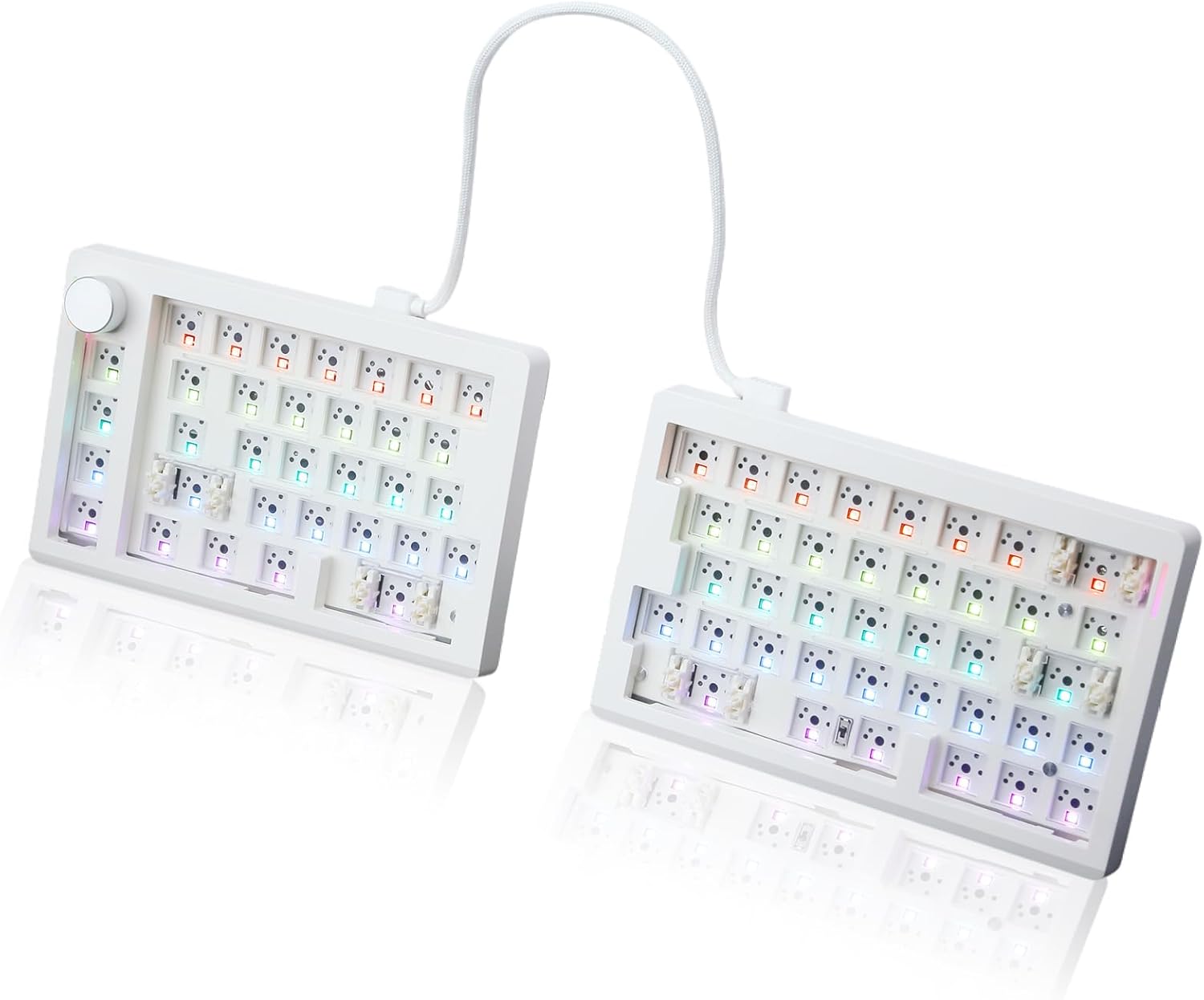
Image: The ZUOYA GMK70 Split Mechanical Keyboard Kit with keycaps, showcasing its ergonomic split design.
Video: Overview of the ZUOYA GMK70 Split RGB Gaming Kit. This video highlights the key features and design of the keyboard.
Setup Guide
1. Connecting the Keyboard Halves
The GMK70 is a split keyboard. To use it as a single unit, connect the left and right halves using the provided short Type-C to Type-C cable. The connection port is located on the inner side of each keyboard half.

Image: The two halves of the GMK70 keyboard connected by a short Type-C cable.
2. Installing Switches and Keycaps (Hot-Swap)
The GMK70 features a hot-swappable PCB, allowing you to install or change mechanical switches without soldering. Use the provided keycap puller to remove keycaps and a switch puller (not included, but commonly used) to remove switches.
- Align the pins of your desired 3-pin or 5-pin mechanical switch with the holes on the PCB.
- Gently press the switch into place until it clicks. Ensure the pins are straight to avoid bending.
- Place your chosen keycaps onto the installed switches.
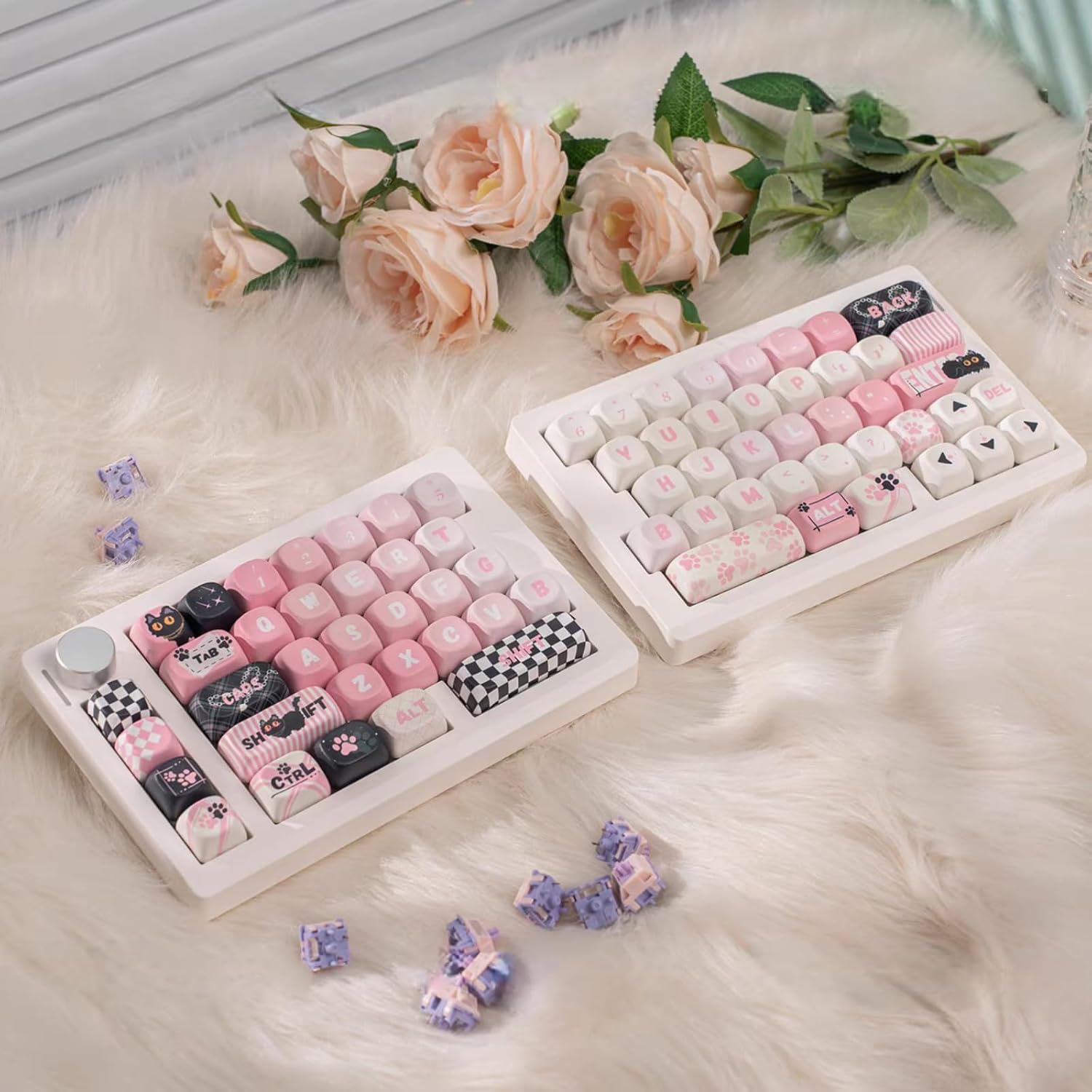
Image: A close-up view of a mechanical switch being removed from the keyboard using a switch puller.

Image: An exploded diagram illustrating the internal layers of the GMK70 keyboard, including the top cover, positioning board, sandwich, switch pad, PET film, circuit board, bottom cotton, silicone pad, and bottom shell.
3. Connecting to Your Device
The GMK70 supports three connection modes: Wired, 2.4GHz Wireless, and Bluetooth 5.0.
- Wired Mode: Connect the keyboard to your computer using the provided USB Type-C cable. The keyboard will automatically switch to wired mode.
- 2.4GHz Wireless Mode:
- Locate the 2.4GHz receiver in your package.
- Plug the receiver into an available USB port on your computer.
- On the keyboard, switch the mode selector to the 2.4GHz position (indicated by a wireless icon). The keyboard should connect automatically.
- Bluetooth 5.0 Mode:
- On the keyboard, switch the mode selector to the Bluetooth position (indicated by a Bluetooth icon).
- On your device (computer, smartphone, tablet), enable Bluetooth and search for new devices.
- Select "GMK70" from the list of available devices to pair.

Image: A side view of the GMK70 keyboard, highlighting the tri-mode connection switch (wired, 2.4GHz, Bluetooth) and USB-C ports.
4. VIA Software Programming
The GMK70 is VIA programmable, allowing for extensive customization of key assignments, macros, and RGB lighting. To use VIA:
- Download the VIA software from the official VIA website (www.caniusevia.com).
- Connect your GMK70 keyboard to your computer via the USB-C cable.
- Launch the VIA software. The software should automatically detect your keyboard.
- Follow the on-screen instructions within VIA to customize keymaps, create macros, and adjust RGB effects.

Image: A screenshot of the VIA software interface, demonstrating the customization options for key remapping on the GMK70 keyboard.
Operating Instructions
1. Tri-Mode Switching
Use the physical switch located on the side of the left keyboard half to toggle between Wired, 2.4GHz, and Bluetooth modes. Ensure the correct mode is selected for your desired connection type.
2. RGB Lighting Control
The GMK70 features customizable RGB backlighting. Lighting effects can be adjusted directly on the keyboard using key combinations or through the VIA software for more advanced customization.
- Fn + [Key]: Refer to the keyboard's default keymap (often printed on the bottom or in a separate quick guide) for specific RGB control shortcuts (e.g., changing modes, brightness, color).
- VIA Software: For detailed control over individual key lighting, effects, and colors, use the VIA software.
3. Multi-functional Knob
The knob on the left keyboard half provides quick access to various functions, typically volume control by default.
- Rotate: Turn the knob clockwise to increase volume, counter-clockwise to decrease volume.
- Press: Press the knob to mute/unmute audio.
- Customization: The knob's functions can be remapped using the VIA software.

Image: A close-up view of the multi-functional knob on the left half of the GMK70 keyboard.
4. N-Key Rollover (NKRO)
The GMK70 supports N-Key Rollover, meaning every keystroke is registered accurately, even when multiple keys are pressed simultaneously. This feature is particularly beneficial for fast typing and gaming.
5. Compatibility
The keyboard is designed for broad compatibility with Windows and macOS operating systems. No specific drivers are typically required for basic functionality, but VIA software may require specific OS versions.
Maintenance
- Cleaning: Use a soft, dry cloth to wipe the keyboard surface. For deeper cleaning, remove keycaps and use compressed air to clear debris from between switches. Avoid liquid cleaners directly on the switches or PCB.
- Battery Care: The keyboard is equipped with a 3000mAh rechargeable battery. To prolong battery life, avoid fully discharging the battery frequently and store the keyboard in a cool, dry place when not in use for extended periods.
- Switch and Keycap Replacement: When replacing switches or keycaps, ensure gentle handling to prevent damage to the PCB sockets or switch pins.
Troubleshooting
- Keyboard Not Responding:
- Ensure the keyboard is charged or connected via USB.
- Check the mode switch (Wired, 2.4GHz, Bluetooth) is set correctly.
- For 2.4GHz, ensure the receiver is properly plugged in.
- For Bluetooth, re-pair the device if necessary.
- Keys Not Registering:
- Remove the keycap and switch for the affected key.
- Inspect the switch pins for bends or damage. Straighten gently if bent.
- Reinsert the switch firmly. If the issue persists, try a different switch in the same socket or the original switch in a different socket to diagnose if the switch or socket is faulty.
- RGB Lighting Issues:
- Ensure the keyboard is powered on.
- Check RGB settings via keyboard shortcuts or VIA software.
- VIA Software Not Detecting Keyboard:
- Ensure the keyboard is connected via USB-C cable.
- Verify you have the latest version of VIA software.
- Restart the software and reconnect the keyboard.
Specifications
| Feature | Detail |
|---|---|
| Model Number | GMK70 Split Mechanical Keyboard Kit |
| Connectivity | 2.4Ghz, Bluetooth 5.0, Wired USB-C (Tri-Mode) |
| Layout | 65% Alice-Layout (Split Detachable) |
| Mounting Style | Gasket Mounted |
| Hot-Swap | Yes (3-pin/5-pin mechanical switches) |
| Programmability | VIA Software |
| Backlighting | South-facing RGB (16.8 million customizable colors) |
| Rollover | NKRO (N-Key Rollover) |
| Battery Capacity | 3000mAh (Rechargeable Lithium Ion) |
| Dimensions | 14.6"L x 14.6"W x 1.6"H (Combined) |
| Item Weight | 1.5 pounds |
| Material | Plastic, Rubber |
| Compatible Devices | Gaming Console, Laptop, PC, Projector, Smartphone |
| Manufacturer | ZUOYA |

Image: The GMK70 Split Mechanical Keyboard Kit showing its dimensions and individual half weights.
Warranty and Support
For warranty information and technical support, please refer to the official ZUOYA website or contact their customer service. Keep your purchase receipt for warranty claims.
ZUOYA Official Store: Visit Store