
1. Introduction
This manual provides comprehensive instructions for the setup, operation, and maintenance of your Yeaki Vlogging Kit. This kit is designed to enhance content creation with its auto face tracking tripod, dual LED fill lights, and wireless microphones, compatible with both iPhone and Android devices.
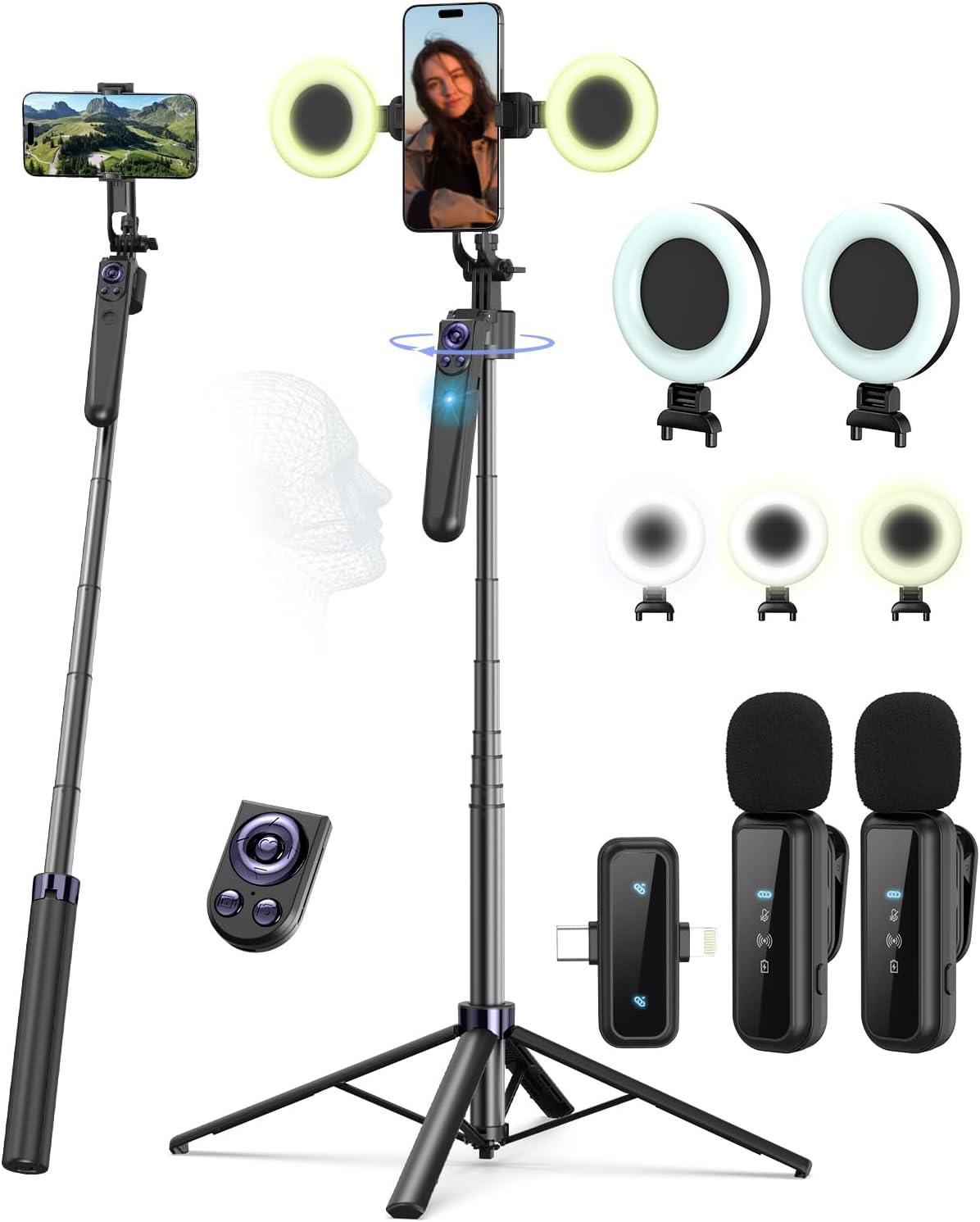
Image: Overview of the Yeaki Vlogging Kit, showcasing the extendable tripod, phone mount with dual LED lights, wireless microphones, and remote control.
2. What's in the Box
Verify that all components are present in your package:
- Auto Face Tracking Tripod x 1
- Remote Control for TikTok Video Recording x 1
- Microphone Transmitter x 1
- Microphone Receiver x 2
- LED Fill Light x 2
- Type-C Charging Cable x 2
- Storage Bag x 2
- User Manual x 2
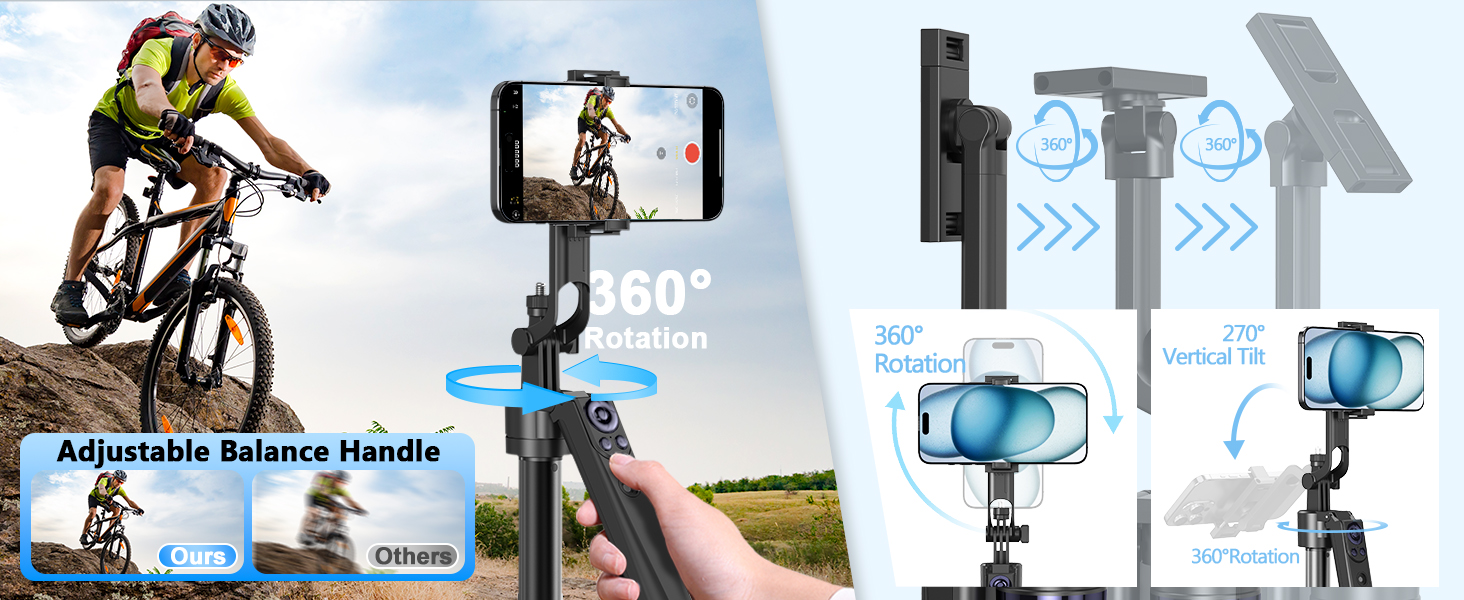
Image: All items included in the Yeaki Vlogging Kit, neatly arranged for inspection.
3. Setup Instructions
3.1 Assembling the Tripod
- Unfold the Base: Gently spread the tripod legs until they are fully extended and stable.
- Extend the Pole: Pull the telescopic pole upwards to achieve the desired height. Ensure it locks securely into place. The maximum height is 63 inches.
- Attach Phone Holder: The phone holder is integrated. Adjust its angle as needed.
- Mount LED Fill Lights: Clip the two LED fill lights onto the designated slots on either side of the phone holder.

Image: The fully assembled tripod with phone holder and LED lights, ready for use.
3.2 Charging Components
Ensure all rechargeable components are fully charged before first use.
- Wireless Microphones: Charge the microphone transmitters using the provided Type-C charging cables. A 2-hour charge provides approximately 12 hours of battery life.
- Remote Control: Charge the remote control using the provided Type-C charging cable.
- LED Fill Lights: The LED lights are rechargeable. Use the Type-C cables to charge them.
Note: The main tripod unit (for face tracking) also contains a rechargeable battery.
4. Operating Instructions
4.1 Auto Face Tracking
- Power On: Long press the power button on the tripod's handle to activate the face tracking sensor. A green light will indicate it is on.
- Start Tracking: Make an "OK" gesture with your hand in front of the sensor for 2 seconds to initiate face tracking.
- Stop Tracking: Make a "Palm" gesture with your hand in front of the sensor for 2 seconds to pause face tracking.
- Placement: Place your smartphone securely in the holder. The holder accommodates devices from 4-4.7 inches.
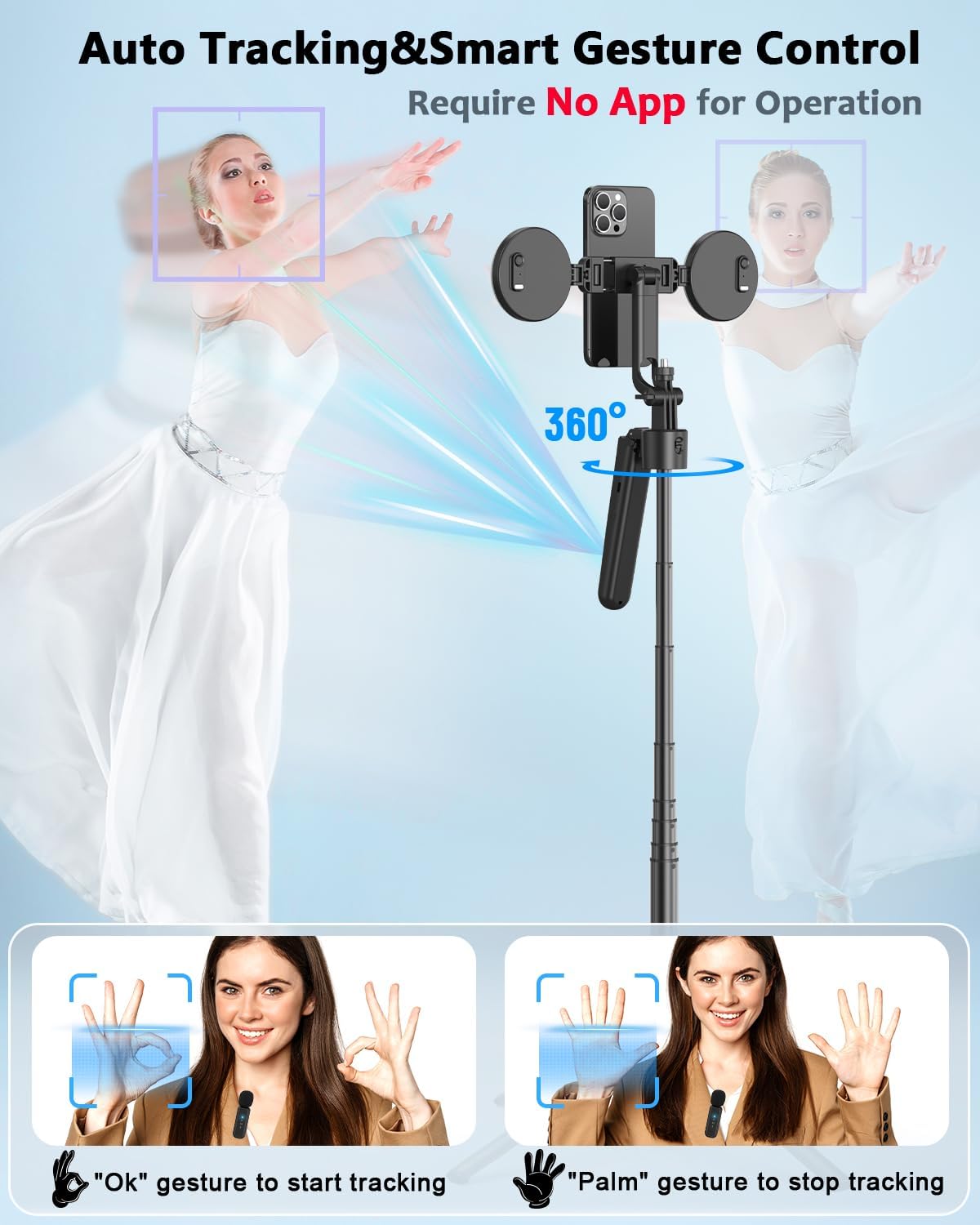
Image: Visual guide for activating and deactivating the 360° face tracking feature using hand gestures.
Video: Face Tracking Tripod in Action
Video Description: A demonstration of the tripod's auto face tracking capabilities, showing it smoothly following a person's movements.
4.2 Wireless Microphones
- Connect Receiver: Plug the microphone receiver into your smartphone's charging port. The receiver supports Type-C (for iPhone 15+ and Android) and Lightning (for iPhone 14 and earlier).
- Power On Microphones: Long press the power button on each microphone transmitter to turn them on. They will automatically pair with the receiver.
- Usage: Clip the microphones onto your clothing or hold them close to the sound source for clear audio recording.
- Functions:
- Double-click Power Button: Mute/Unmute
- Triple-click Power Button: Turn on/off Reverberation
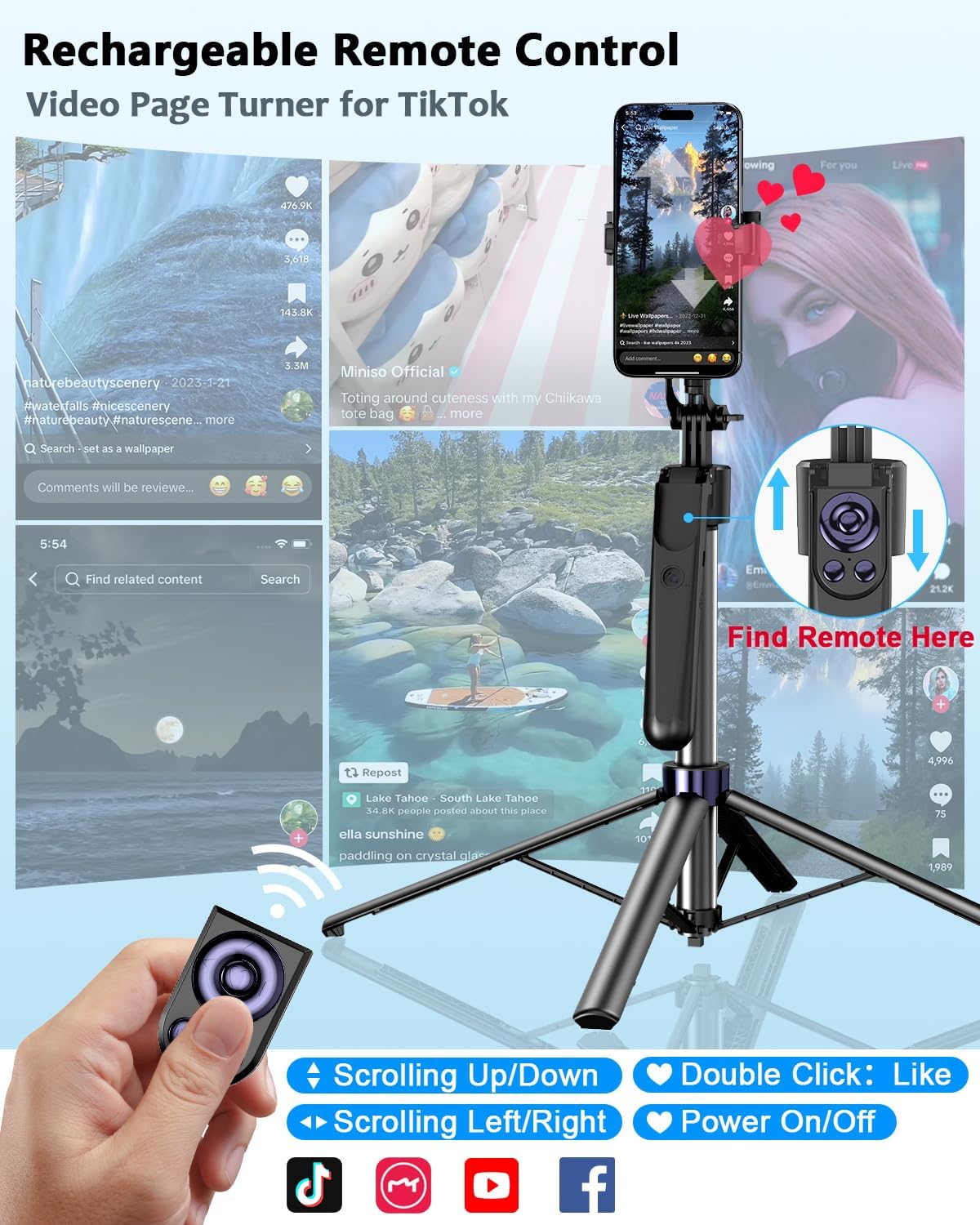
Image: Step-by-step guide for connecting and using the wireless microphones with a smartphone.
4.3 LED Fill Lights
- Power On/Off: Press the power button on the back of each LED light to turn it on or off.
- Adjust Settings: Cycle through the three color modes (Natural, Soft, Warm) and three brightness levels by repeatedly pressing the power button.
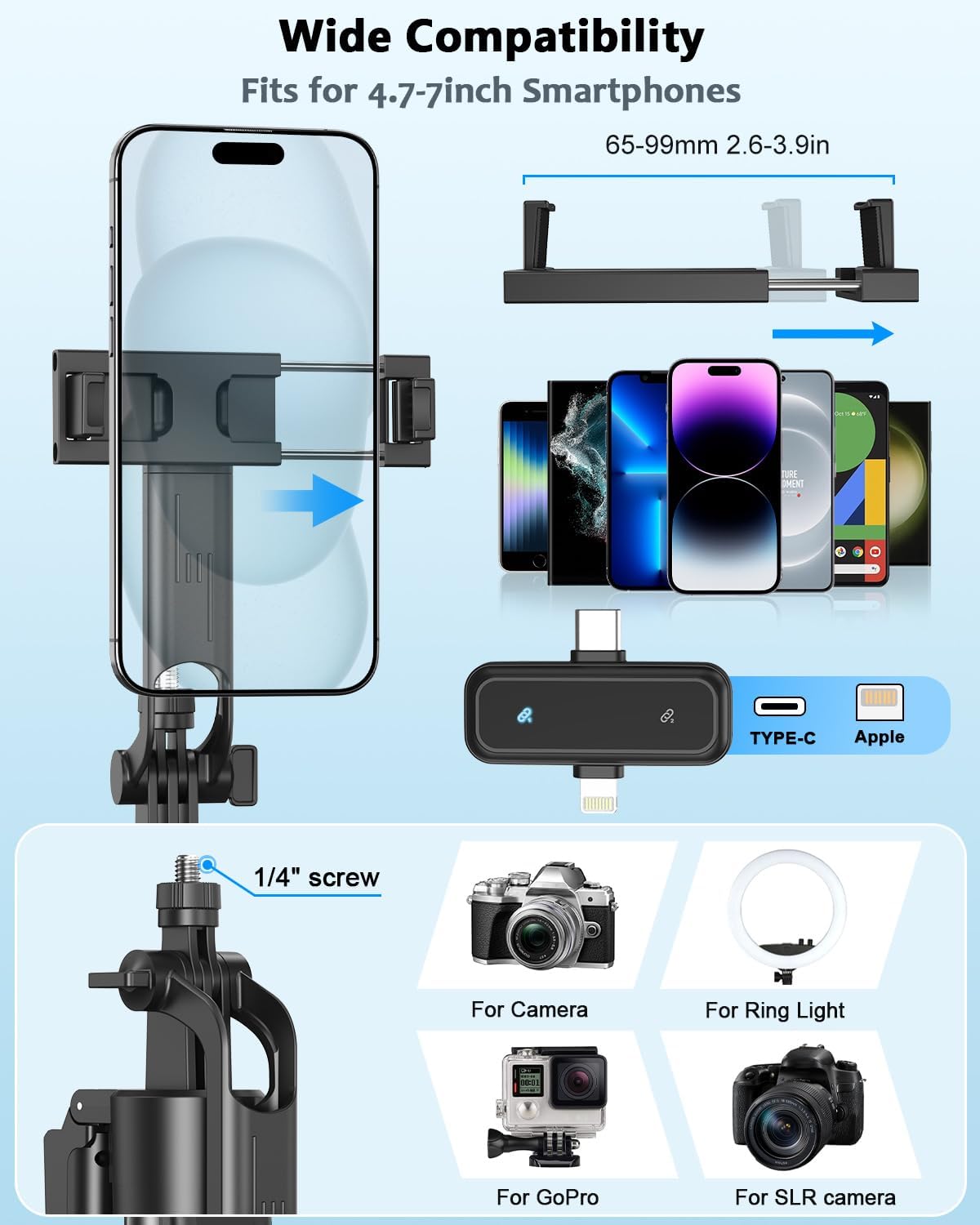
Image: Illustration of the LED fill lights' adjustable color temperatures and brightness settings.
4.4 Remote Control
- Pairing: Hold the middle power button on the remote control to activate Bluetooth pairing. Connect to your smartphone via Bluetooth settings.
- Functions:
- Single Click (Up/Down Arrows): Scroll up/down in apps like TikTok.
- Single Click (Left/Right Arrows): Scroll left/right (e.g., page turner for iPad).
- Double Click (Heart Button): Send likes in compatible apps.
- Single Click (Camera Button): Take photos.
- Single Click (Video Button): Start/stop video recording.
- Long Press (Power Button): Power on/off.
- Storage: The remote control conveniently slots into the selfie stick handle for easy storage.
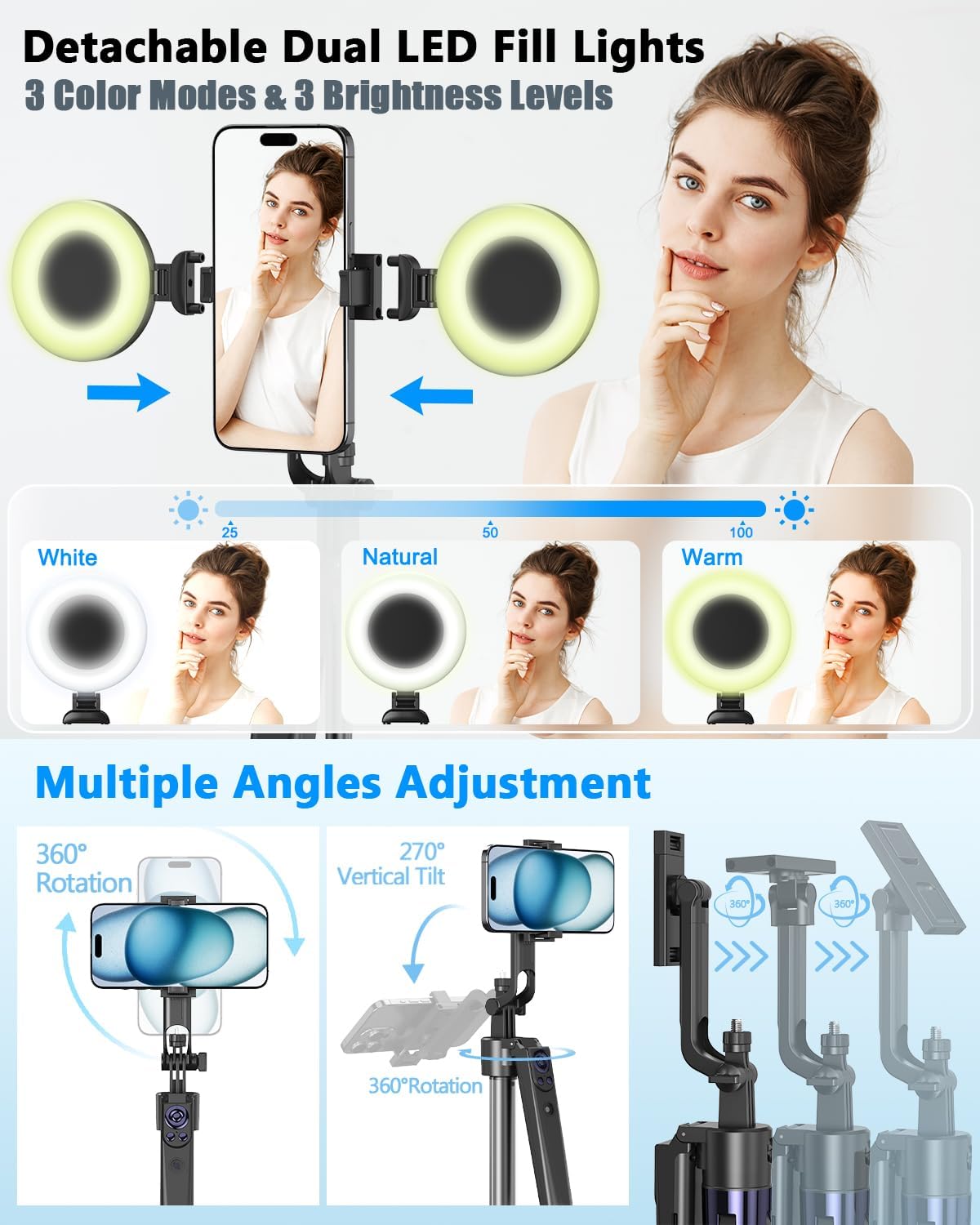
Image: Detailed view of the remote control's buttons and their corresponding functions for media control.
Video: Unboxing | 63 inch Auto Face Tracking Tripod Kit
Video Description: An unboxing video demonstrating the components of the 63-inch auto face tracking tripod kit and its initial setup.
5. Maintenance
- Cleaning: Use a soft, dry cloth to clean the tripod, lights, and microphones. Avoid abrasive cleaners or solvents.
- Storage: Store the kit in the provided storage bags in a cool, dry place away from direct sunlight and extreme temperatures.
- Battery Care: To prolong battery life, fully charge all rechargeable components regularly, even if not in frequent use. Avoid overcharging.
6. Troubleshooting
| Problem | Possible Cause | Solution |
|---|---|---|
| Face tracking not working | Sensor not activated or gesture not recognized. | Ensure the tripod's power is on (green light). Perform the "OK" gesture clearly in front of the sensor. Ensure no obstructions. |
| Microphones not recording audio | Microphones not paired or receiver not properly connected. | Verify microphones are powered on and paired (blue light). Ensure receiver is fully inserted into the phone's port. Check phone's audio input settings. |
| Remote control not connecting | Bluetooth not enabled or remote not in pairing mode. | Ensure phone's Bluetooth is on. Long press the remote's power button to enter pairing mode and connect via phone settings. |
| LED lights not turning on | Battery depleted or power button not pressed correctly. | Charge the LED lights using the Type-C cable. Press the power button firmly. |
7. Specifications
| Feature | Detail |
|---|---|
| Brand | Yeaki |
| Model | B0DWJH4BHS |
| Maximum Height | 63 Inches |
| Minimum Height | Approximately 11.6 Inches (collapsed) |
| Item Weight | 1.74 pounds (0.79 Kilograms) |
| Material | Aluminum |
| Compatible Devices | Smartphones (4-4.7" width), Cameras, Ring Lights, DJI, GoPro |
| Face Tracking | 360° AI-powered, Gesture Control (OK/Palm) |
| LED Lights | Dual, Detachable, 3 Color Modes, 3 Brightness Levels |
| Wireless Microphones | 2 Transmitters, 1 Receiver (Type-C/Lightning), 12-hour battery life (2-hour charge), 79ft range |
| Remote Control | Bluetooth, Scrolling, Photo/Video, Likes, 33ft range, Type-C charging |
8. Warranty and Support
For warranty information or technical support, please refer to the contact details provided on the product packaging or visit the official Yeaki website. Keep your purchase receipt for warranty claims.
You may also consider purchasing extended protection plans available through Amazon for 2-Year or 3-Year coverage.