
1. Introduction
Thank you for choosing the PGYTECH MagCam Phone Grip Kit. This modular smartphone photography grip is designed to enhance your mobile photography experience, offering features such as wireless charging, focus adjustment, and an integrated fill light. This manual provides detailed instructions for setup, operation, maintenance, and troubleshooting to ensure optimal performance of your device.
2. Product Overview
The PGYTECH MagCam Phone Grip Kit is a 3-in-1 detachable system. It includes the following main components:
- Magnetic Wireless Charging Module: Provides power to your smartphone.
- Charging Grip Module: The main handle with integrated controls.
- Bluetooth Remote Module: Detachable remote for shutter control.
- MagSafe Phone Fill Light: An additional magnetic accessory for illumination.

Image 1: Overview of the PGYTECH MagCam Phone Grip Kit, showing the main grip and the detachable fill light.
3. Setup
3.1 Attaching the Phone Grip
- Ensure your smartphone is MagSafe compatible. For non-MagSafe phones, use a MagSafe-compatible case or a magnetic ring (not included).
- Align the magnetic wireless charging module of the grip with the MagSafe area on the back of your phone. The magnets will securely attach the grip to your phone.
3.2 Attaching the MagSafe Phone Fill Light
- The fill light can be attached directly to the back of your MagSafe-compatible phone or to the front of the MagCam grip if desired.
- Align the magnetic base of the fill light with the desired magnetic surface until it securely snaps into place.
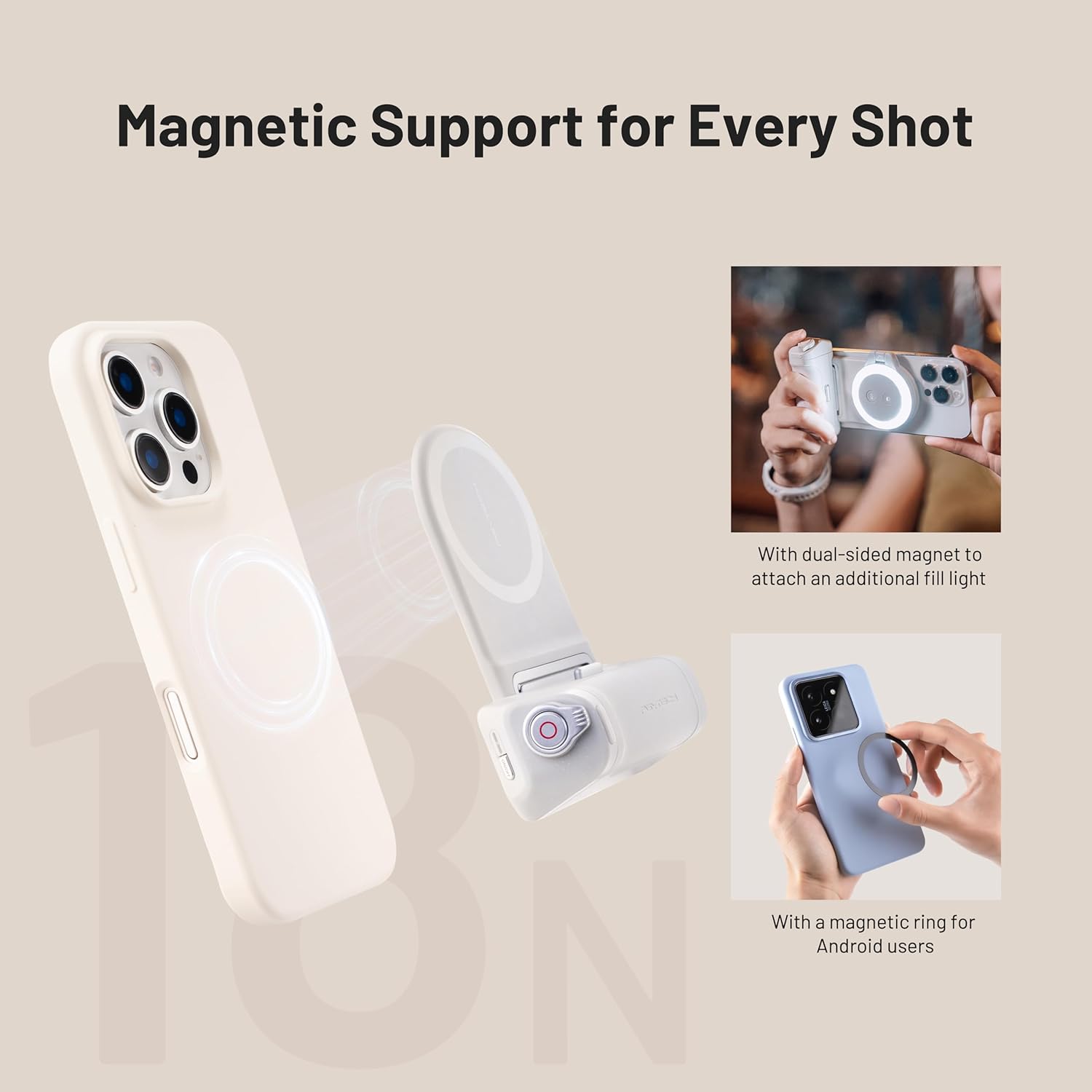
Image 2: Demonstrates magnetic attachment of the grip to a phone and the fill light to the grip. Also shows use of a magnetic ring for Android devices.
3.3 Charging the Grip
The grip module contains a built-in battery. Connect a USB-C cable (not included) to the charging port on the grip and to a suitable power adapter (e.g., 5V/2A) to charge the device. An indicator light will show charging status.
3.4 Pairing the Bluetooth Remote
- Detach the Bluetooth remote module from the grip.
- Turn on the remote (refer to the remote's specific power button location).
- On your smartphone, navigate to Bluetooth settings and search for available devices.
- Select "PGYTECH Remote" or a similar name to pair. The indicator light on the remote will confirm successful pairing.
4. Operating Instructions
4.1 Using the Phone Grip for Photography
Once attached, hold the grip comfortably. The ergonomic design provides a stable hold for capturing photos and videos. The grip's buttons allow for easy access to camera functions.
4.2 Wireless Charging Function
When the grip is attached to a MagSafe-compatible phone and the grip itself is sufficiently charged, it will automatically begin wirelessly charging your phone. Ensure the charging module is properly aligned with your phone's charging coil.
4.3 Focus Adjustment
The grip features a focus adjustment dial. Rotate this dial to precisely control the focus within your smartphone's camera application. This function requires your camera app to support external focus control.
4.4 Using the MagSafe Phone Fill Light
- Power On/Off: Press and hold the power button on the fill light.
- Adjust Brightness: Short press the brightness button to cycle through different brightness levels.
- Change Color Temperature/Mode: Short press the mode button to switch between different color temperatures or lighting modes (if available).

Image 3: Illustrates the versatility of the MagSafe fill light, showing it attached to a phone for selfies, mounted on a surface, and held for general illumination.
4.5 Using the Bluetooth Remote
Once paired, use the Bluetooth remote to trigger your phone's camera shutter from a distance. This is ideal for group photos, long exposures, or when you want to avoid camera shake.
5. Maintenance
- Cleaning: Use a soft, dry cloth to wipe the surfaces of the grip and fill light. Avoid using harsh chemicals or abrasive materials.
- Storage: Store the device in a cool, dry place away from direct sunlight and extreme temperatures.
- Battery Care: For optimal battery life, avoid fully discharging the grip's battery frequently. Charge it regularly, even if not in use for extended periods.
6. Troubleshooting
- Device not charging: Ensure the USB-C cable is securely connected to both the grip and the power adapter. Verify the power adapter is functional.
- Wireless charging not working: Check if your phone is MagSafe compatible or if you are using a MagSafe-compatible case/ring. Ensure proper alignment of the grip's charging module with your phone's charging coil.
- Bluetooth remote not connecting: Make sure the remote is powered on and within range. Try unpairing and re-pairing the remote in your phone's Bluetooth settings. Ensure the remote's battery is charged.
- Fill light not turning on: Check if the fill light's battery is charged. Press and hold the power button for a few seconds to ensure it's not just a short press.
- Focus adjustment not working: Verify that your smartphone's camera application supports external focus control. Some default camera apps may not.
7. Specifications
- Connectivity: Bluetooth
- Other Display Features: Wireless
- ASIN: B0DWJ9GS24
- Date First Available: February 8, 2025
8. Warranty Information
PGYTECH products are covered by a limited warranty against defects in materials and workmanship. Please refer to the official PGYTECH website or your purchase documentation for specific warranty terms and conditions. Keep your proof of purchase for warranty claims.
9. Support
For further assistance, technical support, or inquiries regarding your PGYTECH MagCam Phone Grip Kit, please visit the official PGYTECH website or contact their customer service department. Contact details can typically be found on the product packaging or the official website.

