1. Introduction
This manual provides comprehensive instructions for the Nulea M512 Wireless Trackball Mouse. Designed for ergonomic comfort and precise control, the M512 features multi-device connectivity and an ambidextrous design. Please read this manual thoroughly before use to ensure proper operation and to maximize your experience.

Image 1.1: Top view of the Nulea M512 Wireless Trackball Mouse.
2. Product Overview
Package Contents:
- Nulea M512 Wireless Trackball Mouse
- USB-C Charging Cable
- 2.4GHz USB Receiver (stored in the mouse)
- User Manual
Component Identification:

Image 2.1: Diagram illustrating the various buttons and features of the Nulea M512 Trackball Mouse.
- Middle Key: Typically used for middle-click functions or scrolling.
- Back Key: Navigates back in web browsers or file explorers.
- Left Button: Primary click function.
- Right Button: Secondary click function (context menu).
- Right Scroll Wheel: Vertical scrolling.
- Left Scroll Wheel: Horizontal scrolling.
- Mode Switch Key: Cycles between 2.4GHz, Bluetooth 1, and Bluetooth 2 connection modes.
- Left/Right Hand Mode Switch Key: Toggles between left-handed and right-handed button assignments.
- DPI Key Indicators: LEDs indicating the current DPI setting.
- Trackball: 55mm ball for cursor movement.
- 2.4G USB Receiver: Stored in a compartment on the underside of the mouse.
3. Setup
3.1 Initial Charging
Before first use, fully charge the trackball mouse using the provided USB-C cable. Connect the cable to the USB-C port on the mouse and to a power source (e.g., computer USB port, USB wall adapter). The charging indicator light will show charging status and turn off when fully charged.

Image 3.1: The Nulea M512 Trackball Mouse connected to a laptop via USB-C cable for charging.
3.2 Connecting via 2.4GHz USB Receiver
- Locate the 2.4GHz USB receiver in the compartment on the underside of the mouse.
- Insert the USB receiver into an available USB-A port on your computer.
- Turn on the mouse using the power switch located on the underside.
- Press the Mode Switch Key on the side of the mouse until the indicator for 2.4GHz (usually green) lights up.
- Your computer should automatically detect and connect to the mouse.
3.3 Connecting via Bluetooth (BT1 / BT2)
- Turn on the mouse using the power switch on the underside.
- Press the Mode Switch Key on the side of the mouse to select either Bluetooth 1 (BT1) or Bluetooth 2 (BT2). The corresponding blue indicator light will flash rapidly, indicating pairing mode.
- On your device (PC, laptop, tablet, smartphone), navigate to Bluetooth settings.
- Search for new devices and select "Nulea M512" from the list.
- Once paired, the Bluetooth indicator light on the mouse will stop flashing and remain solid.
- Repeat these steps to connect to a second Bluetooth device using the other Bluetooth channel (BT2).

Image 3.2: The Nulea M512 Trackball Mouse demonstrating seamless multi-device connectivity with a laptop, desktop, and tablet.
4. Operating Instructions
4.1 Basic Operation
- Cursor Movement: Use your fingers to roll the 55mm trackball to move the cursor on the screen.
- Clicking: Use the Left Button for primary clicks and the Right Button for secondary (context menu) clicks.
- Scrolling: Use the Right Scroll Wheel for vertical scrolling and the Left Scroll Wheel for horizontal scrolling.
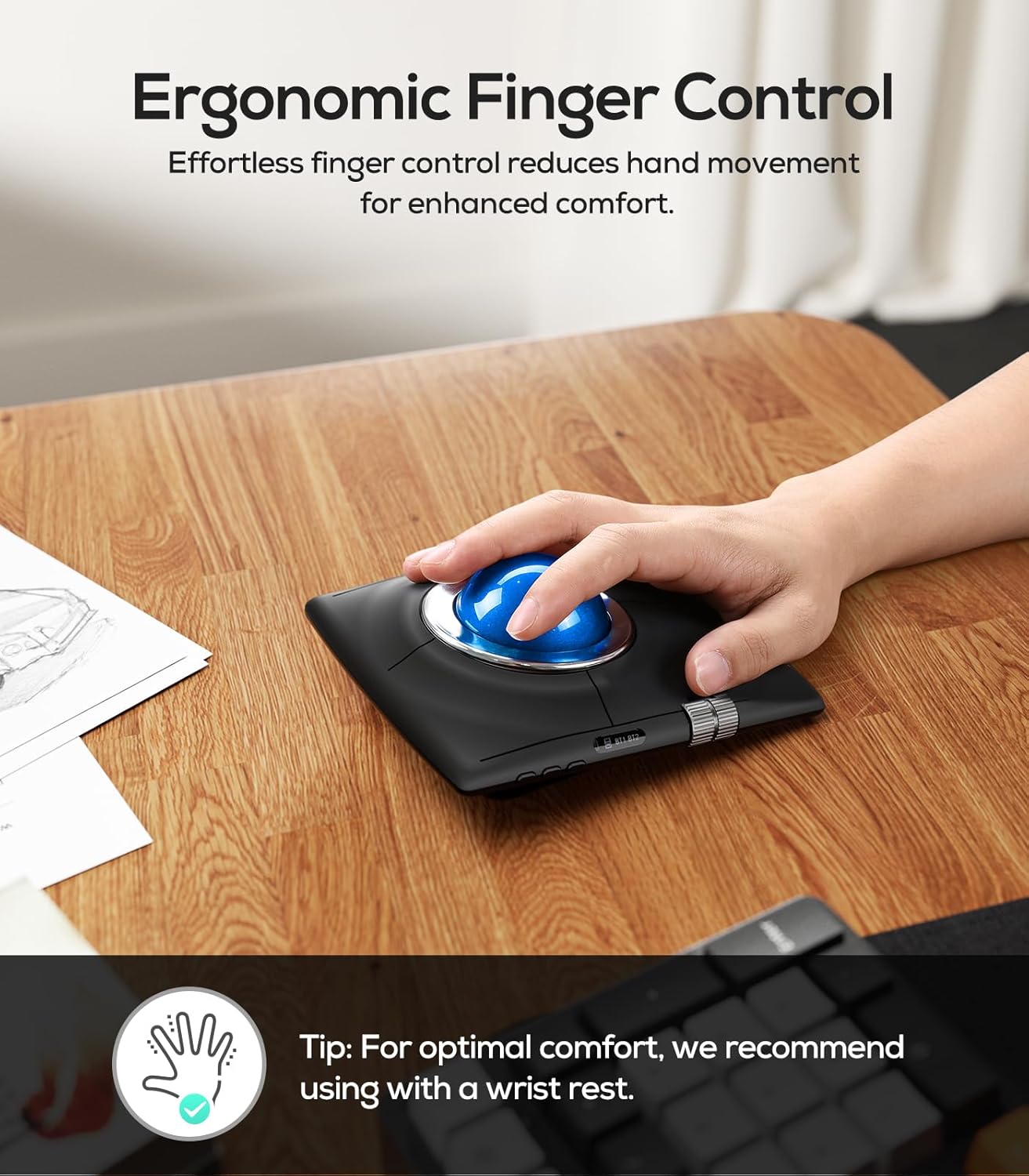
Image 4.1: A hand demonstrating ergonomic finger control on the Nulea M512 Trackball Mouse.
4.2 DPI Adjustment
The Nulea M512 offers four adjustable DPI (Dots Per Inch) settings for precise control:
- 400 DPI
- 800 DPI
- 1200 DPI
- 1600 DPI
To change the DPI, press the DPI Key (located on the side, typically the bottom button in the vertical row of three). The DPI indicator LEDs will flash to show the current setting:
- One flash: 400 DPI
- Two flashes: 800 DPI
- Three flashes: 1200 DPI
- Four flashes: 1600 DPI

Image 4.2: The Nulea M512 Trackball Mouse highlighting its large 55mm trackball for precise cursor control.
4.3 Ambidextrous Mode
The M512 is designed for both left and right-handed users. To switch the button assignments:
- Press the Left/Right Hand Mode Switch Key (located on the side, typically the middle button in the vertical row of three).
- The mouse will automatically swap the functions of the main left and right buttons to match your dominant hand.
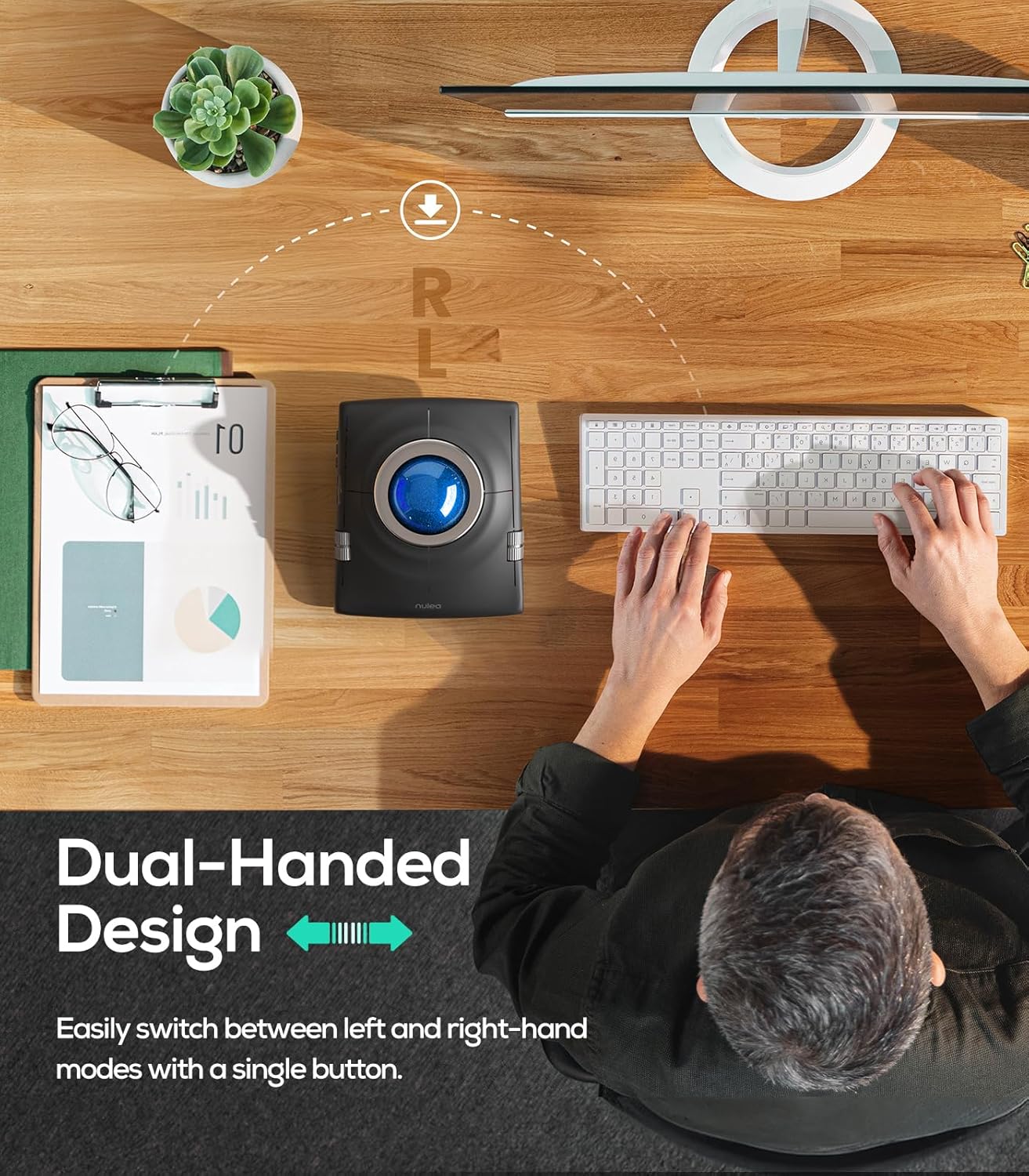
Image 4.3: An overhead view showing the Nulea M512 Trackball Mouse being used by both a right hand and a left hand, illustrating its ambidextrous design.
5. Maintenance
5.1 Cleaning the Trackball
Over time, dust and debris may accumulate around the trackball, affecting its smooth movement. To clean:
- Turn off the mouse.
- Gently push the trackball out from the opening on the underside of the mouse.
- Use a soft, lint-free cloth to wipe the trackball clean.
- Use a cotton swab or compressed air to clean the inside of the trackball cavity, paying attention to the small sensor rollers.
- Reinsert the trackball into its socket until it clicks into place.
6. Troubleshooting
- Mouse not responding:
- Ensure the mouse is turned on.
- Check battery level and charge if necessary.
- Verify the correct connection mode (2.4GHz, BT1, or BT2) is selected and properly paired with your device.
- For 2.4GHz, try plugging the USB receiver into a different USB port.
- For Bluetooth, try re-pairing the mouse with your device.
- Trackball movement is not smooth or precise:
- Clean the trackball and its cavity as described in the Maintenance section.
- Adjust the DPI setting to a level that suits your preference.
- Buttons not functioning correctly:
- Ensure the mouse is in the correct handedness mode (left or right) for your usage.
- Note that some buttons (Middle Key, Back Key) may not be compatible with macOS.
- Connection drops frequently:
- Ensure the mouse is within the effective range of your device (typically 10 meters for Bluetooth/2.4GHz).
- Avoid strong electromagnetic interference.
- Recharge the mouse if the battery is low.
7. Specifications
| Feature | Detail |
|---|---|
| Model Number | M512 |
| Connectivity Technology | Bluetooth, 2.4GHz USB |
| Movement Detection Technology | Trackball |
| Trackball Size | 55mm |
| DPI Settings | 400, 800, 1200, 1600 |
| Special Features | Ergonomic Design, Rechargeable, Wireless, Ambidextrous |
| Power Source | Rechargeable Battery (USB-C) |
| Item Weight | 14.9 ounces (approx. 422g) |
| Package Dimensions | 6.54 x 5.75 x 2.99 inches |
8. Official Product Video
Watch this video for a visual overview of the Nulea M512 Trackball Mouse features and benefits.
Video 8.1: Nulea M512 Trackball Mouse product demonstration.
9. Warranty and Support
Nulea products are designed for reliability and performance. For warranty information, technical support, or customer service inquiries, please refer to the contact information provided with your product packaging or visit the official Nulea website.
For additional support, you may also visit the Nulea Store on Amazon.


