
Introduction
This manual provides essential information for the setup, operation, and maintenance of your Roku Smart TV 2025 – 55-Inch Plus Series. This television features Mini-LED backlighting, QLED screen technology, and Dolby Vision for a premium viewing experience. It integrates the Roku operating system for streamlined access to streaming content and includes an Enhanced Voice Remote for convenient control.

What's in the Box
Verify that all components are present before proceeding with the setup.
- Roku Plus Series 55" 4K QLED Mini-LED TV
- Stands and screws for TV base
- Roku Enhanced Voice Remote with 2 AAA batteries
- Quick Start Guide

Setup
1. Physical Installation
Carefully remove the TV from its packaging. You can either attach the included stands for tabletop placement or use a VESA-compatible wall mount (sold separately).
Attaching the Stands:
- Place the TV face down on a soft, clean surface to prevent screen damage.
- Align each stand with the corresponding screw holes on the bottom of the TV.
- Secure the stands using the provided screws. Do not overtighten.
2. Connecting Devices
Connect your external devices such as cable boxes, gaming consoles, or sound systems to the appropriate ports on the back or side of the TV.
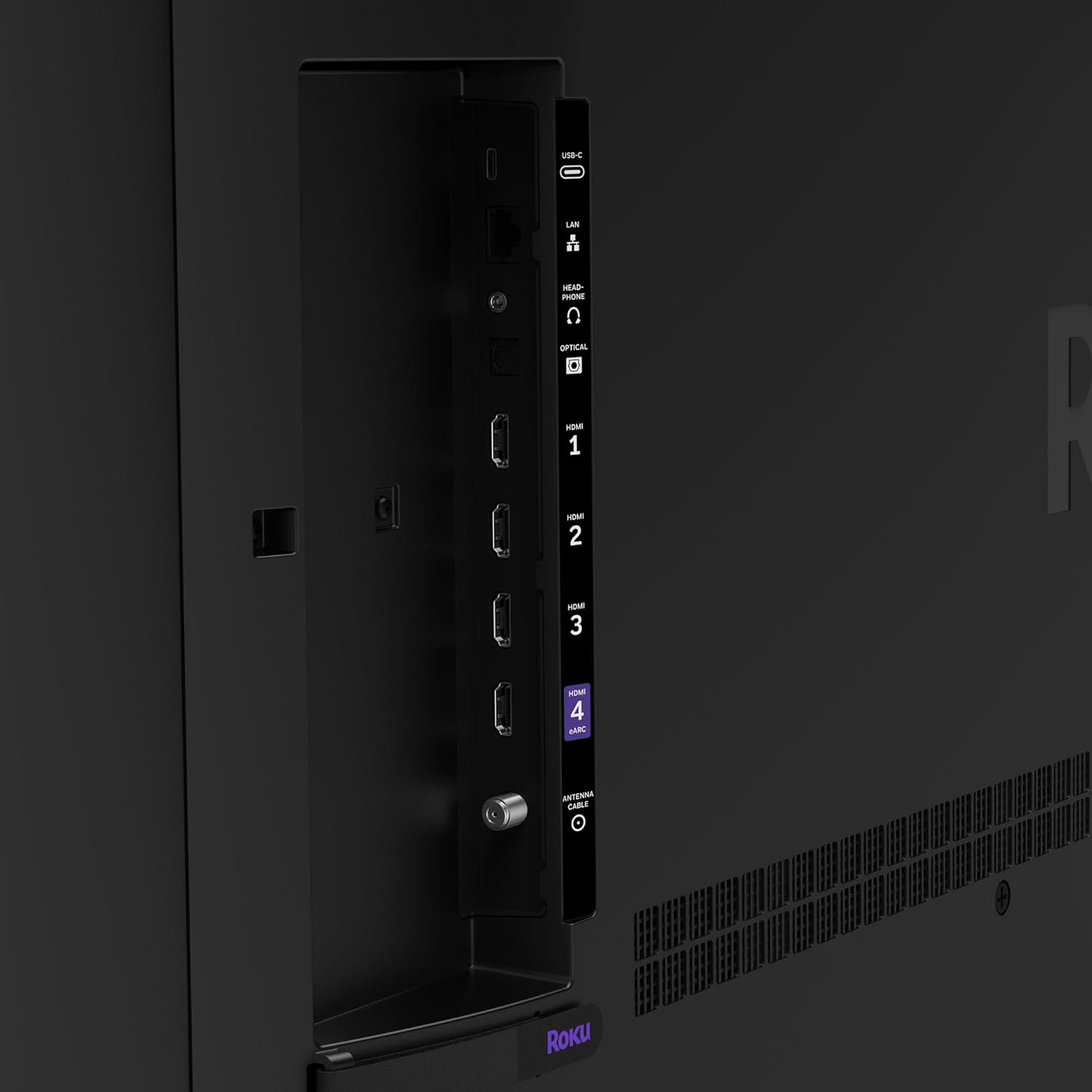
- HDMI: For high-definition video and audio from devices like Blu-ray players, game consoles, and set-top boxes. HDMI 4 supports ARC (Audio Return Channel) for simplified audio connections to soundbars or AV receivers.
- USB-C: For connecting compatible USB devices.
- LAN (Ethernet): For a wired internet connection.
- Headphone: For connecting wired headphones.
- Optical Audio: For digital audio output to sound systems.
- Antenna/Cable: For connecting an antenna or cable TV feed.
3. Power On and Initial Setup
- Plug the power cord into the TV and then into a wall outlet.
- Insert the included AAA batteries into the Roku Enhanced Voice Remote.
- Press the power button on the remote to turn on the TV.
- Follow the on-screen instructions to select your language, connect to your Wi-Fi network (or use Ethernet), and activate your Roku account. An internet connection is required for full functionality.
Operating
1. Navigating the Roku Interface
The Roku home screen provides easy access to streaming channels, live TV, and settings. Use the directional pad on your remote to navigate through menus and select options.

2. Enhanced Voice Remote
Your Roku Enhanced Voice Remote offers convenient features for searching and controlling your TV.

- Voice Button: Press and hold to use voice commands for searching content, launching apps, or controlling playback.
- Customizable Shortcuts: Assign your favorite apps or functions to the quick launch buttons.
- Lost Remote Finder: Press the remote finder button on the TV (if available) or use the Roku Mobile app to locate a misplaced remote.
3. Picture Settings (Roku Smart Picture Max)
The Roku Smart Picture Max feature, powered by AI, automatically optimizes picture quality for various content types. You can access picture modes through the TV settings.

4. Sound Settings (Dolby Atmos & Bluetooth Headphone Mode)
Your TV supports Dolby Atmos for immersive audio and includes a built-in subwoofer for enhanced bass. For private listening, activate Bluetooth Headphone Mode.
- Dolby Atmos: Provides multi-dimensional sound. Ensure your content and connected audio system support Dolby Atmos for the full experience.
- Bluetooth Headphone Mode: Pair your Bluetooth headphones via the TV's settings menu to listen without disturbing others.
- Auto Speech Clarity & Night Mode: Adjust these settings in the audio menu for clearer dialogue and reduced loud sounds during late-night viewing.
5. Streaming Content
Access thousands of streaming channels, including free content and subscription services, directly from your home screen.

6. Smart Home Integration
The Roku TV integrates with various smart home ecosystems, allowing voice control via Roku Voice, Siri, Alexa, or Google Assistant. You can also use Apple AirPlay to share content from Apple devices.

Maintenance
Cleaning the TV Screen:
- Turn off the TV and unplug it from the power outlet.
- Use a soft, dry microfiber cloth to gently wipe the screen.
- For stubborn smudges, lightly dampen the cloth with water or a screen-cleaning solution specifically designed for electronics. Do not spray liquid directly onto the screen.
- Avoid using harsh chemicals, abrasive cleaners, or paper towels, as these can damage the screen.
Cleaning the TV Body and Remote:
- Use a soft, dry cloth to wipe dust from the TV's frame and the remote control.
- For the remote, ensure no liquid enters the battery compartment.
Software Updates:
Your Roku TV receives automatic software updates to ensure you have the latest features and security enhancements. Ensure your TV is connected to the internet for these updates.
Troubleshooting
No Power:
- Ensure the power cord is securely plugged into both the TV and a working electrical outlet.
- Test the outlet with another device to confirm it has power.
No Picture/Sound:
- Verify that the correct input source is selected on the TV.
- Check all cable connections (HDMI, antenna, etc.) to ensure they are secure.
- For sound issues, check the TV's volume and mute settings. If using external audio, ensure it is powered on and correctly connected.
Remote Not Responding:
- Replace the batteries in the remote control.
- Ensure there are no obstructions between the remote and the TV.
- If the remote is paired via Bluetooth, try re-pairing it through the TV's settings.
Network Connection Issues:
- Restart your router and modem.
- Go to the TV's network settings and try reconnecting to your Wi-Fi network.
- If using a wired connection, ensure the Ethernet cable is securely connected.
Specifications
| Feature | Specification |
|---|---|
| Brand | Roku |
| Model Number | 55R6C7 |
| Screen Size | 55 Inches (140 cm visible diagonal) |
| Display Technology | 4K UHD, LED, Mini-LED, QLED |
| Resolution | 4K (3840 x 2160) |
| Refresh Rate | 60 Hz |
| Product Dimensions (D x W x H) | 11.7 x 48.3 x 30.5 inches |
| Item Weight | 27.4 Pounds |
| Aspect Ratio | 16:9 |
| Color | Black |
| Voltage | 120 Volts (AC) |
| Wattage | 200 watts |
| Connectivity Technology | Bluetooth, Ethernet, USB-C, Wi-Fi |
| Special Features | Bluetooth Headphone Mode, Dolby Vision, Game Mode, Art Mode, Voice Remote, Variable Refresh Rate (VRR), Flat |
| Batteries Required | 2 AAA (included for remote) |
Warranty and Support
Warranty Information:
For detailed warranty information, please refer to the warranty card included with your product or visit the official Roku support website. Standard warranty terms typically cover manufacturing defects for a specified period from the date of purchase.
Customer Support:
If you encounter issues not covered in this manual or require further assistance, please contact Roku customer support. Support contact details can usually be found on the Roku website or in your product documentation.
Online resources, including FAQs and troubleshooting guides, are also available on the Roku support portal.


