
VILTROX XH-DC-X3
VILTROX DC-X3 Camera Video Field Monitor User Manual
Model: XH-DC-X3
1. Introduction
This manual provides comprehensive instructions for the VILTROX DC-X3 6-inch Camera Video Field Monitor. It covers product features, setup procedures, operational guidelines, maintenance tips, and troubleshooting steps to ensure safe and efficient use of your device. Please read this manual thoroughly before operating the monitor.
Product Overview
The VILTROX DC-X3 is a professional 6-inch Full HD 1920x1080 touch screen monitor designed for camera and video applications. It features a high brightness of 2000 Nits for clear visibility in various lighting conditions, 4K HDMI and 3G-SDI loop in/out ports, and advanced monitoring tools such as 3D LUT, RGB Parade, Focus Peaking, and Full Waveform.

Figure 1.1: VILTROX DC-X3 Monitor with included accessories including sun hood, battery, mount, and cables.
2. Safety Precautions
- Do not expose the monitor to rain or moisture to prevent fire or electric shock.
- Avoid placing the monitor in direct sunlight or near heat sources.
- Use only the specified power adapter and accessories.
- Do not disassemble or modify the monitor. Refer all servicing to qualified personnel.
- Clean the screen with a soft, dry cloth. Avoid using liquid cleaners.
3. Product Components and Features
Package Contents
- VILTROX DC-X3 Monitor
- Sun Hood
- Battery (NP-F series compatible)
- Hot Shoe Mount
- HDMI Cable
- USB-C Cable
- User Manual

Figure 3.1: Rear view of the DC-X3, highlighting the NP-F battery plate and SDI input/output ports.
Key Features
- Ultra-Bright Display: 2000 Nits brightness for clear visibility in strong light.
- Full HD IPS Screen: 6-inch FHD 1080P IPS display with true-to-life colors and wide viewing angles.
- Peak Focus Accuracy: Assists in achieving sharp, high-quality images.
- Comprehensive Monitoring Tools: Includes Waveform, 3D LUT, RGB Parade, Focus Peaking, Zebras, Vectorscope, Brightness Histogram, Mirror Image, Image Freeze, Pixel to Pixel, Monochrome, Safe Mark, Volume Bar, False Colors, Exposure, Zoom, Scanning Mode, Custom 3D LUT, and Mark Ratio.
- 4K HDMI / 3G-SDI Loop In & Out: Supports 4K 30Hz HDMI signals and 1080p 60Hz 3G-SDI signals.
- Audio Monitoring: 3.5mm headphone jack for simultaneous audio monitoring.
- Multiple Power Options: Supports DC IN (12-18V/2A), Type-C (≥9V/3A), and NP-F series lithium batteries.
- Efficient Cooling System: Integrated fan for heat dissipation.

Figure 3.2: Display of various professional auxiliary tools available on the DC-X3 monitor, including focus peaking, waveform, and 3D LUT.
4. Setup Guide
4.1 Powering the Monitor
The DC-X3 monitor can be powered by three methods:
- NP-F Battery: Insert a fully charged NP-F series lithium battery into the battery plate on the rear of the monitor. Ensure it clicks into place securely.
- DC Power Adapter: Connect a 12-18V/2A DC power adapter to the DC IN port on the side of the monitor.
- USB-C Power: Connect a USB-C power source (≥9V/3A) to the Type-C port.

Figure 4.1: Illustration of the DC-X3's multiple power supply options (DC IN, Type-C, NP-F battery) and its efficient cooling system.
4.2 Mounting the Monitor
Attach the included hot shoe mount to the 1/4"-20 screw hole on the bottom or side of the monitor. Secure the mount to your camera's hot shoe or a compatible rig.

Figure 4.2: The DC-X3 monitor mounted on a camera setup, demonstrating its integration and the attached sun hood.
4.3 Connecting Video Sources
The DC-X3 supports both HDMI and SDI video inputs.
- HDMI Connection: Connect an HDMI cable from your camera's HDMI OUT port to the HDMI IN port on the monitor. For looping out, connect another HDMI cable from the HDMI OUT port to an external display.
- SDI Connection: Connect an SDI cable from your camera's SDI OUT port to the SDI IN port on the monitor. For looping out, connect another SDI cable from the SDI OUT port to an external display.

Figure 4.3: Close-up view of the HDMI and SDI input/output interfaces on the DC-X3 monitor, illustrating connectivity options.
4.4 Attaching the Sun Hood
Slide the sun hood onto the monitor's frame until it securely fits. This helps reduce glare in bright outdoor conditions.

Figure 4.4: Side view of the DC-X3 monitor with the sun hood attached, demonstrating its protective function against glare.
5. Operating Instructions
5.1 Power On/Off
Press and hold the power button located on the side of the monitor to turn it on or off.
5.2 Touch Screen Operation
The DC-X3 features a full touch screen for intuitive control. Tap icons to select functions, swipe to navigate menus, and pinch-to-zoom for image inspection.
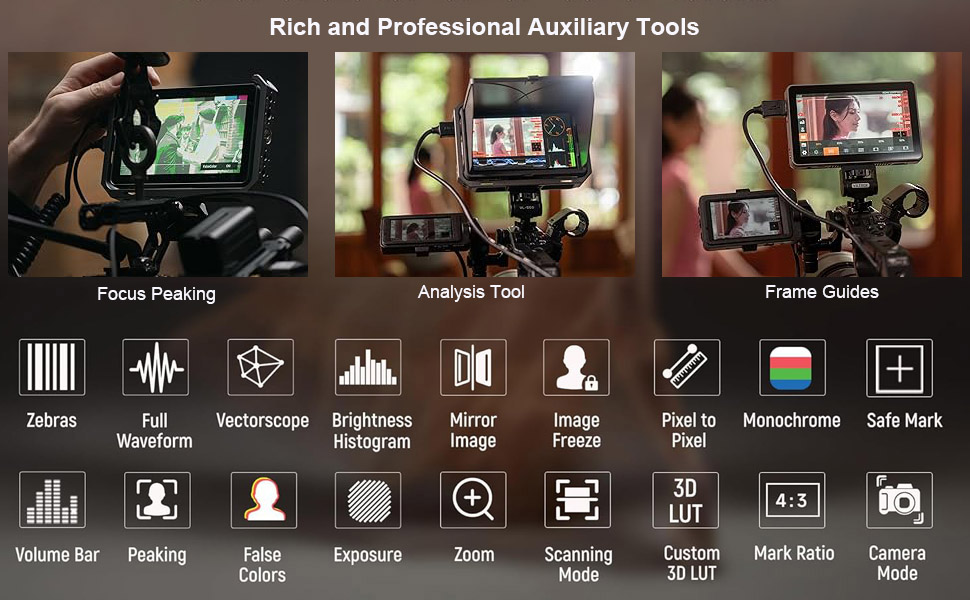
Figure 5.1: The DC-X3's user-friendly design and full touch screen control, illustrating ease of operation.
5.3 Menu Navigation
Access the main menu by tapping the screen. Navigate through settings such as display, audio, and auxiliary functions. Use the function buttons (F1-F4) on the top of the monitor for quick access to frequently used features, which can be customized in the settings.
5.4 Using Monitoring Tools
The DC-X3 offers a variety of professional monitoring tools:
- Focus Peaking: Highlights in-focus areas with a selectable color.
- Waveform: Displays the luminance and chrominance levels of your video signal.
- 3D LUT: Apply custom or pre-loaded Look-Up Tables for real-time color grading.
- RGB Parade: Shows the individual red, green, and blue channel levels.
- Zebras: Indicates overexposed areas.
- Vectorscope: Displays color saturation and hue.
- Brightness Histogram: Shows the distribution of brightness levels.
5.5 Audio Monitoring
Connect headphones to the 3.5mm audio jack to monitor the embedded audio from your HDMI or SDI input.
6. Maintenance
6.1 Cleaning the Monitor
- Screen: Use a soft, lint-free cloth specifically designed for electronics screens. Gently wipe the screen to remove dust and fingerprints. Do not use liquid cleaners, alcohol, or abrasive materials.
- Body: Wipe the monitor body with a soft, dry cloth.
6.2 Storage
When not in use, store the monitor in a cool, dry place, away from direct sunlight and extreme temperatures. Use the provided carrying case for protection during transport.

Figure 6.1: The VILTROX DC-X3 monitor and its accessories, including the carrying case, as packaged.
7. Troubleshooting
| Problem | Possible Cause | Solution |
|---|---|---|
| Monitor does not power on. | Low or dead battery; power cable not connected; power button not held long enough. | Charge or replace battery; ensure power cable is securely connected; press and hold power button for 3 seconds. |
| No video signal. | Incorrect input selected; cable loose or damaged; camera output settings incorrect. | Check input source (HDMI/SDI) in menu; ensure cables are securely connected; verify camera's video output settings (resolution, frame rate). |
| Screen is too dim or too bright. | Brightness settings incorrect. | Adjust brightness in the display settings menu. |
| Touch screen unresponsive. | Temporary software glitch; screen dirty. | Restart the monitor; clean the screen with a soft cloth. |
| No audio from headphone jack. | Volume too low; audio source not enabled on camera; headphone issue. | Increase volume in monitor settings; ensure camera is outputting audio via HDMI/SDI; test with different headphones. |
8. Specifications
| Feature | Detail |
|---|---|
| Model | XH-DC-X3 |
| Display Size | 6 inches |
| Resolution | 1920x1080 (Full HD) |
| Brightness | 2000 Nits |
| Contrast Ratio | 1000:1 |
| Viewing Angle | 160° (IPS) |
| Input Ports | HDMI IN (4K 30Hz), SDI IN (3G-SDI 1080p 60Hz) |
| Output Ports | HDMI OUT, SDI OUT |
| Audio Output | 3.5mm Headphone Jack |
| Power Supply | DC 12-18V/2A, Type-C ≥9V/3A, NP-F Battery |
| Product Dimensions | 2 x 10 x 6 inches |
| Item Weight | 2.5 pounds |
9. Warranty and Support
VILTROX products typically come with a limited warranty. Please refer to the warranty card included in your product packaging for specific terms and conditions, including warranty period and coverage details. For technical support, service, or warranty claims, please contact VILTROX customer service through their official website or the contact information provided in your product documentation.
Manufacturer: VILTROX
Website: www.viltrox.com (Note: This is a placeholder URL, please refer to your product's official documentation for the correct support contact.)
Ask a question about this manual
Ask about setup, troubleshooting, compatibility, parts, safety, or missing instructions. Manuals+ will review the question and use this page’s manual context to help answer it.