
1. Introduction
Thank you for choosing the Angrox Voice Remote Control. This remote is specifically designed as a replacement for Philips Google Smart TVs, offering enhanced functionality including voice control and dedicated shortcut buttons for popular streaming services. Please read this manual carefully to ensure proper setup and operation.

Image: Front and side view of the Angrox Voice Remote Control, showcasing its ergonomic design and button layout.
2. Setup
2.1 Battery Installation
The remote requires two (2) AAA batteries (not included). Ensure correct polarity when inserting the batteries.
- Remove the battery cover on the back of the remote by sliding it downwards.
- Insert two AAA batteries, matching the positive (+) and negative (-) terminals as indicated inside the battery compartment.
- Replace the battery cover by sliding it back into place until it clicks securely.

Image: A three-step diagram illustrating how to remove the battery cover, insert two AAA batteries, and replace the cover.
2.2 Pairing with Your TV
Before using the remote, it must be paired with your Philips Google Smart TV. This remote supports both infrared and Bluetooth technology for optimal performance.
- Ensure your Philips Google Smart TV is powered on.
- Hold down the "VOL-" button and the "Mic" (Google Assistant) button simultaneously for 5 seconds.
- The remote will initiate the pairing process. All pairing transactions occur in the background, and no further setup is typically required once the pairing is successful.

Image: A hand holding the remote, with an arrow pointing from the 'VOL-' and 'Mic' buttons to a TV screen, illustrating the pairing process.

Image: A visual guide showing the remote and a TV screen with on-screen instructions for pairing, emphasizing holding the VOL- and Mic buttons.
2.3 Compatible TV Models
This voice replacement remote is compatible with the following Philips Google Smart TV series:
- 7000 Series: 75PUL7552/F7, 65PUL7552/F7, 55PUL7552/F7, 50PUL7552/F7, 43PUL7652/F7
- 7600 Series: 65PUL7672/F7, 55PUL7672/F7, 50PUL7672/F7, 43PUL7672/F7

Image: The remote control centered between two Philips Google Smart TVs, with lists of compatible 7000 and 7600 series models.
3. Operating Instructions
3.1 Button Functions Overview
Familiarize yourself with the various buttons and their functions on your Angrox remote control:
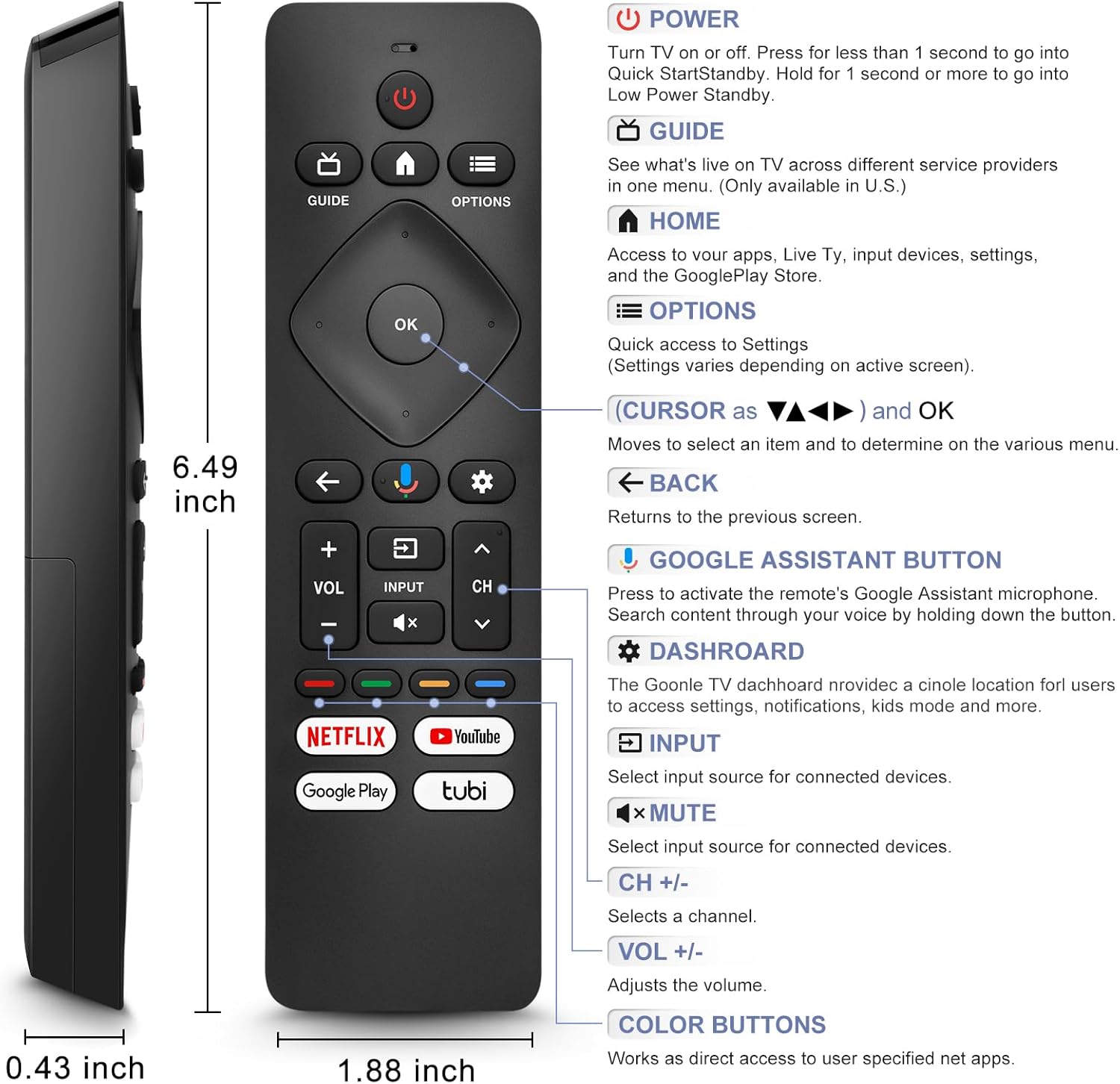
Image: A detailed diagram of the remote control with labels and descriptions for each button, including Power, Guide, Home, Options, Cursor/OK, Back, Google Assistant, Dashboard, Input, Mute, Volume, Channel, and Color Buttons.
- Power: Press to turn TV on or off. Hold for 1 second for Quick Start Standby, or longer for Low Power Standby.
- Guide: Access live TV service providers (availability may vary by region).
- Home: Access apps, Live TV, input devices, settings, and the Google Play Store.
- Options: Quick access to settings (settings vary based on active screen).
- Cursor (Up/Down/Left/Right) & OK: Navigate menus and confirm selections.
- Back: Return to the previous screen.
- Google Assistant Button: Press and hold to activate the remote's microphone for voice search.
- Dashboard: Access the Google TV dashboard for settings, notifications, and kids mode.
- Input: Select input source for connected devices.
- Mute: Mute or unmute the TV audio.
- VOL +/-: Adjust the volume level.
- CH +/-: Select the next or previous channel.
- Color Buttons: Provide direct access to user-specified net apps.
3.2 Voice Search Function
The integrated voice function allows for easier and more intuitive interaction with your smart TV. Simply press and hold the Google Assistant button and speak your command or query.
- Press and hold the Google Assistant button (microphone icon).
- Speak clearly into the remote's microphone.
- Release the button when finished speaking.
Examples of voice commands include: "What's the weather today?", "Turn down the volume", "Open YouTube", or searching for specific content.
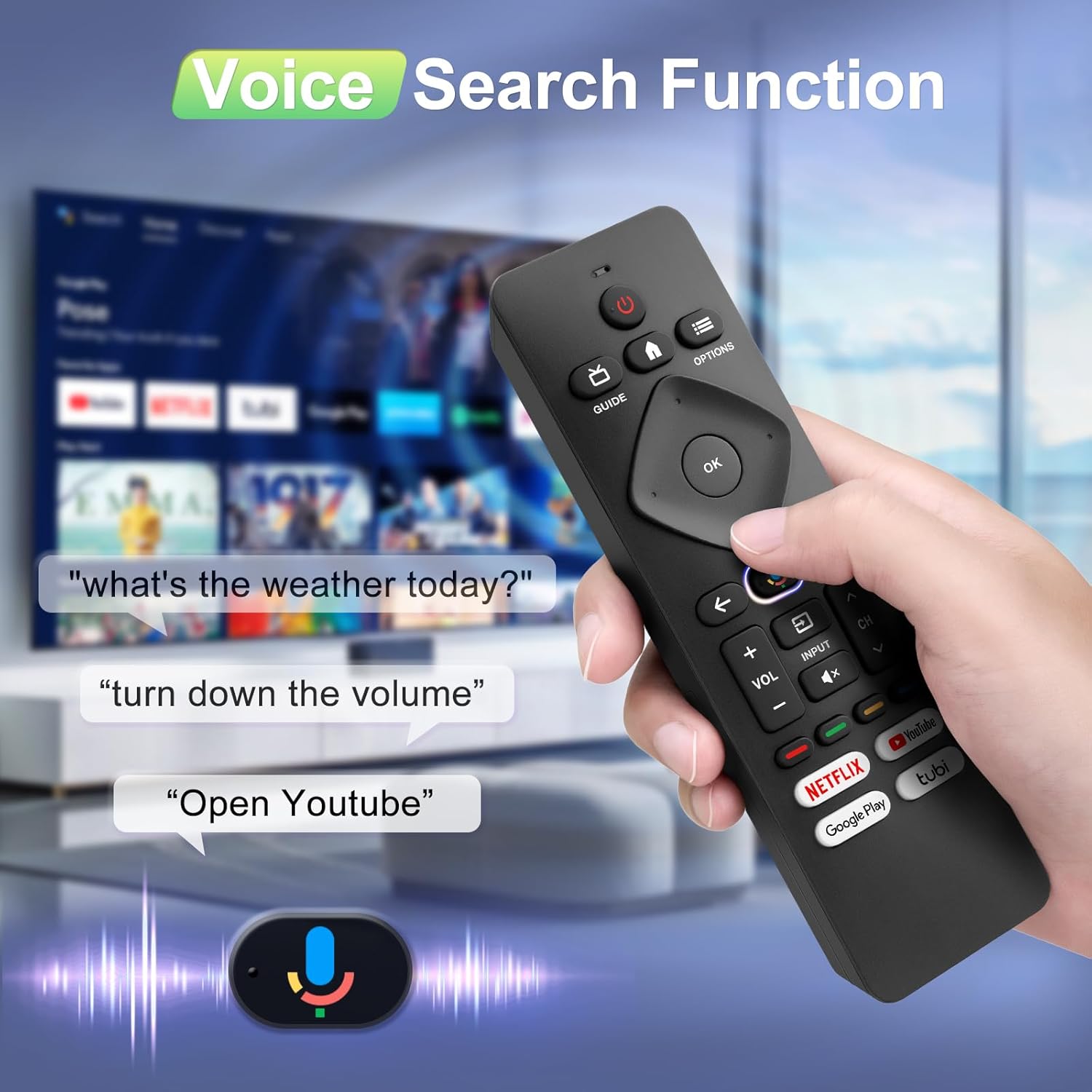
Image: A hand holding the remote, with speech bubbles showing example voice commands like "what's the weather today?" and "Open Youtube", demonstrating the voice search capability.
3.3 Shortcut Buttons
The remote features four dedicated shortcut buttons for quick access to popular streaming channels:
- Netflix
- YouTube
- Google Play
- Tubi
Pressing these buttons will directly launch the respective application on your TV, provided they are installed and configured.

Image: The remote control highlighting the four dedicated shortcut buttons for Netflix, YouTube, Google Play, and Tubi, with their respective logos.
4. Maintenance
To ensure the longevity and optimal performance of your remote control, follow these maintenance guidelines:
- Cleaning: Wipe the remote with a soft, dry cloth. Do not use liquid cleaners or abrasive materials.
- Battery Replacement: Replace batteries when the remote's response becomes sluggish or it stops functioning. Always replace both batteries at the same time with new ones.
- Storage: Store the remote in a cool, dry place away from direct sunlight and extreme temperatures.
- Avoid Drops: Protect the remote from physical impact, as drops can damage internal components.
5. Troubleshooting
If you encounter issues with your remote control, please refer to the following common solutions:
- Remote Not Responding:
- Check if the batteries are inserted correctly with the right polarity.
- Replace old batteries with new AAA batteries.
- Ensure there are no obstructions between the remote and the TV's IR receiver.
- Voice Function Not Working:
- Ensure the remote is properly paired with your TV via Bluetooth. Refer to Section 2.2.
- Make sure you are pressing and holding the Google Assistant button while speaking.
- Check your TV's settings to ensure voice control is enabled.
- Buttons Unresponsive or Sticky:
- Clean the remote surface, especially around the buttons, to remove any dirt or debris.
- If buttons remain unresponsive after cleaning and battery replacement, the remote may require replacement.
- Short Remote Distance:
- The remote supports infrared and Bluetooth. Ensure no physical obstructions are blocking the signal.
- The remote is designed for optimal performance within 10 meters (approximately 33 feet) and is available up to 12 meters (approximately 39 feet).
6. Specifications
| Brand | Angrox |
| Model Number | URMT26CND002 |
| Compatible Devices | Philips Google Smart TVs (7000 & 7600 Series) |
| Connectivity Technology | Infrared, Bluetooth |
| Special Features | Ergonomic, Voice Search, Shortcut Buttons |
| Power Source | 2 x AAA Batteries (not included) |
| Item Weight | 2.39 ounces (approx. 67.7 grams) |
| Package Dimensions | 6.73 x 1.93 x 1.02 inches |
| Button Durability | Tested for 5,000-8,000 clicks per button |
7. Warranty and Support
Angrox is committed to providing excellent after-sale service. We focus on the compatibility and quality of our replacement remotes. If you have any questions or concerns regarding your order or the product, please do not hesitate to contact us directly. Our professional after-sale service team is available to assist you.
For support, please refer to the contact information provided with your purchase or visit the Angrox store on Amazon.