
WONLINK WL-AP7204
WONLINK AC1200 Outdoor Wireless Access Point Instruction Manual
Model: WL-AP7204
1. Introduction
This manual provides detailed instructions for the installation, configuration, and operation of your WONLINK AC1200 Outdoor Wireless Access Point. This device is designed to extend WiFi coverage in outdoor environments, offering dual-band connectivity and robust weather protection.

Image 1.1: WONLINK AC1200 Outdoor Wireless Access Point
The WONLINK AC1200 is an all-weather outdoor WiFi repeater featuring an Ethernet port and Power over Ethernet (PoE) power supply, with an IP66 waterproof rating. It supports both 2.4 GHz and 5 GHz frequency bands for flexible network deployment.
2. Key Features
- AC1200 Dual Band WiFi: Supports 2.4 GHz (300 Mbps) and 5 GHz (867 Mbps) for high-speed wireless connectivity.
- All-Weather Design: IP66 rated enclosure provides waterproof, cold protection, lightning protection, windproof, and high-temperature resistance for reliable outdoor operation.
- Power over Ethernet (PoE): Simplifies installation by allowing power and data transmission over a single Ethernet cable up to 100 meters.
- Multiple Operating Modes: Supports AP Mode, Router Mode, Repeater Mode, and Bridge Mode to suit various network requirements.
- Enhanced Security: Features a DDoS Defense System and strong data encryption methods (WPA/WAP-PSK/WPA2/AES).
- Wide Coverage: Designed to expand WiFi signals for comprehensive outdoor area coverage.
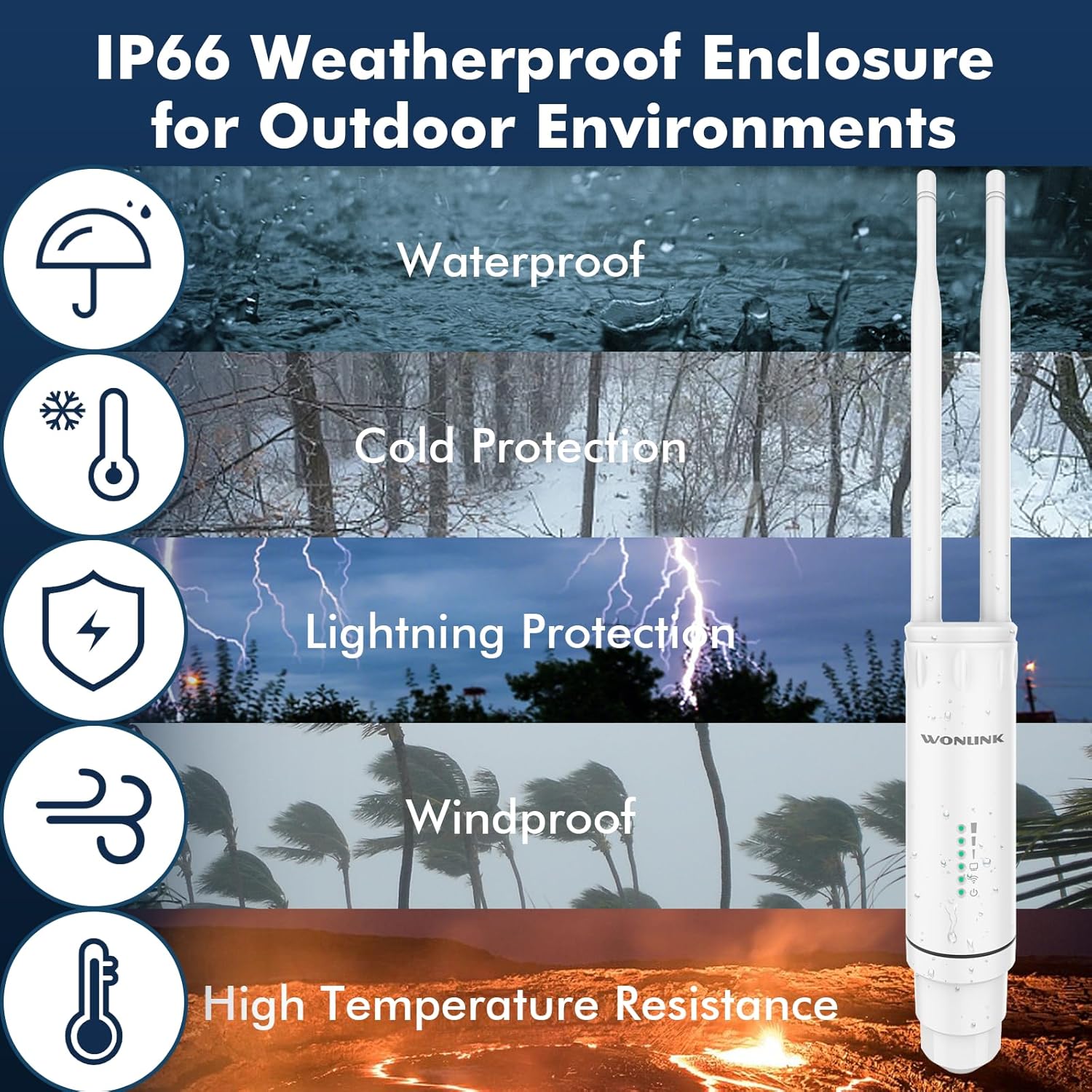
Image 2.1: IP66 Weatherproof Enclosure for Outdoor Environments
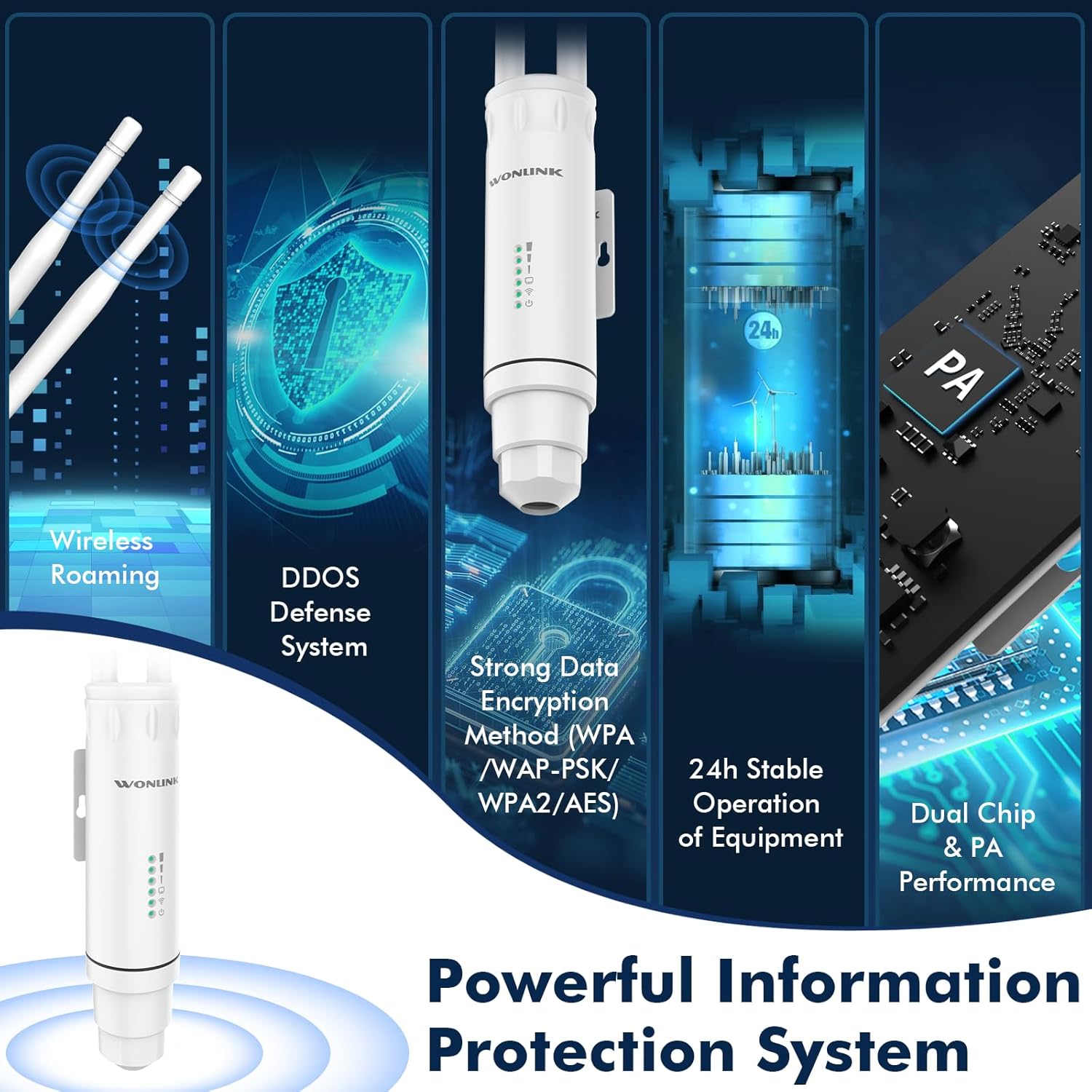
Image 2.2: Powerful Information Protection System
3. Package Contents
Verify that all items are present in the package before proceeding with installation:
- WONLINK AC1200 Outdoor Wireless Access Point Unit
- Detachable Antennas (2)
- PoE Adapter (24V)
- Ethernet Cable
- Mounting Accessories (Pole/Wall Mount)
- Quick Installation Guide
Video 3.1: AP7204 Unboxing & Packing List. This video demonstrates the unboxing process and lists the contents included in the product package.
4. Product Overview
The WONLINK AC1200 features a robust design with clearly marked components for easy setup and maintenance.
4.1. Physical Components
- Antennas: Two external omnidirectional antennas for optimal signal transmission and reception.
- Indicators: LED lights indicating power, WiFi status, and signal strength.
- WAN/LAN Port: A single Ethernet port for both data and PoE power input.
- Reset Button: Located internally, accessible by unscrewing the bottom cap.
- Mounting Bracket: Integrated bracket for pole or wall mounting.
Image 4.1: Detailed view of the WONLINK AC1200 showing antennas, indicators, and the WAN-LAN port.
5. Setup and Installation
Follow these steps to set up your WONLINK AC1200 Outdoor Wireless Access Point.
5.1. Initial Connection and Power
- Connect the Ethernet cable from the PoE port of the PoE adapter to the WAN/LAN port of the Access Point.
- Connect another Ethernet cable from the LAN port of the PoE adapter to your computer or router.
- Plug the power adapter into an electrical outlet to power on the device.
- Wait for the signal lights on the Access Point to illuminate, indicating it is powered and ready.

Image 5.1: Diagram illustrating Power Over Ethernet (PoE) connection for the Access Point.
5.2. Mounting Options
The device supports flexible deployment with pole or wall mounting options using the included accessories.
5.3. AP Mode Setup
To configure the device in Access Point (AP) mode, follow these steps:
- Ensure the device is connected as described in Section 5.1.
- Connect your computer to the WiFi signal broadcast by the WONLINK device (e.g., WONLINK-XXXX-5G or WONLINK-XXXX-2G).
- Open a web browser and enter the default IP address (e.g., 192.168.10.1) into the address bar.
- Select your preferred language and enter the default password, which is typically "admin".
- Navigate to the "Wizard" section and select "AP" mode.
- In "Lan Settings", fill in a new IP address. The first three sets of numbers of the IP address must be kept the same as your router's IP, but the last digit must be different.
- Set the SSID (network name) for both 2.4 GHz and 5 GHz bands. Enter the desired password. The password should ideally be the same as your main router's password for seamless roaming, but you can set it as you like.
- Click "Finish" to apply the settings.
- Reconnect to the newly configured WiFi network using the new SSID and password.
Video 5.2: Outdoor WiFi Extender Setup Video. This video provides a visual guide for setting up the device, including AP mode configuration.
5.4. Repeater Mode Setup
To configure the device in Repeater mode, follow these steps:
- Ensure the device is connected as described in Section 5.1.
- Connect your computer to the WiFi signal broadcast by the WONLINK device (e.g., WONLINK-XXXX-5G or WONLINK-XXXX-2G).
- Open a web browser and enter the default IP address (e.g., 192.168.10.1) into the address bar.
- Select your preferred language and enter the default password, which is typically "admin".
- Navigate to the "Wizard" section and select "Repeater" mode.
- Select either the 2.4 GHz or 5 GHz band, then click "Scan" to find available host router WiFi signals.
- Select your host router's WiFi signal from the scan results.
- Enter the WiFi password for your host router. This password must be identical to your router's password.
- Click "Finish" to apply the settings.
- Reconnect to the extended network (the WONLINK device's SSID) and enter the password to enjoy the WiFi.
6. Operating Modes
The WONLINK AC1200 supports various operating modes to adapt to different network environments:
- AP Mode (Access Point): Converts a wired network connection into a wireless one, allowing multiple devices to connect wirelessly.
- Router Mode: Functions as a primary router, connecting to a modem and providing internet access to connected devices.
- Repeater Mode: Extends the range of an existing WiFi network by receiving the signal and re-transmitting it.
- Bridge Mode: Connects two separate networks, often used for point-to-point wireless links.

Image 6.1: Diagram illustrating the various working modes: AP, Router, Repeater, and Bridge.
7. Maintenance
To ensure optimal performance and longevity of your WONLINK AC1200 Outdoor Wireless Access Point, consider the following maintenance guidelines:
- Regular Firmware Updates: Check the manufacturer's website periodically for firmware updates to enhance performance, security, and stability.
- Physical Inspection: Periodically inspect the device and its connections for any signs of wear, damage, or loose cables, especially after severe weather conditions.
- Cleaning: Gently clean the exterior of the device with a soft, dry cloth. Avoid using harsh chemicals or abrasive materials.
- Environmental Considerations: While designed for outdoor use, ensure the device is installed in a location that minimizes direct exposure to extreme conditions where possible, and that it is securely mounted.
8. Troubleshooting
If you encounter issues with your WONLINK AC1200, refer to the following common troubleshooting steps:
- No Power: Ensure the PoE adapter is correctly connected to a power source and the Ethernet cable is securely plugged into both the adapter and the Access Point. Check the power indicator LED on the device.
- No Internet Access: Verify that your main router has an active internet connection. In Repeater mode, ensure the password entered for the host router's WiFi is correct. In AP/Router mode, check the WAN/LAN connection.
- Weak Signal/Slow Speed: Reposition the Access Point for better line-of-sight to your devices or the host router. Ensure antennas are securely attached and oriented correctly. Check for potential interference from other electronic devices.
- Cannot Access Web Management Page: Ensure your computer is connected to the WONLINK device's WiFi or directly via Ethernet. Verify the IP address entered in the browser is correct (default 192.168.10.1). Try clearing your browser's cache.
- Forgotten Password: Perform a factory reset by pressing and holding the reset button (located under the bottom cap) for approximately 5-10 seconds while the device is powered on. This will revert all settings to factory defaults, including the password to "admin".
- Device Not Responding: Try power cycling the device by unplugging and re-plugging the PoE adapter. If the issue persists, a factory reset may be necessary.
9. Specifications
| Feature | Specification |
|---|---|
| Brand | WONLINK |
| Model Number | WL-AP7204 |
| Data Transfer Rate | 1200 Megabits Per Second (Mbps) |
| Frequency Bands Supported | 2.4 GHz, 5 GHz |
| Package Dimensions | 9.37 x 6.02 x 2.44 inches |
| Item Weight | 1.15 pounds |
| Waterproof Rating | IP66 |
10. Warranty and Support
For warranty information, technical support, or further assistance, please refer to the contact details provided in the Quick Installation Guide included with your product or visit the official WONLINK website. Keep your purchase receipt for warranty claims.
Related documentsWL-AP7204


Ask a question about this manual
Ask about setup, troubleshooting, compatibility, parts, safety, or missing instructions. Manuals+ will review the question and use this page’s manual context to help answer it.