
Hewlett Packard HP Pavilion Laptop 16-ag00
HP Pavilion 16-ag00 Laptop User Manual
Model: HP Pavilion Laptop 16-ag00
Introduction
This user manual provides comprehensive instructions for the setup, operation, maintenance, and troubleshooting of your Hewlett Packard HP Pavilion 16-ag00 laptop. Please read this manual thoroughly before using your device to ensure optimal performance and longevity.
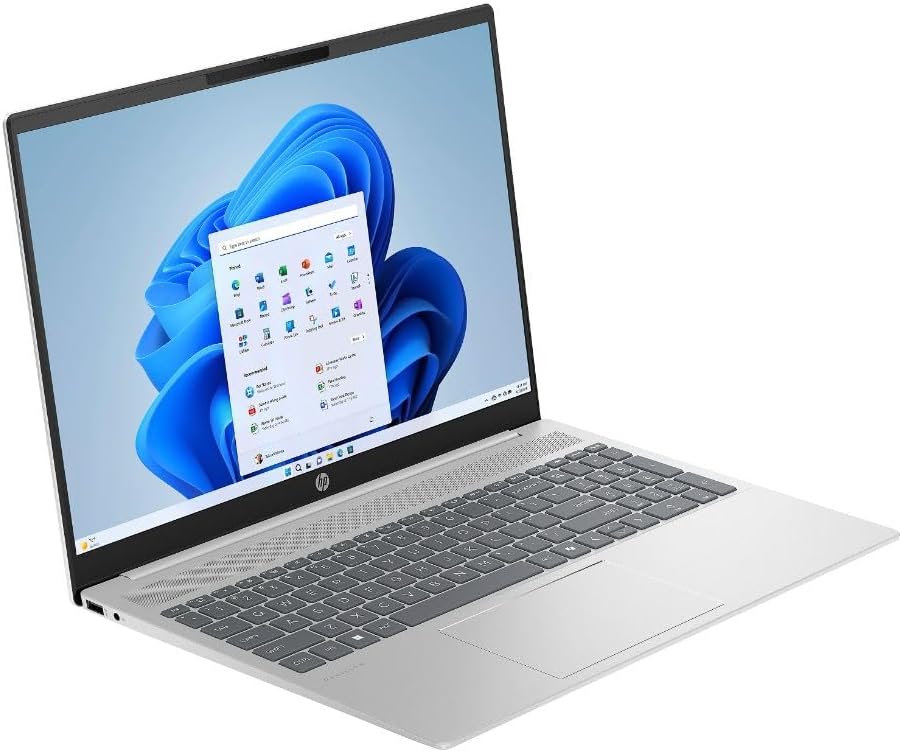
Figure 1: Front view of the HP Pavilion 16-ag00 laptop displaying the Windows 11 operating system.
What's in the Box
Verify that all items are present in the packaging:
- HP Pavilion 16-ag00 Laptop
- AC Power Adapter and Cord
Initial Setup
- Unpack the Laptop: Carefully remove the laptop and all accessories from the packaging.
- Connect Power: Plug the AC power adapter into the laptop's power port and then into a wall outlet. It is recommended to fully charge the battery before first use.
- Power On: Open the laptop lid and press the power button, typically located on the keyboard deck.
- Initial Windows 11 Setup: Follow the on-screen prompts to complete the Windows 11 setup process. This includes selecting your region, language, connecting to a Wi-Fi network, and creating a user account.
- Install Updates: After setup, connect to the internet and allow Windows Update to download and install any pending operating system and driver updates. This ensures optimal performance and security.
Operating Your Laptop
Power Management
- Power On/Off: Press the power button to turn on. To turn off, click the Start button in Windows, then Power > Shut down.
- Sleep Mode: Close the lid or select Power > Sleep from the Start menu to enter sleep mode.
- Restart: Select Power > Restart from the Start menu to restart the system.
Keyboard and Touchpad
The laptop features a full-size keyboard and a precision touchpad for navigation. Familiarize yourself with common keyboard shortcuts and touchpad gestures for efficient use.
Ports and Connectivity
Your HP Pavilion 16-ag00 is equipped with various ports for connecting external devices:
- HDMI Port: For connecting to external displays or projectors.
- USB 2.0 Ports: For connecting USB devices such as mice, keyboards, or external storage.
- USB-C Port: A versatile port for data transfer, display output, and power delivery (depending on specific port capabilities).
- Headphone/Microphone Combo Jack: For connecting headphones, external speakers, or a headset with a microphone.

Figure 2: Side view illustrating the available ports on the HP Pavilion 16-ag00 laptop.
Windows 11 Operating System
The laptop comes pre-installed with Windows 11 Home. Explore the Start menu, Taskbar, and Settings app to customize your experience and manage applications.

Figure 3: Top view of the HP Pavilion 16-ag00 laptop, showcasing the Windows 11 user interface.
Maintenance and Care
- Cleaning: Use a soft, lint-free cloth to clean the screen and exterior. For stubborn marks, slightly dampen the cloth with water or a screen cleaner. Avoid harsh chemicals.
- Battery Care: To prolong battery life, avoid extreme temperatures. If storing the laptop for extended periods, ensure the battery is charged to about 50%.
- Software Updates: Regularly check for and install Windows updates and driver updates from the HP support website to ensure system stability and security.
- Storage Management: Periodically clean up unnecessary files and applications to maintain optimal performance of the 512GB SSD.
- Ventilation: Ensure the laptop's vents are not obstructed to prevent overheating. Use the laptop on a hard, flat surface.
Troubleshooting
| Problem | Possible Solution |
|---|---|
| Laptop does not power on. | Ensure the power adapter is securely connected to both the laptop and a working electrical outlet. Try a different outlet. If the battery is completely drained, it may take a few minutes to respond after plugging in. |
| Screen is blank or black. | Check if the laptop is powered on. Press Fn + F2 (or the corresponding display toggle key) to ensure the display is not turned off. Connect to an external monitor via HDMI to check if the issue is with the laptop's internal display. |
| Wi-Fi connection issues. | Restart your router and modem. Ensure Wi-Fi is enabled on the laptop (check network settings). Update Wi-Fi drivers from the HP support website. |
| Slow performance. | Close unnecessary applications. Check for background processes in Task Manager. Ensure sufficient free space on the SSD. Run a disk cleanup. Install all pending Windows updates. |
Technical Specifications
| Feature | Detail |
|---|---|
| Model Name | HP Pavilion Laptop 16-ag00 |
| Processor | AMD Ryzen 7 8840U (up to 4.7 GHz max boost clock, 8 cores, 16 threads) |
| Graphics | AMD Radeon Graphics (Integrated) |
| Display | 16.0" diagonal, WUXGA (1920 x 1200) |
| RAM | 16GB DDR5 RAM |
| Storage | 512GB PCIe NVMe TLC M.2 SSD |
| Operating System | Windows 11 Home |
| Ports | HDMI, USB 2.0 (x3), USB-C, Headphone/Microphone Combo |
| Color | Silver |
| Item Weight | 7 pounds |
| Dimensions (LxWxH) | 16 x 1 x 11 inches |
| Average Battery Life | 6 Hours |
Warranty and Support
This product is sold as a renewed item. For specific warranty details and support, please refer to the terms provided by the seller, Amazon Renewed, at the time of purchase. Typically, renewed products come with a limited warranty from the refurbisher or seller.
For technical assistance, driver downloads, and further product information, please visit the official Hewlett Packard (HP) support website. You may need your product's serial number, usually found on a sticker on the bottom of the laptop or in the system information within Windows.
For inquiries related to your purchase or return policy, please contact Amazon customer service or the specific Amazon Renewed seller directly.
Ask a question about this manual
Ask about setup, troubleshooting, compatibility, parts, safety, or missing instructions. Manuals+ will review the question and use this page’s manual context to help answer it.