
1. Important Safety Information
Please read all safety and operating instructions carefully before using this television. Keep this manual for future reference.
- Power Source: Ensure the TV is connected to a power supply within the specified voltage range.
- Ventilation: Do not block ventilation openings. Allow adequate space around the TV for proper airflow.
- Cleaning: Unplug the TV before cleaning. Use a soft, dry cloth. Do not use liquid cleaners or aerosol cleaners.
- Water and Moisture: Do not expose the TV to rain or moisture. Do not place objects filled with liquids on the TV.
- Placement: Place the TV on a stable, level surface. Avoid direct sunlight, heat sources, and excessive dust.
- Lightning: Unplug the TV during lightning storms or when unused for long periods.
2. Package Contents
Verify that all items are included in your package:
- Generic OS32ATVHD 32-inch LED TV
- Remote Control
- Power Cable
- User Manual (this document)
- TV Stand Components (Base and Screws)
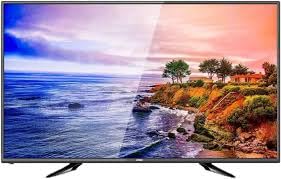
Image: Generic OS32ATVHD 32-inch LED TV.
3. Setup
3.1. Unpacking
Carefully remove the TV and all accessories from the packaging. Retain the packaging for future transport or service needs.
3.2. Stand Installation (Optional)
If you are not wall-mounting the TV, attach the included stand:
- Place the TV screen-down on a soft, flat surface to prevent scratches.
- Align the stand base(s) with the screw holes on the bottom of the TV.
- Secure the stand(s) using the provided screws. Do not overtighten.
3.3. Wall Mounting (Optional)
The TV is wall-mountable. A VESA-compatible wall mount bracket (not included) is required. Follow the instructions provided with your wall mount bracket and ensure professional installation for safety.
3.4. Connecting External Devices
Connect your external devices to the appropriate ports on the TV. Ensure the TV and devices are powered off before making connections.
- HDMI: For high-definition audio and video from Blu-ray players, game consoles, or set-top boxes.
- USB: For connecting USB storage devices to play media files.
- VGA: For connecting a computer. Use the PC audio input for sound.
- AV (Composite): For connecting older devices like VCRs or older DVD players.

Image: Rear view of the TV with connectivity ports.
3.5. Power Connection
After all connections are made, plug the power cable into the TV's power input, then plug the other end into a wall power outlet.
4. Operating Instructions
4.1. Power On/Off
Press the POWER button on the remote control or on the TV to turn the TV on or off.
4.2. Remote Control Functions
The included remote control allows you to access all TV functions. Ensure batteries are correctly inserted.
- POWER: Turns the TV on or off.
- INPUT/SOURCE: Selects the input source (HDMI, USB, VGA, AV).
- VOL +/-: Adjusts the volume level.
- CH +/-: Changes channels.
- MENU: Opens the main menu for settings.
- Navigation Buttons (Up/Down/Left/Right): Navigates through menus.
- OK/ENTER: Confirms selections.
4.3. Selecting Input Source
Press the INPUT or SOURCE button on the remote control to cycle through available input sources (e.g., HDMI1, HDMI2, USB, VGA, AV). Select the desired source using the navigation buttons and press OK.
4.4. Menu Navigation and Settings
Press the MENU button to access the TV's settings. Use the navigation buttons to move between options and OK to select.
- Picture Settings: Adjust brightness, contrast, color, sharpness, and aspect ratio.
- Sound Settings: Control volume, equalizer, sound mode, and balance.
- Channel Settings: Scan for channels (if using an antenna) and manage channel lists.
- System Settings: Access language, time, and other general TV settings.
5. Maintenance
5.1. Cleaning the TV
Always unplug the TV before cleaning.
- Screen: Gently wipe the screen with a soft, dry, lint-free cloth. Do not use abrasive cleaners or sprays directly on the screen.
- Frame: Use a soft, slightly damp cloth to clean the TV frame.
5.2. General Care
Ensure the TV is placed in a well-ventilated area to prevent overheating. Avoid exposing the TV to extreme temperatures or humidity.
6. Troubleshooting
If you encounter issues with your TV, refer to the following common problems and solutions:
| Problem | Possible Solution |
|---|---|
| No power |
|
| No picture, but sound is present |
|
| No sound, but picture is present |
|
| Remote control not working |
|
7. Specifications
| Feature | Detail |
|---|---|
| Brand | Generic |
| Model Name | OS32ATVHD |
| Screen Size | 32 inches |
| Display Technology | LED |
| Resolution | 4K (3840 x 2160 pixels) |
| Connectivity | HDMI (multiple ports), USB, VGA, AV Input |
| Included Components | Remote Control |
| Special Features | Wall Mountable, Energy-saving technology |
| Recommended Uses | Entertainment, TV display |
8. Warranty and Support
For warranty information and technical support, please refer to the warranty card included with your product or contact your retailer. Keep your purchase receipt as proof of purchase.