
Kittyhok CDP2 2K Dual Lens Security Camera System User Manual
Model: CDP2 Camera with 16-Channel WiFi 6 NVR
1. Introduction
This manual provides detailed instructions for the installation, operation, and maintenance of your Kittyhok CDP2 2K Dual Lens Security Camera System. Please read this manual thoroughly before using the product to ensure proper setup and functionality. Keep this manual for future reference.

Image 1.1: Overview of the Kittyhok CDP2 Dual Lens Security Camera System, highlighting its key features.
2. Product Overview
2.1 Package Contents
- Kittyhok CDP2 Dual Lens Security Camera(s)
- 16-Channel WiFi 6 Network Video Recorder (NVR)
- Power Adapters for Camera(s) and NVR
- Ethernet Cable
- Mounting Screws and Plugs
- Quick Start Guide
2.2 Key Features
- 2K Dual-Lens: Provides enhanced clarity and coverage with two 2K lenses.
- 360° Coverage with Auto Tracking: One fixed lens monitors a key area while the other pans 355° and tilts 90° with automatic tracking. Supports up to 6 preset points.
- WiFi 6 NVR & Dual-Band Cameras: Supports 2.4/5GHz WiFi for superior speed and reliability, ideal for multi-story homes.
- Enhanced Night Vision: Features 6 spotlights for vibrant color night vision and reliable infrared for all-day protection.
- Human Detection: Advanced AI for accurate human detection, reducing false alarms.
- Remote Access & Smart Alerts: Live stream and playback via app (up to 8 simultaneous users). Instant alerts with spotlights, siren, or app notifications.
- 24/7 Recording: Continuous recording to a built-in 1TB HDD (expandable to 6TB) and optional cloud storage.

Image 2.1: The Kittyhok 16-Channel WiFi 6 Network Video Recorder (NVR).
3. Setup Instructions
Follow these steps to set up your Kittyhok security camera system.
3.1 Initial NVR and Camera Connection
- Connect NVR to Router: Connect the NVR to your router using an Ethernet cable. This is required for initial setup and remote access.
- Connect NVR to Monitor: Connect the NVR to a monitor or TV using an HDMI or VGA cable.
- Power On NVR: Plug in the NVR power adapter and turn on the NVR.
- Power On Cameras: Connect the power adapters to your CDP2 cameras and plug them into power outlets.
- Initial Setup Wizard: Follow the on-screen instructions on your monitor to complete the NVR's initial setup, including network settings and time zone.
Video 3.1: User Manual for Kittyhok Plug-in Wireless Security System. This video demonstrates the setup process for the NVR and cameras, including connecting to a router and monitor, and initial power-up.
3.2 Camera Placement and Mounting
Strategically place your cameras to maximize coverage. The CDP2 camera offers 360° pan and tilt capabilities, allowing for flexible monitoring.
- Select Location: Choose a mounting location that provides a clear view of the area you wish to monitor and is within range of your WiFi network.
- Mounting: Use the provided screws and plugs to securely mount the camera to a wall or ceiling. Ensure the camera is positioned to allow for full pan and tilt movement.
- Power Connection: Ensure the camera's power adapter is connected to a reliable power source.

Image 3.1: Example of the Kittyhok CDP2 camera mounted on an outdoor wall.
3.3 App and PC Access
- Download App: Download the Kittyhok app from the App Store (iOS) or Google Play Store (Android).
- Register/Login: Register a new account or log in with an existing one.
- Add Device: In the app, tap the '+' icon to add your NVR by scanning the QR code displayed on the NVR's monitor or found in its settings.
- PC/Mac Access: Download and install the CMS (Central Management Software) on your computer. Log in with your app account; the system will automatically sync.
4. Operating Instructions
4.1 Live View and Playback
- Access live camera feeds through the Kittyhok app or CMS software.
- Use the playback feature to review recorded footage stored on the NVR's HDD or cloud.
- The system supports up to 8 users simultaneously for live viewing.
4.2 Pan, Tilt, and Zoom (PTZ) Control
Control the pan (horizontal), tilt (vertical), and digital zoom functions of your CDP2 camera via the app or CMS.
- Pan: Rotate the camera horizontally up to 355°.
- Tilt: Adjust the camera vertically up to 90°.
- Preset Points: Configure up to 6 preset monitoring points for quick navigation.

Image 4.1: The dual lens system provides both fixed and flexible pan-tilt views, accessible via the mobile app.
4.3 Auto Tracking and Human Detection
- Enable auto tracking in the app settings. The camera will automatically follow detected human movement within its field of view.
- Human detection minimizes false alarms by distinguishing human shapes from other moving objects.
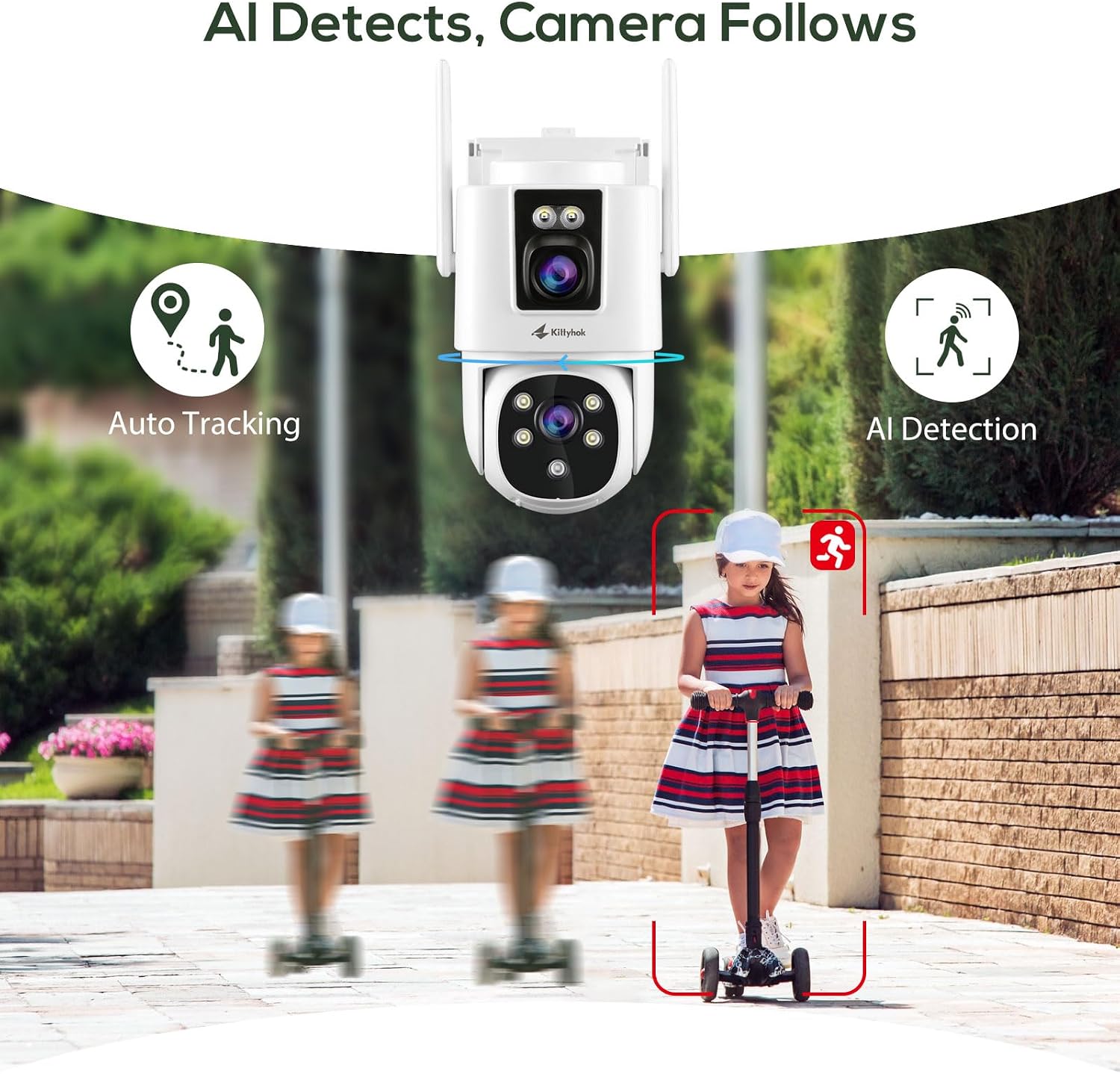
Image 4.2: The camera's AI detection and auto-tracking feature in action.
4.4 Night Vision Modes
The CDP2 camera offers multiple night vision options:
- Color Night Vision: Activated by the built-in spotlights, providing full-color video in low-light conditions.
- Infrared (IR) Night Vision: Provides clear black-and-white video in complete darkness.

Image 4.3: Demonstrating the difference between Color Night Vision and IR Night Vision.
4.5 Smart Alerts and Two-Way Audio
- Customizable Alerts: Set up motion detection zones and sensitivity levels. Choose to receive app notifications, email alerts, or trigger the camera's siren and spotlights upon detection.
- Two-Way Audio: Use the built-in microphone and speaker to communicate with visitors or deter intruders remotely via the app.

Image 4.4: Smart alert notifications on a mobile device.
5. Maintenance
- Cleaning: Regularly clean the camera lenses with a soft, dry cloth to ensure clear image quality. Do not use harsh chemicals.
- Firmware Updates: Check for and install firmware updates via the Kittyhok app or CMS to ensure optimal performance and security.
- Cable Management: Ensure all cables are securely connected and protected from environmental damage.
- Storage Management: Periodically review recorded footage and manage storage space on the NVR's HDD. Consider backing up important footage.
6. Troubleshooting
6.1 No Video Feed
- Check Power: Ensure both the camera and NVR are properly powered on.
- Network Connection: Verify the NVR is connected to the router and the cameras are connected to the NVR's WiFi network.
- Signal Strength: If cameras are far from the NVR, consider repositioning or checking for obstructions that might interfere with the WiFi signal.
- NVR Output: Ensure the NVR is correctly connected to your monitor/TV and the input source is selected.
6.2 Cannot Connect to App/CMS
- Internet Connection: Confirm your smartphone/PC has a stable internet connection.
- NVR Internet Access: Ensure the NVR has internet access (check network settings on the NVR).
- Account Credentials: Double-check your login details for the Kittyhok app/CMS.
- QR Code: If adding the NVR, ensure the QR code is clean and well-lit for scanning.
6.3 Recording Issues
- HDD Status: Check the NVR's HDD status in the settings. Ensure it is initialized and has sufficient space.
- Recording Schedule: Verify that the recording schedule is correctly configured (24/7 or motion-triggered).
- Cloud Storage: If using cloud storage, ensure your subscription is active and the NVR is connected to the internet.
- MicroSD Card: For camera-side recording (if applicable), ensure the microSD card is inserted correctly and formatted.

Image 6.1: Storage options including microSD card and cloud for 24/7 recording.
7. Specifications
| Feature | Specification |
|---|---|
| Camera Resolution | 2K (Dual Lenses) |
| Pan/Tilt Range | Pan 355°, Tilt 90° |
| Wireless Connectivity | 2.4GHz / 5GHz Dual-Band WiFi (WiFi 6 NVR) |
| Night Vision | Color Night Vision (with spotlights), Infrared Night Vision |
| Storage Options | NVR: Built-in 1TB HDD (expandable to 6TB), Camera: MicroSD Card (up to 256GB, not included), Cloud Storage (optional) |
| Detection | Human Detection, Auto Tracking |
| Audio | Two-Way Audio |
| Operating Temperature | Typically -10°C to 50°C (14°F to 122°F) for outdoor cameras |
8. Warranty and Support
- 1-Year Warranty: Kittyhok offers a 1-year warranty for replacement only, no repair.
- 30-Day Money Back Guarantee: Enjoy a 30-day money-back guarantee from the date of purchase.
- 24/7 Online Support: Dedicated 1-to-1 online support is available for any technical assistance or inquiries.
For further assistance, please visit the official Kittyhok store or contact customer support through the app or website.

Image 8.1: Kittyhok customer support and warranty details.


