
1. Introduction
Welcome to the user manual for your new TCL 65T6C-UK 65-inch QLED 4K HDR Smart TV. This manual provides essential information for setting up, operating, maintaining, and troubleshooting your television. Please read this manual thoroughly before using your TV to ensure proper and safe operation. Your TCL TV integrates the Fire TV experience, offering stunning QLED 4K HDR visuals with Dolby Vision & Atmos audio, and convenient voice control via Alexa.
2. What's in the Box
Carefully unpack all components from the box. Ensure all items listed below are present and undamaged.
- TCL 65T6C-UK 65" QLED 4K HDR Smart TV
- TV Stand (2 pieces)
- Power Cable
- Voice Remote with Alexa
- User Manual (this document)

Image: The TCL 65T6C-UK TV, showcasing its slim design, included remote control, and detachable stand.

Image: A technical diagram illustrating the precise dimensions of the 65-inch TCL TV and its accompanying remote control (RC833).
3. Setup
3.1 Installing the TV Stand
- Place the TV screen-down on a soft, flat surface to prevent scratches.
- Align the stand pieces with the corresponding slots on the bottom of the TV.
- Secure the stand using the provided screws. Ensure the stand is firmly attached.
3.2 Connecting Power and Devices
- Connect the power cable to the TV's power input and then to a wall outlet.
- Connect your external devices (e.g., cable box, gaming console, Blu-ray player) to the appropriate HDMI, USB, or other input ports on the TV.
- For internet access, connect an Ethernet cable to the LAN port or prepare for Wi-Fi setup during initial power-on.
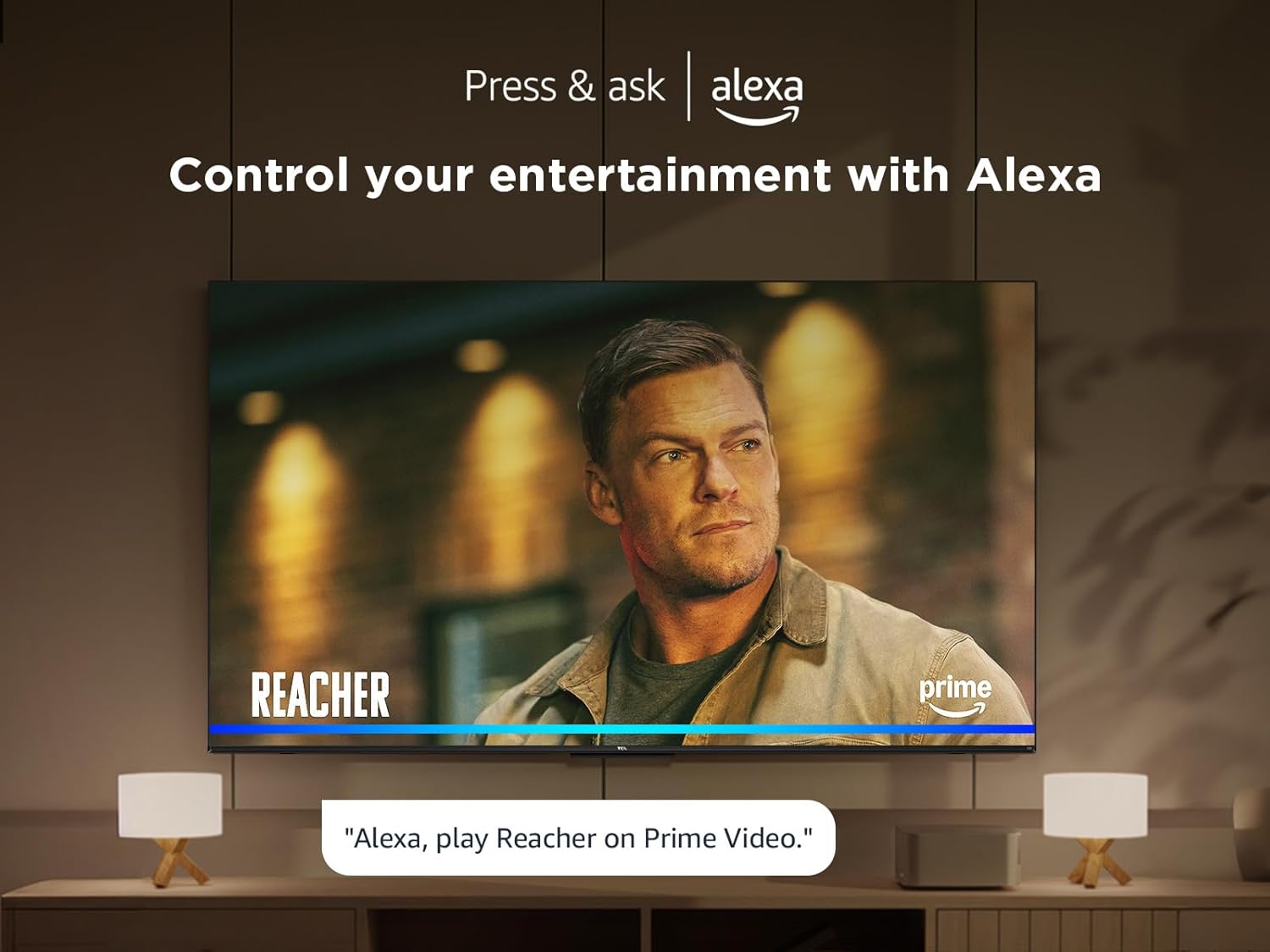
Image: A clear diagram illustrating the various input and output ports available on the TCL TV, including HDMI, USB, Cable, Satellite, and CI Slot connections.
3.3 Initial Setup Wizard
Upon first power-on, the TV will guide you through an initial setup wizard. Follow the on-screen prompts to:
- Select your language and region.
- Connect to your Wi-Fi network.
- Sign in to your Amazon account for Fire TV features.
- Scan for available TV channels (if using an antenna/cable).
4. Operating Your TV
4.1 Basic Operations
- Power On/Off: Press the power button on the remote control.
- Input Selection: Use the 'Input' button on the remote to switch between connected devices (HDMI 1, HDMI 2, etc.).
- Volume Control: Use the 'Volume Up/Down' buttons.
- Channel Navigation: Use the 'Channel Up/Down' buttons for live TV.
4.2 Fire TV Interface
Your TCL TV features the Fire TV operating system, providing a unified home screen for all your content. Navigate using the directional pad and select button on your remote.

Image: The Fire TV user interface displayed on the TCL TV, showcasing a wide array of streaming applications and content recommendations for easy access.
4.3 Using Alexa Voice Remote
The included Voice Remote allows you to control your TV and search for content using voice commands. Press and hold the Alexa button on the remote, then speak your command clearly.
- "Alexa, play Reacher on Prime Video."
- "Alexa, switch to HDMI 2."
- "Alexa, turn up the volume."
- "Alexa, open Netflix."

Image: A user interacting with the TCL TV using the Alexa voice remote, demonstrating the convenience of voice commands for content selection.
5. Key Features
Your TCL 65T6C-UK TV is equipped with advanced technologies to enhance your viewing and entertainment experience.

Image: A comprehensive visual summary highlighting the core features of the TCL TV, including its smart platform, display technology, audio enhancements, and gaming capabilities.
5.1 QLED Technology
Experience genuine colors from over a billion shades with the latest QLED technology. This delivers lifelike picture quality and an ultra-wide color gamut with vivid wide colors and striking contrast.
Image: A vibrant display showcasing the ultra-wide color capabilities of QLED technology, with a detailed image of a colorful flower.
5.2 4K HDR PRO & Multi-Format HDR
Combined with Quantum Dot, 4K HDR PRO provides a superior High Dynamic Range (HDR) experience, delivering accurate colors and finest details. The TV supports multiple HDR formats including HDR10, HLG, HDR10+, and Dolby Vision, ensuring optimal picture quality regardless of the source.

Image: A visual representation of the TCL TV's HDR Multi-Format compatibility, showing logos of popular streaming services that provide HDR content.
5.3 Dolby Vision & Dolby Atmos / DTS:X
Immerse yourself in unparalleled sound with Dolby Atmos and DTS:X. These technologies provide a multi-dimensional audio experience, making sound flow all around you with breathtaking realism, transforming your living room into a cinema.

Image: A dynamic scene illustrating the immersive surround sound experience provided by Dolby Atmos and DTS:X, with sound waves emanating from the TV.
5.4 Motion Clarity
The Motion Clarity (MEMC) algorithm reduces motion display blur and image tearing, ensuring a silky smooth scene even in fast-moving action sequences.

Image: A side-by-side comparison demonstrating the effect of Motion Clarity, showing a clear, smooth image of a galloping horse on one side versus a blurred image without the feature.
5.5 Game Master
For gamers, the T6C Series comes with HDMI 2.1 and ALLM (Auto Low Latency Mode), providing lowest latency and optimal picture settings for gaming. It also features VRR (Variable Refresh Rate) and 120Hz Game Accelerator for a smoother gaming experience.
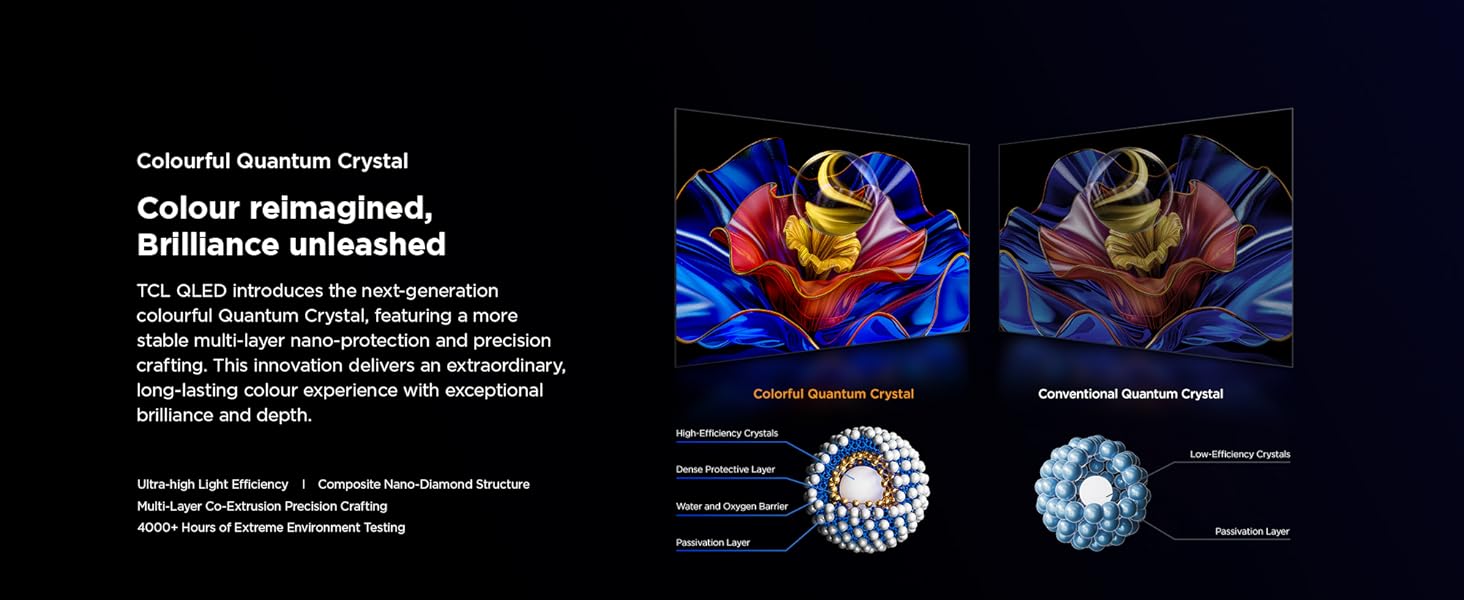
Image: A dynamic graphic illustrating the 'Game Master' features of the TCL TV, highlighting its suitability for gaming with vibrant visuals of a game scene.
5.6 HVA Panel
The HVA panel technology delivers high contrast, lower energy consumption, and wider viewing angles, enhancing your overall viewing experience.
5.7 Bezel-less Ultra Slim Metal Design
The elegant frameless design maximizes screen size and suits almost any interior. The ultra-slim exterior is crafted from premium metal for durability and a superb aesthetic.
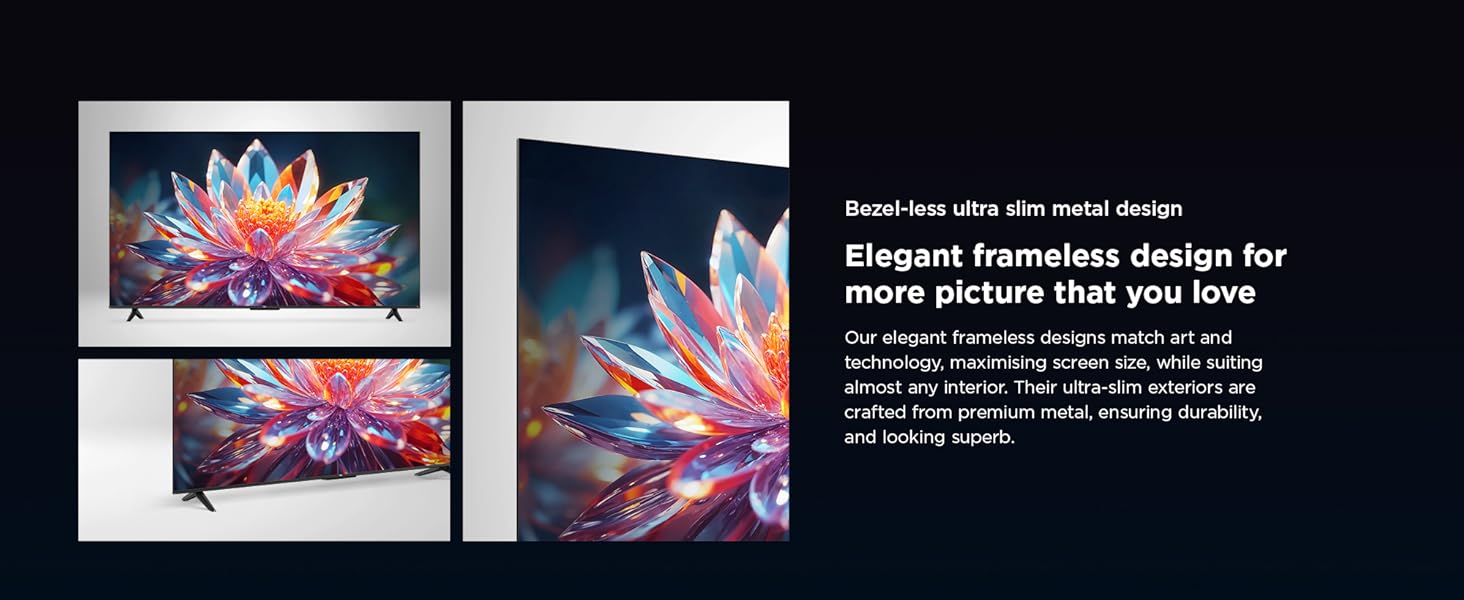
Image: A close-up view of the TCL TV highlighting its elegant bezel-less, ultra-slim metal design, emphasizing its modern aesthetic and immersive display.
6. Maintenance
6.1 Cleaning the Screen
- Always unplug the TV before cleaning.
- Use a soft, lint-free cloth (microfiber is recommended) to gently wipe the screen.
- For stubborn marks, lightly dampen the cloth with water or a screen-specific cleaning solution. Never spray liquid directly onto the screen.
- Avoid using abrasive cleaners, alcohol, benzene, or thinners, as these can damage the screen coating.
6.2 Cleaning the TV Frame
- Wipe the TV frame and stand with a soft, dry cloth.
- For more thorough cleaning, a slightly damp cloth can be used, followed by a dry cloth.
6.3 Safety Precautions
- Do not block ventilation openings.
- Keep the TV away from direct sunlight, heat sources, and excessive dust.
- Avoid placing heavy objects on top of the TV.
- Do not expose the TV to rain or moisture.
7. Troubleshooting
If you encounter issues with your TV, refer to the following common problems and solutions before contacting support.
7.1 No Power
- Ensure the power cable is securely plugged into the TV and the wall outlet.
- Check if the wall outlet is working by plugging in another device.
- Try pressing the power button on the TV itself, not just the remote.
7.2 No Picture / Poor Picture Quality
- Verify the correct input source is selected (e.g., HDMI 1, TV).
- Check cable connections between the TV and external devices.
- Adjust picture settings (brightness, contrast, color) in the TV menu.
- If using an antenna, check antenna connection and perform a channel scan.
7.3 No Sound / Poor Sound Quality
- Ensure the volume is not muted or set too low.
- Check audio cable connections to external sound systems.
- Adjust sound settings (sound mode, equalizer) in the TV menu.
- If using external speakers, ensure they are powered on and correctly configured.
7.4 Remote Control Not Working
- Replace the batteries in the remote control.
- Ensure there are no obstructions between the remote and the TV's IR sensor.
- Re-pair the remote if it's a Bluetooth remote (refer to Fire TV settings for pairing instructions).
7.5 Network Connection Issues
- Restart your Wi-Fi router and modem.
- Check Wi-Fi password and network settings on the TV.
- If using an Ethernet cable, ensure it is securely connected.
- Try moving the TV closer to the router or using a Wi-Fi extender.
8. Specifications
Detailed technical specifications for the TCL 65T6C-UK TV.
| Feature | Specification |
|---|---|
| Model Number | 65T6C-UK |
| Screen Size | 65 Inches (166 cm visible diagonal) |
| Display Technology | QLED |
| Resolution | 4K (3840 x 2160 pixels) |
| Refresh Rate | 60 Hz |
| Product Dimensions (with stand) | 30D x 144.5W x 87.8H cm |
| Weight | 18 kg |
| Connectivity | 3 x HDMI, 1 x USB, Bluetooth, Wi-Fi, Cable, Satellite, CI Slot |
| Included Components | TV, Stand, Power Cable, Voice Remote with Alexa, User Manual |
| Energy Efficiency Class (SDR) | F |
| Energy Efficiency Class (HDR) | G |

Image: The energy efficiency label for the TCL 65T6C-UK TV, indicating its energy class and consumption.
For more detailed product information, please refer to the Product Information Sheet.
9. Warranty and Support
Your TCL TV comes with a manufacturer's warranty. For specific warranty terms and conditions, please refer to the warranty card included with your product or visit the official TCL support website. For technical assistance, troubleshooting beyond this manual, or service requests, please contact TCL customer support.
Online Support: Visit the official TCL website for FAQs, software updates, and contact information.
Included User Manual: Keep this manual for future reference.


