1. Introduction
Thank you for choosing the CHIQ U50QM9G 50-inch 4K QLED Google TV. This manual provides essential information for setting up, operating, and maintaining your new television. Please read this manual thoroughly before using the TV to ensure proper operation and safety. Enjoy a stunning visual experience with 4K QLED display, smooth 120Hz refresh rate, and the intelligent Google TV platform.
2. Safety Information
Always observe the following safety precautions to avoid electric shock, fire, or damage to the TV.
- Power Supply: Ensure the power voltage matches the rating label on the TV. Do not overload power outlets.
- Placement: Place the TV on a stable, level surface. Ensure adequate ventilation around the TV. Do not block ventilation openings.
- Water and Moisture: Do not expose the TV to rain or moisture. Do not place objects filled with liquids, such as vases, on the TV.
- Cleaning: Unplug the TV before cleaning. Use a soft, dry cloth. Do not use liquid cleaners or aerosol cleaners.
- Ventilation: Do not install the TV in a confined space. Maintain a minimum distance from walls and other objects for proper airflow.
- Lightning: Unplug the TV during lightning storms or when unused for long periods.
3. What's in the Box
Carefully unpack your CHIQ U50QM9G TV and check that all items are present and undamaged.
- CHIQ U50QM9G 50-inch 4K QLED Google TV
- Remote Control (requires 2 AAA batteries, not always included)
- Power Cable
- TV Stands (2 pieces)
- Screws for Stands
- User Manual (this document)

Image: Overview of the CHIQ U50QM9G TV's dimensions and the items typically included in the package, such as the power cable, remote control, and stands.
4. Setup
4.1 Attaching the Stands
- Place the TV face down on a soft, clean surface to prevent scratches.
- Align each stand with the corresponding slots on the bottom of the TV.
- Secure the stands using the provided screws.
4.2 Wall Mounting (Optional)
If you plan to wall mount your TV, ensure you use a VESA-compatible wall mount (200x200mm, M6 screws) and follow the wall mount manufacturer's instructions. Disconnect the power cable before mounting.
4.3 Connecting Devices
Connect your external devices such as set-top boxes, gaming consoles, or sound systems to the appropriate ports on the TV.
- HDMI: For high-definition video and audio. The TV features multiple HDMI ports.
- USB: For connecting USB storage devices to play media.
- LAN: For a wired internet connection.
- ANT 1/2: For connecting an antenna or satellite dish.
- Earphone: For connecting headphones.
- AV: For connecting older devices using composite video and stereo audio.

Image: Detailed view of the rear panel of the CHIQ U50QM9G TV, highlighting various input and output ports including HDMI, USB, LAN, Antenna, and Earphone jacks.
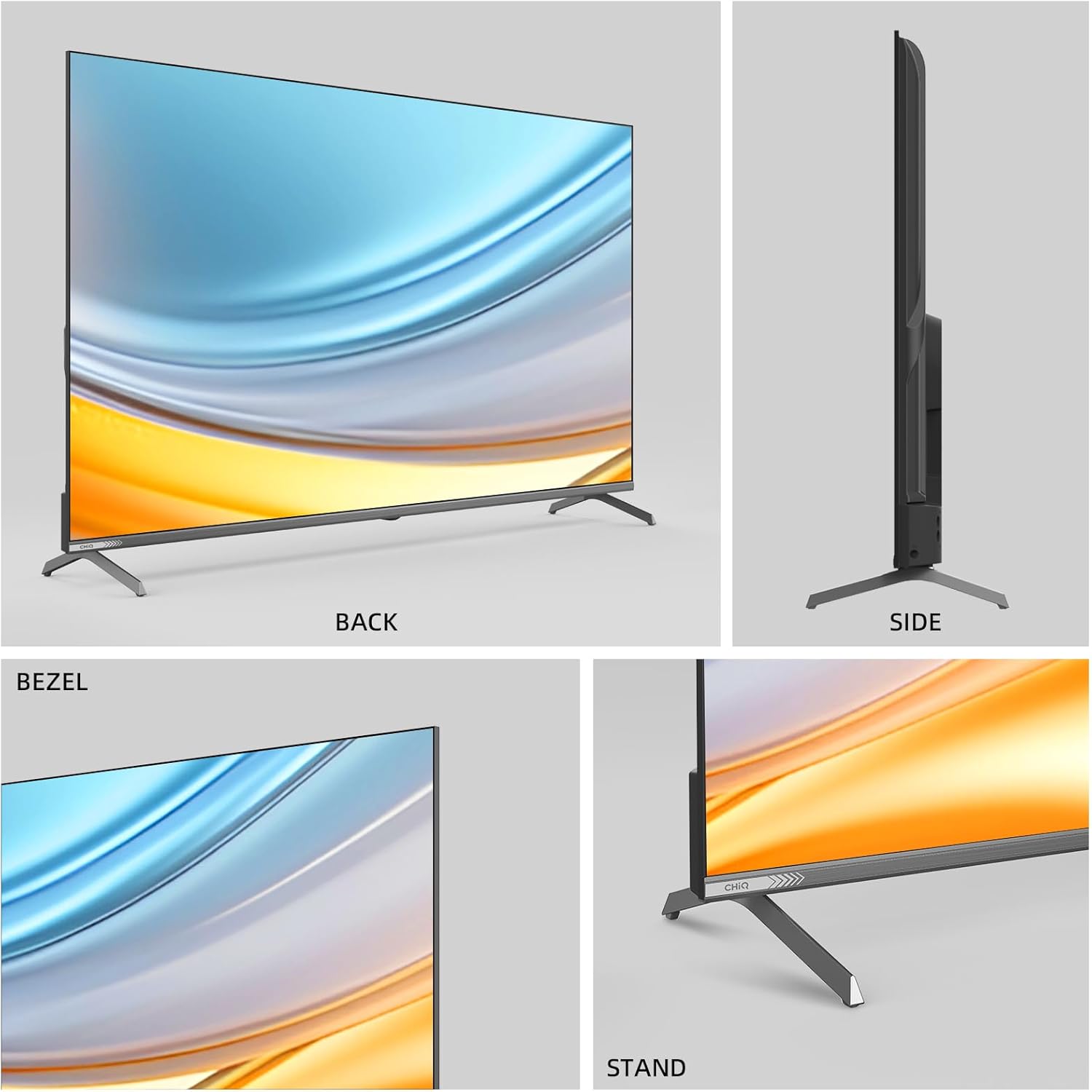
Image: Multiple views of the CHIQ U50QM9G TV, showcasing its back, side profile, slim bezel, and the design of its stand.
4.4 Initial Power On and Setup
- Plug the power cable into the TV and then into a wall outlet.
- Press the power button on the remote control or the TV.
- Follow the on-screen instructions to complete the initial setup, including language selection, network connection (Wi-Fi or Ethernet), and Google account sign-in.
5. Operating
5.1 Remote Control Overview
The remote control allows you to navigate the TV's features and settings. It includes dedicated buttons for popular streaming services and Google Assistant.
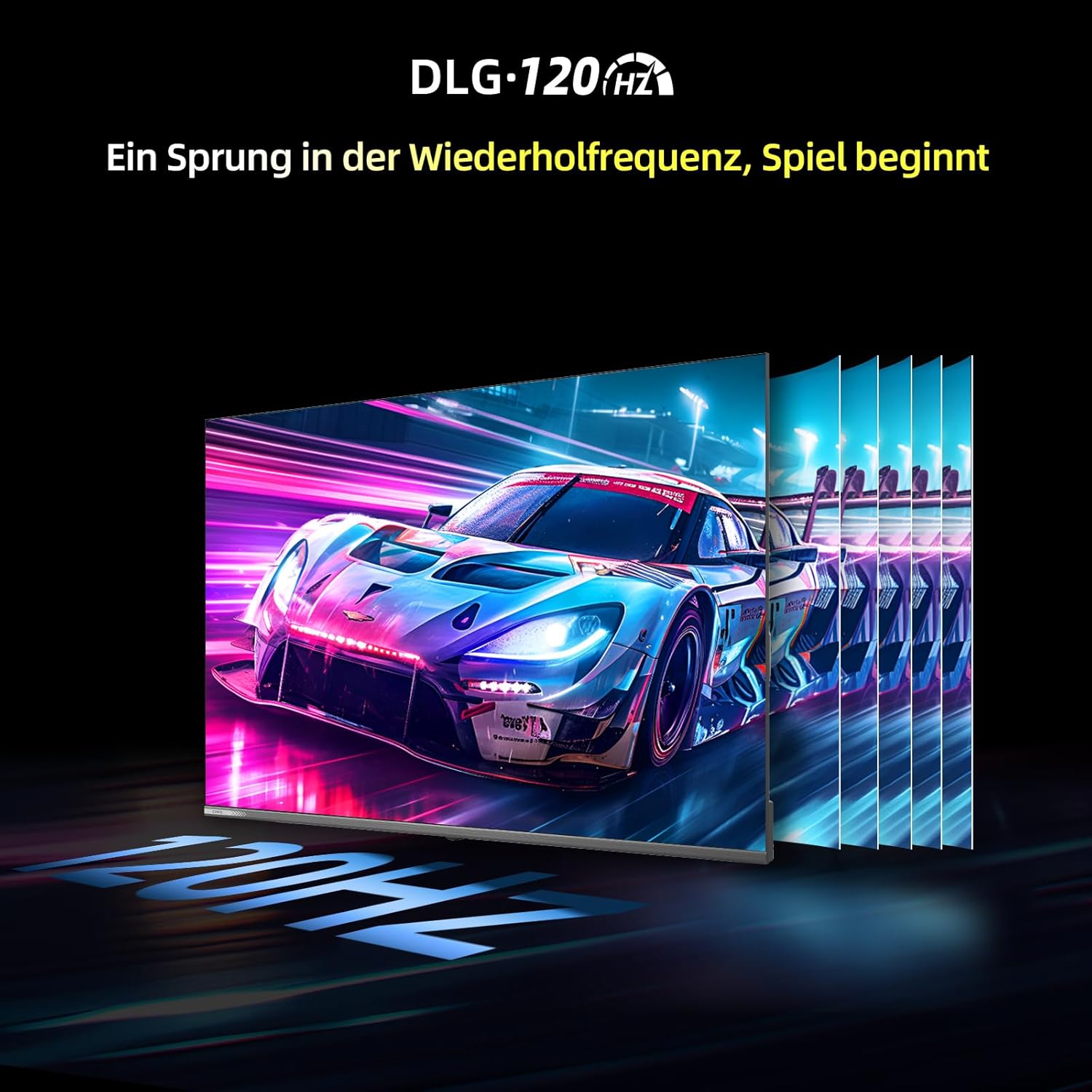
Image: The remote control for the CHIQ U50QM9G TV, showing its layout with number pad, navigation buttons, volume and channel controls, and quick access buttons for streaming apps like Netflix and YouTube.
5.2 Basic Navigation
- Power Button: Turns the TV on or off.
- Navigation Pad (Up/Down/Left/Right/OK): Navigates menus and selects options.
- Volume +/-: Adjusts the volume level.
- Channel +/-: Changes TV channels.
- Input: Selects the input source (HDMI, AV, Tuner).
- Home: Returns to the Google TV home screen.
- Back: Returns to the previous screen.
5.3 Google TV Interface
The Google TV interface organizes your favorite content from various streaming services into one central hub. You can browse recommendations, access your apps, and manage your watchlist.

Image: The vibrant Google TV home screen, showcasing a variety of streaming application icons and content recommendations, providing a centralized entertainment experience.
5.4 Google Assistant
Use the built-in Google Assistant for voice control. Press the Google Assistant button on your remote and speak your commands to search for content, control smart home devices, or get information.
6. Features
The CHIQ U50QM9G TV is equipped with advanced technologies for an immersive viewing and listening experience.

Image: A visual summary of the CHIQ U50QM9G's key features, including DLG 120Hz, Google 5.0, QLED, 4K UHD, HDR10, MEMC, Dolby Audio, dbx-tv, Google Assistant, Wi-Fi, Bluetooth, and a wide color gamut.
6.1 Display Technology
- 4K UHD & HDR10: Experience stunning clarity with four times the resolution of Full HD and enhanced contrast and color with HDR10.
- QLED (Quantum Dot Technology): Advanced Quantum Dot technology delivers a wide color spectrum, covering 95% of the DCI-P3 standard, for vibrant and lifelike colors.
- 10-Bit Panel: Ensures smoother color transitions and richer, more nuanced colors.
6.2 Motion Technology
- DLG 120Hz: The 120Hz refresh rate minimizes latency, providing fluid visuals, especially beneficial for gaming.
- MEMC (Motion Estimation, Motion Compensation): Eliminates motion blur, ensuring clarity in fast-moving scenes for sports and action films.
6.3 Audio Enhancements
- Dolby Audio: Enhances sound quality for clear dialogue and rich audio effects.
- DBX-TV: Optimizes TV sound, boosting bass and improving overall audio for an immersive experience.
6.4 Smart TV Features
- Google TV 5.0: Access a vast library of streaming services like Netflix, YouTube, Disney+, and more.
- Chromecast Built-in: Easily cast content from your smartphone or tablet to the TV.
- Google Assistant: Control your TV and smart home devices using voice commands.
6.5 Connectivity
- WLAN 5G (Dual-band Wi-Fi): Provides fast and stable wireless internet connection.
- Bluetooth 5.0: Connect wireless headphones, soundbars, or other Bluetooth devices.
- Multiple HDMI & USB Ports: For versatile connectivity with various external devices.
7. Maintenance
7.1 Cleaning the TV
- Always unplug the TV before cleaning.
- Use a soft, dry, lint-free cloth to wipe the screen and TV body.
- For stubborn marks, lightly dampen the cloth with water. Never spray cleaner directly onto the screen.
- Avoid using abrasive cleaners, waxes, or solvents.
7.2 Software Updates
Your Google TV may receive automatic software updates. Ensure your TV is connected to the internet to receive the latest features and performance improvements. You can also manually check for updates in the TV's settings menu.
8. Troubleshooting
If you encounter issues with your TV, refer to the following common problems and solutions.
| Problem | Possible Cause | Solution |
|---|---|---|
| No Power | Power cable not connected; no power from outlet. | Check power cable connection; test outlet with another device. |
| No Picture, but Sound is Present | Incorrect input source selected; external device issue. | Press the 'Input' button on the remote to select the correct source; check external device connections. |
| No Sound, but Picture is Present | Volume muted or too low; external audio system issue. | Unmute volume or increase level; check audio cables to external system. |
| Remote Control Not Working | Batteries are dead or incorrectly inserted; obstruction between remote and TV. | Replace batteries; ensure clear line of sight to TV's IR receiver. |
| Network Connection Issues | Wi-Fi signal weak; incorrect password; router issue. | Move TV closer to router; re-enter Wi-Fi password; restart router. |
| Picture is Distorted or Unclear | Low-quality source; cable issue; display settings. | Check source quality; replace HDMI/AV cables; adjust picture settings. |
8.1 Factory Reset
If problems persist, a factory reset may resolve them. Be aware that this will erase all your settings and installed apps. To perform a factory reset, navigate to Settings > System > About > Reset > Factory data reset.
9. Specifications
| Feature | Specification |
|---|---|
| Model Number | U50QM9G |
| Screen Size | 50 inches (126 cm) |
| Display Technology | QLED, LED |
| Resolution | 4K UHD (3840 x 2160) |
| Refresh Rate | 120 Hz (DLG) |
| Operating System | Google TV |
| Connectivity | Bluetooth 5.0, USB, Ethernet, WLAN (2.4G/5G Dual-band) |
| Audio Technology | Dolby Audio, DBX-TV |
| Special Features | Borderless Design, Chromecast, Parental Control, DLNA, Browser, Google Assistant |
| Product Dimensions (with stand) | 26.6 x 111 x 69.7 cm (D x W x H) |
| Weight | 11 Kilograms |
| VESA Mount Compatibility | 200 x 200 mm |
10. Warranty and Support
10.1 Warranty Information
Your CHIQ U50QM9G TV comes with a standard 2-year warranty. For customers in Spain (ES), a 3-year warranty applies. Please retain your proof of purchase for warranty claims.
10.2 Customer Support
For technical assistance, troubleshooting, or warranty inquiries, please contact CHIQ customer support. An online hotline is available with professional staff during weekdays.
For more information, please visit the official CHIQ store on Amazon: CHIQ Amazon Store