
RCA RPJ181-BLACK
RCA 720P Home Theater Projector RPJ181-BLACK User Manual
Comprehensive guide for setup, operation, and maintenance of your RCA Home Theater Projector.
1. Product Overview
The RCA 720P Home Theater Projector (Model: RPJ181-BLACK) is designed to deliver a high-definition viewing experience for your home entertainment. Featuring a native resolution of 1280 x 720 (720P) with compatibility for 1080P, this projector utilizes LCD technology and a bright 120 ANSI lumens LED light source to produce crisp, clear, and vibrant visuals. Its versatile projection capabilities allow for screen sizes ranging from 30 to 140 inches, making it suitable for various room environments. With multiple connectivity options including HDMI, USB, AV, VGA, and TF card, it seamlessly integrates with a wide array of devices, including streaming sticks.

Image: Front angled view of the RCA 720P Home Theater Projector, showcasing its compact black design and lens.
2. What's in the Box
Upon unboxing your RCA 720P Home Theater Projector, please ensure all the following components are present:
- RCA 720P Home Theater Projector
- Remote control
- AC Power Adapter
- User Manual
3. Key Features
- High Definition Display: Native resolution of 1280 x 720 (720P) with compatibility for 1080P resolution, offering crisp and clear visuals.
- Advanced Display Technology: Utilizes LCD technology for exceptional image quality and clarity.
- Bright and Vibrant: Features 120 ANSI lumens brightness powered by an LED light source, ensuring vivid and dynamic visuals.
- Streaming Device Ready: Ready to use with a streaming stick for convenient access to your favorite online content.
- Energy-efficient LED Lamp: LED lamp type with a power consumption of up to 45W, providing long-lasting and eco-friendly illumination.
- Versatile Projection: Supports projection sizes ranging from 30 to 140 inches, offering flexibility for various viewing environments.
- Precision Lens System: Equipped with 3 pieces of glass lenses and manual focus adjustment for precise image focusing.
- Flexible Projection Distance: Offers a projection distance range of 0.8 to 3.8 meters, accommodating different room sizes and setups.
- Multiple Aspect Ratios: Supports both 16:9 and 4:3 aspect ratios, ensuring compatibility with different media formats.
- Enhanced Audio Output: Integrated 5W speaker with 10% THD for immersive sound experience.
- Convenient Connectivity: Features 2 x HDMI, 1 x USB, AV in, VGA in, TF card and 3.5mm headphone jack interfaces for seamless connectivity with various devices.
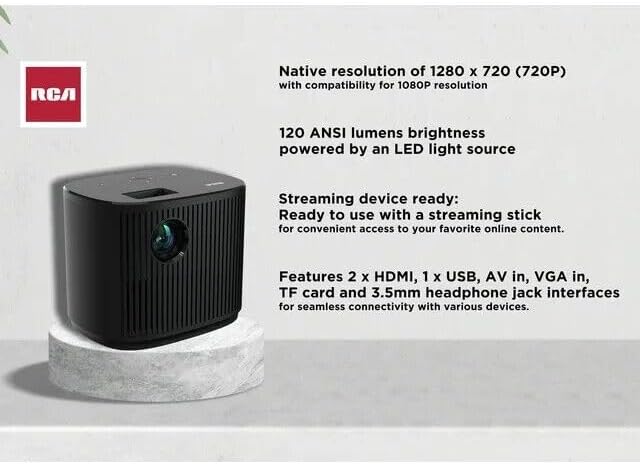
Image: Graphic highlighting key features of the RCA projector, including resolution, brightness, streaming readiness, and connectivity options.
4. Setup Guide
4.1 Placement
Choose a flat, stable surface for your projector. Ensure there is adequate ventilation around the unit. The projection distance can range from 0.8 to 3.8 meters to achieve screen sizes from 30 to 140 inches. Adjust the projector's position to achieve your desired screen size and focus.

Image: The RCA projector placed on a coffee table in a living room, demonstrating a typical setup environment.
4.2 Power Connection
- Connect the AC Power Adapter to the projector's power input port.
- Plug the other end of the AC Power Adapter into a standard electrical outlet.
- The power indicator light on the projector should illuminate.
4.3 Connecting Devices
The projector offers various input options:
- HDMI: Connect Blu-ray players, game consoles, laptops, or streaming devices to one of the two HDMI ports.
- USB: Insert a USB drive to play media files directly.
- AV In: Use the AV port for older devices like DVD players or VCRs.
- VGA In: Connect computers or laptops via the VGA port.
- TF Card: Insert a TF (MicroSD) card to play media files.
- 3.5mm Headphone Jack: Connect external speakers or headphones for enhanced audio.
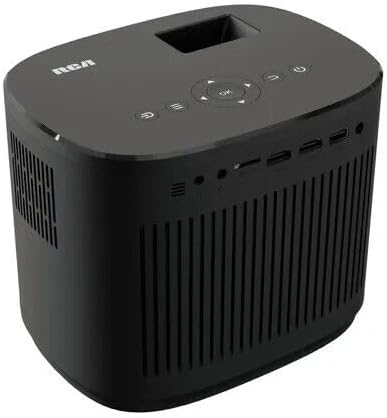
Image: Top-down view of the RCA projector, illustrating the control panel buttons and various input/output ports on the rear.
5. Operating Instructions
5.1 Powering On/Off
- To power on, press the Power button on the projector or the remote control.
- To power off, press the Power button again. The projector will enter standby mode.
5.2 Focus Adjustment
Once the projector is powered on and displaying an image, rotate the focus ring located near the lens until the image appears sharp and clear on the screen.
5.3 Input Source Selection
Use the "Source" button on the projector or remote control to cycle through available input sources (HDMI1, HDMI2, USB, AV, VGA, TF Card). Select the input corresponding to your connected device.
5.4 Aspect Ratio Adjustment
The projector supports both 16:9 and 4:3 aspect ratios. You can typically switch between these modes via the projector's menu settings to best suit your content.
5.5 Audio Output
The projector has an integrated 5W speaker. For a more immersive audio experience, connect external speakers or a sound system using the 3.5mm headphone jack.
6. Maintenance
6.1 Cleaning the Lens
Gently wipe the projector lens with a soft, lint-free cloth specifically designed for optical surfaces. Do not use abrasive cleaners or excessive force.
6.2 Cleaning the Projector Body
Use a soft, dry cloth to clean the exterior of the projector. For stubborn marks, a slightly damp cloth can be used, followed by a dry cloth. Ensure no liquid enters the ventilation openings.
6.3 Ventilation
Ensure the projector's ventilation openings are clear and not obstructed. Proper airflow is crucial for maintaining optimal operating temperature and extending the lifespan of the LED lamp.
6.4 Storage
When not in use for extended periods, store the projector in a cool, dry place, away from direct sunlight and excessive dust. It is recommended to use the original packaging for storage and transport.
7. Troubleshooting
7.1 No Image Displayed
- Ensure the projector is powered on and the power indicator light is active.
- Verify that the correct input source is selected (e.g., HDMI1, USB).
- Check the connection cable between the projector and the source device. Try re-seating the cable or using a different cable.
- Test the source device with another display to confirm it is outputting a signal.
7.2 Blurry Image
- Adjust the focus ring on the projector lens until the image becomes clear.
- Ensure the projection surface is flat and smooth.
- Verify the projection distance is within the recommended range (0.8 to 3.8 meters).
7.3 No Sound
- Check the volume level on both the projector and the source device.
- Ensure the audio output is not muted.
- If using external speakers, verify their connection and power.
- Some source devices may require audio output settings to be adjusted (e.g., PCM for HDMI audio).
7.4 Remote Control Not Working
- Ensure the batteries are correctly inserted and not depleted. Replace if necessary.
- Point the remote directly at the projector's IR receiver.
- Remove any obstructions between the remote and the projector.
8. Specifications
| Brand | RCA |
| Model | RPJ181-BLACK |
| Display Technology | LCD |
| Native Resolution | 1280 x 720 (720P) |
| Max Supported Resolution | 1080P |
| Brightness | 120 ANSI lumens |
| Lamp Type | LED |
| Power Consumption | Up to 45W |
| Projection Size | 30 to 140 inches (diagonal) |
| Projection Distance | 0.8 to 3.8 meters |
| Aspect Ratios | 16:9, 4:3 |
| Audio Output | Integrated 5W speaker with 10% THD |
| Connectivity | 2 x HDMI, 1 x USB, AV in, VGA in, TF card, 3.5mm headphone jack |
| Product Dimensions | 8.5 x 6.5 x 3.1 inches |
| Item Weight | 6 pounds |
| Color | Black |

Image: A visual representation of various projection sizes from 30 to 160 inches, demonstrating the projector's versatility in different room setups.
Ask a question about this manual
Ask about setup, troubleshooting, compatibility, parts, safety, or missing instructions. Manuals+ will review the question and use this page’s manual context to help answer it.