
BERGER Classiq 22
BERGER Classiq 22" 12V/24V Smart TV User Manual
Model: Classiq 22"
1. Introduction
Welcome to the user manual for your BERGER Classiq Smart TV. This document provides essential information for setting up, operating, and maintaining your device. Please read it thoroughly before using the product to ensure safe and optimal performance.
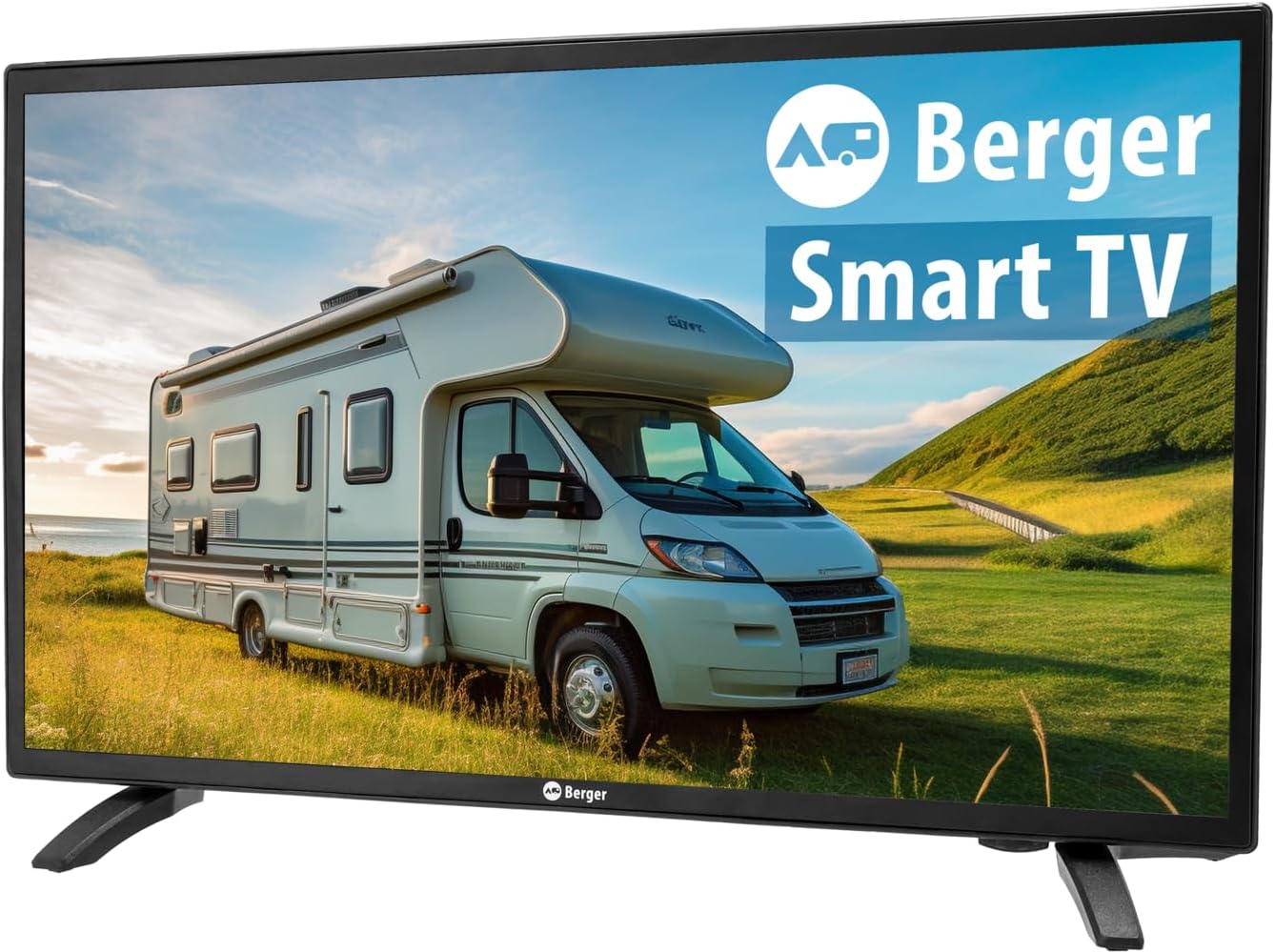
Front view of the BERGER Classiq Smart TV, showcasing its sleek design and display.
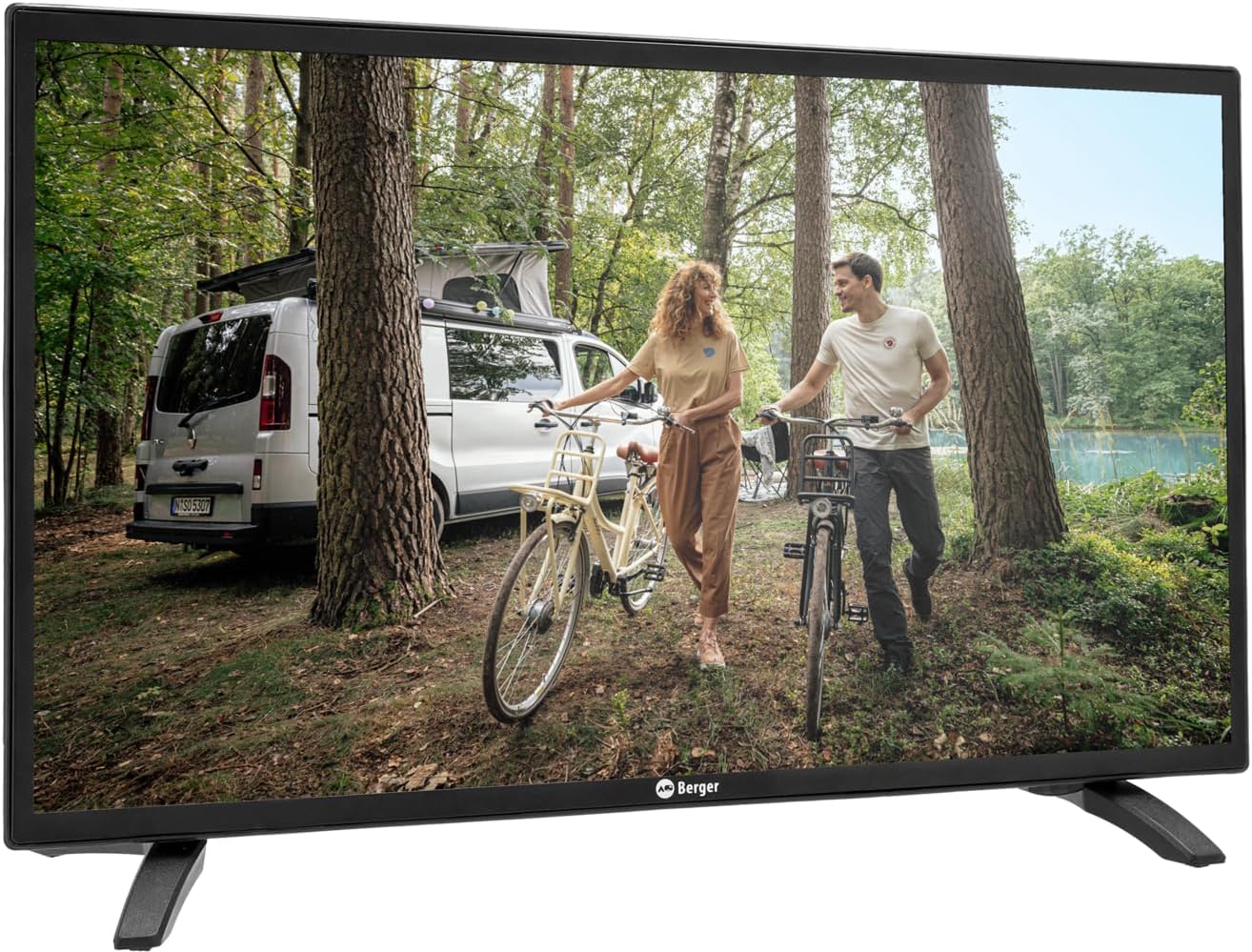
The BERGER Classiq Smart TV displayed in a mobile environment, highlighting its suitability for recreational vehicles.
2. Safety Information
Always observe the following safety precautions to prevent electric shock, fire, or injury:
- Do not expose the TV to rain or moisture.
- Do not block ventilation openings. Ensure adequate space around the TV for air circulation.
- Use only the power adapter and cables supplied by the manufacturer.
- Do not open the TV casing. Refer all servicing to qualified personnel.
- Keep the TV away from direct sunlight, heat sources, and extreme temperatures.
- Clean the TV with a soft, dry cloth. Do not use liquid or aerosol cleaners.
3. Package Contents
Please check that all items are present and in good condition upon unpacking:
- BERGER Classiq Smart TV Unit
- IR Remote Control (batteries not included)
- 12/24V Cigarette Lighter Power Cable
- TV Stand
- User Manual (this document)
- VESA Screws for mounting (please verify presence upon receipt, as some packages may vary)
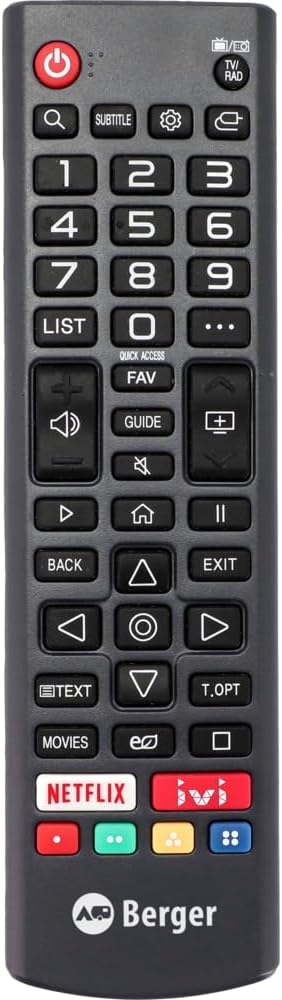
The infrared remote control for the BERGER Classiq Smart TV.

The 12/24V cigarette lighter power cable for mobile use.
4. Setup
4.1 Unpacking and Placement
Carefully remove the TV from its packaging. You can place the TV on its included stand or mount it on a wall using a compatible VESA mount (VESA screws are included in the package). Ensure the TV is placed on a stable, level surface or securely mounted.
4.2 Connecting Power
For mobile use in RVs, caravans, or trucks, connect the supplied 12/24V cigarette lighter cable to the TV's DC input port and then to your vehicle's 12V or 24V power outlet.
4.3 Antenna/Cable Connection
The BERGER Classiq Smart TV features a built-in Triple Tuner (DVB-S2/T2/C), allowing reception of satellite, terrestrial, and cable signals without additional external tuners.
- DVB-S2 (Satellite): Connect your satellite dish cable to the 'SAT IN' port.
- DVB-T2 (Terrestrial): Connect your terrestrial antenna cable to the 'ANT IN' port.
- DVB-C (Cable): Connect your cable TV signal to the 'ANT IN' port.
4.4 Initial Setup and Channel Scan
Upon first power-on, the TV will guide you through the initial setup process. This typically includes language selection, country, and channel scanning. Follow the on-screen prompts. For channel sorting or deletion, navigate to the TV's settings menu after the scan is complete. Detailed instructions for channel management can be found within the TV's on-screen help or settings.
4.5 Network Connection (WebOS)
To access Smart TV features, connect your TV to the internet:
- Wi-Fi: Go to Settings > Network > Wi-Fi Connection. Select your network and enter the password. Note that in some mobile environments, Wi-Fi credentials may need to be re-entered if the network changes frequently.
- Wired: Connect an Ethernet cable from your router to the LAN port on the TV.

Rear view of the BERGER Classiq Smart TV showing various input and output ports, including HDMI, USB, and antenna connections.

Side view of the BERGER Classiq Smart TV, highlighting accessible ports like USB and headphone jack.
5. Operating Your TV
5.1 Basic Functions
Use the remote control or the physical buttons on the TV (located on the back) to control basic functions:
- Power: Press the power button to turn the TV on/off.
- Volume: Use VOL+/- buttons to adjust volume.
- Channel: Use CH+/- buttons to change channels.
- Source/Input: Press the SOURCE button to select input sources (HDMI, AV, Tuner, etc.).

Close-up of the physical control buttons located on the back of the BERGER Classiq Smart TV.
5.2 Smart TV Features (WebOS)
Your BERGER Smart TV runs on WebOS, providing a user-friendly interface for accessing various features:
- App Store: Download and install your favorite streaming apps (e.g., Netflix, YouTube) from the integrated app store.
- Web Browser: Browse the internet directly on your TV.
- Streaming Services: Access pre-installed or downloaded streaming platforms.
5.3 Media Playback via USB
Connect a USB drive to the TV's USB port to play back photos, videos, or music files. Navigate to the Media Player app on WebOS to access your content.
5.4 Bluetooth Connectivity
Pair Bluetooth-enabled devices such as headphones or external speakers with your TV for enhanced audio experience. Go to Settings > Sound > Bluetooth to manage connections.
6. Maintenance
6.1 Cleaning
To clean the screen, gently wipe it with a soft, lint-free cloth. For stubborn marks, slightly dampen the cloth with water or a screen-specific cleaning solution. Do not spray liquid directly onto the screen. Clean the TV casing with a dry, soft cloth.
6.2 Software Updates
Your BERGER Smart TV may receive software updates to improve performance and add new features. It is recommended to keep your TV connected to the internet to receive these updates automatically or check for them manually in the settings menu.
7. Troubleshooting
If you encounter issues with your TV, refer to the table below for common problems and their solutions.
| Problem | Possible Cause | Solution |
|---|---|---|
| TV does not turn on. | No power supply. | Check if the power cable is securely connected to the TV and the power outlet. Ensure the vehicle's power outlet is active. |
| No signal/Blank screen. | Incorrect input source or antenna/cable issue. | Press the SOURCE button on the remote to select the correct input. Check antenna/cable connections. Perform a channel scan if necessary. |
| Poor picture quality. | Weak signal or incorrect resolution. | Adjust antenna position or check cable quality. Ensure the TV's resolution settings match the content. |
| No internet connection. | Wi-Fi password incorrect or network issue. | Go to Network settings and re-enter your Wi-Fi password. Restart your router. If moving between locations, you may need to re-enter credentials for new networks. |
| WebOS feels slow. | System resources are being used by multiple apps or background processes. | Close unused applications. Restart the TV. Ensure the TV's software is up to date. |
| Remote control not working. | Dead batteries or obstructed signal. | Replace batteries. Ensure there are no obstructions between the remote and the TV's IR sensor. |
| Difficulty sorting/deleting channels. | Unfamiliarity with menu navigation. | Refer to the TV's on-screen settings menu for channel management options. If issues persist, contact customer support. |
8. Technical Specifications
| Feature | Specification |
|---|---|
| Model Name | Classiq 22 |
| Screen Size (Diagonal) | 22 inches (55.9 cm) |
| Resolution (22-27 inch models) | 1920x1080 (Full HD) |
| Viewing Angle | 178°/178° |
| Tuner Type | Triple-Tuner (DVB-S2/T2/C) |
| Power Supply | 12V/24V (specifically for mobile use) |
| CI+ Slot | Yes (for Pay-TV cards) |
| Operating System | WebOS |
| Connectivity | Wired, Wireless (Wi-Fi), Bluetooth |
| Special Features | Portable, Integrated Speaker, USB Media Playback, Web Browser, App Store |
| Product Dimensions (with stand) | 16.5D x 53.5W x 32.8H cm |
| Screen Technology | LED |
| Refresh Rate | 60 Hz |

Official product data sheet providing detailed technical specifications and energy efficiency information. For more details, visit the EPREL database.

The energy efficiency label for the BERGER Classiq Smart TV, indicating its energy class and consumption. For more details, visit the EPREL database.
9. Warranty and Support
Your BERGER Classiq Smart TV is designed for durability and performance. The manufacturer guarantees product support for a minimum of 8 years. For specific warranty terms and conditions, please refer to the documentation provided with your purchase or contact the manufacturer directly.
Customer Support:
Manufacturer: Berger
Seller: Fritz Berger GmbH
Website: www.fritz-berger.de
Email: Daniel.Sediatschek@fritz-berger.de
Phone: 09183 330-0
Please have your model number and purchase information ready when contacting support.
Related documentsClassiq 22


Ask a question about this manual
Ask about setup, troubleshooting, compatibility, parts, safety, or missing instructions. Manuals+ will review the question and use this page’s manual context to help answer it.