
Logitech G RS50 (941-000264)
Logitech G RS50 System Sim Racing Wheel Setup Instruction Manual
Model: RS50 (941-000264)
1. Introduction
Welcome to the Logitech G RS50 System Sim Racing Wheel Setup. This system is designed to provide an authentic and immersive racing experience for PlayStation 5, PlayStation 4, and PC platforms. It features a Direct Drive wheel base with 8 Nm of torque, TRUEFORCE feedback technology, and a modular design for customization.
This manual provides detailed instructions for setting up, operating, maintaining, and troubleshooting your RS50 system to ensure optimal performance and longevity.
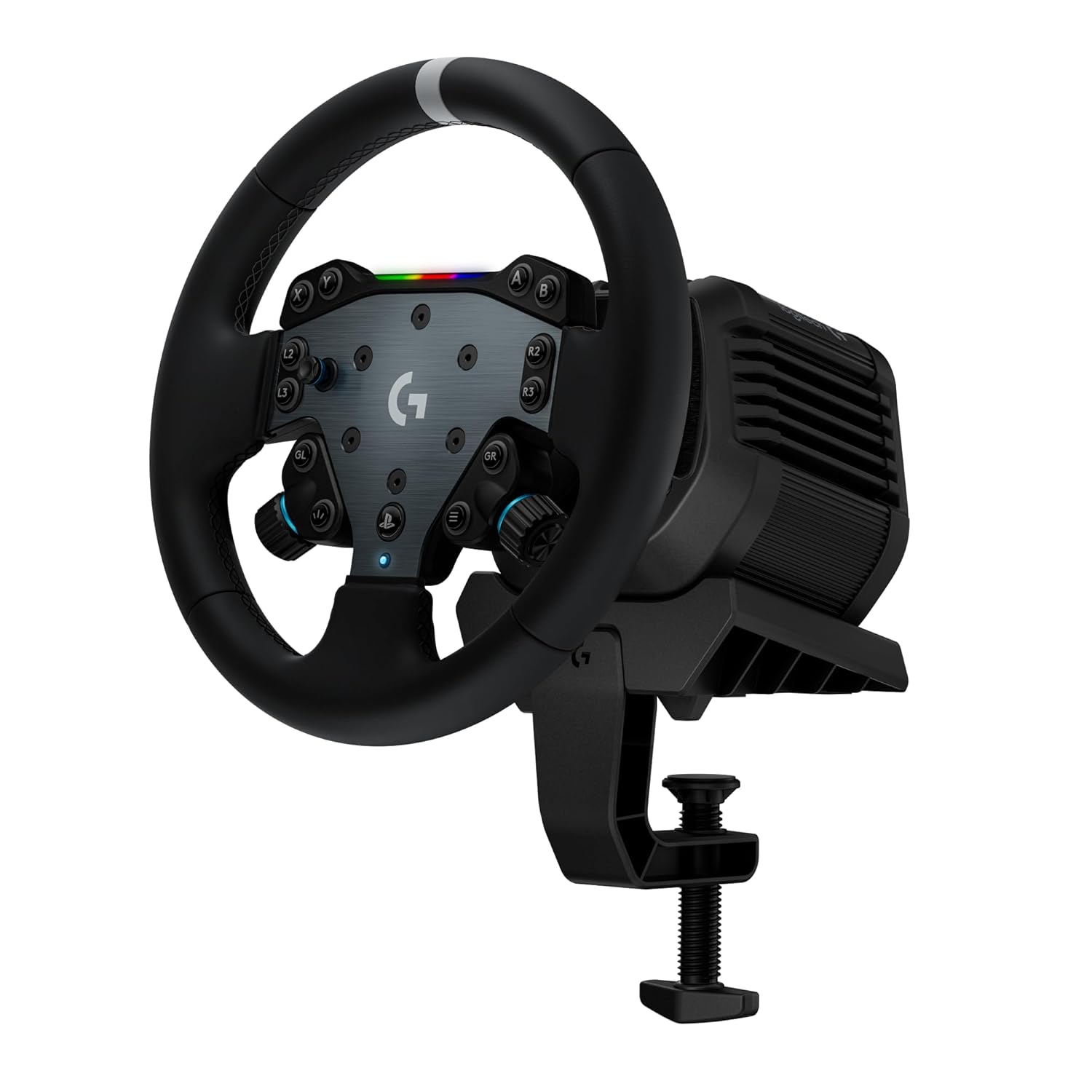
Image 1.1: The Logitech G RS50 System Sim Racing Wheel Setup, including the wheel base, wheel hub, and round wheel.
2. What's in the Box
The Logitech G RS50 System includes the following components:
- RS50 Base: The direct drive motor unit providing force feedback.
- RS Wheel Hub: The central control unit with buttons and paddle shifters.
- RS Round Wheel (11-Inch): The steering wheel rim.
- Power Supply: For powering the RS50 Base.
- USB Cable: For connecting the system to your console or PC.
- Table Clamp: For securing the wheel base to a desk or table.
- Desk and Racing Seat Mounting Hardware: Includes 2 Helper Tools, 4 T-Nuts/Bolts, Washers, and a Hex Key for various mounting options.
Note: Pedals are not included with this wheel bundle. Compatible with Logitech G923/G920/G29/G27/G25 pedals using a Logitech G Racing Adapter, or with PRO/RS Pedals.

Image 2.1: Visual representation of the components included in the RS50 System package: RS Round Wheel, RS Wheel Hub, RS50 Base, and a clamp.
3. Setup
3.1 Assembling the Wheel
- Attach the RS Wheel Hub to the RS50 Base: Align the quick-release mechanism on the RS Wheel Hub with the shaft on the RS50 Base. Push the hub onto the shaft until it clicks securely into place.
- Attach the RS Round Wheel to the RS Wheel Hub: Align the mounting holes on the RS Round Wheel with the corresponding holes on the RS Wheel Hub. Secure the wheel using the provided screws and hex key.
Image 3.1: A user demonstrating the attachment of the RS Wheel Hub to the RS50 Direct Drive Base.
3.2 Mounting the RS50 Base
The RS50 Base can be mounted using the included table clamp or directly to a racing seat/cockpit.
Table Clamp Installation:
- Place the RS50 Base on a stable desk or table.
- Insert the table clamp into the designated slot on the front underside of the RS50 Base.
- Tighten the clamp screw until the base is firmly secured to the surface. Ensure it is stable and does not wobble.
Racing Seat/Cockpit Installation:
Use the provided mounting hardware (T-Nuts/Bolts, Washers, Hex Key) to secure the RS50 Base to your racing cockpit. Refer to your cockpit's manual for specific mounting points and instructions. Ensure all connections are tight and secure before use.
3.3 Connecting to Console/PC
- Connect the power supply to the RS50 Base and then to a wall outlet.
- Connect the USB cable from the RS50 Base to an available USB port on your PlayStation 5, PlayStation 4, or PC.
- For PC users, download and install the latest Logitech G HUB software from the official Logitech G website to access full customization options and driver updates.
4. Operation
4.1 Powering On and Calibration
Once connected, the RS50 Base will automatically power on and perform a self-calibration sequence, rotating the wheel from lock to lock. Allow this process to complete before interacting with the wheel.
4.2 Direct Drive and TRUEFORCE Feedback
The RS50 System utilizes Direct Drive technology, connecting the wheel directly to the motor shaft for instant and precise force feedback. This provides up to 8 Nm of peak torque, delivering highly realistic sensations.

Image 4.1: Professional racer Denny Hamlin experiencing the immersive direct drive force feedback of the Logitech G RS50 System.
TRUEFORCE is a proprietary high-definition force feedback technology that connects directly to in-game physics and audio engines. This allows for real-time processing of engine RPM, terrain texture, suspension movement, and other in-game effects, translating them into tactile feedback through the wheel.

Image 4.2: A user engaged in a racing simulation, experiencing TRUEFORCE-enabled immersive haptics through the RS50 wheel.
4.3 Controls and Buttons
The RS Wheel Hub features 13 console-specific buttons, providing comprehensive control without needing to reach for a separate controller. These buttons are programmable via Logitech G HUB software on PC.
Image 4.3: Detailed view of the RS Wheel Hub, highlighting the 13 console-specific buttons and integrated paddle shifters.
Adjustable paddle shifters are integrated into the RS Wheel Hub, allowing for quick gear changes. These can be adjusted to suit different wheel rim sizes and user preferences.
5. Customization
The Logitech G RS50 System offers a modular design, allowing for various customization options to enhance your racing experience.
5.1 Swapping Wheel Rims
The RS Round Wheel can be easily swapped with other Logitech G Racing Series, PRO Series, and Logitech G x MOMO steering wheels. This allows you to tailor your control and feel for different racing disciplines.

Image 5.1: An illustration of the modularity of the RS50 system, showing how the round wheel can be swapped and additional accessories like pedals and shifters can be integrated.
5.2 Adjusting Paddle Shifters
The paddle shifters on the RS Wheel Hub can be adjusted to optimize their position for your hand size and preferred grip. Use the provided helper tool or hex key to loosen the screws, adjust the paddles, and then re-tighten them securely.
Image 5.2: A close-up of a hand using a tool to adjust the position of a paddle shifter on the RS Wheel Hub.
5.3 Software Customization (PC Only)
For PC users, the Logitech G HUB software allows for extensive customization:
- Adjusting Force Feedback Strength: Fine-tune the intensity of the force feedback.
- Button Mapping: Reassign functions to the 13 buttons on the RS Wheel Hub.
- TRUEFORCE Settings: Modify TRUEFORCE effects and audio feedback levels.
- Wheel Rotation Angle: Set the maximum rotation angle of the steering wheel.

Image 5.3: A close-up of the small display screen on the RS50 Base, showing a menu option for adjusting 'STRENGTH', indicating customizable force feedback settings.
6. Maintenance
To ensure the longevity and optimal performance of your Logitech G RS50 System, follow these maintenance guidelines:
- Cleaning: Use a soft, dry cloth to wipe down the wheel, hub, and base. Avoid using abrasive cleaners, solvents, or harsh chemicals, as these can damage the finish and electronic components.
- Storage: When not in use, store the system in a clean, dry environment away from direct sunlight and extreme temperatures.
- Cable Management: Ensure all cables are neatly routed and not under tension or pinched, which can lead to damage over time.
- Firmware Updates: Regularly check the Logitech G website or G HUB software for firmware updates. Keeping your device's firmware up-to-date can improve performance and compatibility.
7. Troubleshooting
If you encounter issues with your Logitech G RS50 System, refer to the following common problems and solutions:
| Problem | Possible Cause | Solution |
|---|---|---|
| Wheel does not power on or respond. | No power, loose connection, or system error. | Ensure the power supply is securely connected to the base and a working wall outlet. Check USB cable connection. Try a different USB port. Restart your console/PC. |
| No force feedback or weak feedback. | Game settings, G HUB settings, or driver issue. | Verify force feedback settings within the game. For PC, check Logitech G HUB software settings for strength and TRUEFORCE. Ensure drivers are up-to-date. |
| Wheel not recognized by console/PC. | USB connection issue, driver issue (PC), or console compatibility. | Try a different USB port. For PC, reinstall Logitech G HUB software and drivers. Ensure your console is updated to the latest firmware. |
| Wheel feels loose or unstable. | Improper mounting or loose wheel/hub connection. | Re-tighten the table clamp or mounting hardware. Ensure the RS Wheel Hub is securely clicked onto the RS50 Base. Check screws securing the wheel rim to the hub. |
| Buttons or paddle shifters are unresponsive. | Software issue or physical damage. | Check button assignments in game or G HUB software. Ensure the RS Wheel Hub is fully connected. If the issue persists, contact support. |
If these steps do not resolve your issue, please visit the Logitech G support website for further assistance.
8. Specifications
- Model Number: 941-000264
- Direct Drive Torque: 8 Nm peak torque
- Force Feedback Technology: TRUEFORCE
- Compatibility: PlayStation 5, PlayStation 4, Windows 10/11
- Wheel Rim Size: 11-inch (RS Round Wheel)
- Wheel Hub Buttons: 13 console-specific buttons
- Paddle Shifters: Adjustable
- Connectivity: USB
- Item Weight: Approximately 21.3 pounds (total system)
- Package Dimensions: 21.5 x 14.3 x 9 inches
- Release Date: September 17, 2025
9. Warranty and Support
Logitech G products are manufactured to high quality standards and are designed to provide reliable performance. For detailed warranty information, including terms, conditions, and duration, please refer to the warranty card included with your product or visit the official Logitech G website.
For technical support, troubleshooting guides, FAQs, and driver downloads, please visit the Logitech G support website:
When contacting support, please have your product model number (RS50, 941-000264) and proof of purchase readily available.
Related documentsRS50 (941-000264)


Ask a question about this manual
Ask about setup, troubleshooting, compatibility, parts, safety, or missing instructions. Manuals+ will review the question and use this page’s manual context to help answer it.