
Introduction
The Stealth Cam Deceptor Max 2.0 is an advanced dual-core cellular trail camera designed for reliable outdoor monitoring. It captures high-quality images and videos, uploading them simultaneously for efficient performance. Featuring advanced compression technology and integrated AI, this camera enhances clarity and detail in every shot, including improved night-time imaging. With robust photo and video capabilities, customizable settings, and remote management via the Command PRO App, the Deceptor Max 2.0 provides comprehensive surveillance for various outdoor applications.
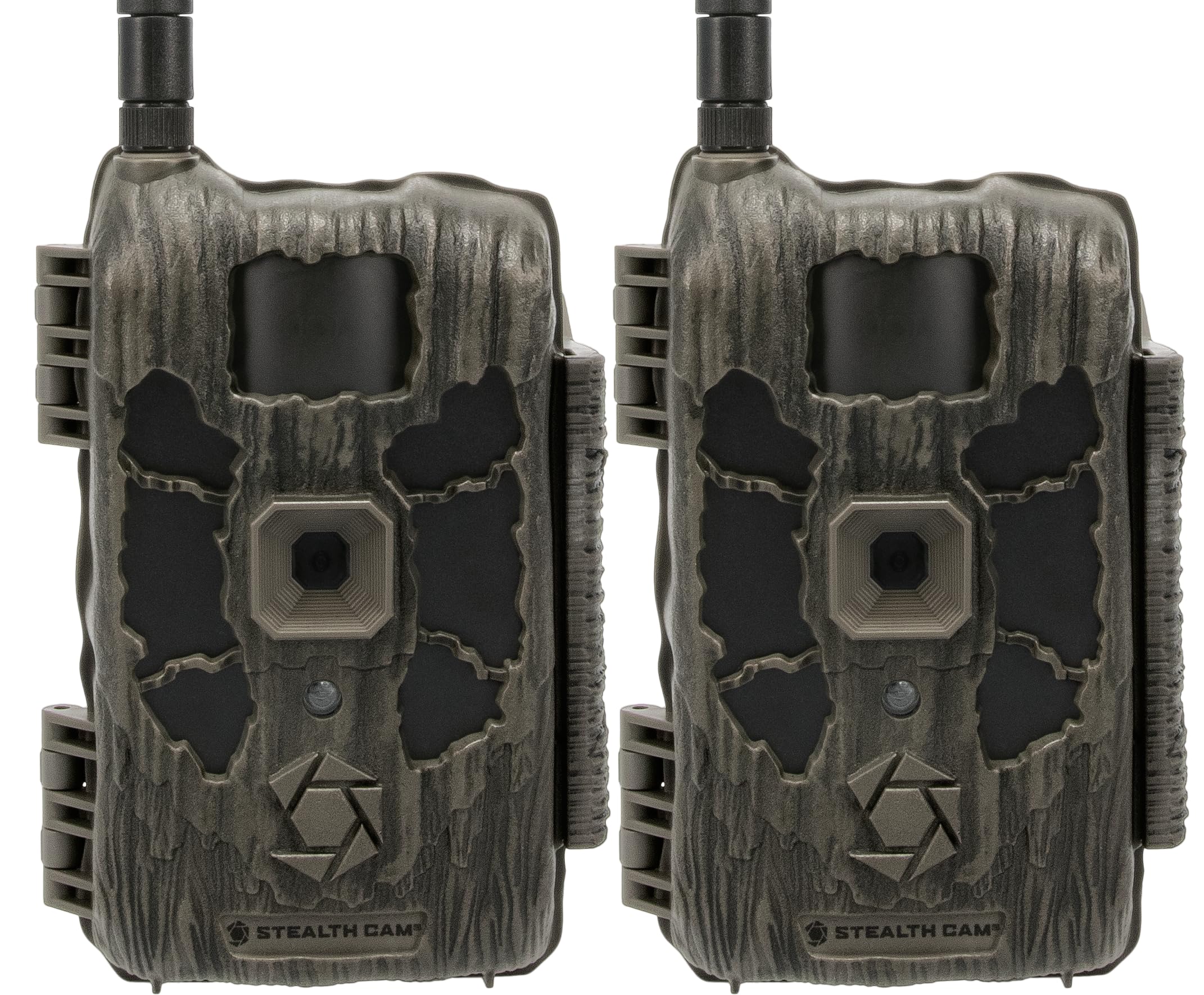
Figure 1: Front view of the Stealth Cam Deceptor Max 2.0 cellular trail camera.
Setup
1. Unboxing and Component Check
Carefully unpack the camera and ensure all components are present. The package typically includes the Deceptor Max 2.0 camera unit and an instruction manual.
2. Battery Installation
Open the camera casing to access the battery compartment. The camera requires 16 AA batteries (not included). Insert the batteries according to the polarity indicators inside the tray. For extended operation, an external 12V DC auxiliary jack is available for power packs.

Figure 2: Internal view of the camera, highlighting the battery tray and SD card slot.
3. SD Card Installation
Locate the SD card slot inside the camera. Insert a compatible SD card (up to 32GB internal memory is also available) with the contacts facing the correct direction until it clicks into place. Ensure the card is formatted before first use.
4. Mounting the Camera
The Deceptor Max 2.0 features an integrated multi-position mount and a ¼-20 threaded insert for flexible mounting options. Secure the camera to a tree or other stable surface using the provided strap or a compatible mounting accessory. Ensure the camera is positioned to capture the desired area without obstructions.

Figure 3: Camera mounted on a tree, ready for deployment.
5. App Download and Activation
Download the Command PRO App from your smartphone's app store. Follow the in-app instructions to create an account and activate your camera. The camera utilizes AIO Carrier Determination with pre-installed SIM cards to automatically connect to the strongest available network (AT&T or Verizon).
Video 1: Stealth Cam Deceptor 2.0 Product Overview. This video provides a comprehensive look at the camera's features and capabilities, including setup and operation.
Operating Instructions
1. Powering On/Off
Locate the power switch inside the camera casing. Toggle it to the 'ON' position to power on the camera. The camera will perform a self-check and attempt to connect to the cellular network. To power off, toggle the switch to 'OFF'.
2. Photo and Video Modes
The Deceptor Max 2.0 offers versatile capture options:
- Photo Resolution: Selectable between 4MP, 8MP, 16MP, and 40MP for high-definition still images.
- Video Recording: Captures 1440P QHD video with audio.
- Burst Mode: 1-9 photos per trigger for capturing rapid action.
- Trigger Speed: Ultra-fast 0.3-second trigger speed to minimize missed events.

Figure 4: Key features of the Deceptor Max 2.0, including photo and video capabilities.
3. Customizable Settings
Adjust various settings via the Command PRO App:
- Time-Out Delays: Set delays between captures from 2-59 seconds or 1-59 minutes.
- Detection and Flash Range: The camera has a 100ft detection and flash range, supported by 36pcs of 940nm no-glow LEDs for clear night-time imaging.
4. Remote Control via Command PRO App
The Command PRO App allows for comprehensive remote management:
- Access Media: View photos and videos on demand.
- Live Streaming: Initiate live video streams (where available).
- GPS Tracking: Utilize built-in GPS for precise location tracking of your camera.
- AI Enhancement: Benefit from integrated AI for enhanced image clarity and detail, including NightIQ for improved night vision.

Figure 5: Advanced features like AI, GPS, and fast trigger speed.
Video 2: Smarter Alerts. This video demonstrates the camera's ability to provide automatic detection and notifications, enhancing monitoring efficiency.
Video 3: Command Features - PIR Zone. Learn how to utilize the PIR zone settings for optimized motion detection.
Maintenance
1. Battery Replacement
When battery levels are low, replace all 16 AA batteries simultaneously to ensure consistent power. If using an external 12V DC power source, ensure it is functioning correctly.
2. SD Card Management
Regularly check the SD card capacity via the Command PRO App. Format the SD card periodically to maintain optimal performance and prevent data corruption. Back up important media before formatting.
3. Cleaning the Camera
Gently clean the camera lens and PIR sensor window with a soft, lint-free cloth to ensure clear images and accurate detection. Keep the camera casing free from dirt, dust, and debris.
4. Firmware Updates
Check the Command PRO App regularly for available firmware updates. Keeping the camera's firmware up-to-date ensures optimal performance, new features, and bug fixes.
Video 4: Messaging Pillars - Never Quit. This video highlights the camera's extended runtime capabilities, crucial for long-term deployment.
Troubleshooting
1. Connectivity Issues
If the camera is not connecting to the cellular network, ensure it is in an area with adequate signal strength. The AIO Carrier Determination feature should automatically select the best network. If issues persist, try relocating the camera or checking your data plan status via the Command PRO App.
2. Poor Image/Video Quality
Ensure the lens is clean and free from obstructions. Verify that the selected photo resolution and video quality settings in the app are appropriate for your needs. Night-time image quality is enhanced by 940nm no-glow LEDs and AI NightIQ technology.
3. False Triggers
Excessive false triggers (e.g., from moving branches or grass) can occur if the camera's sensitivity is too high. Adjust the PIR sensitivity settings in the Command PRO App to a lower level. Ensure the camera is mounted securely to prevent movement from wind.
4. Short Battery Life
Ensure you are using fresh, high-quality AA batteries. Frequent video captures, live streaming, or poor cellular signal can increase battery consumption. Consider using an external 12V DC power pack for extended deployment.
5. Camera Not Activating
If the camera fails to activate, double-check battery installation and SD card presence. Confirm that the camera has been properly registered and activated through the Command PRO App. Contact customer support if the issue persists after these checks.
Video 5: Messaging Pillars - Less Noise, More Confidence. This video emphasizes the camera's ability to reduce unwanted triggers, leading to more relevant captures.
Specifications
| Model Name | Deceptor Max 2.0 |
| Photo Resolution | 40MP (selectable: 4MP, 8MP, 16MP, 40MP) |
| Video Resolution | 1440p QHD with Audio |
| Trigger Speed | 0.3 seconds |
| Detection & Flash Range | 100 feet |
| LEDs | 36pcs 940nm No-Glow LEDs |
| Internal Memory | 16GB |
| Connectivity | Cellular (AIO Carrier Determination for AT&T & Verizon) |
| App Compatibility | Command PRO App |
| Power Source | 16 AA Batteries (not included), 12V DC Auxiliary Jack |
| Special Features | Dual-Core Processing, Integrated AI, Built-in GPS, Motion Sensor, Night Vision, Weather Proof |
| Mounting Options | Integrated Multi-Position Mount, ¼-20 Threaded Insert, Python Cable Provision |
| Dimensions | 10 x 5.51 x 3.15 inches |

Figure 6: Overview of Stealth Cam Deceptor Max 2.0 key specifications.
Warranty
The Stealth Cam Deceptor Max 2.0 Cellular Trail Camera is covered by a Limited 2-Year Warranty. This warranty covers defects in materials and workmanship under normal use. Please retain your proof of purchase for warranty claims. For detailed terms and conditions, refer to the official Stealth Cam website or contact customer support.

Figure 7: The Stealth Cam Deceptor Max 2.0 comes with a 2-year warranty.
Support
For further assistance, technical support, or warranty inquiries, please visit the official Stealth Cam website or contact their customer service department. Detailed contact information can typically be found on the manufacturer's website or within the Command PRO App.

Figure 8: Information about Stealth Cam and their commitment to technology.