
1. Introduction
The Fanvil V60W is an advanced desktop IP phone designed for modern communication needs. It combines elegant design with robust functionality, featuring a 2.4-inch color display for an intuitive user interface. This device supports up to 4 SIP lines and includes 6 programmable keys for optimal customization. High-definition audio quality and 6-way audio conferencing capabilities make this phone ideal for professional communications. Versatile connectivity is provided through integrated dual-band 2.4G/5G WiFi (WiFi 6) and Bluetooth 5, eliminating the need for additional cables. Two 10/100 ports with PoE support ensure easy integration into your existing network. Its modern black design seamlessly fits into any office environment, while the ergonomic handset with a coiled cord ensures comfort during extended conversations.
2. Package Contents
Please verify that all items are present and in good condition upon opening the package. If any items are missing or damaged, please contact your vendor.
- Fanvil V60W IP Phone Unit
- Handset
- Handset Cord
- Ethernet Cable
- Power Adapter (if not using PoE)
- Quick Installation Guide
3. Product Overview
Familiarize yourself with the components of your Fanvil V60W IP Phone.
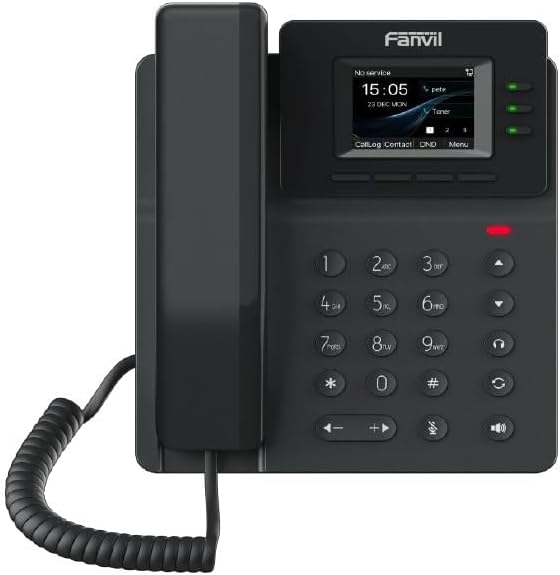
Figure 3.1: Fanvil V60W IP Phone Front View
This image displays the front of the Fanvil V60W IP Phone. It features a black handset on the left, connected by a coiled cord. The main unit on the right includes a color display showing "No service", "15:05", "23 DEC MON", and menu options like "CallLog", "Contact", "DND", and "Menu". Above the display, the "Fanvil" logo is visible. To the right of the display are three green indicator lights. Below the display is a standard numeric keypad (0-9, *, #) along with navigation keys (up, down, left, right), volume controls, and dedicated function keys for headset, speakerphone, mute, and redial/transfer. A red indicator light is visible above the keypad.
Key Components:
- Display Screen: 2.4-inch color display (320 x 240 resolution) for user interface and information.
- Programmable Keys: 6 keys for custom functions.
- Numeric Keypad: Standard 0-9, *, # for dialing.
- Navigation Keys: For menu navigation.
- Function Keys: Dedicated keys for common features like speakerphone, mute, headset.
- Handset: Ergonomic design for comfortable calls.
- LED Indicators: For call status, message waiting, etc.
4. Setup and Installation
Follow these steps to set up your Fanvil V60W IP Phone.
4.1 Connecting the Phone
- Connect the Handset: Plug one end of the coiled handset cord into the handset and the other end into the handset port on the phone base.
- Connect to Network:
- Ethernet (PoE or Adapter): Connect an Ethernet cable from the LAN port on the phone to your network switch or router. If using Power over Ethernet (PoE), the phone will power on automatically.
- Power Adapter (if no PoE): If PoE is not available, connect the power adapter to the power port on the phone and then to a power outlet.
- Connect to PC (Optional): If you wish to connect a computer through the phone, connect an Ethernet cable from the PC port on the phone to your computer.
4.2 Initial Configuration
Upon first boot, the phone will attempt to obtain network settings via DHCP. You may need to configure SIP accounts manually or via auto-provisioning.
- Accessing Settings: Press the Menu key on the phone to access system settings.
- Network Settings: Navigate to Settings > Advanced Settings > Network to configure IP address, subnet mask, gateway, and DNS if not using DHCP.
- SIP Account Registration: Navigate to Settings > Advanced Settings > Accounts to add or modify SIP accounts. You will need your SIP server address, SIP user ID, and password provided by your VoIP service provider.
- Wi-Fi Configuration: Navigate to Settings > Wi-Fi to enable Wi-Fi and connect to an available wireless network.
5. Basic Operation
5.1 Making a Call
- Lift the Handset or press the Speakerphone key.
- Dial the number using the keypad.
- Press the Dial key or wait a few seconds for the call to connect automatically.
5.2 Answering a Call
When the phone rings:
- Lift the Handset, or
- Press the Speakerphone key, or
- Press the corresponding Line key.
5.3 Ending a Call
To end an active call:
- Replace the Handset, or
- Press the End Call key (if available on screen or as a function key).
5.4 Adjusting Volume
During a call, use the Volume Up (+) and Volume Down (-) keys to adjust the handset, headset, or speakerphone volume.
6. Advanced Features
The Fanvil V60W offers several advanced features to enhance your communication experience.
- Call Hold: Press the Hold key during an active call to place it on hold. Press again to resume.
- Call Transfer:
- Blind Transfer: During a call, press Transfer, dial the new number, and press Transfer again.
- Attended Transfer: During a call, press Transfer, dial the new number, wait for the other party to answer, then press Transfer again to complete.
- 6-Way Audio Conferencing:
- Make a call to the first party.
- Press the Conf key. The first party is put on hold.
- Dial the second party's number and wait for them to answer.
- Press the Conf key again to establish the conference.
- Repeat steps 2-4 for additional parties (up to 6 participants total).
- Bluetooth Connectivity: Pair your Bluetooth headset or mobile device via Settings > Bluetooth for hands-free communication or contact synchronization.
- Programmable Keys: Customize the 6 programmable keys via the phone's web interface or Settings > DSS Key to assign speed dials, BLF (Busy Lamp Field), or other functions.
7. Maintenance
Proper maintenance ensures the longevity and optimal performance of your Fanvil V60W IP Phone.
- Cleaning: Use a soft, dry cloth to clean the phone's surface. For stubborn marks, a slightly damp cloth with mild, non-abrasive cleaner can be used. Avoid excessive moisture and harsh chemicals.
- Dust Removal: Regularly wipe down the display and keypad to prevent dust buildup.
- Environmental Conditions: Keep the phone in a dry environment, away from direct sunlight, extreme temperatures, and sources of moisture.
- Firmware Updates: Periodically check for firmware updates from Fanvil's official website or through your service provider. Firmware updates can improve performance, add features, and fix bugs.
8. Troubleshooting
This section addresses common issues you might encounter with your Fanvil V60W IP Phone.
| Problem | Possible Cause | Solution |
|---|---|---|
| Phone does not power on. | No power from adapter or PoE. | Check power adapter connection or ensure PoE is active on the Ethernet port. Try a different power outlet or Ethernet port. |
| No dial tone / Cannot make calls. | Network connectivity issue; SIP account not registered. | Verify Ethernet cable connection. Check network settings (IP address, gateway). Ensure SIP account status is "Registered" in the phone's settings. Contact your VoIP service provider. |
| Poor audio quality (echo, static). | Network congestion; faulty cable; environmental interference. | Check network bandwidth. Replace Ethernet cable. Move phone away from other electronic devices. Adjust volume settings. |
| Wi-Fi connection unstable. | Weak signal; interference; incorrect password. | Move phone closer to Wi-Fi router. Check Wi-Fi password. Ensure router firmware is up to date. |
If the problem persists after attempting these solutions, please contact your technical support or VoIP service provider for further assistance.
9. Specifications
Detailed technical specifications for the Fanvil V60W IP Phone.
- Display: 2.4-inch (320x240) color screen
- SIP Lines: 4
- Programmable Keys: 6
- Audio: HD Audio, 6-way audio conferencing
- Connectivity: Dual-band 2.4G/5G Wi-Fi (Wi-Fi 6), Bluetooth 5
- Ethernet Ports: 2 x 10/100 Mbps (with PoE support)
- Dimensions (L x W x H): 22 x 25 x 15 cm (approximate)
- Weight: 600 Grams (approximate)
- Material: Plastic
- Color: Black
- Power Source: Power adapter or PoE
- Compatible Devices: Ehs
10. Warranty and Support
For warranty information and technical support, please refer to the documentation provided with your purchase or visit the official Fanvil website. Keep your purchase receipt as proof of purchase for warranty claims.
- Manufacturer: Fanvil
- Support Contact: Refer to Fanvil's official website for support channels (e.g., support portal, email, phone).
- Software Updates: Information regarding software updates is not available in the product data. Please check the manufacturer's website for the latest updates.
- Spare Parts: Information regarding spare parts availability is not available.


