
Introduction
This manual provides comprehensive instructions for the XTRONS PX74MTVL car stereo and navigation system. Please read this manual thoroughly before installation and operation to ensure proper use and to maximize the device's features. This unit is designed for specific Volkswagen, Seat, and Skoda models.
Product Overview
The XTRONS PX74MTVL is a 7-inch HD car stereo featuring Android 14, an Octa-core CPU, 4GB RAM, and 64GB ROM. It includes integrated GPS navigation, dual-band Wi-Fi, 4G connectivity (SIM card not included), Bluetooth 5.0, Apple CarPlay, and Android Auto. The unit supports USB and SD card inputs, screen mirroring, and steering wheel controls via Dual Canbus.
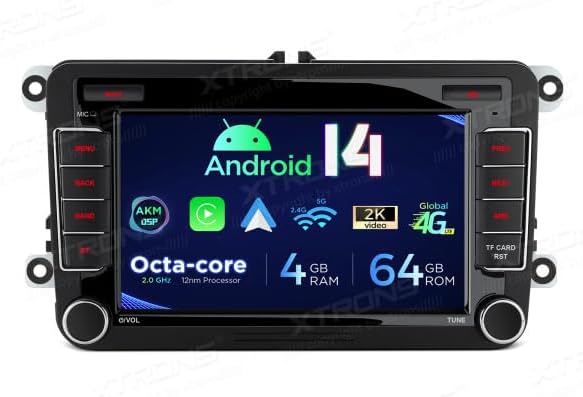
This image displays the XTRONS PX74MTVL car stereo unit, showcasing its 7-inch display with the Android 14 operating system. Key features like Octa-core processor, 4GB RAM, and 64GB ROM are visible on the screen.
Setup and Installation
1. Pre-Installation Checks
- Ensure the vehicle's ignition is off and the battery is disconnected before starting installation.
- Verify all included components are present (main unit, wiring harnesses, GPS antenna, USB cables, etc.).
- Consult your vehicle's specific service manual for dashboard removal and wiring access.
2. Wiring Diagram
Connect the provided wiring harnesses to the corresponding ports on the XTRONS PX74MTVL unit and your vehicle's wiring system. Pay close attention to power, ground, speaker, and CANBUS connections. Refer to the detailed wiring diagram included in the separate installation guide for your specific vehicle model.
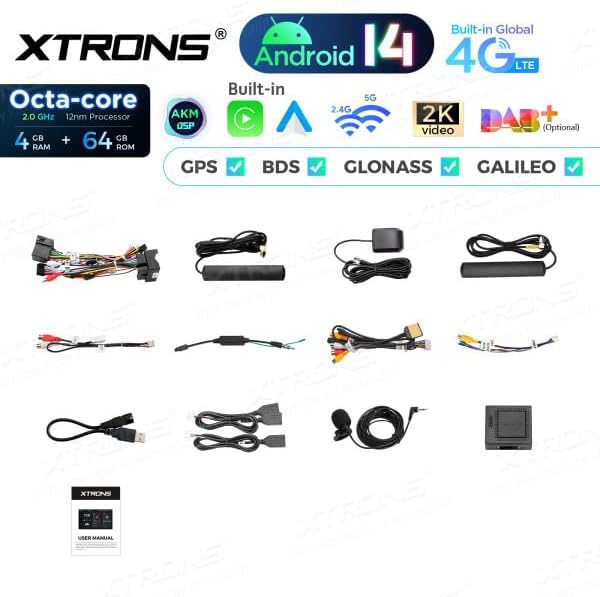
This image displays the various accessories and wiring harnesses included with the XTRONS PX74MTVL unit, such as USB cables, GPS antenna, microphone, and power cables, along with a user manual.
3. Mounting the Unit
Carefully insert the XTRONS PX74MTVL unit into the dashboard opening. Secure it using the vehicle's original mounting brackets or the provided mounting accessories. Ensure all cables are properly routed and not pinched.

This image shows the XTRONS PX74MTVL unit seamlessly integrated into a Volkswagen vehicle's dashboard, demonstrating its fit and aesthetic appearance when installed.
4. Initial Power-On
After installation, reconnect the vehicle battery. Turn the ignition to the ACC or ON position. The unit should power on automatically. Follow any on-screen prompts for initial setup, such as language selection and time zone.
Operating Instructions
1. Basic Functions
- Power On/Off: Press and hold the power button (usually the volume knob) to turn the unit on or off. A short press typically mutes/unmutes audio.
- Touchscreen Interface: Navigate through menus and applications by tapping, swiping, and pinching on the 7-inch HD touchscreen.
- Volume Control: Rotate the volume knob or use the on-screen controls to adjust audio levels.
- Radio: Access the radio application to tune into FM/AM stations. Use the scan function to find available stations and save presets.

The main user interface of the XTRONS PX74MTVL, featuring a digital speedometer, current time, and a music playback widget. Physical buttons for menu, back, band, and Bluetooth are visible on the left, and prev, next, AM/FM, TF card, and reset on the right.
2. Advanced Features
- GPS Navigation: The unit comes with pre-installed navigation software. Ensure the GPS antenna is properly connected for accurate positioning. Update maps periodically for optimal performance.
- Wi-Fi and 4G Connectivity: Connect to a Wi-Fi hotspot or insert a 4G SIM card (not included) to access online features, download apps, and stream content.
- Apple CarPlay & Android Auto: Connect your smartphone wirelessly via Bluetooth or via USB to use Apple CarPlay or Android Auto. This allows access to phone functions, navigation, music, and messaging directly from the car stereo display.
- Bluetooth 5.0: Pair your smartphone for hands-free calling and audio streaming. Access your phonebook and call history directly from the unit.
- Screen Mirroring: Mirror your smartphone's screen onto the car stereo display for viewing content.
- USB and SD Card Playback: Insert USB drives or SD cards (up to 128/64GB) into the designated slots to play audio and video files.
- Steering Wheel Controls (CANBUS): The integrated Dual Canbus system allows the unit to seamlessly integrate with your vehicle's existing steering wheel controls for safe and convenient operation.

A split image illustrating the Apple CarPlay and Android Auto functionalities on the XTRONS PX74MTVL screen. The top half shows CarPlay with Siri integration, and the bottom half shows Android Auto with Google Assistant, highlighting both wireless and wired connection options.
Maintenance and Care
- Cleaning the Screen: Use a soft, lint-free cloth slightly dampened with water or a screen cleaner specifically designed for electronics. Avoid abrasive materials or harsh chemicals.
- Software Updates: Periodically check the XTRONS official website or the unit's settings for available software updates to ensure optimal performance and access to new features.
- General Care: Avoid exposing the unit to extreme temperatures, direct sunlight for prolonged periods, or excessive moisture.
Troubleshooting Guide
| Issue | Possible Cause | Solution |
|---|---|---|
| Unit does not power on | Loose power connection, blown fuse, vehicle battery issue. | Check power wiring, inspect vehicle fuses, ensure battery is charged. |
| No sound output | Volume muted, incorrect audio source, loose speaker wires. | Unmute volume, select correct audio source, check speaker connections. |
| GPS signal loss | GPS antenna not connected, obstructed view of sky, outdated maps. | Ensure GPS antenna is securely connected and has a clear view, update maps. |
| Bluetooth/Wi-Fi connectivity issues | Device not paired, incorrect password, interference. | Re-pair device, verify password, move away from interference sources. |
| Touchscreen unresponsive | Software glitch, screen protector interference. | Restart the unit (use reset button if available), remove/reapply screen protector. |
If problems persist after attempting these solutions, please contact XTRONS customer support for further assistance.
Technical Specifications

A technical diagram providing the dimensions of the XTRONS PX74MTVL car stereo unit, including front panel measurements (220mm width, 130mm height) and rear chassis measurements (178mm width, 75mm height, 210mm depth).
| Feature | Specification |
|---|---|
| Brand | XTRONS |
| Model Number | PX74MTVL |
| Operating System | Android 14 |
| CPU | Octa-core |
| RAM | 4GB DDR4 |
| ROM | 64GB SSD |
| Display | 7-inch HD Touchscreen |
| Connectivity | Wi-Fi (Dual Band), Bluetooth 5.0, 4G (SIM slot), USB, SD Card |
| Special Features | GPS Navigation, Apple CarPlay, Android Auto, Screen Mirroring, Dual Canbus, DSP Equalizer |
| Compatible Devices | Smartphone |
| Audio Output Mode | Stereo, Surround |
| Surround Sound Channels | 5.1 |
| Video Encoding | H.264, H.265/HEVC, MPEG-4, MKV |
Warranty and Customer Support
XTRONS products are covered by a manufacturer's warranty. Please refer to the warranty card included with your product or visit the official XTRONS website for detailed warranty terms and conditions. For technical assistance, troubleshooting, or service inquiries, please contact XTRONS customer support through their official channels. Ensure you have your model number (PX74MTVL) and purchase details ready when contacting support.