
Thrustmaster T598
THRUSTMASTER T598 Direct Drive Racing Wheel User Manual
Model: T598 | Brand: Thrustmaster
Introduction
This user manual provides comprehensive instructions for the setup, operation, maintenance, and troubleshooting of your THRUSTMASTER T598 Direct Drive Racing Wheel. Designed for an immersive racing experience, this wheel features next-generation Direct Axial Drive Technology and powerful Force Feedback, compatible with PlayStation 5, PlayStation 4, and PC platforms. Please read this manual carefully before using your device to ensure proper functionality and safety.
Safety Information
Always observe the following safety precautions to prevent damage to the device or personal injury:
- Keep the device away from moisture, dust, and extreme temperatures.
- Do not disassemble or attempt to repair the device yourself. Refer all servicing to qualified personnel.
- Use only the power adapter supplied with the device.
- Ensure proper ventilation around the wheelbase during operation to prevent overheating.
- Avoid prolonged use at maximum force feedback settings to prevent fatigue or discomfort.
Package Contents
Verify that all components are present in your package:
- THRUSTMASTER T598 Direct Drive Wheel Base
- Detachable Racing Wheel
- Pedal Set
- Power Adapter and Cable
- Mounting System (Clamp or Hard-Mount Screws)
- USB Connection Cable
- User Manual (this document)

Image: The complete THRUSTMASTER T598 racing wheel setup, including the direct drive wheelbase, the detachable steering wheel, and the pedal set.
Setup
1. Attaching the Racing Wheel
- Align the quick-release mechanism on the racing wheel with the shaft on the wheelbase.
- Push the wheel firmly onto the shaft until it clicks into place.
- Tighten the locking screw (if present) to secure the wheel.

Image: Close-up of the THRUSTMASTER T598 racing wheel, highlighting its design and the central logo, indicating it's properly attached to the wheelbase.
2. Mounting the Wheelbase
The wheelbase can be mounted using the included clamp system or by hard-mounting to a cockpit.
Clamp System:
- Attach the clamp to the underside of the wheelbase.
- Position the wheelbase on a sturdy desk or table.
- Tighten the clamp screw until the wheelbase is securely fastened.
Hard-Mounting:
- Refer to your racing cockpit's instructions for compatible mounting points.
- Use appropriate screws (not always included) to secure the wheelbase to the cockpit.
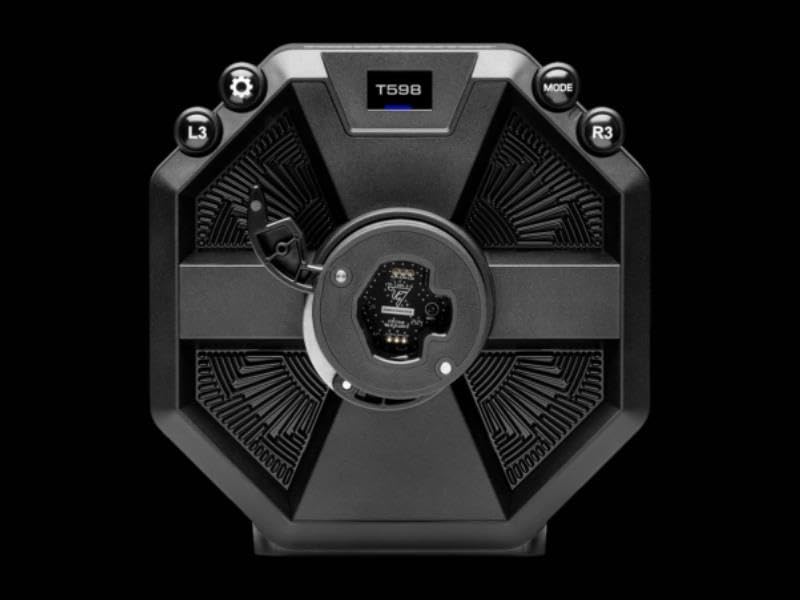
Image: Top view of the THRUSTMASTER T598 wheelbase, showing the display and various control buttons (L3, R3, Mode, Settings gear icon) for configuration.
3. Connecting the Pedal Set
- Connect the pedal set cable to the designated port on the rear of the wheelbase.
- Ensure the connection is secure.

Image: The THRUSTMASTER pedal set, featuring two pedals mounted on a sturdy base with the Thrustmaster logo, designed for realistic racing simulation.
4. Power and USB Connection
- Connect the power adapter to the wheelbase and then to a wall outlet.
- Connect the USB cable from the wheelbase to an available USB port on your PlayStation console (PS4/PS5) or PC.
- The wheelbase will perform a self-calibration sequence upon power-on. Do not touch the wheel during this process.
Operating Instructions
Basic Controls and Display
The T598 features an integrated display and various buttons for quick adjustments and status monitoring.

Image: Close-up of the THRUSTMASTER T598 wheelbase display, showing "FFB1 MASTER 100%" and control buttons (L3, R3), indicating force feedback master settings.

Image: Close-up of the THRUSTMASTER T598 wheelbase display, showing "FFB3 GEAR JOLT HIGH" and control buttons (L3, R3), indicating specific force feedback effects.
Use the L3 and R3 buttons, along with the MODE and Settings buttons, to navigate the display menu and adjust settings such as Force Feedback strength, vibration effects, and steering angle.
Force Feedback (FFB)
The T598 utilizes Direct Axial Drive Technology to deliver precise and powerful Force Feedback. This technology directly transmits motor forces to the steering wheel, providing realistic sensations of road texture, impacts, and vehicle dynamics.

Image: An exploded view diagram of the THRUSTMASTER T598 direct drive mechanism, illustrating the internal components responsible for generating force feedback, including the motor and drive shaft.
Adjust FFB settings via the wheelbase display or through the Thrustmaster control panel on PC for optimal experience in different racing titles.
Compatibility
The THRUSTMASTER T598 is fully compatible with:
- PlayStation 5 (PS5)
- PlayStation 4 (PS4)
- PC (Windows 10/11)
Ensure your console or PC operating system is up to date. For PC, download the latest drivers and firmware from the official Thrustmaster support website.
Maintenance
- Cleaning: Use a soft, dry cloth to clean the wheel and wheelbase. Avoid abrasive cleaners or solvents.
- Storage: When not in use, store the device in a cool, dry place, away from direct sunlight.
- Firmware Updates: Regularly check the official Thrustmaster support website for firmware updates. Keeping your device's firmware up to date ensures optimal performance and compatibility with new games and systems.
Troubleshooting
| Problem | Possible Solution |
|---|---|
| Wheel not recognized by console/PC. |
|
| No Force Feedback or weak FFB. |
|
| Wheel calibration issues. |
|
Specifications
| Feature | Detail |
|---|---|
| Product Name | THRUSTMASTER T598 Direct Drive Racing Wheel |
| Model Number | T598 |
| Brand | Thrustmaster |
| Force Feedback Technology | Direct Axial Drive |
| Compatibility | PlayStation 5, PlayStation 4, PC |
| Product Dimensions | 12.6 x 17.72 x 13.78 inches (Wheelbase and Wheel) |
| Item Weight | Approximately 24.5 pounds |
Warranty and Support
For warranty information and technical support, please visit the official Thrustmaster support website or contact their customer service. Keep your proof of purchase for warranty claims.
Thrustmaster Official Website: support.thrustmaster.com
Ask a question about this manual
Ask about setup, troubleshooting, compatibility, parts, safety, or missing instructions. Manuals+ will review the question and use this page’s manual context to help answer it.