
BoxWave AllReader SD Card Reader
BoxWave AllReader SD Card Reader Instruction Manual
Model: AllReader SD Card Reader
Brand: BoxWave
Introduction
The BoxWave AllReader SD Card Reader is a versatile device designed for easy transfer of files between various digital storage cards and your electronic devices. It supports both standard SD cards and microSD cards, offering multiple connectivity options including USB-C, USB-A, and Micro-USB for broad compatibility.

Image: The BoxWave AllReader SD Card Reader shown next to a Lexon Horizon Diffuser, illustrating its compact size. The card reader features multiple connectors.
Product Features
- Four Interfaces: Equipped with USB-C, USB-A, Micro-USB, and Apple Lightning connectors for maximum device compatibility.
- Easy File Transfer: Facilitates quick and straightforward transfer of photos, videos, music, and other files between memory cards and devices.
- Plug and Play: No drivers or software installation required for most operating systems.
- Compact Design: Small and portable, designed for convenience and easy transport.
- Universal Card Support: Compatible with both standard SD and microSD card formats.
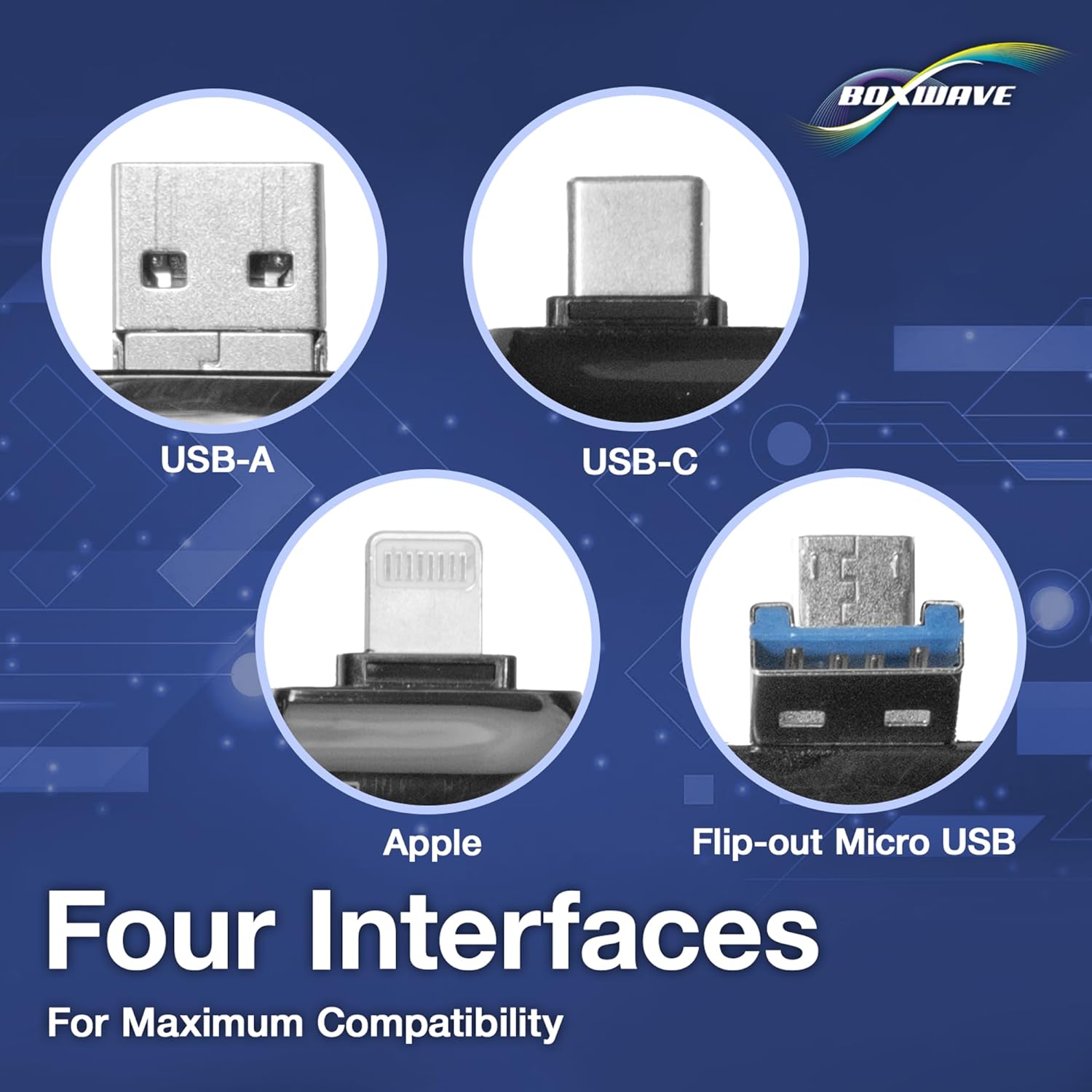
Image: A detailed view highlighting the four distinct connector types integrated into the AllReader: USB-A, USB-C, Apple Lightning, and a flip-out Micro USB, demonstrating its broad compatibility.
Setup
- Identify Card Type: Determine if you are using a standard SD card or a smaller microSD card.
- Insert Memory Card: Gently insert your SD or microSD card into the appropriate slot on the AllReader. Ensure the card is fully seated.
- Select Connector: Choose the correct connector (USB-C, USB-A, Micro-USB, or Apple Lightning) that matches the port on your target device (smartphone, tablet, laptop, or desktop PC).
- Connect to Device: Plug the selected connector of the AllReader into your device's port.

Image: A close-up of the AllReader SD Card Reader, clearly showing the dedicated slots for both standard SD cards and microSD cards, ready for insertion.
Operating Instructions
- Device Recognition: Once connected, your device should automatically recognize the AllReader as an external storage device. On some devices, you may need to navigate to 'File Manager' or 'My Files' to locate it.
- Access Files: Open the recognized storage device to view the contents of your inserted SD or microSD card.
- Transfer Files:
- To copy files from the card to your device: Select the desired files on the card, then use your device's copy/paste or move function to transfer them to a folder on your device.
- To copy files to the card from your device: Select the desired files on your device, then use your device's copy/paste or move function to transfer them to the AllReader's storage.
- Eject Safely: Before disconnecting, it is recommended to safely eject the storage device from your operating system (if applicable) to prevent data corruption.

Image: The AllReader SD Card Reader shown in use with a smartphone, tablet, laptop, and desktop PC, illustrating its capability for easy file transfer across multiple device types.
Maintenance
- Cleaning: Use a soft, dry cloth to clean the exterior of the AllReader. Avoid using liquid cleaners or solvents.
- Storage: Store the device in a cool, dry place away from direct sunlight and extreme temperatures.
- Connector Care: Keep the connectors free from dust and debris. Avoid bending or applying excessive force to the connectors.
Troubleshooting
- Issue: Device not recognized.
- Solution:
- Ensure the memory card is fully inserted into the AllReader.
- Ensure the AllReader is securely connected to your device's port.
- Try connecting to a different port on your device or a different device to rule out port issues.
- Check if your device's operating system requires specific drivers (though generally not needed for this plug-and-play device).
- Issue: Cannot access files on the card.
- Solution:
- Verify that the memory card is not corrupted or damaged. Try inserting it into another card reader or device.
- Ensure your device's file manager or operating system supports the file system format of the memory card (e.g., FAT32, exFAT).
- Issue: Slow file transfer speeds.
- Solution:
- Transfer speeds can vary based on the memory card's speed class, the device's USB port version (e.g., USB 2.0 vs. USB 3.0), and the number/size of files being transferred.
- Ensure your device's port is not overloaded with other USB devices.
Specifications
| Brand | BoxWave |
| Model | AllReader SD Card Reader |
| Interfaces | USB-C, USB-A, Micro-USB, Apple Lightning |
| Card Compatibility | SD, microSD |
| Color | Jet Black |
| Item Weight | 6 ounces |
| Manufacturer | BoxWave |
| Date First Available | January 21, 2025 |
Warranty and Support
For warranty information and technical support, please refer to the official BoxWave website or contact their customer service directly. Keep your purchase receipt for warranty claims.
Official BoxWave Website: www.boxwave.com
Ask a question about this manual
Ask about setup, troubleshooting, compatibility, parts, safety, or missing instructions. Manuals+ will review the question and use this page’s manual context to help answer it.