
1. Product Overview
The Nokia G310 5G Smartphone (Model TA-1573) offers lightning-fast 5G connectivity and modern mobile technology. It features a vibrant display for various tasks, a powerful processor for smooth performance, and an advanced camera system for detailed photos. Designed for daily use, it provides a comfortable grip and durable build quality. Enjoy extensive network compatibility, ample storage, a long-lasting battery with quick charging, and a user-friendly interface with regular software updates.
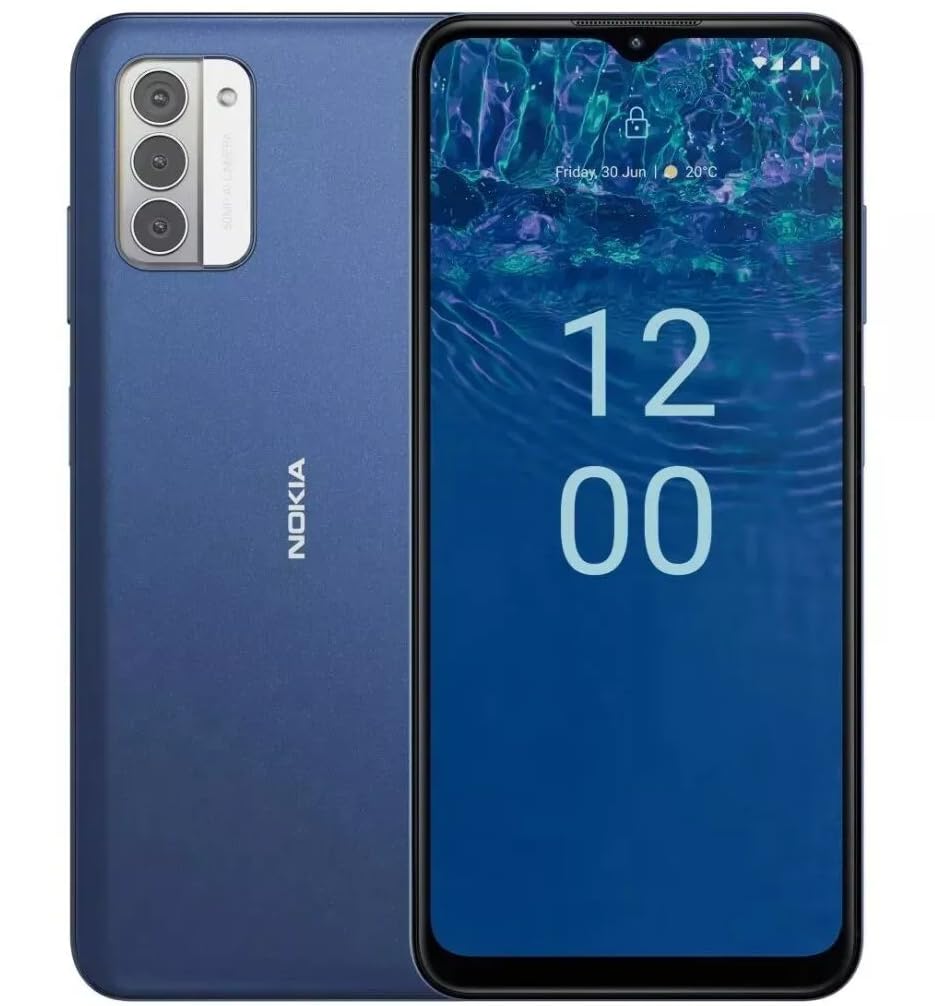
Image: Rear view of the Nokia G310 5G Smartphone, showcasing the triple camera module and Nokia branding.
Key Features
- 5G Connectivity: Experience ultra-fast mobile data speeds and low latency.
- Vibrant Display: Large touchscreen display delivers vibrant colors and sharp visuals.
- Efficient Performance: Processor handles everyday tasks smoothly, from browsing to gaming.
- Durable Design: Sleek and modern smartphone design with durable construction.
2. Getting Started
What's in the Box
- Nokia G310 5G Smartphone
- Charger
SIM and MicroSD Card Installation
Locate the SIM/MicroSD card tray on the side of your device. Use the provided SIM ejector tool to open the tray. Insert your Nano-SIM card(s) and/or MicroSD card into the designated slots. Ensure the cards are correctly oriented. Gently push the tray back into the device until it clicks into place.
Powering On/Off
To power on your Nokia G310, press and hold the Power/Fingerprint Sensor button located on the right side of the device until the Nokia logo appears. To power off, press and hold the Power/Fingerprint Sensor button, then select 'Power off' from the options that appear on the screen.
3. Device Layout
Physical Buttons and Ports
- Volume Buttons: Located on the right side, above the Power/Fingerprint Sensor button, for adjusting media and call volume.
- Power/Fingerprint Sensor Button: Located on the right side, used for powering the device on/off, locking/unlocking the screen, and fingerprint authentication.
- USB-C Port: Located at the bottom, used for charging and data transfer.
- 3.5 mm Audio Jack: Located at the bottom, for connecting wired headphones.
- Speaker: Located at the bottom for audio output.
- Microphone: Integrated for calls and voice commands.
Camera Module
The rear of the device features a multi-lens camera module, including a main camera, along with a flash for low-light photography. The front-facing camera is discreetly placed within a notch at the top of the display.
4. Operating Instructions
Basic Navigation
The Nokia G310 operates on the Android operating system, offering an intuitive touchscreen interface. Swipe up from the bottom of the screen to access the app drawer, swipe down from the top for notifications and quick settings, and use gestures or navigation buttons (configurable in settings) to move between apps and screens.
Connectivity
- 5G Cellular Data: The device supports 5G connectivity for ultra-fast mobile data speeds. Ensure your SIM card and plan support 5G.
- Wi-Fi: Connect to wireless networks for internet access. Go to Settings > Network & internet > Wi-Fi to manage connections.
- Bluetooth: Pair with other Bluetooth-enabled devices like headphones or speakers. Go to Settings > Connected devices > Bluetooth.
- GPS: Utilize built-in GPS for location services and navigation.
5. Camera Usage
The Nokia G310 features an advanced camera system designed to capture memorable moments. Access the camera app from your home screen or app drawer.
Taking Photos
Open the Camera app, frame your shot, and tap the shutter button on the screen to take a picture. The advanced AI camera assists in optimizing settings for various scenes.
Recording Videos
In the Camera app, switch to video mode, then tap the record button to start and stop recording. The phone supports various video resolutions.
Camera Modes
Explore different camera modes available in the camera app, such as Portrait, Panorama, and Night mode, to enhance your photography experience.
6. Battery Management
Charging Your Device
The Nokia G310 is equipped with a 5000 Milliamp Hours (5000.0 Battery Power Rating) battery. Connect the provided USB-C charger to the port at the bottom of the device. The phone supports quick charging for reduced downtime.
Optimizing Battery Life
- Adjust screen brightness to a comfortable level.
- Enable Battery Saver mode when battery is low.
- Close unused apps running in the background.
- Disable Wi-Fi, Bluetooth, or GPS when not in use.
7. Technical Specifications
| Model Number | TA-1573 |
| Operating System | Android |
| CPU Model | MediaTek Helio P60T |
| Cellular Technology | 5G |
| Wireless Carrier | Unlocked |
| Memory Storage Capacity | 4 GB |
| Resolution | 1080 x 2340 |
| Human Interface Input | Touchscreen |
| Battery Capacity | 5000 Milliamp Hours |
| Audio Jack | 3.5 mm |
| Color | Blue |
| Manufacturer | Nokia |
| Date First Available | January 31, 2025 |
8. Troubleshooting
If you encounter issues with your Nokia G310, try the following common troubleshooting steps:
- Device not responding: Press and hold the Power button for about 10-15 seconds to force a restart.
- Connectivity issues: Toggle Wi-Fi or Bluetooth off and on. Restart your device. Check network settings.
- App not working: Clear the app's cache and data in Settings > Apps. If the issue persists, uninstall and reinstall the app.
- Battery draining quickly: Review battery usage in Settings > Battery to identify power-hungry apps. Adjust screen brightness and enable Battery Saver.
- Storage full: Delete unnecessary files, photos, or apps. Transfer media to a computer or cloud storage. Consider using a MicroSD card for additional storage.
9. Maintenance and Care
- Cleaning: Use a soft, lint-free cloth to clean your device. Avoid harsh chemicals or abrasive materials.
- Software Updates: Regularly check for and install software updates to ensure your device runs optimally and has the latest security features. Go to Settings > System > System update.
- Storage Management: Periodically review your device's storage to free up space and maintain performance.
- Environmental Conditions: Avoid exposing your device to extreme temperatures, direct sunlight, or excessive moisture.
10. Warranty and Support
For warranty information, please refer to the warranty card included in your product packaging or visit the official Nokia support website. For further assistance, contact Nokia customer support.


