
Cable Matters 102095-1m
Cable Matters DP80 DisplayPort 2.1 Cable User Manual
Model: 102095-1m
This manual provides essential information for the proper setup, operation, and maintenance of your Cable Matters VESA Certified 80Gbps DisplayPort 2.1 Cable. Please read these instructions carefully to ensure optimal performance and longevity of your product.
1. Setup
Follow these steps to connect your DisplayPort 2.1 cable:
- Ensure both your source device (e.g., PC, graphics card) and display device (e.g., monitor, TV) are powered off.
- Locate the DisplayPort output on your source device and the DisplayPort input on your display device.
- Carefully insert one end of the Cable Matters DisplayPort 2.1 cable into the DisplayPort output of your source device. Ensure the connector is fully seated.
- Insert the other end of the cable into the DisplayPort input of your display device. The cable features a locking latch for a secure connection. Press the "PRESS" button on the connector to release the latch when disconnecting.
- Power on your display device, then power on your source device.
- Your display should automatically detect the signal. If not, you may need to manually select the DisplayPort input on your monitor's OSD (On-Screen Display) menu.

Image: The DisplayPort 2.1 cable connecting a desktop computer to a monitor, illustrating a typical setup for a 1m/3.3ft cable length.
2. Operating Instructions
This VESA Certified DisplayPort 2.1 cable is designed to deliver high-bandwidth video and audio signals. To utilize its full capabilities, ensure your graphics card and display device support DisplayPort 2.1 and the desired resolutions/refresh rates.
2.1 High Resolution and Refresh Rate Support
The cable supports resolutions up to 16K at 60Hz, 8K at 240Hz, and 4K at 960Hz or 240Hz with Display Stream Compression (DSC) enabled. Adjust your display settings within your operating system or graphics card control panel to select the optimal resolution and refresh rate for your setup.
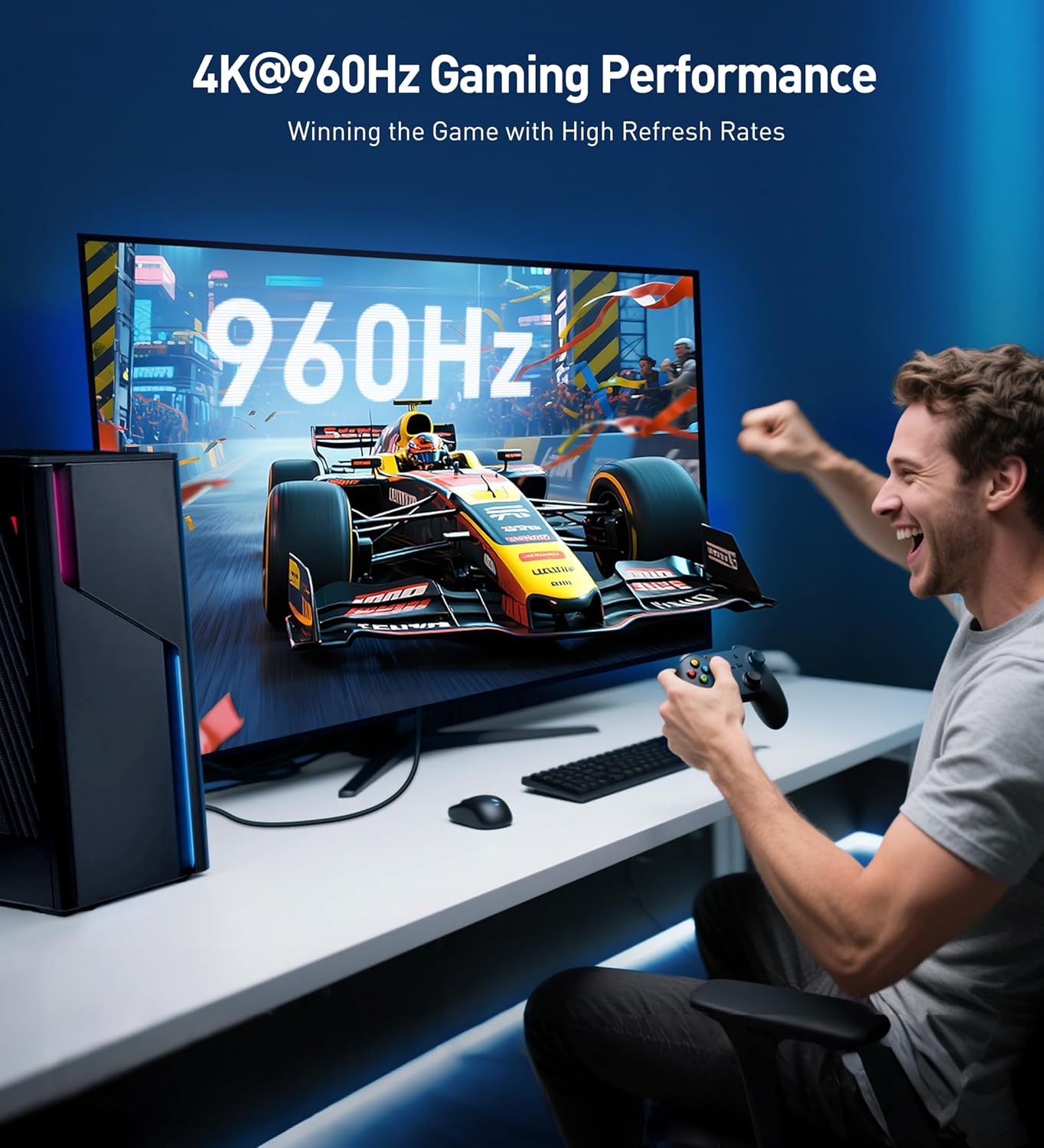
Image: A user experiencing 4K@960Hz gaming performance, demonstrating the cable's capability for high refresh rates.

Image: Visual representation of 16K@60Hz performance, emphasizing the cable's support for ultra-high resolution displays.
2.2 Advanced Features
This cable supports advanced DisplayPort 2.1 features including:
- FreeSync and G-Sync: For tear-free gaming and smooth visuals. Ensure these features are enabled in your display and graphics card settings.
- HDR (High Dynamic Range): Supports 10-bit/12-bit color depth and Dolby Vision HDR for enhanced contrast and color accuracy.
- Surround Sound Audio: Provides impeccable audio support for immersive sound experiences.
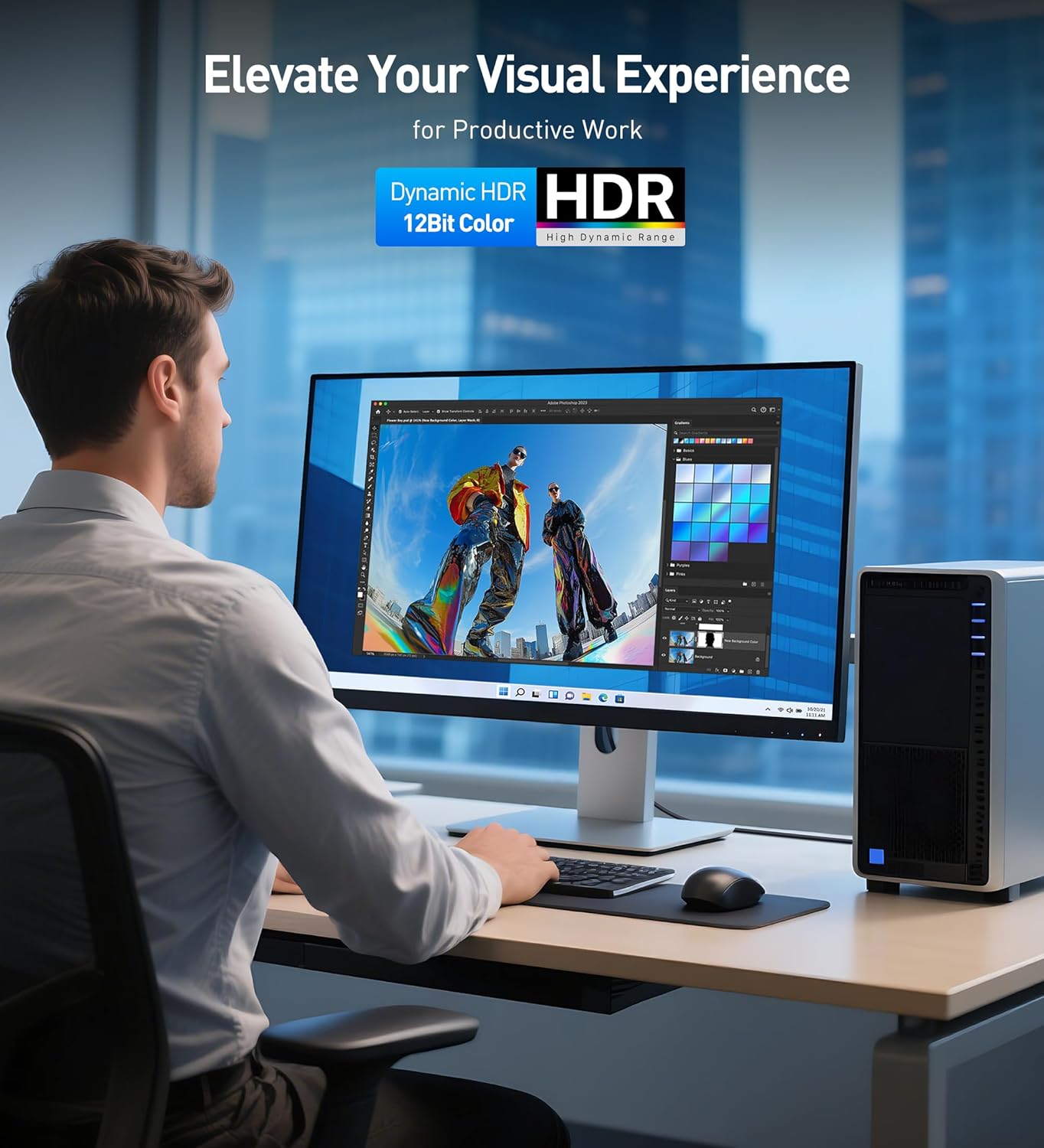
Image: A user engaged in productive work on a monitor, showcasing the enhanced visual experience with Dynamic HDR and 12-bit color support.
3. Maintenance
To ensure the longevity and optimal performance of your Cable Matters DisplayPort 2.1 cable, follow these maintenance guidelines:
- Handle with Care: Avoid bending the cable sharply or applying excessive force to the connectors.
- Clean Connectors: If necessary, gently clean the gold-plated connectors with a dry, lint-free cloth to remove dust or debris.
- Secure Connection: Always ensure the latch mechanism is properly engaged when connecting and disengaged when disconnecting to prevent damage to the ports or cable.
- Storage: Store the cable in a cool, dry place away from direct sunlight and extreme temperatures when not in use. Avoid tangling the cable.

Image: A detailed view of the cable's connectors, showcasing its robust design elements such as gold-plated contacts and a secure latch.

Image: An illustration of the cable's superior internal construction, detailing layers of shielding and high-quality conductors for stable signal transmission.
4. Troubleshooting
If you encounter issues with your DisplayPort 2.1 cable, refer to the following common problems and solutions:
- No Signal or Black Screen:
- Ensure both ends of the cable are securely connected. Press the "PRESS" button on the connector to ensure the latch is fully engaged.
- Verify that your display is set to the correct DisplayPort input.
- Restart both your source device and display.
- Test the cable with another DisplayPort-compatible device or display if available to rule out other component issues.
- Ensure your graphics drivers are up to date.
- Flickering or Intermittent Signal:
- Check for any physical damage to the cable or connectors.
- Reduce the resolution or refresh rate in your display settings to see if the issue persists. This can help determine if the problem is related to bandwidth limitations of other components.
- Ensure the cable is not routed near sources of electromagnetic interference.
- No Audio:
- Verify that DisplayPort audio is selected as the default playback device in your operating system's sound settings.
- Ensure your display or audio receiver supports audio passthrough via DisplayPort.
- Resolution/Refresh Rate Not Reaching Stated Maximums:
- Confirm that your graphics card and display both support DisplayPort 2.1 and the desired resolution/refresh rate.
- Ensure Display Stream Compression (DSC) is enabled in your graphics card settings if required for higher resolutions (e.g., 16K 60Hz, 8K 240Hz, 4K 960Hz).
- Update your graphics card drivers to the latest version.
5. Specifications
| Brand | Cable Matters |
| Model Number | 102095-1m |
| Cable Type | DisplayPort 2.1 (DP80) |
| Bandwidth | 80Gbps (UHBR 20) |
| Certification | VESA Certified |
| Supported Resolutions | Up to 16K@60Hz, 8K@240Hz, 4K@960Hz (with DSC) |
| Features | FreeSync, G-Sync, HDR (10-bit/12-bit color, Dolby Vision), Surround Sound Audio |
| Connector Type | DisplayPort Male to Male with Latch |
| Construction | Gold-plated connectors, molded strain-relief, flexible PVC jacket, braided and foil shielding, bare copper conductors |
| Compatible Devices | Monitors, PCs, Graphics Cards (e.g., RTX 4080/4090, RX 7900) |
| Length | 3.3 Feet / 1 Meter (as per current product variant) |
6. Warranty and Support
Cable Matters products are designed for reliability and performance. For information regarding product warranty, technical support, or to contact customer service, please visit the official Cable Matters website or refer to the documentation included with your purchase.
You can find more information and support resources at: www.cablematters.com
Related documents102095-1m

Ask a question about this manual
Ask about setup, troubleshooting, compatibility, parts, safety, or missing instructions. Manuals+ will review the question and use this page’s manual context to help answer it.