Introduction
This manual provides detailed instructions for the Blue Tiger Elite Ultra 2.0 Wireless Bluetooth Headset and the Blue Tiger TigerConnect Wireless CarPlay & Android Auto Adapter. The Elite Ultra 2.0 headset offers extended battery life, high-fidelity audio, and advanced noise cancellation for clear communication. The TigerConnect adapter converts wired Apple CarPlay and Android Auto systems into wireless functionality, enhancing convenience in your vehicle.
Please read this manual thoroughly before using your devices to ensure proper operation and to maximize their performance and longevity.
What's Included
The following items are included with your purchase:
- Blue Tiger Elite Ultra 2.0 Wireless Bluetooth Headset
- USB-C Charging Cable
- D/C Vehicle Adapter
- Cooling Gel Ear Cushions (pre-installed or extra set)
- Bonus Protein Leather Ear Cushion
- Extra Microphone Cover
- Travel Bag
- Quick Start Guide
- Blue Tiger TigerConnect Wireless CarPlay & Android Auto Adapter
- USB-C to USB Connector Cable
- USB-C to USB-C Connector Cable
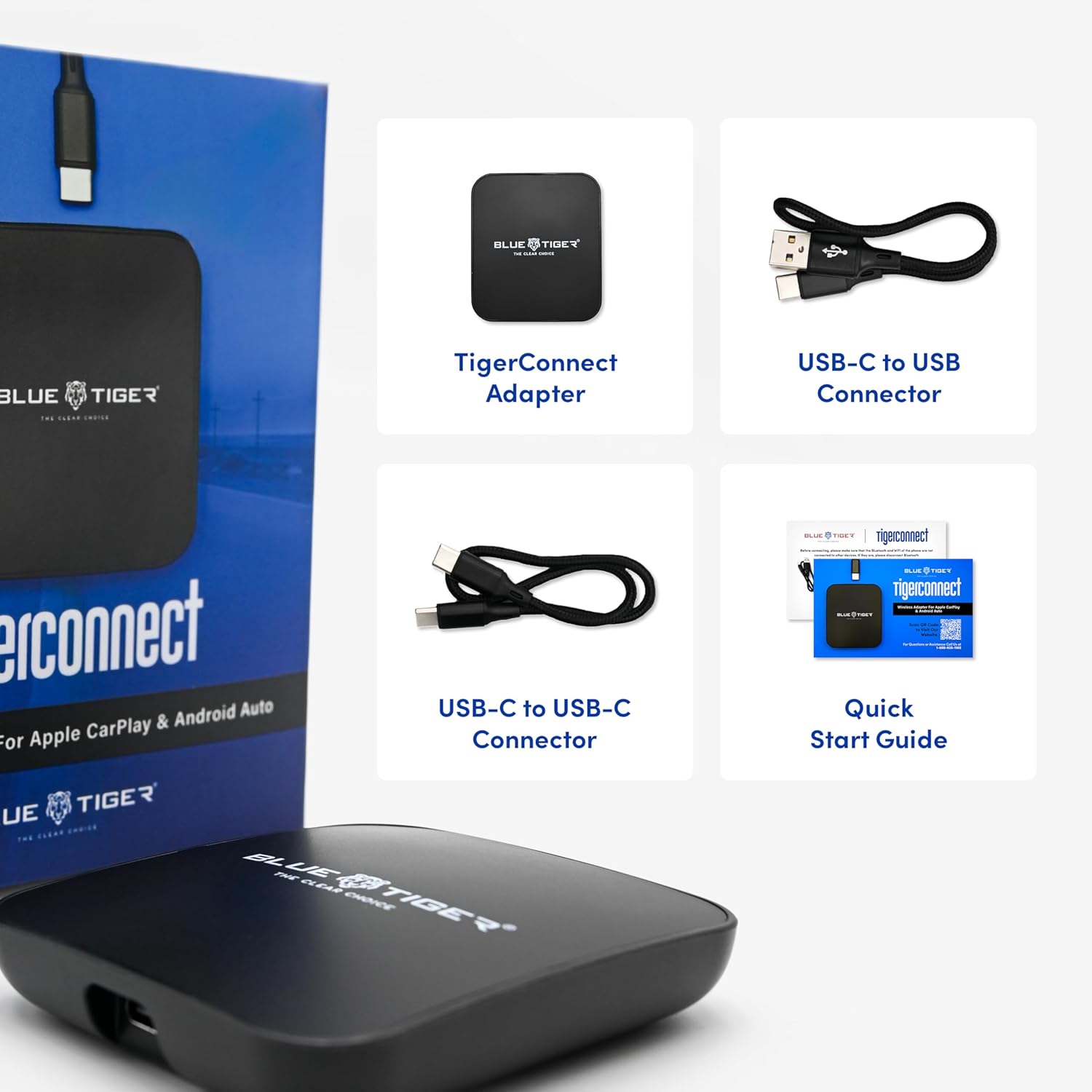
Image: Contents of the TigerConnect package, showing the adapter and various cables.
Elite Ultra 2.0 Headset Overview
The Elite Ultra 2.0 headset features an adjustable headband, comfortable ear cushions, and a flexible microphone boom. Key controls are typically located on the earcup for easy access.

Image: The Blue Tiger Elite Ultra 2.0 Wireless Bluetooth Headset.
Headset Components
- Adjustable Headband: For a secure and comfortable fit.
- Ear Cushions: Designed for comfort, with cooling gel and protein leather options.
- Microphone: Flexible boom with noise cancellation technology.
- Control Buttons: (e.g., Power, Volume Up/Down, Mute, Multi-function button) - specific locations may vary, refer to quick start guide.
- USB-C Charging Port: For recharging the headset battery.

Image: Close-up of the headset with the microphone positioned for use.
TigerConnect Adapter Overview
The TigerConnect adapter is a compact device designed to enable wireless CarPlay and Android Auto in compatible vehicles. It features a USB-C port for connection to the vehicle and a status indicator.

Image: The TigerConnect Wireless CarPlay & Android Auto Adapter.
Adapter Components
- USB-C Port: For connecting to your vehicle's USB port.
- Status Indicator: (e.g., LED light) to show connection status.
Setup Instructions
Elite Ultra 2.0 Headset Setup
- Charge the Headset: Connect the USB-C charging cable to the headset and a power source (e.g., D/C vehicle adapter, computer USB port). Allow the headset to fully charge before first use. The charging indicator will change when charging is complete.
- Adjust the Fit: Place the headset on your head. Adjust the flexband by gently pulling the earcups outwards to widen the fit, or twisting them slightly to tighten the fit, ensuring the microphone is positioned near your mouth.
- Power On: Press and hold the power button on the headset until you hear an audible prompt or see an indicator light.
- Pair with Device:
- Ensure Bluetooth is enabled on your cellular phone, laptop, computer, or other Bluetooth-enabled device.
- The headset will automatically enter pairing mode when first powered on or if no previous connection is found.
- On your device, search for Bluetooth devices and select "Blue Tiger Elite Ultra 2.0" from the list.
- Once connected, you will hear a confirmation tone or voice prompt.
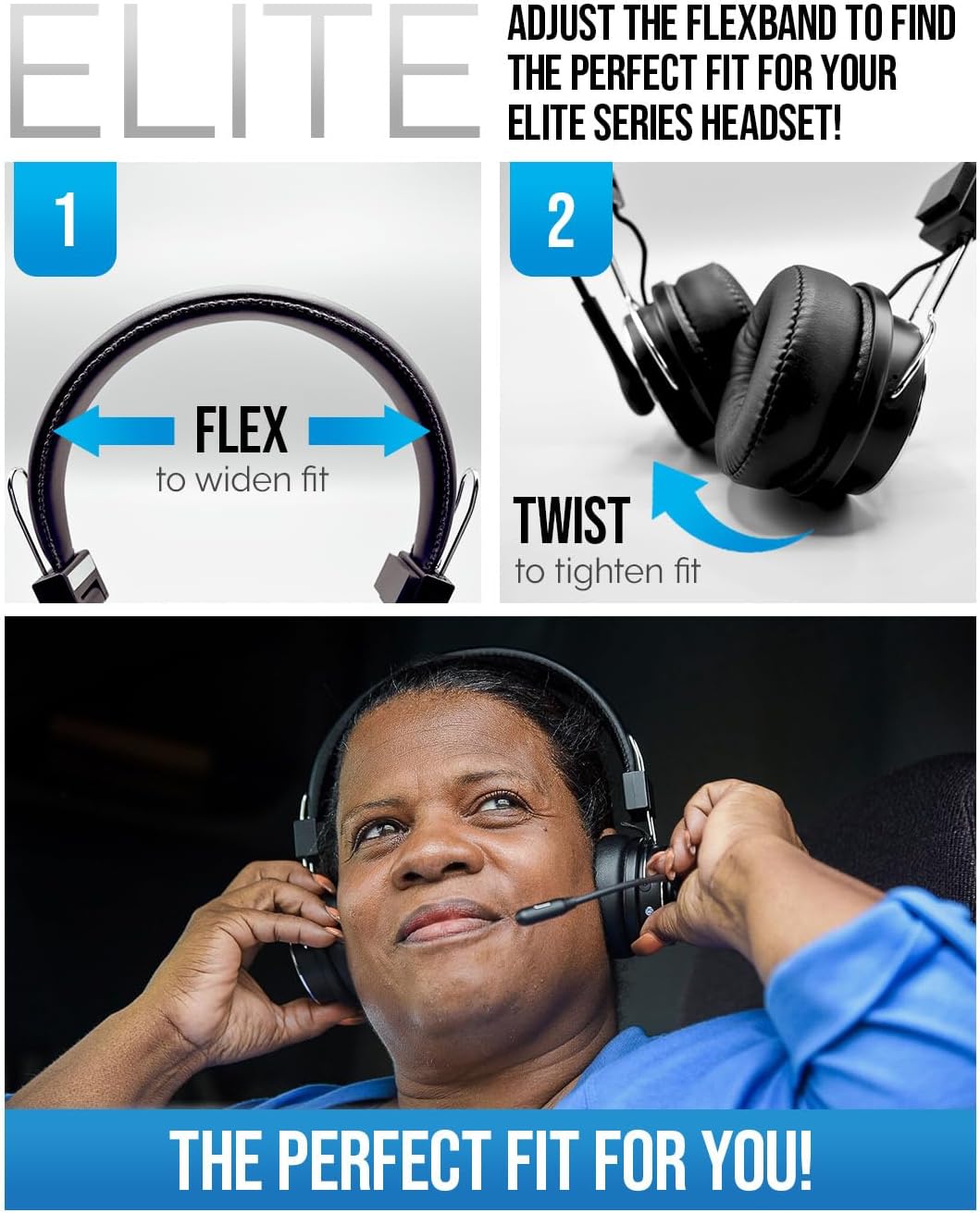
Image: Instructions for adjusting the headset's flexband for optimal fit.
TigerConnect Adapter Setup
- Connect to Vehicle: Plug the TigerConnect adapter into your vehicle's USB port that supports Apple CarPlay or Android Auto. Use the appropriate USB-C to USB or USB-C to USB-C cable provided.
- Vehicle System Recognition: Your vehicle's infotainment system should recognize the adapter. Follow any on-screen prompts that may appear.
- Pair Phone via Bluetooth:
- On your smartphone, enable Bluetooth.
- Search for available Bluetooth devices and select the TigerConnect adapter (its name may appear on your vehicle's screen or phone).
- Confirm the pairing request on both your phone and the vehicle's screen if prompted.
- Establish Wireless CarPlay/Android Auto: Once Bluetooth is paired, the adapter will automatically initiate the wireless CarPlay or Android Auto connection. This process typically takes a few seconds.
Operating Instructions
Elite Ultra 2.0 Headset Operation
- Power On/Off: Press and hold the power button.
- Volume Control: Use the dedicated volume buttons on the earcup to adjust audio levels.
- Mute Function: The headset's mute capability is primarily designed for use with a cellular device/mobile phone. Press the mute button during a call to mute/unmute your microphone.
- Noise Cancellation: The headset features advanced noise cancellation technology, reducing ambient noise by up to 96% for clear communication.
- Voice Control: Activate your device's voice assistant (Siri or Google Assistant) through the headset to control apps, get weather updates, set reminders, and more. Refer to your device's manual for specific voice command activation.
- Battery Life: The headset provides up to 60 hours of talk time and 1200 hours of standby time on a full charge.
TigerConnect Adapter Operation
- Automatic Connection: After the initial setup and pairing, the TigerConnect adapter will automatically connect to your paired smartphone and initiate wireless CarPlay or Android Auto when you start your vehicle.
- Troubleshooting Connection: If the connection does not establish automatically, ensure your phone's Bluetooth is on and the adapter is properly plugged into the vehicle's USB port. You may need to re-select the adapter from your phone's Bluetooth settings or restart your vehicle's infotainment system.
Maintenance
- Cleaning: Use a soft, dry cloth to clean the headset and adapter. Do not use harsh chemicals or abrasive materials. For ear cushions, gently wipe with a damp cloth and allow to air dry completely.
- Storage: When not in use, store the devices in the provided travel bag or a clean, dry place away from extreme temperatures and direct sunlight.
- Battery Care: To prolong battery life, avoid fully discharging the headset frequently. Charge regularly, even if not in constant use.
- Cable Care: Handle USB cables carefully. Avoid bending or twisting them sharply, which can damage the internal wires.
Troubleshooting
Headset Issues
- No Power: Ensure the headset is fully charged. Connect it to a power source using the USB-C cable.
- Cannot Pair:
- Ensure the headset is in pairing mode (often indicated by a flashing LED).
- Turn off and on your device's Bluetooth.
- Move the headset closer to your device.
- Forget the headset from your device's Bluetooth list and attempt to pair again.
- Poor Audio Quality/Dropped Calls:
- Ensure the headset is within range of your connected device.
- Check for interference from other wireless devices.
- Adjust the microphone position for optimal voice pickup.
- Mute Function Not Working: The mute function is primarily for cellular/mobile phone calls. Ensure you are on a call via a mobile device.
TigerConnect Adapter Issues
- No Connection to Vehicle:
- Ensure the adapter is securely plugged into the correct USB port in your vehicle (the one used for wired CarPlay/Android Auto).
- Try a different USB port if available.
- Ensure the vehicle's infotainment system is powered on and functioning correctly.
- Wireless CarPlay/Android Auto Not Starting:
- Confirm your smartphone's Bluetooth is enabled and paired with the TigerConnect adapter.
- Ensure your phone has a stable internet connection (for certain CarPlay/Android Auto features).
- Restart your vehicle's infotainment system (turn off and on the vehicle, or consult your vehicle's manual for system reset).
- On your phone, check if CarPlay or Android Auto is enabled for the vehicle.
- Intermittent Connection:
- Ensure the adapter is not obstructed.
- Check for strong Wi-Fi or Bluetooth interference in the vehicle environment.
- Ensure your phone's operating system is up to date.
Specifications
| Feature | Specification |
|---|---|
| Brand | Blue Tiger |
| Model Name (Headset) | Elite Ultra 2.0 |
| Connectivity Technology | Wireless (Bluetooth) |
| Wireless Communication Technology | Bluetooth |
| Bluetooth Version | 5.2 |
| Compatible Devices | Laptops, Desktops, Cellular Phones, Bluetooth-enabled Devices (Headset); Vehicles with Wired CarPlay/Android Auto (Adapter) |
| Control Method | Voice |
| Battery Life (Headset) | 60 Hours (Talk Time) |
| Audio Driver Type | Dynamic Driver |
| Earpiece Shape | Over-ear cups |
| Noise Control Features | Active Noise Cancellation (96% reduction) |
| Color | Black |
| Form Factor | Over Ear |
| Special Features | Noise Cancellation, Hi-Fi Performance Speaker, Wireless CarPlay & Android Auto Adapter, Voice Control |
Warranty Information
Blue Tiger products are designed for durability and performance. For specific warranty details regarding your Elite Ultra 2.0 Headset and TigerConnect Adapter, please refer to the warranty card included in your product packaging or visit the official Blue Tiger website. Keep your proof of purchase for any warranty claims.
Customer Support
If you encounter any issues or have questions not covered in this manual, please contact Blue Tiger customer support. You can typically find contact information on the official Blue Tiger website or through the retailer where you purchased the product.
For additional resources and frequently asked questions, please visit the Blue Tiger Store on Amazon.


