1. Product Overview
The GIGABYTE MO27Q2 is a 27-inch QD-OLED Gaming Monitor designed for superior visual performance. It features a QHD 2560x1440 resolution, an ultra-fast 240Hz refresh rate, and a rapid 0.03ms GTG response time, ensuring seamless and fluid motion for gaming and professional applications. This monitor also includes a Type-C KVM switch for convenient multi-device management, AMD FreeSync Premium Pro technology for tear-free gaming, and a height-adjustable stand for ergonomic comfort. Its advanced display technology provides vibrant colors with 99% DCI-P3 coverage and 10-bit color depth, making it an ideal choice for users seeking high-fidelity visuals and responsive performance.

Figure 1.1: Front view of the GIGABYTE MO27Q2 QD-OLED Gaming Monitor, showcasing its sleek design and vibrant display.
2. Setup and Installation
2.1 What's in the Box
Upon unboxing your GIGABYTE MO27Q2 monitor, please verify that all the following components are included:
- Power cable
- HDMI 2.1 cable
- DP cable (DisplayPort cable)
- USB cable (USB 3.2 Upstream cable)
- Quick Start Guide (QSG)
- Warranty card
- Color calibration test report
2.2 Assembling the Stand and Monitor
Follow these steps to attach the stand to your monitor:
- Carefully remove the monitor and stand components from the packaging.
- Attach the stand base to the stand neck, securing it with the provided screw.
- Align the stand assembly with the mounting slot on the back of the monitor and gently push until it clicks into place. Ensure it is securely fastened.
The monitor features a height-adjustable stand with tilt functionality (-5° to +21°) and supports VESA wall mounting (100x100mm) for flexible placement options.
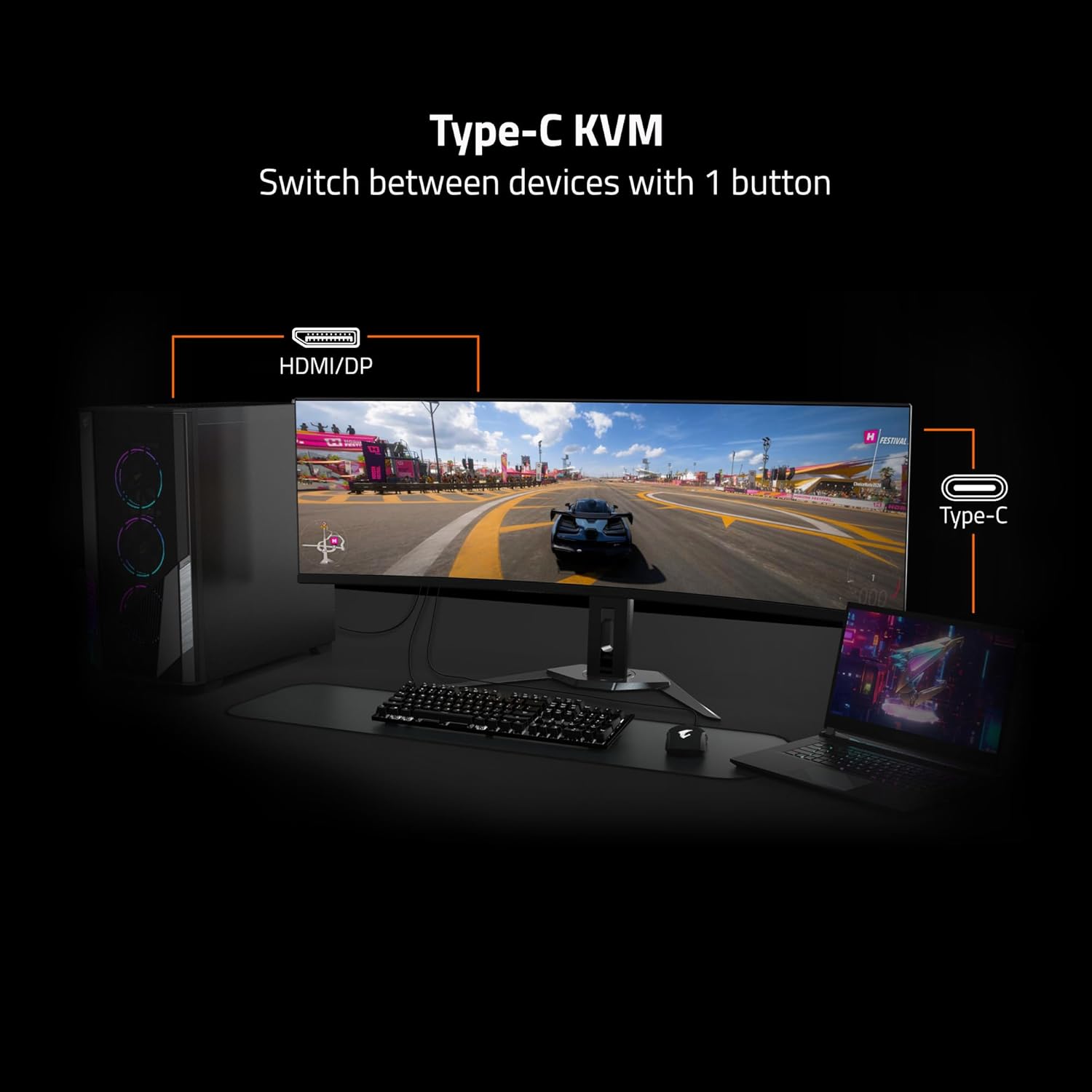
Figure 2.1: Diagram illustrating the adjustable stand's tilt and height range, and the VESA 100x100mm mounting points on the rear of the monitor.
2.3 Connecting to Your Devices
Connect your computer or other devices to the monitor using the appropriate cables. The MO27Q2 offers a variety of input and output ports:
- 2x HDMI 2.1: For high-definition video and audio input.
- 1x DisplayPort 1.4: For high-resolution video input, often preferred for gaming.
- 1x USB Type-C: Supports video input, data transfer, and power delivery (KVM functionality).
- 2x USB 3.2 Downstream ports: For connecting peripherals like keyboards, mice, or USB drives.
- 1x USB 3.2 Upstream port: Connects to your computer to enable the USB downstream ports and KVM functionality.
- 1x Earphone Jack: For connecting headphones or external speakers.

Figure 2.2: Detailed diagram of the monitor's I/O ports, including HDMI, DisplayPort, USB Type-C, USB Upstream, USB Downstream, and Earphone Jack.
After connecting all necessary cables, plug the power cable into the monitor and then into a power outlet.
3. Operating the Monitor
3.1 Powering On/Off
Locate the power button, typically on the back or bottom edge of the monitor. Press it once to power on the monitor. To power off, press and hold the power button for a few seconds until the display turns off.
3.2 Key Features and Settings
The GIGABYTE MO27Q2 monitor is equipped with advanced features to enhance your viewing and gaming experience:
- High Refresh Rate & Response Time: Enjoy ultra-smooth visuals with a 240Hz refresh rate and an incredibly fast 0.03ms GTG (Gray-to-Gray) response time, minimizing motion blur and ghosting.
- Exceptional Color Accuracy: With 99% DCI-P3 color gamut coverage and 10-bit color depth, the monitor delivers vibrant, true-to-life colors and smooth gradients.
- AMD FreeSync Premium Pro: Synchronizes the monitor's refresh rate with your GPU's frame rate to eliminate screen tearing and stuttering, providing a fluid gaming experience.
- Type-C KVM Functionality: The integrated KVM (Keyboard, Video, Mouse) switch allows you to control multiple devices (e.g., a desktop PC and a laptop) connected to the monitor using a single set of keyboard and mouse. Simply press a button to switch between inputs.
- VESA DisplayHDR True Black 400: Provides deep blacks and impressive contrast for a more immersive visual experience.
- Eye Care Technologies: Features TÜV Rheinland Certified and VESA Certified ClearMR 13000 for reduced blue light emission and flicker-free viewing, promoting eye comfort during extended use.

Figure 3.1: Visual comparison highlighting the superior performance of 0.03ms response time and 240Hz refresh rate over slower alternatives.

Figure 3.2: Diagram illustrating how the Type-C KVM feature allows switching between a desktop and a laptop using one keyboard and mouse connected to the monitor.

Figure 3.3: Icons representing key features such as Eyesafe Certified 2.0, Flicker Free, Low Blue Light, Low Motion Blur, 99% DCI-P3, 10-bit color, HDR 400, KVM, HDMI 2.1, and DisplayPort 1.4.
3.3 On-Screen Display (OSD) Menu
The OSD menu allows you to adjust various monitor settings such as brightness, contrast, color temperature, input source, and gaming features. Access the OSD menu using the joystick or buttons located on the back or bottom of the monitor. Navigate through the options and confirm selections as indicated on the screen.
4. Maintenance
4.1 Cleaning the Monitor
To maintain the clarity and longevity of your monitor, follow these cleaning guidelines:
- Always power off the monitor and unplug it from the power outlet before cleaning.
- Use a soft, lint-free cloth slightly dampened with water or a specialized screen cleaning solution.
- Gently wipe the screen surface to remove dust and smudges. Avoid applying excessive pressure.
- For the monitor casing, use a dry, soft cloth. Do not use abrasive cleaners, waxes, or solvents as they may damage the finish.
- Avoid spraying liquids directly onto the screen or into any openings.
4.2 Storage
If storing the monitor for an extended period, ensure it is powered off, unplugged, and stored in a cool, dry place away from direct sunlight and extreme temperatures. It is recommended to use the original packaging for protection during storage or transport.
5. Troubleshooting
If you encounter issues with your GIGABYTE MO27Q2 monitor, refer to the following common troubleshooting steps:
| Problem | Possible Cause | Solution |
|---|---|---|
| No image on screen |
|
|
| Image is blurry or distorted |
|
|
| No sound from earphone jack |
|
|
| KVM function not working |
|
|
If the problem persists after trying these solutions, please contact GIGABYTE customer support for further assistance.
6. Technical Specifications
| Feature | Detail |
|---|---|
| Brand | GIGABYTE |
| Model Number | MO27Q2 |
| Screen Size | 27 Inches |
| Panel Type | QD-OLED |
| Resolution | 2560x1440 (QHD) |
| Refresh Rate | 240Hz |
| Response Time | 0.03ms GTG |
| Color Gamut | 99% DCI-P3 |
| Color Depth | 10 bit |
| HDR Support | VESA DisplayHDR True Black 400 |
| Adaptive Sync | AMD FreeSync Premium Pro |
| Connectivity | 2x HDMI 2.1, 1x DisplayPort 1.4, 1x USB Type-C, 2x USB 3.2 Downstream, 1x USB 3.2 Upstream, 1x Earphone Jack |
| KVM | Yes (Type-C KVM) |
| VESA Mount Compatible | 100x100mm |
| Adjustability | Height Adjustable, Tilt (-5° to +21°) |
| Item Weight | 21.6 pounds |
| Product Dimensions (LxWxH) | 7.38 x 24.03 x 19.67 inches |
| Color | Black |
| Date First Available | January 29, 2025 |
7. Warranty and Support
7.1 Warranty Information
The GIGABYTE MO27Q2 QD-OLED Gaming Monitor comes with a 3-Year Limited Warranty. This warranty covers defects in materials and workmanship under normal use. Please refer to the warranty card included in your product packaging for full terms and conditions, including specific coverage details and exclusions.
Keep your proof of purchase (receipt or invoice) as it will be required for any warranty claims.
7.2 Customer Support
For technical assistance, troubleshooting beyond this manual, or warranty service, please contact GIGABYTE customer support. You can find contact information and additional resources on the official GIGABYTE website. It is recommended to have your monitor's model number (MO27Q2) and serial number ready when contacting support.
Visit the official GIGABYTE Store for more information and support: GIGABYTE Official Store


