
1. Introduction
The AULA F75 is a high-performance 75% wireless mechanical keyboard designed for both gaming and office use. It features versatile tri-mode connectivity (Bluetooth 5.0, 2.4GHz wireless, and USB wired), hot-swappable switches, and vibrant RGB backlighting. Its advanced structural design ensures a comfortable and responsive typing experience.

Figure 1.1: AULA F75 75% Wireless Mechanical Keyboard in Cool Black. This image shows the full keyboard with its compact layout and RGB backlighting.
2. What's in the Box
Upon unboxing your AULA F75 keyboard, please ensure all the following components are present:
- AULA F75 Wireless Mechanical Keyboard
- Keycap Puller
- USB Cable (Type-C)
- User Manual (this document)
3. Setup Guide
3.1 Initial Charging
Before first use, it is recommended to fully charge the keyboard. Connect the provided USB Type-C cable to the keyboard's Type-C port and the other end to a USB power source (e.g., computer USB port, wall adapter). The keyboard is equipped with a 4000mAh battery for long-lasting use.
3.2 Connectivity Options
The AULA F75 supports three connection modes: 2.4GHz wireless, Bluetooth 5.0, and USB wired. You can connect up to five devices simultaneously and switch between them easily.

Figure 3.1: AULA F75 Keyboard showcasing its compact 75% layout (80 keys) and the three connectivity options: Bluetooth, 2.4GHz, and Type-C wired connection.
- USB Wired Connection:
Connect the USB Type-C cable from the keyboard to your computer's USB port. The keyboard will be automatically recognized and ready for use. This mode also charges the keyboard.
- 2.4GHz Wireless Connection:
Locate the 2.4GHz USB receiver (usually stored in a slot on the keyboard). Plug the receiver into an available USB port on your computer. The keyboard should automatically connect. If not, ensure the keyboard's mode switch is set to 2.4GHz.
- Bluetooth 5.0 Connection:
Switch the keyboard's mode to Bluetooth. On your device (PC, laptop, tablet, mobile phone), enable Bluetooth and search for new devices. Select "AULA F75" from the list of available devices to pair. The keyboard can store multiple Bluetooth profiles, allowing quick switching between paired devices.
4. Operating Instructions
4.1 Multi-function Control Knob
The AULA F75 features a versatile control knob located on the top right. This knob operates differently based on the selected mode:
- Gaming Mode: Rotate the knob to adjust the brightness of the RGB backlighting. Click the knob to cycle through different lighting effects.
- Office Mode: Rotate the knob to adjust the system volume. Click the knob to play or pause media.
To switch between Gaming Mode and Office Mode, long press the knob for approximately 5 seconds.

Figure 4.1: Close-up view of the AULA F75's multifunctional knob, PBT anti-sweat keycaps, scientific ladder-type keycap arrangement, and dual kickstands on the bottom for ergonomic adjustment.
4.2 RGB Backlighting
The F75 keyboard offers 16.8 million RGB lighting colors and 16 built-in lighting effects. Additionally, it supports 10 cool music rhythm lighting effects when used with the official driver.
- Adjust brightness and speed using the multi-function knob (in Gaming Mode) or via FN key combinations.
- Select single color effects as desired.
- The backlight can be turned off if not needed.

Figure 4.2: Screenshot illustrating the 16 stylish RGB lighting modes and 10 unique music rhythm RGB effects available through the AULA F75 driver. The interface shows options for brightness, speed, color selection, and custom color settings.
4.3 Hot-Swappable Switches
The AULA F75 features a hot-swappable base, allowing you to easily replace 3-pin or 5-pin mechanical switches without soldering. This enables customization of your typing feel and sound. The keyboard comes equipped with pre-lubricated stabilizers and LEOBOG Greywood V3 switches for a smooth and creamy typing experience.

Figure 4.3: Image demonstrating the hot-swappable feature of the AULA F75 keyboard, showing individual switches and the included keycap puller. Key specifications like 45g action force, 3.6mm key stroke travel, 4000mAh battery capacity, and 70 million+ keystroke service life are highlighted.
4.4 Programmable Keys and Driver Software
The AULA F75 supports full-key macro programming. You can customize single keys or key combinations to enhance gaming performance or work efficiency. The official driver software is required for advanced customization.
Driver Download: Visit bit.ly/m/AULA to download the latest driver for your F75 keyboard.
The keyboard also features N-key rollover and a WIN key lock function to prevent accidental presses during intense gaming sessions.

Figure 4.4: Visual representation of the AULA F75 as a hi-tech programmable keyboard, showing a user interface for customizing key combinations and macros. The driver download link is prominently displayed.
5. Maintenance
To ensure the longevity and optimal performance of your AULA F75 keyboard, follow these maintenance guidelines:
- Cleaning: Regularly clean the keyboard with a soft, dry cloth. For deeper cleaning, use a can of compressed air to remove dust and debris from between the keycaps. You can use the included keycap puller to remove keycaps for thorough cleaning of the switches and plate.
- Switch Care: If you replace switches, handle them carefully to avoid bending the pins. Ensure switches are seated correctly when inserting them into the hot-swappable sockets.
- Storage: When not in use for extended periods, store the keyboard in a cool, dry place away from direct sunlight and extreme temperatures.
- Battery: Avoid completely draining the battery frequently. Charge the keyboard regularly to maintain battery health.
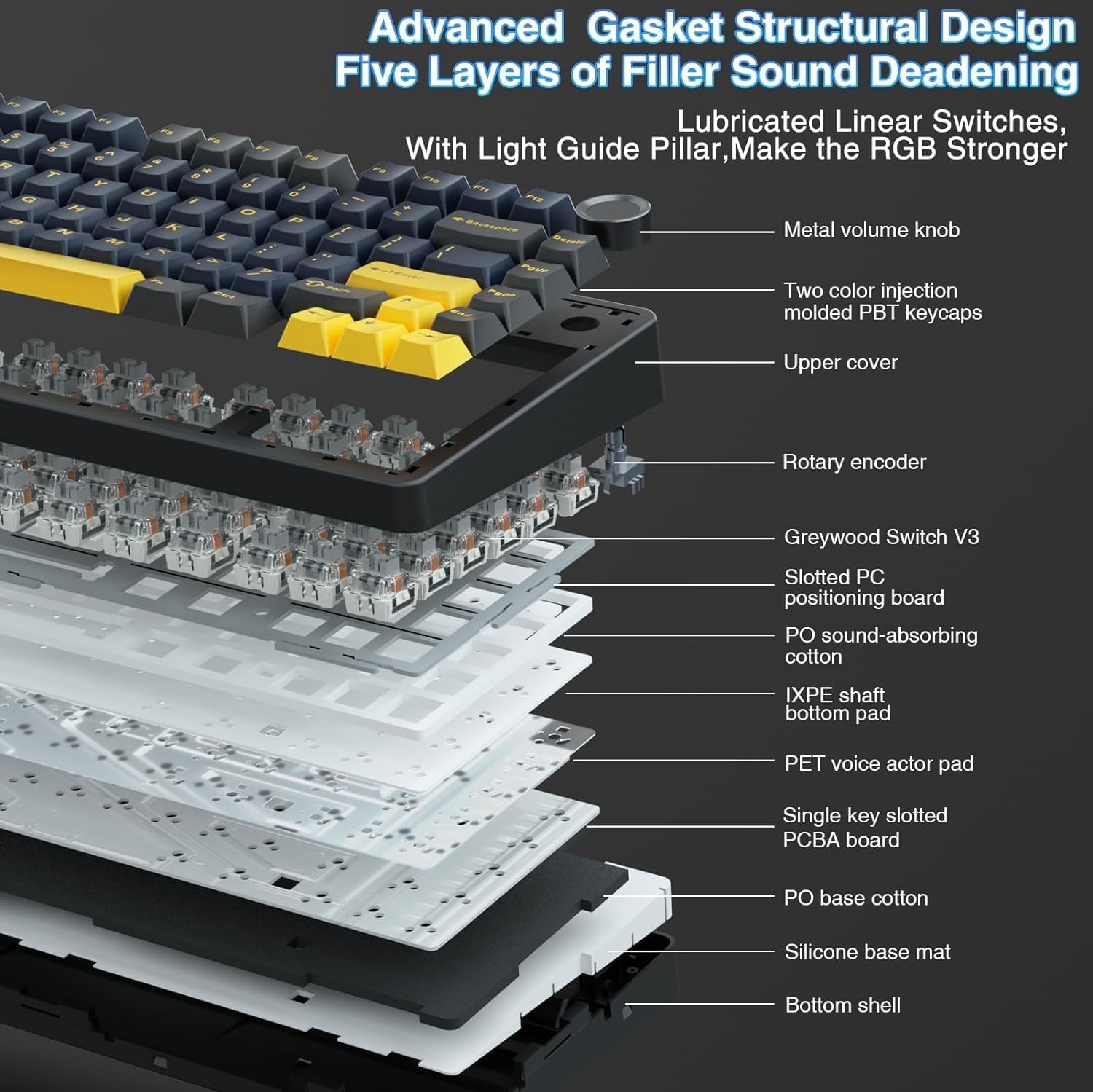
Figure 5.1: Exploded view illustrating the advanced gasket structural design and five layers of filler sound deadening within the AULA F75 keyboard, including components like the metal volume knob, two-color injection molded PBT keycaps, Greywood Switch V3, and various sound-absorbing pads.
6. Troubleshooting
| Problem | Possible Cause | Solution |
|---|---|---|
| Keyboard not responding in wireless mode. | Low battery, incorrect mode selected, receiver not plugged in (2.4GHz), not paired (Bluetooth), interference. | Charge the keyboard. Ensure the mode switch is set correctly (2.4GHz or BT). Re-insert the 2.4GHz receiver. Re-pair the Bluetooth connection. Move closer to the receiver/device. |
| RGB backlighting not working or dim. | Backlight turned off, brightness set too low, low battery. | Adjust brightness using the knob or FN key combinations. Ensure the keyboard is charged. |
| Keys not registering or double-typing. | Loose switch, debris under keycap, software issue. | Remove keycap and re-seat the switch firmly. Clean under the keycap. Restart your computer. Update keyboard driver. |
| Multi-function knob not working as expected. | Incorrect mode (Gaming/Office), driver issue. | Long press the knob for 5 seconds to switch modes. Ensure the driver is installed and updated. |
7. Specifications
| Feature | Detail |
|---|---|
| Model Name | F75-Ice Black (F75-cr) |
| Connectivity Technology | 2.4GHz Wireless, BT5.0, USB-C |
| Keyboard Description | Mechanical |
| Special Features | Backlit, Hot-Swappable, Programmable Keys, Rechargeable, Volume Roller |
| Color | Cool Black |
| Material | Plastic |
| Product Dimensions | 12.7 x 5.64 x 1.7 inches |
| Item Weight | 2.2 pounds |
| Battery | 1 Lithium Polymer battery required (4000mAh capacity) |
| Key Switches | LEOBOG Greywood V3 (Pre-lubricated) |
| Backlighting | 16.8 Million RGB colors, 16 effects, 10 music rhythms |
8. Warranty and Support
This AULA F75 keyboard is a renewed product. For specific warranty information and support, please refer to the documentation provided at the time of purchase or contact the seller directly. For general product inquiries or technical assistance, you may visit the official AULA website or contact their customer support channels.
Please retain your proof of purchase for any warranty claims.


