
Introduction
Thank you for choosing the Gravity C20 Pro Smartwatch. This rugged smartwatch is designed for durability and advanced functionality, featuring a 1.83-inch TFT display, IP68 waterproofing, Bluetooth calling, AI voice assistant, and over 100 sports modes. This manual will guide you through the setup, operation, and maintenance of your new device.

Image: Front view of the Gravity C20 Pro Smartwatch, showcasing its rugged design and display.
What's in the Box
- Gravity C20 Pro Smartwatch
- Charging Cable
- User Manual
Product Overview and Features
The Gravity C20 Pro is built to withstand challenging environments while providing comprehensive smart features. Its robust construction and advanced sensors make it an ideal companion for active lifestyles.
Key Features:
- Durable 1.83" TFT Display: Large and clear screen for easy readability.
- IP68 Water-Resistant: Designed to protect against dust and water exposure.
- Bluetooth Calling: Make and receive calls directly from your wrist.
- AI Voice Control: Hands-free operation for various functions.
- 100+ Sports Modes: Comprehensive tracking for a wide range of physical activities.
- Health Monitoring: Includes heart rate, sleep tracking, step counting, and sedentary reminders.
- Long Battery Life: 380mAh battery offering extended standby time.
- Smart Notifications: Receive alerts for calls, messages, and apps.

Image: Two Gravity C20 Pro smartwatches, emphasizing their robust and outdoor-ready design.

Image: A graphic displaying icons for key features such as heart rate monitoring, call reminders, pedometer, information reminders, blood pressure monitor, sleep monitor, calories, sedentary reminder, exercise data, IP68 waterproof, stress monitor, voice assistant, blood oxygen monitor, heart rate warning, and calculator.
Setup
1. Initial Charging
Before first use, fully charge your Gravity C20 Pro Smartwatch. Connect the magnetic charging cable to the charging points on the back of the watch and plug the USB end into a power adapter (not included) or a computer's USB port. The watch display will indicate charging status.
2. Power On/Off
- Power On: Press and hold the Power button (usually on the side) until the screen lights up.
- Power Off: Press and hold the Power button, then select 'Power Off' on the screen.
3. App Installation and Pairing
To unlock the full potential of your smartwatch, download the companion app on your iOS or Android device. Search for the app name (refer to the packaging or quick start guide for the exact name) in the App Store or Google Play Store.
- Download and install the app on your smartphone.
- Open the app and follow the on-screen instructions to create an account or log in.
- Enable Bluetooth on your smartphone.
- In the app, navigate to the 'Device' or 'Add Device' section.
- Select 'Gravity C20 Pro' from the list of available devices.
- Confirm the pairing request on both your phone and the smartwatch.
Operating Instructions
Basic Navigation
- Swipe Up/Down: Scroll through menus and notifications.
- Swipe Left/Right: Access quick functions or different watch faces.
- Tap: Select an item or open an application.
- Power Button: Press to wake/sleep the screen, or return to the home screen. Long press for power options.
- Sport Button: Dedicated button to quickly access sports modes.
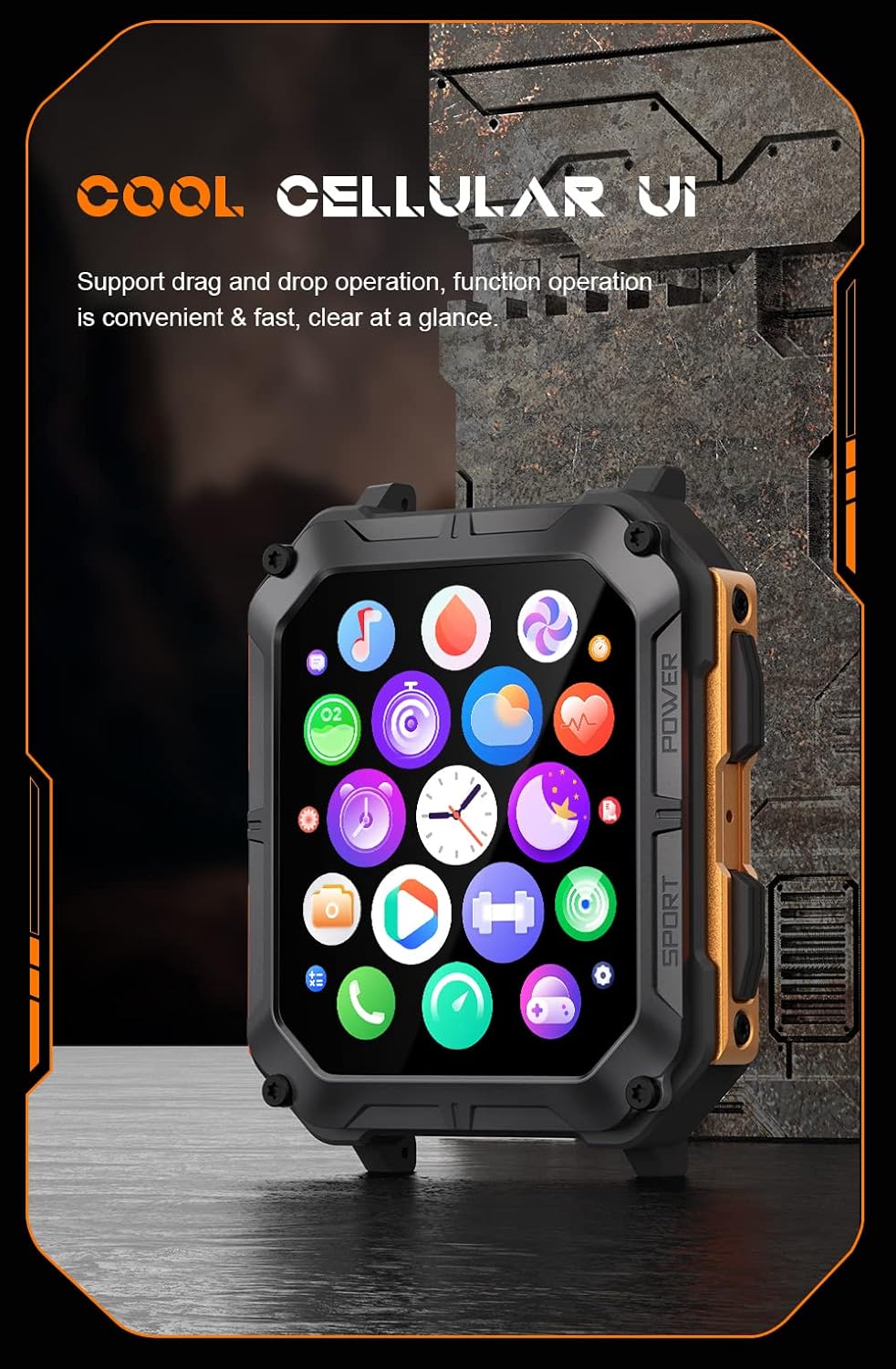
Image: The smartwatch display showing a grid of colorful application icons, illustrating the user interface.
Bluetooth Calling
Once paired, you can make and receive calls directly from your watch.
- Answering Calls: When a call comes in, tap the green answer icon on the watch screen.
- Making Calls: Access the dialer or contacts list on your watch to initiate a call.
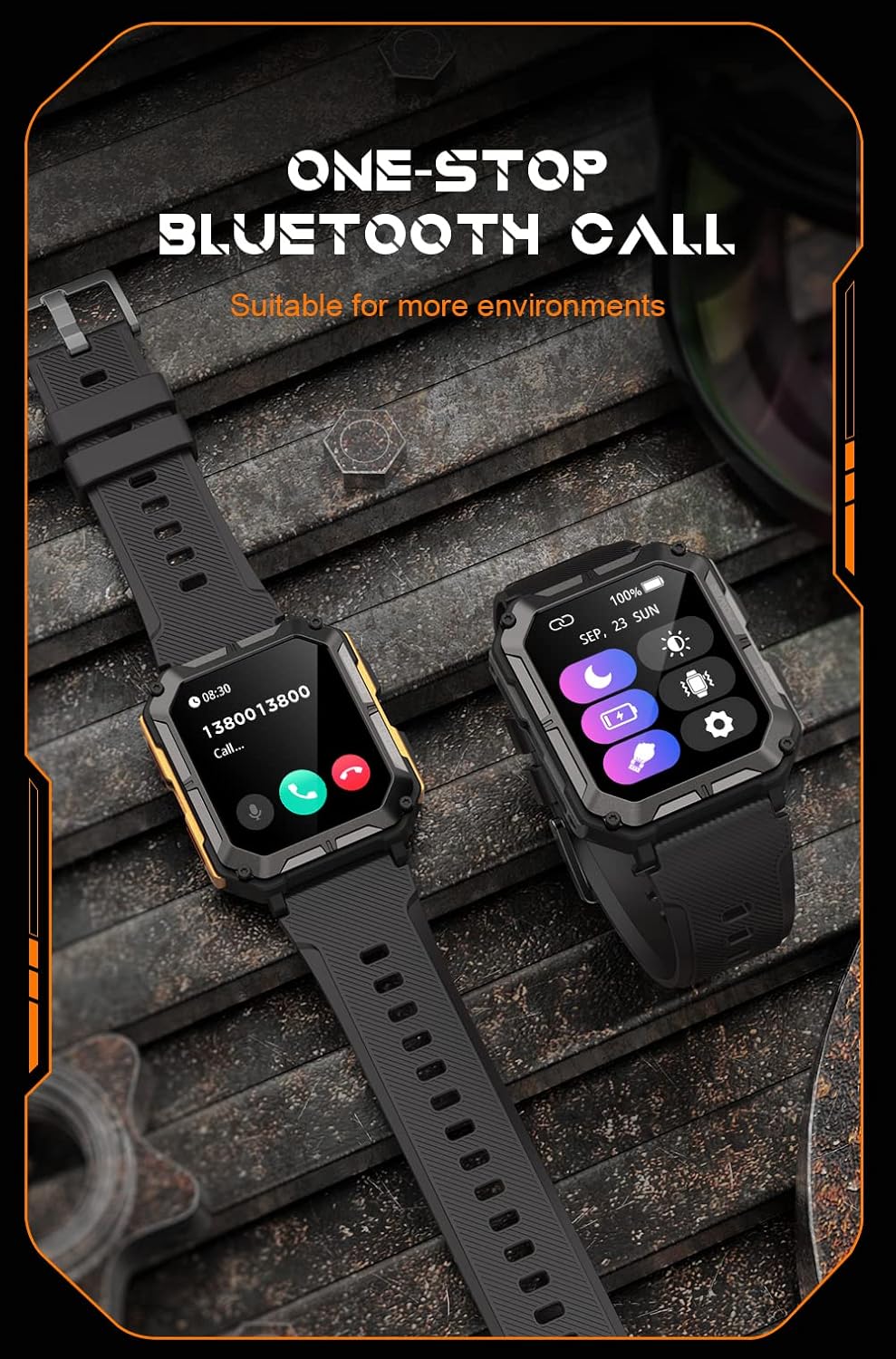
Image: Two smartwatches, one showing an incoming call notification with options to answer or decline, demonstrating the Bluetooth call feature.
AI Voice Assistant
Activate the AI voice assistant by a designated gesture or button press (refer to in-app settings). You can then use voice commands for various tasks, such as checking weather, setting alarms, or initiating calls.
Sports Modes
The watch supports over 100 sports modes. Access them via the Sport button or the main menu. Select your activity to start tracking metrics like duration, distance, calories burned, and heart rate.
Health Monitoring
The C20 Pro continuously monitors your health data.
- Heart Rate: View real-time heart rate on the watch or in the app.
- Sleep Tracking: Wear the watch to bed for detailed sleep analysis (deep sleep, light sleep, awake time).
- Blood Oxygen: Measure your SpO2 levels.
- Steps & Calories: Track your daily activity and calorie expenditure.

Image: The smartwatch display showing current heart rate (BPM) and blood oxygen saturation (SpO2) levels, indicating health monitoring capabilities.
Notifications
Receive notifications from your smartphone directly on your watch. Ensure notification permissions are enabled in both your phone's settings and the companion app.
Maintenance
Cleaning Your Smartwatch
Regularly clean your watch to ensure optimal performance and hygiene. Use a soft, lint-free cloth to wipe the screen and body. For stubborn dirt, slightly dampen the cloth with water. Avoid using harsh chemicals or abrasive materials.
Water Resistance (IP68)
The Gravity C20 Pro is IP68 water-resistant, meaning it can withstand dust and immersion in water up to 1.5 meters for 30 minutes. It is suitable for daily use, such as washing hands or light rain. However, it is not recommended for hot showers, saunas, or diving, as steam and high water pressure can compromise the seals.
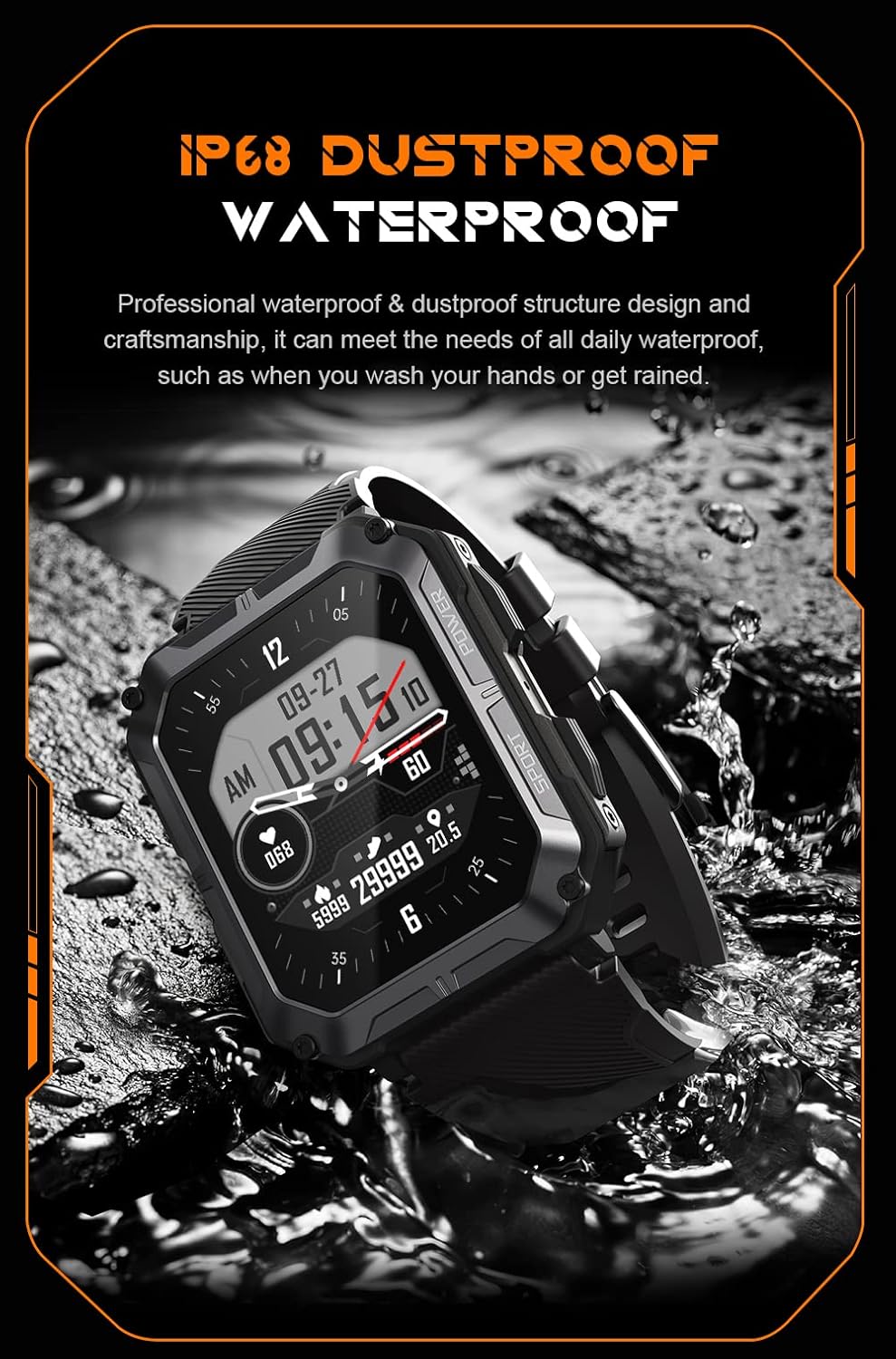
Image: The smartwatch partially submerged in water, illustrating its IP68 dustproof and waterproof capabilities.
Battery Care
To prolong battery life:
- Avoid extreme temperatures.
- Charge the watch before the battery completely drains.
- If storing for a long period, charge it to about 50% and power it off.
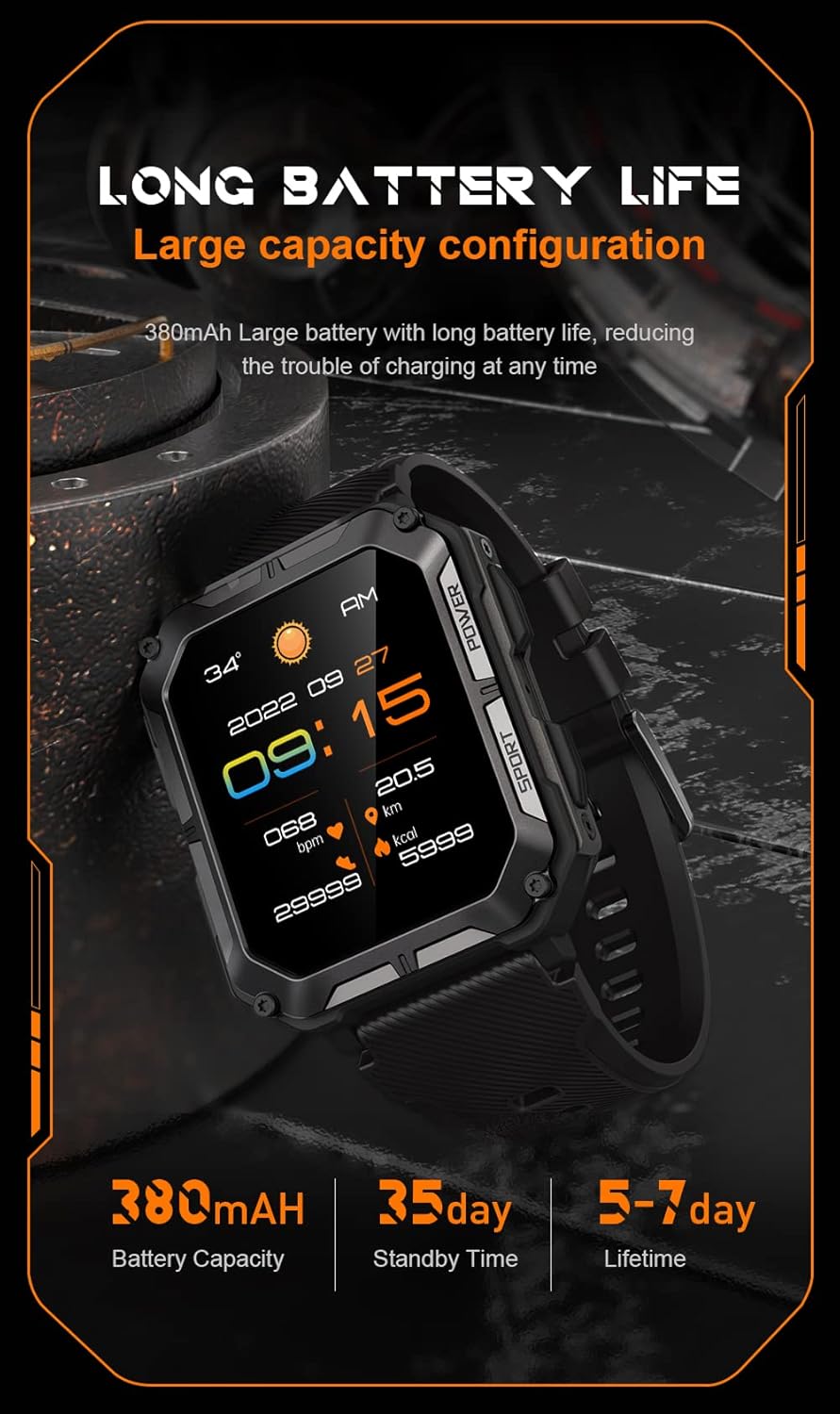
Image: The smartwatch display showing the time, date, weather, heart rate, steps, and battery level, with accompanying text emphasizing its long battery life and 380mAh capacity.
Troubleshooting
| Problem | Possible Solution |
|---|---|
| Watch won't power on | Ensure the watch is fully charged. Press and hold the Power button for at least 10 seconds to force a restart. |
| Cannot pair with phone | Ensure Bluetooth is enabled on your phone. Restart both the watch and phone. Clear previous pairings in phone's Bluetooth settings. Make sure the app is updated. |
| Inaccurate health data | Ensure the watch is worn snugly on your wrist, not too tight or too loose. Clean the sensor on the back of the watch. Update watch firmware via the app. |
| Notifications not received | Check notification permissions in your phone's settings for the companion app. Ensure the app is running in the background. Verify Bluetooth connection. |
| Short battery life | Reduce screen brightness. Turn off unnecessary features like 'Always-On Display'. Limit frequent heart rate monitoring. Ensure no background apps are draining power. |
Specifications
| Feature | Detail |
|---|---|
| Model Number | W4-C28 |
| Screen Size | 1.83 Inches |
| Battery Capacity | 380 mAh |
| Water Resistance | IP68 |
| Connectivity | Bluetooth |
| Operating System | Android OS (compatible with iOS) |
| Item Weight | 1 pounds |
| Temperature Resistance | -24°C to 60°C |
Warranty and Support
Warranty Information
The Gravity C20 Pro Smartwatch comes with a standard manufacturer's warranty. Please refer to the warranty card included in your product packaging or visit the official Gravity website for detailed terms and conditions regarding warranty coverage and duration.
Customer Support
For any technical assistance, troubleshooting not covered in this manual, or warranty claims, please contact Gravity customer support. Contact information can typically be found on the official Gravity website or on the product packaging.