
Gravity C26
Gravity C26 Smartwatch User Manual
Model: C26
Introduction
Welcome to the Gravity C26 Smartwatch user manual. This guide provides detailed instructions on how to set up, operate, and maintain your new smartwatch. The Gravity C26 features a 1.96-inch AMOLED display, Bluetooth calling, over 100 sports modes, comprehensive health monitoring, and an AI voice assistant. Its robust design ensures durability for various environments.
Package Contents
Please check the box for the following items:
- Gravity C26 Smartwatch
- Charging Cable
- User Manual (this document)
Product Overview
Familiarize yourself with the components and key features of your Gravity C26 Smartwatch.

Image: Front view of the Gravity C26 Smartwatch, showcasing its square AMOLED display, two side buttons labeled "POWER" and "SPORT", and a durable black strap.
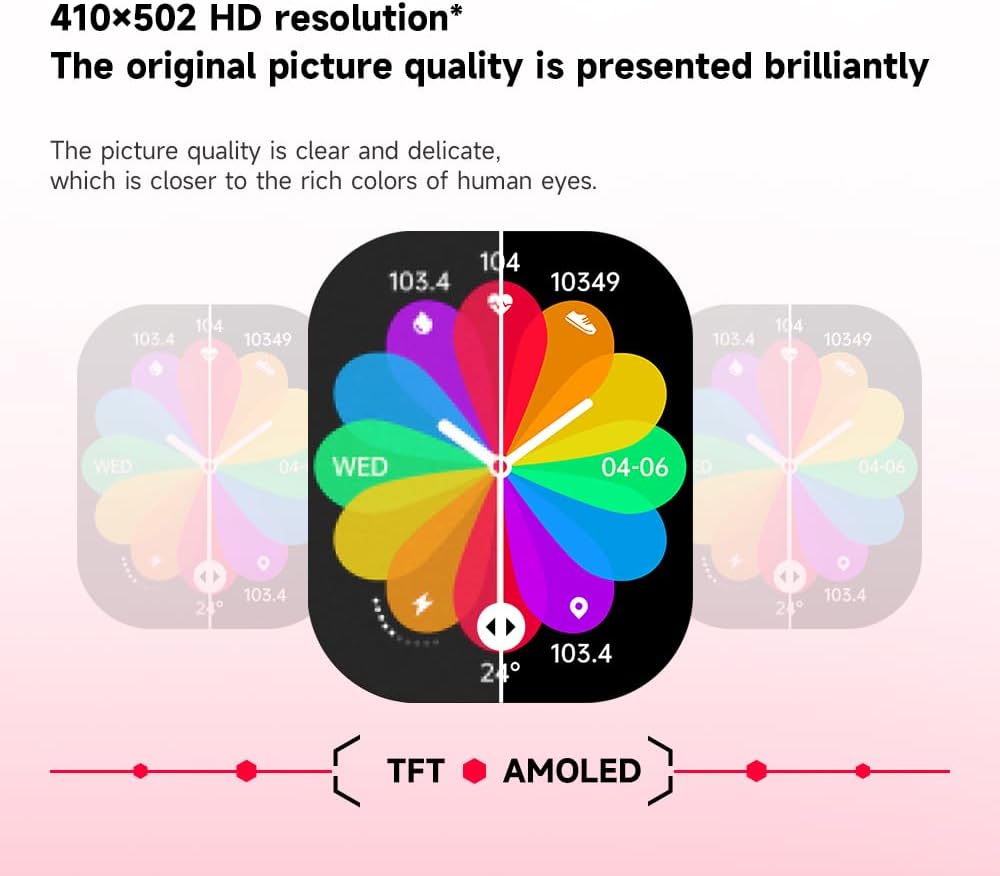
Image: Illustration demonstrating the superior visual quality of the 410x502 HD AMOLED display compared to a TFT screen, highlighting vibrant colors and clarity.

Image: Close-up view of the 1.96-inch AMOLED screen, emphasizing its explosion-proof and drop-proof tempered glass, thermal shock resistance, anti-corrosion, and anti-scratch properties.
Setup
1. Charging the Smartwatch
Before first use, fully charge your Gravity C26 Smartwatch. Connect the magnetic charging cable to the charging points on the back of the watch and plug the USB end into a power adapter (not included) or a computer's USB port.
- A full charge typically takes approximately 2 hours.
- The watch features a 350mAh battery, providing up to 25 days of standby time.

Image: Visual representation of the Gravity C26 Smartwatch's 350mAh battery, highlighting intelligent battery life upgrade, over-temperature protection, overvoltage protection, and intelligent optimization of application scenarios.
2. Pairing with Your Smartphone (FitCloudPro App)
To unlock the full potential of your Gravity C26, download and install the FitCloudPro app on your iOS or Android smartphone.
- Download the App: Search for "FitCloudPro" in the Apple App Store (for iOS) or Google Play Store (for Android), or scan the QR code provided in the watch's quick start guide.
- Create Account: Open the FitCloudPro app and follow the on-screen instructions to create an account or log in.
- Enable Bluetooth: Ensure Bluetooth is enabled on your smartphone.
- Add Device: In the FitCloudPro app, navigate to the "Device" or "Add Device" section. The app will search for nearby smartwatches. Select "Gravity C26" from the list.
- Confirm Pairing: A pairing request will appear on both your phone and the smartwatch. Confirm the pairing on both devices.
- Grant Permissions: Allow necessary permissions (e.g., notifications, location, contacts) for the app to function correctly.
Once paired, the watch will synchronize data with your phone, and you can customize settings, view health data, and manage notifications through the app.
Operating Instructions
1. Navigating the Interface
The Gravity C26 features a touch-sensitive AMOLED display and two physical buttons for navigation.
- Touch Screen: Swipe left/right, up/down to navigate through menus and widgets. Tap to select an option.
- "POWER" Button (Top Right): Press to wake/sleep the screen, return to the watch face, or long-press to access power options.
- "SPORT" Button (Bottom Right): Press to quickly access the sports modes menu.

Image: Display of four different menu styles available on the Gravity C26 Smartwatch, including grid views and list views for accessing various functions like settings, dialer, contacts, call records, and voice assistant.
2. Making and Receiving Calls
With Bluetooth calling enabled, you can manage calls directly from your wrist.
- Making a Call: Access the dial pad or contacts list on your watch to initiate a call.
- Receiving a Call: When a call comes in, the watch will display the caller ID. Tap the green icon to answer or the red icon to reject.

Image: Depiction of the Gravity C26 Smartwatch's Bluetooth calling feature showing an incoming call screen and message notifications. Also illustrates the AI voice assistant responding to commands like "How is the weather tomorrow?" and "Call my mom."
3. Using AI Voice Assistant
The built-in AI voice assistant allows for hands-free control. Simply raise your hand to activate the voice assistant and speak your commands.
- Activation: Raise your wrist or use a specific gesture/button press (refer to app settings for customization).
- Commands: Ask about weather, play music, set alarms, make calls, and more.
4. Tracking Sports Modes
The Gravity C26 supports over 100 sports modes for accurate workout tracking.
- Accessing Modes: Press the "SPORT" button or navigate through the menu to find the sports modes.
- Starting a Workout: Select your desired activity (e.g., running, cycling, walking) and tap to start. The watch will track duration, heart rate, calories burned, and other relevant metrics.
- Ending a Workout: Swipe or press the appropriate button to pause or end the workout. Data will be synced to the FitCloudPro app.

Image: Illustration showing the Gravity C26 Smartwatch tracking various sports activities such as walking, running, climbing, and cycling, with real-time data display for duration, heart rate, and calories.
5. Health Monitoring (Heart Rate, Sleep)
The smartwatch continuously monitors your health metrics.
- Heart Rate: The watch automatically monitors your heart rate throughout the day. You can also initiate a manual measurement from the heart rate widget.
- Sleep Tracking: Wear the watch to bed for automatic sleep analysis, including sleep stages (deep, light, REM) and duration.
- Hydration Reminders: Set up hydration reminders in the FitCloudPro app to ensure you stay hydrated.
6. Customizing Watch Faces
Personalize your smartwatch with over 200 cool visual watch faces available through the FitCloudPro app.
- Changing Faces: Open the FitCloudPro app, navigate to the watch face section, and select your preferred design. You can also long-press the watch face on the device to quickly switch between pre-loaded faces.
- Custom Faces: Some watch faces allow for customization with your own photos.

Image: A collage of various watch faces available for the Gravity C26 Smartwatch, demonstrating the wide range of visual styles and customization options.
Maintenance
1. Cleaning
- Wipe the watch screen and body with a soft, lint-free cloth.
- For the strap, use a damp cloth and mild soap if necessary, then rinse thoroughly and dry completely before wearing.
- Avoid using harsh chemicals or abrasive materials.
2. Water Resistance
The Gravity C26 is 1 ATM waterproof, meaning it can withstand splashes, rain, and brief immersion in shallow water. It is suitable for daily use and light water activities.
- Do not use the watch for diving, hot showers, or saunas, as steam and hot water can compromise the seals.
- After exposure to water, especially saltwater, rinse the watch with fresh water and dry it thoroughly.
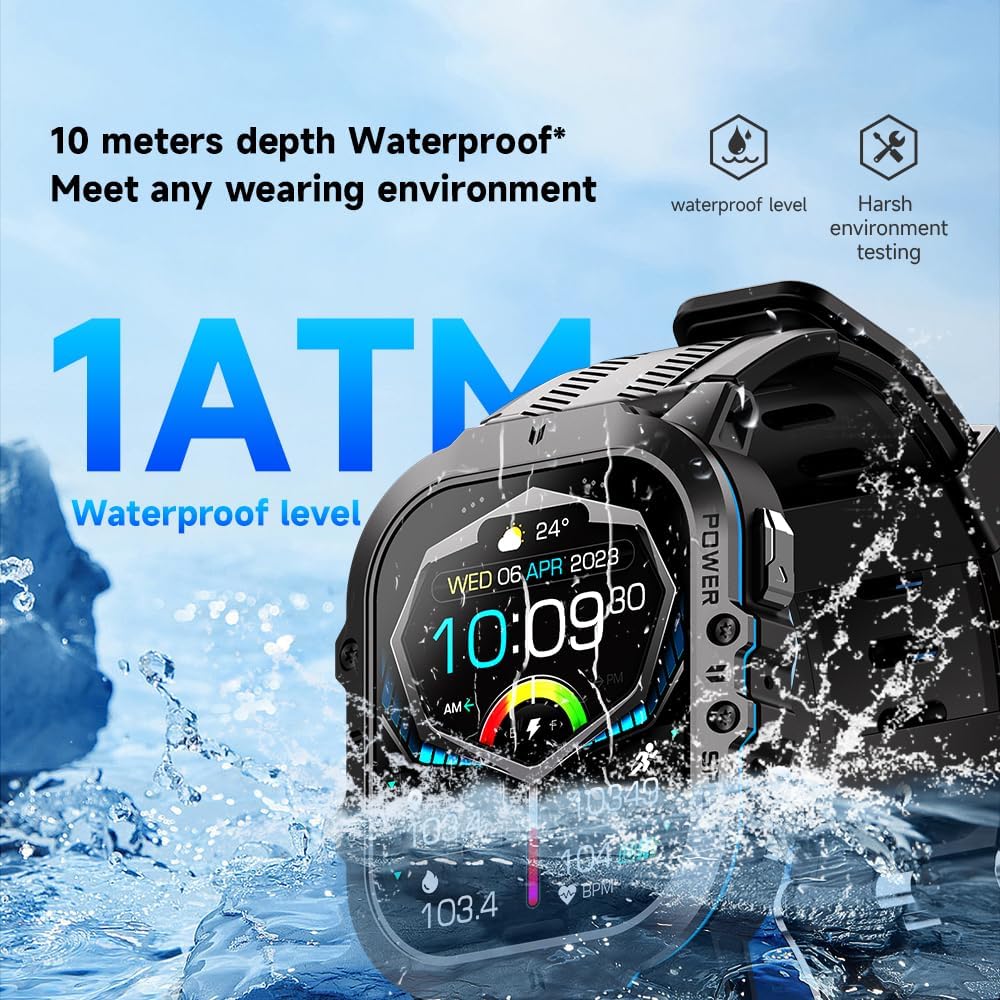
Image: The Gravity C26 Smartwatch partially submerged in water, illustrating its 1 ATM waterproof rating and ability to meet various wearing environments.
3. Battery Care
- Avoid extreme temperatures (below -24°C or above 60°C) as they can affect battery life and performance.
- Charge the watch regularly, even if not in use, to maintain battery health.
Troubleshooting
| Problem | Possible Solution |
|---|---|
| Watch does not turn on | Ensure the watch is fully charged. Connect it to the charging cable and a power source for at least 30 minutes. |
| Cannot pair with smartphone |
|
| Notifications not received |
|
| Inaccurate health data |
|
| Short battery life |
|
Specifications
| Feature | Detail |
|---|---|
| Model | C26 |
| Display | 1.96-inch AMOLED, 410x502 resolution |
| Battery Capacity | 350 mAh |
| Standby Time | Up to 25 days |
| Water Resistance | 1 ATM (suitable for splashes, rain, brief immersion) |
| Connectivity | Bluetooth |
| Compatibility | iOS and Android (via FitCloudPro app) |
| Operating Temperature | -24°C to 60°C |
| Item Weight | 1 pounds |
| Dimensions | 9 x 4 x 1 inches (Package Dimensions) |
Warranty and Support
For warranty information and technical support, please refer to the official Gravity website or contact your retailer. Keep your purchase receipt as proof of purchase.
For further assistance, you may also refer to the FitCloudPro app's help section or frequently asked questions.
Ask a question about this manual
Ask about setup, troubleshooting, compatibility, parts, safety, or missing instructions. Manuals+ will review the question and use this page’s manual context to help answer it.