
1. Introduction
The HPRT MT610 Pro is a compact and lightweight portable thermal printer designed for convenient printing on the go. It features 300 DPI resolution and supports various paper sizes, including US Letter (8.5" x 11"). This printer operates without ink, toner, or ribbons, utilizing thermal paper for printing. It offers versatile connectivity options, including Bluetooth for smart devices and USB for computers.

Image: HPRT MT610 Pro printer displaying supported paper sizes (A5, A4, US Letter) and its 300 DPI resolution capability. A smartphone with the Hereprint app is also visible, indicating wireless connectivity.

Image: A person carrying the HPRT MT610 Pro printer, highlighting its lightweight and portable design (0.53 KG / 1.1 lbs) for travel and on-the-go use.
2. What's Included
Upon unboxing your HPRT MT610 Pro Portable Printer, please verify that all the following items are present:
- HPRT MT610 Pro Wireless Printer
- USB Cable
- Product Manual (this document)
- 10 Sheets Thermal Paper (for initial testing)
- 200 Sheets Thermal Paper (US Letter Size)

Image: A stack of 200 sheets of HPRT 8.5" x 11" thermal paper, indicating the included paper supply.
3. Setup
3.1 Initial Power On and Charging
- Charge the Printer: Before first use, connect the printer to a power source using the provided USB cable and a compatible USB power adapter (not included). The indicator light will show charging status.
- Power On: Press and hold the power button located on the printer until the indicator light illuminates.
3.2 Loading Thermal Paper
The HPRT MT610 Pro uses specialized thermal paper. Ensure you are using the correct type of paper for optimal print quality and to prevent damage to the printer.
- Open the Paper Cover: Gently open the paper input cover on the printer.
- Insert Paper: Insert the thermal paper into the input slot with the printable side facing up. Ensure the paper is aligned straight and not creased.
- Adjust Guides: Adjust the paper guides to snugly fit the width of the paper, preventing skewing during printing.
- Close Cover: Close the paper input cover. The printer will automatically feed a small amount of paper to prepare for printing.

Image: The HPRT MT610 Pro printer with thermal paper loaded and ready for printing, demonstrating the paper path.

Image: Illustrates that the included thermal paper is specifically compatible with the MT610 Pro Thermal Printer and not with laser printers, inkjet printers, or copiers.
4. Operating Instructions
4.1 Connecting via Bluetooth (for Smartphones/Tablets)
- Turn on Printer: Ensure the HPRT MT610 Pro printer is powered on.
- Download App: Scan the QR code provided in the quick start guide or search for "Hereprint" in your device's app store (iOS & Android) and install the application.
- Enable Bluetooth: On your smartphone or tablet, enable Bluetooth.
- Connect via App: Open the "Hereprint" app. Follow the in-app instructions to search for and connect to your MT610 Pro printer via Bluetooth.
- Print: Once connected, you can select documents or images within the app to print.
4.2 Connecting via USB Cable (for PCs)
- Turn on Printer: Ensure the HPRT MT610 Pro printer is powered on.
- Connect USB: Connect one end of the provided USB cable to the printer and the other end to an available USB port on your computer.
- Install Drivers: If this is the first time connecting, your computer may prompt you to install drivers. Follow the on-screen instructions or visit the official HPRT website to download and install the latest drivers for the "MT610 Pro" printer.
- Print: Once drivers are installed and the printer is recognized, you can print documents from any application on your PC by selecting "MT610 Pro" as your printer.
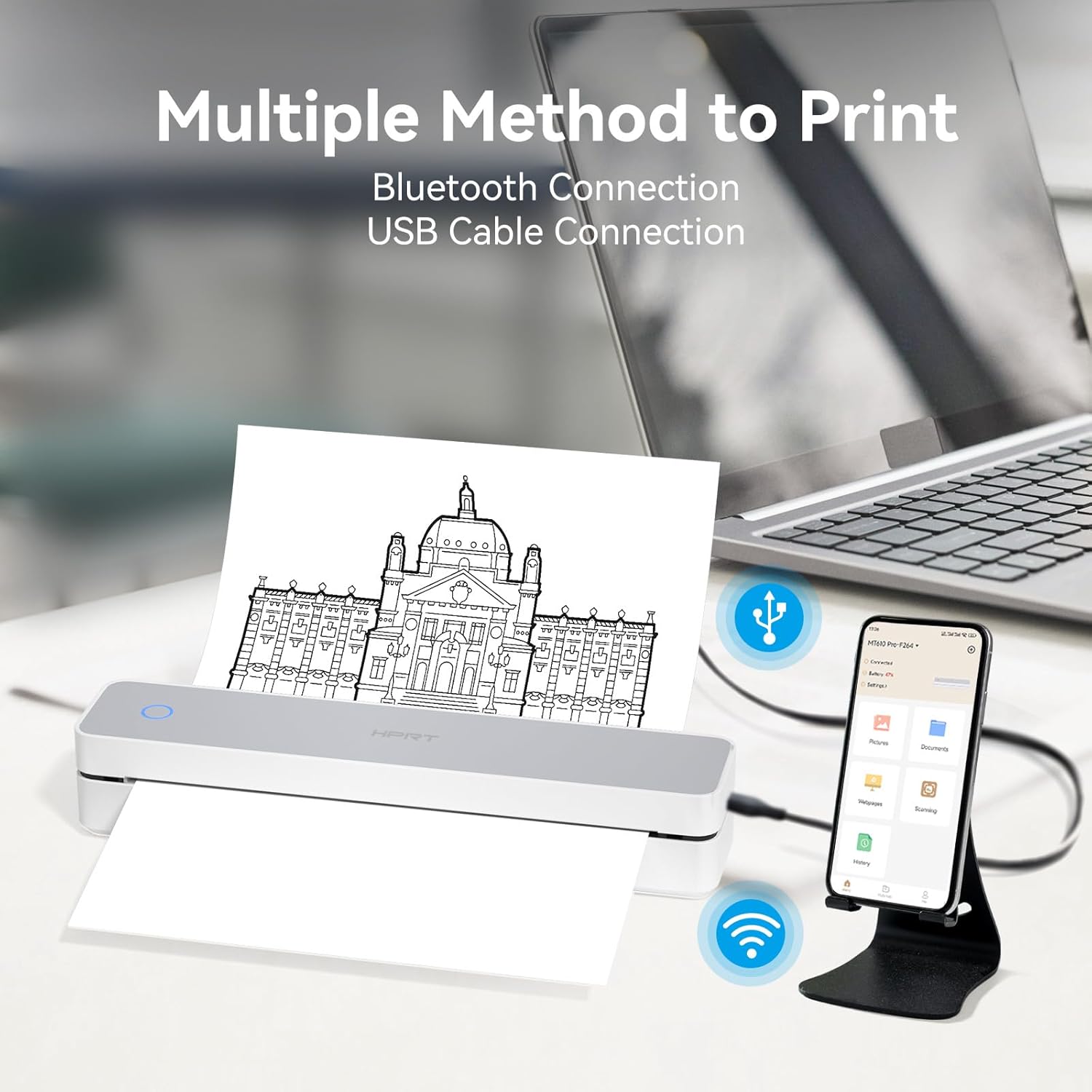
Image: Demonstrates the dual connectivity options of the HPRT MT610 Pro, showing it connected wirelessly via Bluetooth to a smartphone and wired via USB to a laptop.
5. Maintenance
5.1 Cleaning the Printer
Regular cleaning helps maintain print quality and extends the life of your printer.
- Power Off: Always turn off the printer and disconnect it from the power source before cleaning.
- Clean Print Head: Use a soft, lint-free cloth lightly dampened with isopropyl alcohol to gently wipe the thermal print head. Allow it to dry completely before use.
- Clean Exterior: Wipe the exterior of the printer with a soft, dry cloth. Avoid using harsh chemicals or abrasive materials.
5.2 Paper Handling and Storage
Proper handling and storage of thermal paper are crucial for print quality and longevity.
- Use Quality Thermal Paper: Always use high-quality thermal paper specifically designed for thermal printers.
- Store Paper Properly: Store thermal paper in a cool, dry place away from direct sunlight, heat, and humidity. Avoid contact with plastics containing plasticizers, which can degrade the thermal coating.
- Avoid Smudges: Thermal paper is designed to be ink-free and smudge-resistant.

Image: Illustrates the benefits of the thermal paper, including being BPA-free, keeping hands clean, and requiring no ink.
6. Troubleshooting
If you encounter issues with your HPRT MT610 Pro printer, refer to the following common problems and solutions:
6.1 Common Issues and Solutions
- Printer Not Powering On:
- Ensure the printer is fully charged. Connect it to a power source and allow it to charge for at least 30 minutes.
- Verify the power button is pressed and held correctly.
- Unable to Connect via Bluetooth:
- Ensure Bluetooth is enabled on your smart device.
- Make sure the printer is within range (typically 10 meters or 33 feet).
- Restart both the printer and your smart device.
- Ensure you are using the "Hereprint" app for connection.
- Unable to Connect via USB:
- Verify the USB cable is securely connected to both the printer and the PC.
- Ensure the correct drivers for "MT610 Pro" are installed on your computer.
- Try a different USB port on your PC.
- Poor Print Quality / Blank Pages:
- Check if the thermal paper is loaded correctly with the printable side facing up.
- Ensure you are using thermal paper, not regular paper.
- Clean the thermal print head as described in the Maintenance section.
- The printer may be low on battery; charge it fully.
- Paper Jams:
- Ensure the paper is loaded straight and the paper guides are adjusted correctly.
- Do not overload the paper tray.
- Remove any jammed paper carefully by opening the cover and gently pulling the paper out.

Image: A comparison highlighting the advantages of HPRT thermal paper, such as being inkless, smudge-free, preventing paper jams, BPA-free, and long-lasting, compared to traditional methods.
7. Specifications
| Feature | Specification |
|---|---|
| Model | MT610 Pro |
| Printing Technology | Thermal Printing |
| Resolution | 300 DPI |
| Connectivity | Bluetooth, USB |
| Paper Type | Thermal Paper (US Letter 8.5" x 11", A4, A5) |
| Ink/Toner Required | No |
| Weight | Approx. 500g (1.1 lbs) |
| App Compatibility | Hereprint (iOS & Android) |
8. Warranty and Support
For warranty information, technical support, or service inquiries, please refer to the warranty card included with your product or visit the official HPRT website. You may also contact the seller directly for assistance.
HPRT Official Website: www.hprt.com


