1. Introduction
The Redragon K705 65% Lina Pro keyboard is a compact, original-colored, robust set designed for both work and play. Its lightweight design, weighing only 450 grams, and 60% compact form factor eliminate concerns about backpack weight or space when carrying it. Take it with your laptop to your next meeting or gaming session without any hassle.
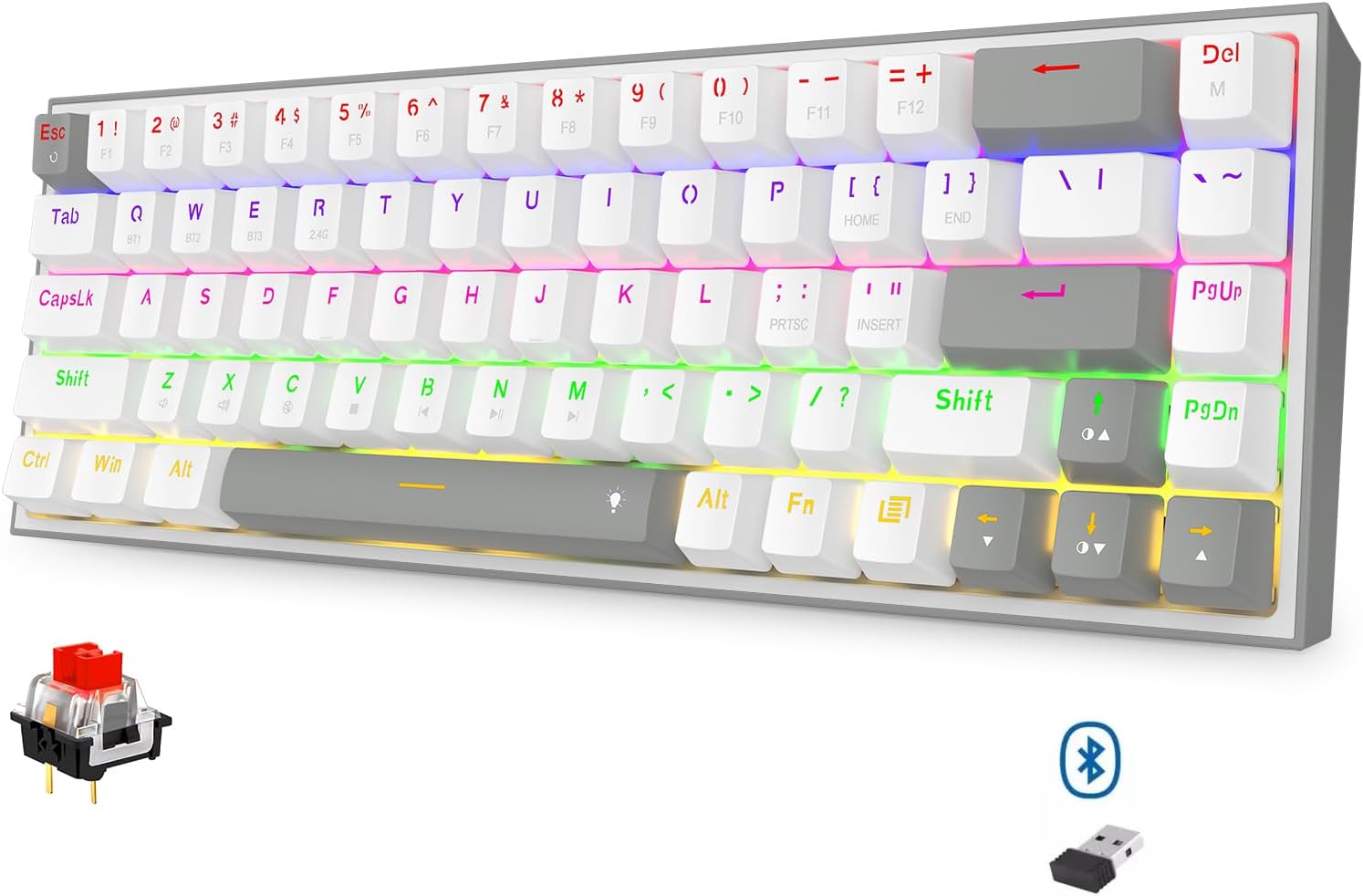
Figure 1.1: Overall view of the Redragon K705WG-R Pro keyboard.
2. Features
- Advanced Redragon Hot-Swap Technology: Easily swap switches on this 68-key mechanical keyboard with 99.8%+ compatibility, thanks to an innovative socket design ensuring a secure, wobble-free fit.
- Compact and Practical Design: The 65% form factor with dedicated arrow keys strikes the perfect balance between portability and usability, saving valuable desk space without sacrificing essential functions.
- Customizable Switch Experience: Explore a world of tactile sensations by hot-swapping the pre-installed quiet linear red switches with your preferred 3-pin or 5-pin switches, unlocking endless modification possibilities.
- Immersive Rainbow Lighting: Elevate your setup with 20 vibrant backlight presets, adjustable brightness, and a stunning music sync mode that transforms your desktop into a captivating light show.
- Versatile Connectivity: Wired, Bluetooth (BT), and 2.4G wireless connectivity options are available.
- Designed for FPS Gamers: With its streamlined and compact form, this keyboard ensures ample mouse space, allowing for unrestricted movement and giving you a competitive edge in intense FPS battles.
- Wide Compatibility: Supports Windows XP/Vista/7/8/10/11.
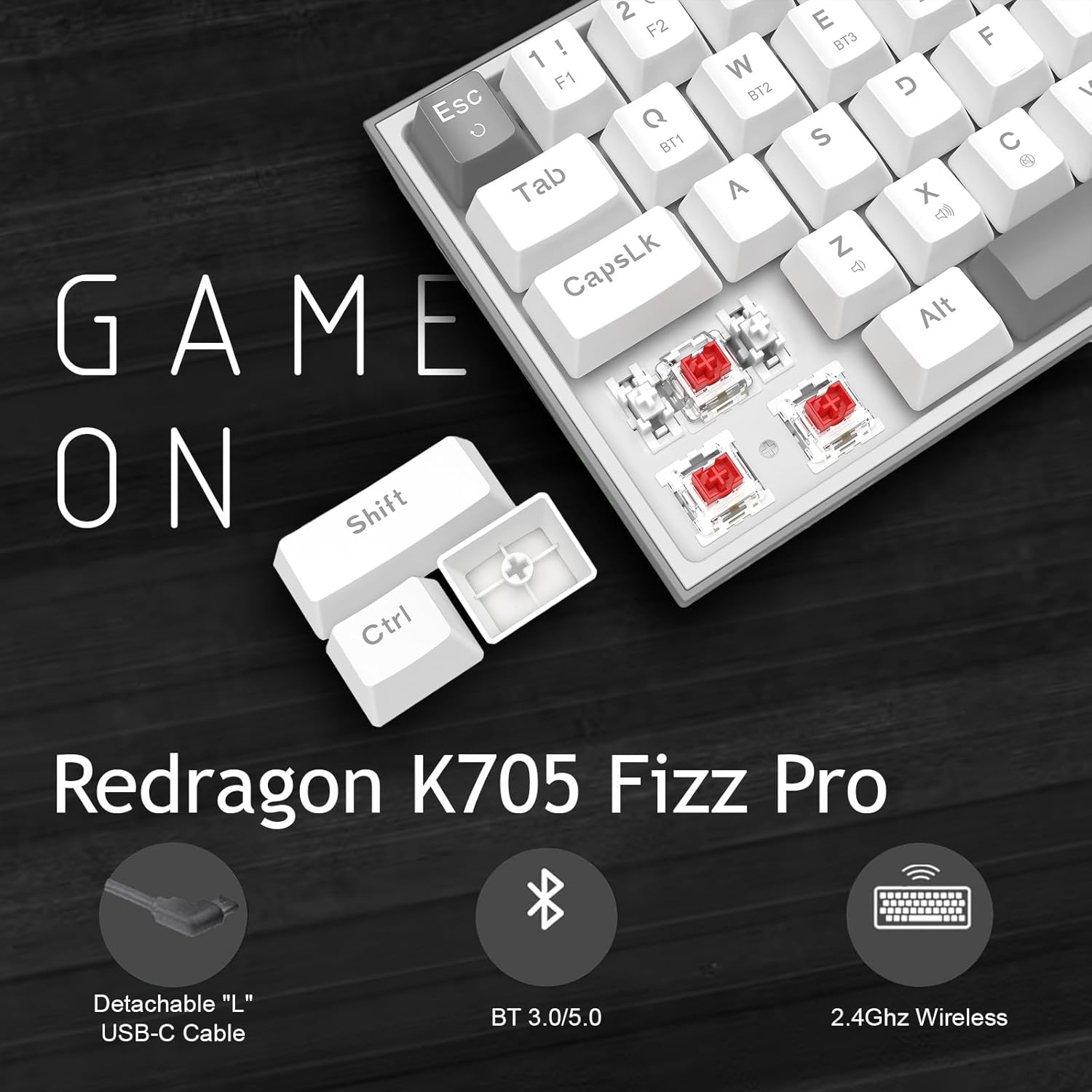
Figure 2.1: Key features of the Redragon K705WG-R Pro, highlighting connectivity and hot-swappable design.
3. Setup
3.1 Connectivity Modes
The K705WG-R Pro keyboard offers three connectivity options: Wired, Bluetooth, and 2.4GHz Wireless.

Figure 3.1: Side view showing the connectivity switch (2.4G, OFF, BT) and USB-C port.
3.1.1 Wired Mode
- Connect the provided USB-C cable to the keyboard's port and the other end to your computer's USB port.
- Ensure the connectivity switch on the side of the keyboard is set to the 'OFF' position (or wired mode, if indicated).
- The keyboard will be automatically recognized by your system.
3.1.2 2.4GHz Wireless Mode
- Insert the 2.4GHz USB dongle into an available USB port on your computer.
- Set the connectivity switch on the side of the keyboard to the '2.4G' position.
- The keyboard should automatically pair with the dongle. If not, press Fn + 4 (2.4G icon) to initiate pairing.
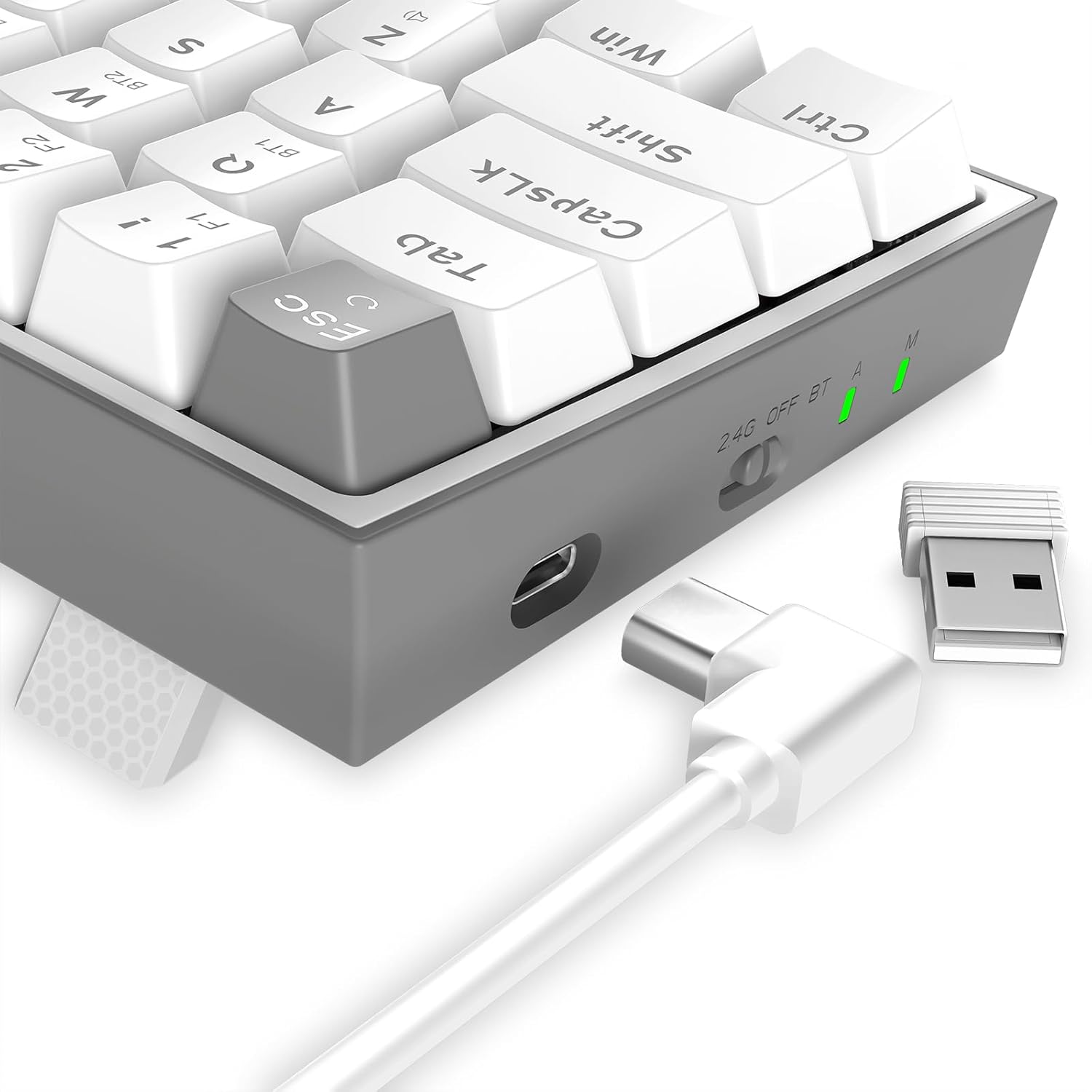
Figure 3.2: USB-C port and 2.4GHz wireless dongle for connectivity.
3.1.3 Bluetooth Mode
- Set the connectivity switch on the side of the keyboard to the 'BT' position.
- To enter pairing mode, press and hold Fn + 1, Fn + 2, or Fn + 3 for 3-5 seconds until the corresponding indicator light flashes rapidly. This allows you to store up to three Bluetooth devices.
- On your device (computer, tablet, smartphone), enable Bluetooth and search for 'Redragon K705WG-R'.
- Select the keyboard to pair. The indicator light will become solid once connected.
4. Operating Instructions
4.1 Key Functions and Combinations
The K705WG-R Pro features a compact 65% layout. Many functions are accessed via the 'Fn' key combined with other keys.
- Fn + 1/2/3: Switch between Bluetooth profiles (BT1, BT2, BT3).
- Fn + 4: Switch to 2.4GHz wireless mode.
- Fn + Q/W/E/R/T/Y/U/I/O/P: Multimedia controls (e.g., Play/Pause, Stop, Previous/Next Track, Volume Up/Down/Mute). Refer to the keycaps for specific icons.
- Fn + A/S/D/F/G/H/J/K/L: Lighting effects control (e.g., change lighting mode, speed, brightness).
- Fn + Z/X/C/V/B/N/M: Additional function keys (e.g., Calculator, My Computer).
- Fn + Arrow Keys: Adjust lighting direction or specific lighting effects.
- Fn + Del: Toggle RGB backlight on/off.
- Fn + Home: Toggle between different lighting modes.
- Fn + End: Adjust backlight brightness.
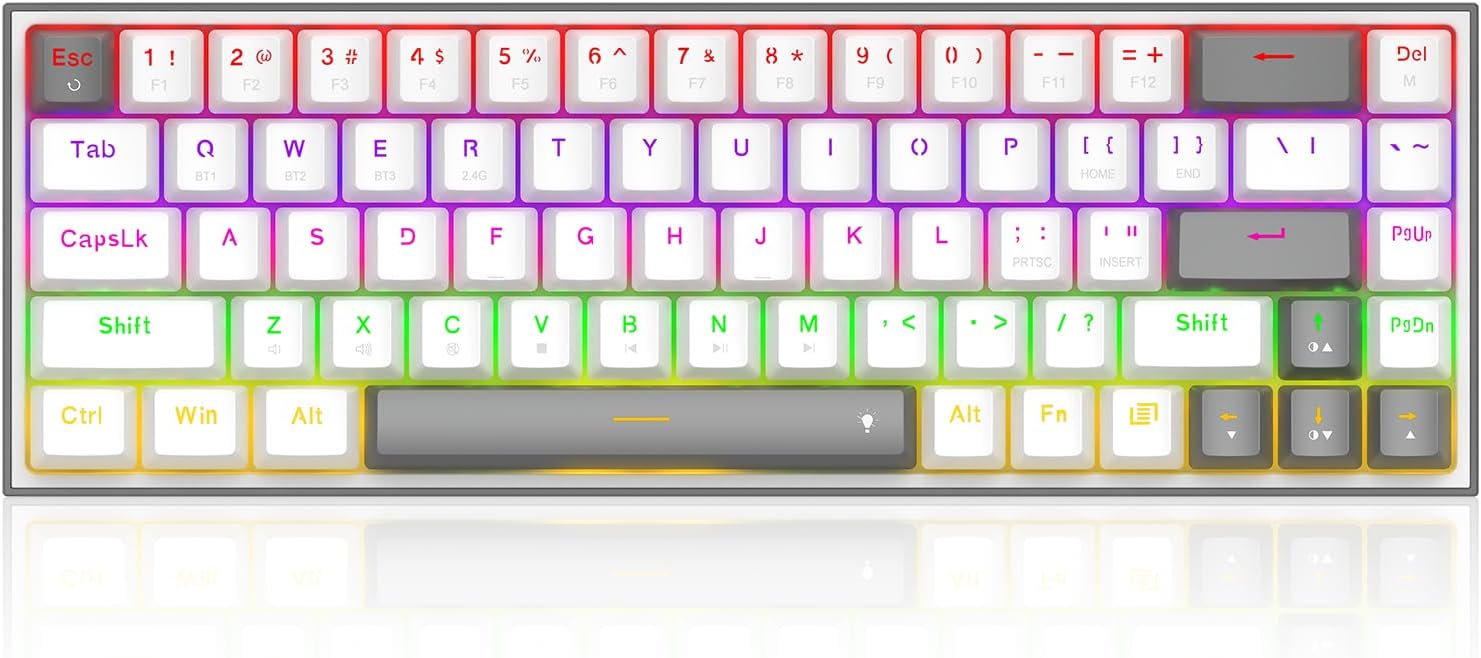
Figure 4.1: Top-down view of the keyboard, showing keycap legends for Fn functions.
4.2 RGB Lighting Control
The keyboard features immersive rainbow lighting with 20 vibrant backlight presets. Use the Fn key combinations to customize your lighting experience:
- Changing Modes: Press Fn + Home to cycle through various lighting effects.
- Adjusting Brightness: Use Fn + End to increase or decrease backlight brightness.
- Adjusting Speed: Use Fn + PgUp/PgDn to change the speed of dynamic lighting effects.
- Music Sync Mode: The keyboard supports a music sync mode that reacts to audio. Refer to the specific Fn combination on your keycaps or the Redragon software for activation.
5. Maintenance
5.1 Cleaning Your Keyboard
- Disconnect the keyboard from your computer before cleaning.
- Use a can of compressed air to blow away dust and debris from between the keycaps.
- For stubborn dirt, gently wipe the keycaps and keyboard surface with a slightly damp, lint-free cloth. Avoid excessive moisture.
- Do not use harsh chemicals or abrasive materials.
5.2 Hot-Swappable Switches
The K705WG-R Pro features 100% hot-swappable sockets, allowing you to easily change switches without soldering.
- Use the included switch puller tool to carefully remove the desired keycap.
- Then, use the switch puller to gently grasp the switch and pull it straight up.
- Align the pins of the new 3-pin or 5-pin switch with the holes on the PCB and press it firmly until it clicks into place. Ensure the pins are not bent.
- Replace the keycap.

Figure 5.1: Close-up view demonstrating the hot-swappable switch functionality.
6. Troubleshooting
6.1 Common Issues and Solutions
| Issue | Possible Cause | Solution |
|---|---|---|
| Keyboard not responding (Wired) | Loose cable connection, incorrect mode. | Ensure USB-C cable is securely connected. Check if the switch is in 'OFF' (wired) mode. Try a different USB port. |
| Keyboard not connecting (2.4GHz Wireless) | Dongle not inserted, incorrect mode, pairing issue. | Ensure dongle is inserted. Set switch to '2.4G'. Press Fn + 4 to re-pair. Move closer to the dongle. |
| Keyboard not connecting (Bluetooth) | Incorrect mode, not in pairing mode, device Bluetooth off. | Set switch to 'BT'. Press and hold Fn + 1/2/3 to enter pairing. Ensure device Bluetooth is on and discoverable. |
| RGB lighting not working | Lighting turned off, low battery (wireless). | Press Fn + Del to toggle lighting. Charge the keyboard if in wireless mode. |
| Specific keys not working | Faulty switch, debris under keycap. | Clean under the keycap. If hot-swappable, try replacing the switch. |
7. Specifications
| Feature | Detail |
|---|---|
| Model Number | K705WG-R |
| Brand Name | Redragon |
| Keyboard Description | Mechanical |
| Number of Keys | 68 |
| Connectivity Technology | Wired, Bluetooth, 2.4 GHz Wireless |
| Compatible Devices | Laptop (and other compatible devices) |
| Recommended Uses | Gaming |
| Special Features | Mechanical Keyboard, Customizable Display Keys, Hot-Swappable |
| Color | White Grey |
| Backlight Color Support | RGB (Red, Green, Blue) |
| Style | Gaming Keyboard |
| Package Dimensions | 37.2 x 15.4 x 5.5 cm |
| Item Weight | 1 kg |
| First Available Date | January 28, 2025 |
8. Warranty and Support
Redragon products typically come with a manufacturer's warranty. Please refer to the warranty card included in your product packaging or visit the official Redragon website for detailed warranty terms and conditions.
For technical support, troubleshooting assistance, or any product-related inquiries, please contact Redragon customer service through their official website or the contact information provided in your product documentation.