
Introduction
This manual provides essential information for setting up, operating, maintaining, and troubleshooting your Motorola Edge 50 Pro smartphone. Please read this guide thoroughly to ensure optimal performance and longevity of your device.
Setup
What's in the Box
Your Motorola Edge 50 Pro package includes:
- Motorola Edge 50 Pro Smartphone
- USB Cable
Inserting the SIM Card
The Motorola Edge 50 Pro supports Dual-SIM functionality using Nano SIM cards. To insert your SIM card(s):
- Locate the SIM tray on the side of your device.
- Use the SIM ejector tool (not included, typically comes with the phone) to open the SIM tray.
- Place your Nano SIM card(s) into the tray with the gold contacts facing down. Ensure proper orientation.
- Carefully reinsert the SIM tray into the device.

Image: Front view of the Motorola Edge 50 Pro smartphone, displaying its screen and sleek design. This view is typical during initial setup and power-on.
Initial Power On and Setup
Press and hold the power button until the Motorola logo appears. Follow the on-screen instructions to complete the initial setup, including language selection, Wi-Fi connection, Google account setup, and security settings.
Network Compatibility
Important Note for USA Buyers:
This smartphone is designed for GSM networks and is not compatible with CDMA networks such as Verizon, Sprint, or US Cellular. Please verify compatibility with your network provider for 3G, 4G/LTE, and 5G services before purchase and use.
Operating Your Device
Basic Navigation (Android 14)
Your Motorola Edge 50 Pro runs on Android 14. Navigate the interface using gestures: swipe up for the app drawer, swipe down for notifications and quick settings, and use the navigation bar or gestures for Home, Back, and Recent Apps.
Display Features
The device features a 6.7-inch P-OLED display with a resolution of 1220 x 2712 pixels, protected by Corning Gorilla Glass. Adjust display settings such as brightness, dark mode, and refresh rate in the Settings menu for a personalized viewing experience.
Camera Usage
The Motorola Edge 50 Pro is equipped with a versatile camera system:
- Main Camera: 50 MP, f/1.4, 25mm (wide), OIS
- Telephoto Camera: 10 MP, f/2.0, 67mm, 3x optical zoom, OIS
- Ultrawide Camera: 13 MP, f/2.2, 120°
- Front Camera: 50 MP, f/1.9, 21mm (wide)
Open the Camera app to access various modes like Photo, Portrait, Video (up to 4K resolution), and Pro mode. Tap to focus, pinch to zoom, and use the on-screen controls for settings like flash and timer.
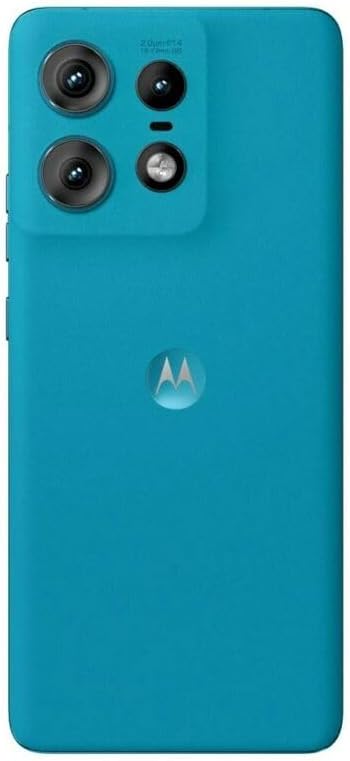
Image: Rear view of the Motorola Edge 50 Pro smartphone, highlighting the triple camera module and the Motorola logo. This illustrates the primary camera setup.
Battery Management
The device is powered by a non-removable Li-Po 4500 mAh battery. To optimize battery life, adjust screen brightness, disable unnecessary background apps, and utilize power-saving modes available in the Settings menu. Charge your device using the provided USB cable.
Storage and Performance
Your phone comes with 512GB of internal storage and 12GB of RAM, providing ample space for apps and media, and ensuring smooth multitasking. Storage cannot be expanded via external cards. Regularly clear cache and manage files to maintain optimal performance.
Connectivity
The Motorola Edge 50 Pro supports 5G cellular networks, Wi-Fi, and NFC. For data transfer and charging, use the USB Type-C port. Ensure your SIM card is active for cellular connectivity.
Maintenance
Software Updates
Motorola provides up to 3 major Android upgrades for this device. Regularly check for and install software updates to ensure your phone has the latest features, security patches, and performance improvements. Go to Settings > System > System updates.
Cleaning Your Device
To clean your phone, power it off and gently wipe the screen and body with a soft, lint-free cloth. Avoid using harsh chemicals or abrasive materials. The device is not water-resistant, so avoid exposure to liquids.
Battery Care
To prolong battery lifespan, avoid extreme temperatures and do not leave the device fully charged or fully discharged for extended periods. Use only approved chargers and cables.
Troubleshooting
Common Issues and Solutions
- Device not powering on: Ensure the battery is charged. Connect to a charger for at least 15 minutes, then try powering on.
- Network connectivity issues: Check if your SIM card is properly inserted. Verify with your network provider if there are service outages in your area. Restart the device.
- Apps crashing or freezing: Close and reopen the app. Clear the app's cache (Settings > Apps > [App Name] > Storage > Clear cache). If the issue persists, uninstall and reinstall the app.
- Slow performance: Close unused apps. Clear unnecessary files and data. Restart your device regularly.
For more detailed troubleshooting, refer to the official Motorola support website.
Specifications
| Feature | Detail |
|---|---|
| Brand | Motorola |
| Model Name | Motorola Edge 50 Pro |
| Operating System | Android 14 |
| Processor | Qualcomm SM7550-AB Snapdragon 7 Gen 3 (4 nm), Octa-core (1x2.63 GHz, 4x2.4 GHz, 3x1.8 GHz) |
| RAM | 12 GB |
| Internal Storage | 512 GB (non-expandable) |
| Display | 6.7 inches P-OLED, 1220 x 2712 pixels, Corning Gorilla Glass |
| Rear Camera | 50 MP (wide, OIS), 10 MP (telephoto, 3x optical zoom, OIS), 13 MP (ultrawide) |
| Front Camera | 50 MP (wide) |
| Battery | Li-Po 4500 mAh, non-removable |
| SIM Card | Dual Nano SIM |
| Connectivity | 5G, Wi-Fi, NFC, USB Type-C |
| Color | Caneel Bay |
| Item Weight | 570 Grams |
| Water Resistance Level | Not Water Resistant |
Warranty Information
The Motorola Edge 50 Pro comes with a 1-year manufacturer's warranty. This warranty covers defects in materials and workmanship under normal use. For specific terms and conditions, please refer to the warranty card included with your product or visit the official Motorola support website.
Support
For further assistance, technical support, or to view frequently asked questions, please visit the official Motorola support website. You can also find contact information for customer service there.
Online Support: www.motorola.com/support


