
FIREBAT AM02
FIREBAT AM02 Mini PC User Manual
Model: Intel N100 16GB/512GB
1. Product Overview
The FIREBAT AM02 Mini PC is a compact and powerful computing solution designed for various applications, including home, business, education, and light gaming. Featuring the Intel 12th Gen Alder Lake-N N100 processor, 16GB LPDDR5 RAM, and a 512GB M.2 SSD, it offers efficient performance in a small form factor. This manual provides essential information for setting up, operating, maintaining, and troubleshooting your device.

Image: The FIREBAT AM02 Mini PC, showcasing its compact design and various input/output ports on the front and rear panels.
Key Features:
- Processor: Intel 12th Gen Alder Lake-N N100 (4 cores/4 threads, up to 3.4GHz).
- Graphics: Intel UHD Graphics (up to 750MHz) with 4K video support.
- Memory: 16GB LPDDR5 4000MHz SODIMM RAM.
- Storage: 512GB M.2 SSD, expandable up to 2TB (via SSD replacement) or additional 2.5-inch HDD/SSD.
- Connectivity: Dual 2.5Gbps and 1Gbps Ethernet ports, WiFi 6, Bluetooth 5.2.
- Display Output: 1x DP 1.4, 1x HDMI 2.0, 1x Type-C for triple 4K display support.
- Ports: 4x USB 3.2, 2x RJ45, 1x Type-C, 1x DP 1.4, 1x HDMI 2.0, 1x 3.5mm audio jack.
2. Setup Guide
Follow these steps to set up your FIREBAT AM02 Mini PC for the first time.
2.1 Unboxing and Initial Inspection
Carefully remove all components from the packaging. Verify that all items listed in the package list are present and undamaged.

Image: Contents of the FIREBAT AM02 Mini PC package, including the Mini PC, VESA mount, 12V/3A US adapter, HDMI cable, and user manual.
2.2 Connecting Peripherals
- Connect Display: Use the provided HDMI cable or a DisplayPort cable to connect your monitor(s) to the HDMI 2.0, DP 1.4, or USB-C ports on the Mini PC. The device supports up to three 4K displays simultaneously.
- Connect Keyboard and Mouse: Plug your USB keyboard and mouse into any of the available USB 3.2 Type-A ports.
- Connect Network (Optional): For a wired connection, connect an Ethernet cable from your router or modem to one of the RJ45 LAN ports (2.5Gbps or 1Gbps). For wireless, ensure WiFi is enabled after booting.
- Connect Power: Plug the 12V/3A US adapter into the DC IN port on the Mini PC, then plug the adapter into a power outlet.

Image: A detailed view of the FIREBAT AM02 Mini PC's ports, including DC IN, dual RJ45 LAN, HDMI, DisplayPort, USB 3.2 Type-A, USB Type-C, and 3.5mm audio jack.
2.3 First Boot
Press the power button located on the front of the Mini PC. The system will boot up. Follow the on-screen instructions to complete the initial setup of the operating system (default OS is pre-installed).
2.4 VESA Mount Installation (Optional)
The Mini PC comes with a VESA mount for attaching it to the back of a compatible monitor or TV. Secure the VESA mount to your display using the provided screws, then slide the Mini PC onto the mount until it clicks into place.

Image: The FIREBAT AM02 Mini PC shown mounted on the back of a monitor using the VESA mount, illustrating its compact and space-saving design.
3. Operating Instructions
3.1 Power On/Off
- Power On: Press the power button on the front panel.
- Power Off: Use the operating system's shutdown function. Alternatively, press and hold the power button for 5 seconds for a forced shutdown (only use if the system is unresponsive).
3.2 Network Connectivity
- Wired Connection: Connect an Ethernet cable to one of the RJ45 ports. The system will automatically detect the connection.
- Wireless Connection (WiFi 6): Navigate to your operating system's network settings, select your desired WiFi network, and enter the password.
- Bluetooth (BT 5.2): Enable Bluetooth in your operating system's settings to pair with compatible devices such as keyboards, mice, or headphones.
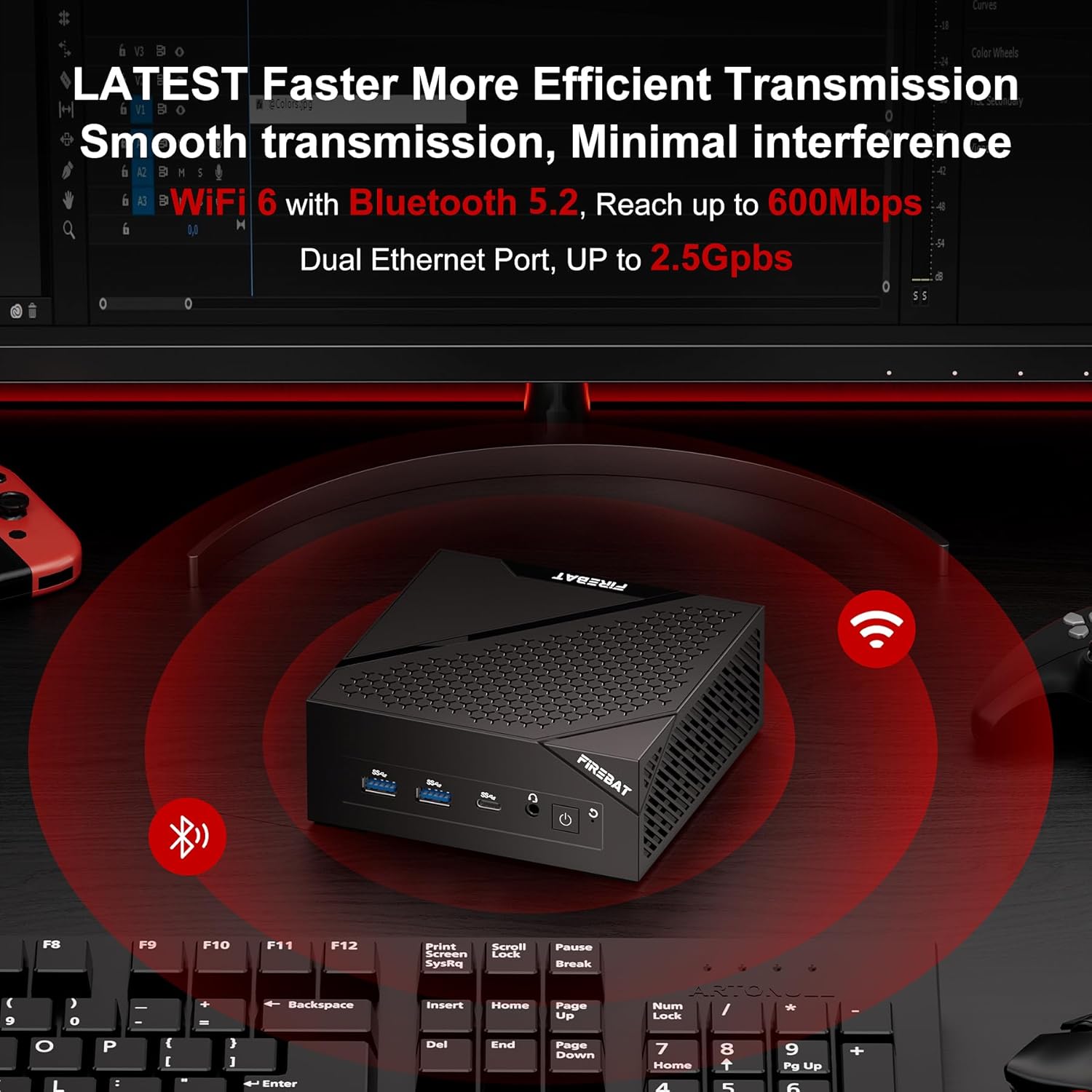
Image: The FIREBAT AM02 Mini PC on a desk with WiFi and Bluetooth symbols radiating from it, indicating its wireless capabilities and dual Ethernet ports.
3.3 Storage Expansion
The FIREBAT AM02 Mini PC supports storage expansion. You can replace the existing 512GB M.2 SSD with a larger one (up to 2TB) or add a 2.5-inch 7mm HDD/M.2 SSD 2280 (not included) for additional storage. Refer to the internal layout for drive bay locations.

Image: An internal view of the FIREBAT AM02 Mini PC, highlighting the 16GB LPDDR5 RAM and 512GB M.2 2280 NGFF/NVMe SSD, with an indication of expandability up to 2TB or by adding a 2.5" SSD/HDD.
4. Maintenance
Proper maintenance ensures the longevity and optimal performance of your Mini PC.
4.1 General Care
- Keep the device in a clean, dry environment, away from direct sunlight and extreme temperatures.
- Avoid placing heavy objects on top of the Mini PC.
- Do not block the ventilation openings.
- Clean the exterior with a soft, dry cloth. Do not use liquid cleaners.
4.2 Heat Dissipation
The FIREBAT AM02 Mini PC features an ultra-fast heat dissipation design to maintain low temperatures and quiet operation. Ensure adequate airflow around the device to prevent overheating.

Image: An illustration of the FIREBAT AM02 Mini PC's ultra-fast heat dissipation design, showing airflow and indicating low temperature and low noise operation (38dB).
5. Troubleshooting
This section addresses common issues you might encounter with your Mini PC.
5.1 No Power
- Ensure the power adapter is securely connected to both the Mini PC and a working power outlet.
- Verify the power outlet is functional by plugging in another device.
- Check the power adapter for any visible damage.
5.2 No Display Output
- Confirm that the display cable (HDMI, DP, or USB-C) is securely connected to both the Mini PC and the monitor.
- Ensure the monitor is powered on and set to the correct input source.
- Try a different display cable or monitor if available.
5.3 Network Connectivity Issues
- Wired: Check the Ethernet cable connection and ensure your router/modem is working correctly.
- Wireless: Verify that WiFi is enabled in the operating system. Restart your router/modem. Ensure you are within range of your WiFi network.
5.4 System Performance Issues
- Close unnecessary applications running in the background.
- Ensure the Mini PC has adequate ventilation and is not overheating.
- Check for available operating system updates and driver updates.
If you continue to experience issues, please refer to the Warranty & Support section for contact information.
6. Technical Specifications
| Feature | Specification |
|---|---|
| Brand | FIREBAT |
| Model Number | AM02 |
| Processor | Intel 12th Gen Alder Lake-N N100 (4 Cores/4 Threads, up to 3.4 GHz) |
| RAM | 16 GB LPDDR5 4000MHz SODIMM |
| Hard Drive | 512 GB M.2 SSD (eSATA interface) |
| Max Screen Resolution | 4096 x 2160@60Hz Pixels |
| Graphics | Intel UHD Graphics (up to 750MHz) |
| Wireless Type | 802.11ax (WiFi 6), Bluetooth 5.2 |
| USB Ports | 4x USB 3.0 Ports (Type-A), 1x USB Type-C |
| LAN Ports | 2x RJ45 (1x 2.5Gbps, 1x 1Gbps) |
| Video Output | 1x HDMI 2.0, 1x DP 1.4, 1x Type-C (supports triple display) |
| Audio Output | 1x 3.5mm audio jack |
| Operating System | Default (User-installable) |
| Item Weight | 13.9 ounces (approx. 394g) |
| Product Dimensions | 5 x 5 x 2 inches (approx. 12.7 x 12.7 x 5.1 cm) |
| Color | Black |
7. Warranty & Support
FIREBAT is committed to providing quality products and excellent customer service. For any technical assistance, warranty claims, or product inquiries, please contact our support team.
Email Support: support@firebatpc.com
Please include your model number (AM02) and a detailed description of your issue when contacting support to ensure a prompt and effective resolution.
Related documentsAM02


Ask a question about this manual
Ask about setup, troubleshooting, compatibility, parts, safety, or missing instructions. Manuals+ will review the question and use this page’s manual context to help answer it.