
Docooler K300 (Model: UBQ3789653495513JV)
Docooler Professional Audio Mixer K300 Live Sound Card User Manual
Brand: Docooler | Model: K300 (UBQ3789653495513JV)
Your comprehensive guide to setting up, operating, and maintaining your K300 Live Sound Card.
1. Introduction
The Docooler K300 Live Sound Card is an all-in-one audio mixing solution designed for live streaming, recording, podcasting, and gaming. It integrates mixing, recording, and voice transformation capabilities, offering extensive audio customization and universal compatibility.

Image 1.1: Front view of the Docooler K300 Live Sound Card, showcasing its compact design and various controls.
2. Safety Information
Please read and understand the following safety precautions before using the Docooler K300 Live Sound Card.
- Keep the device away from water or excessive moisture.
- Do not expose the device to extreme temperatures.
- Avoid dropping or subjecting the device to strong impacts.
- Do not attempt to disassemble or repair the device yourself. Refer to qualified service personnel.
- Use only the provided charging cable and audio cables.

Image 2.1: Important safety warning regarding plastic bags. To avoid suffocation hazard, keep plastic bags away from babies and children.
3. Package Contents
Verify that all items are present in the package:
- 1 x Docooler K300 Live Sound Card
- 2 x Audio Cables
- 1 x Charging Cable
- 1 x User Manual (this document)
4. Product Features
The Docooler K300 Live Sound Card offers a range of features to enhance your audio experience:
- All-in-One Audio Mixing Solution: Integrates mixing, recording, and voice transformation for live streaming, recording, and gaming.
- Stunning 7 Color Ambiance Lighting: Customizable RGB lighting with 12 dynamic modes for an immersive atmosphere.
- Extensive Audio Customization: 20 diverse audio effects and 4 magic voice modes (Male, Female, Children, Beasts voice).
- Dual Microphone Connectivity: Connect two microphones simultaneously for collaborations.
- Independent EQ Control: Adjust treble, midrange, and bass for precise audio tuning.
- Universal Compatibility: Works with smartphones, computers, tablets, and game consoles.
- Advanced Noise Reduction: Features one-click mute, original sound elimination, and noise-reduction for clear audio.
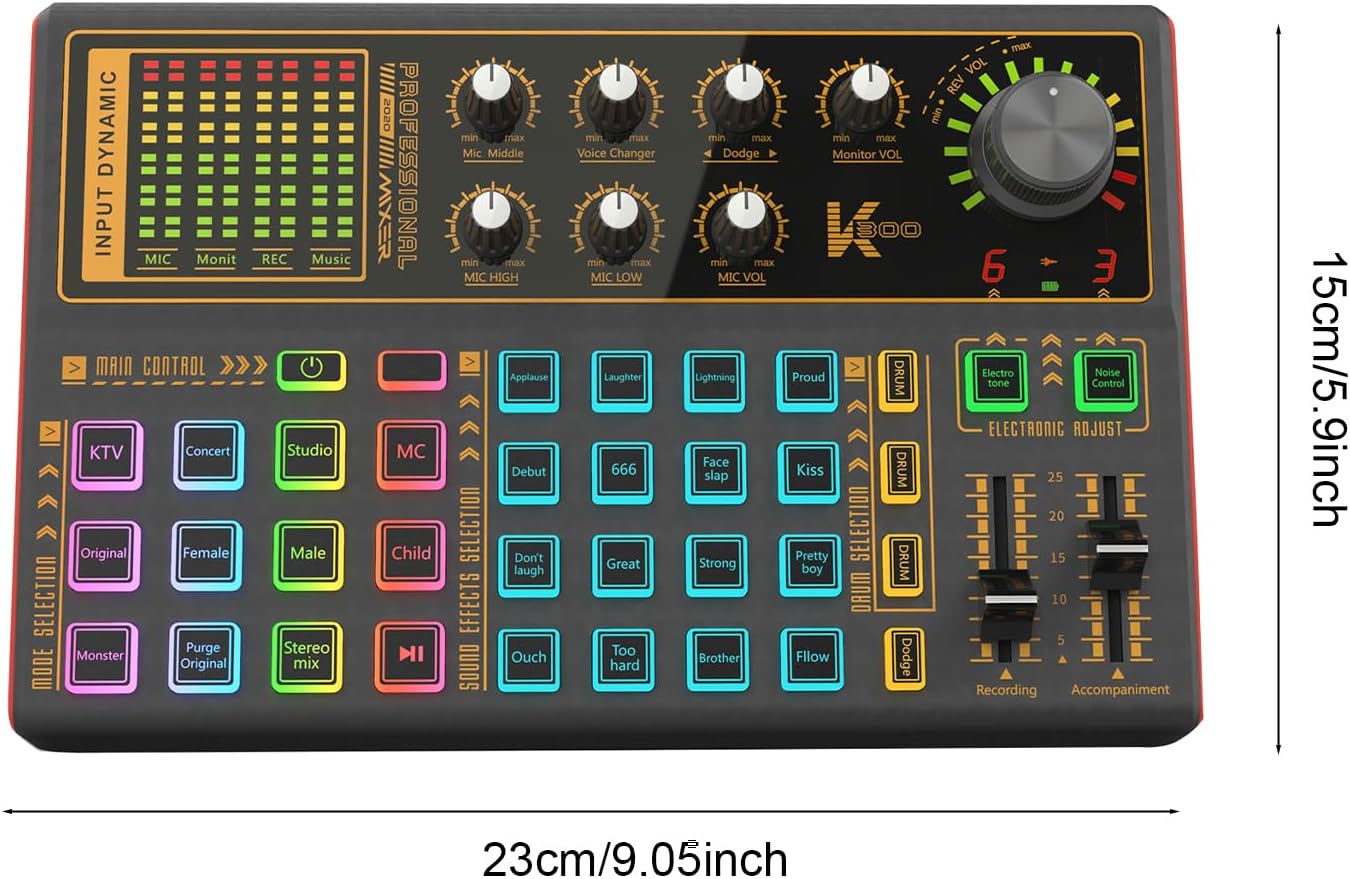
Image 4.1: Visual summary of K300 features including 12 Function Modes, 20 Special Sound Effects, 7 Kinds of LED Lights, and 4 Kinds of Voice Changer, shown with a user gaming.
5. Setup Guide
Follow these steps to set up your Docooler K300 Live Sound Card.
5.1. Device Layout and Ports

Image 5.1: Top-down view of the K300, illustrating the layout of all knobs, buttons, and input/output ports. This image is essential for identifying connection points.
Familiarize yourself with the various inputs and outputs on the sound card. Refer to Image 5.1 for visual guidance.
5.2. Connecting Power
- Locate the charging port on the sound card.
- Connect the provided charging cable to the sound card and a suitable USB power source (e.g., computer USB port, USB wall adapter).
- The device will power on or begin charging.
5.3. Connecting Microphones
- Identify the microphone input ports on the sound card. The K300 supports dual microphone connectivity.
- Plug your microphones into the designated MIC input jacks.
5.4. Connecting Headphones/Speakers
- Connect your headphones or speakers to the MONITOR VOL output port for audio monitoring.
5.5. Connecting to Devices (PC/Smartphone)
- For PC Connection: Use one of the provided audio cables to connect the sound card's output to your computer's audio input. The USB charging cable can also facilitate data transfer for PC connection.
- For Smartphone Connection: Use the provided audio cables to connect the sound card to your smartphone's audio input/headphone jack. Adapters may be required for phones without a 3.5mm jack (not included).

Image 5.2: The K300 Live Sound Card integrated into a typical studio environment, demonstrating its use with a microphone and computer.
6. Operating Instructions
This section details the functions of the various controls on your K300 Live Sound Card.
6.1. Main Controls and Knobs
- Input Dynamic Indicators (MIC, Monit, REC, Music): Visual meters displaying input levels for microphone, monitor, recording, and music.
- Mic Middle, Mic HIGH, Mic LOW Knobs: Adjust the equalization (mid-range, treble, bass) for the microphone input.
- Voice Changer Knob: Controls the intensity or type of voice modulation.
- Dodge Knob: Adjusts the ducking effect, where background music volume automatically lowers when speaking into the microphone.
- Monitor VOL Knob: Controls the volume of the audio heard through headphones or connected speakers.
- Mic VOL Knob: Adjusts the overall volume of the microphone input.
- Main Control Power Button: Press to turn the device on or off.
- Recording Slider: Adjusts the output level for recording.
- Accompaniment Slider: Adjusts the volume of background music or accompaniment.
6.2. Mode Selection Buttons
- KTV: Optimizes settings for karaoke-style singing.
- Concert: Simulates a live concert hall acoustic environment.
- Studio: Provides a clean, neutral sound for studio recording.
- MC: Enhances voice for MC (Master of Ceremonies) or speaking roles.
- Original: Reverts to original sound settings.
- Purge Original: Removes the original vocal track from music for instrumental use.
- Stereo mix: Activates stereo mixing mode.
6.3. Voice Changer Effects
The K300 features 4 distinct voice changer modes:
- Female Voice: Transforms your voice to a higher pitch.
- Male Voice: Transforms your voice to a lower pitch.
- Children's Voice: Creates a high-pitched, childlike voice.
- Beast Sound: Produces a deep, growling, or monstrous voice.

Image 6.1: Illustration of the 'One-Key Change Your Voice' feature, showing the four available voice transformation options: Female, Male, Children's, and Beast Sound.
6.4. Sound Effects Selection
Access 20 diverse sound effects to enhance your live streams or recordings:
- Applaud, Laughter, Lightning, Proud, Debut, 666, Face slap, Kiss, Don't laugh, Great, Strong, Pretty boy, Ouch, Too hard, Brother, Flow, and others.
- Press the corresponding button to trigger the desired sound effect.
6.5. Electronic Adjustments
- Electro tone: Applies an electronic vocal effect.
- Noise Control: Activates or deactivates the advanced noise reduction feature to minimize background distractions.
6.6. LED Lighting Modes
The K300 features 7-color RGB lighting with 12 dynamic modes. Refer to the device for specific button controls to cycle through or select lighting modes.
7. Maintenance
Proper maintenance ensures the longevity and optimal performance of your sound card.
- Cleaning: Use a soft, dry cloth to wipe the surface of the device. Do not use liquid cleaners or abrasive materials.
- Storage: Store the device in a cool, dry place away from direct sunlight and extreme temperatures.
- Cable Care: Handle cables gently. Avoid bending or twisting them excessively to prevent damage.
8. Troubleshooting
If you encounter issues with your Docooler K300, refer to the following common problems and solutions:
| Problem | Possible Cause | Solution |
|---|---|---|
| No sound output |
|
|
| Distorted or unclear audio |
|
|
| Voice changer not working |
|
|
9. Specifications
Detailed technical specifications for the Docooler K300 Live Sound Card:
| Feature | Detail |
|---|---|
| Item Type | Sound card |
| Color | Black |
| Model | K300 (UBQ3789653495513JV) |
| Signal-to-Noise Ratio | 106dB |
| Output Power | 600mW |
| Power Consumption | 5W Rated |
| Recording (Bit Rate/Sample Rate) | 16bit/48KHz, 90dB |
| Playback (Bit Rate/Sample Rate) | 16bit/48KHz, 100dB |
| Signal-to-Noise Ratio Distortion | 0.1% (recording), 0.005% (replay) |
| Item Size | 23 x 15 x 3 cm / 9.06 x 5.91 x 1.18 inches |
| Item Weight | 483g / 17.04 ounces (1.48 pounds) |
| Package Dimensions | 12.6 x 7.48 x 2.76 inches |

Image 9.1: Diagram illustrating the physical dimensions of the Docooler K300 Live Sound Card.
10. Warranty and Support
For warranty information, please refer to the terms and conditions provided by your retailer at the time of purchase or contact Docooler customer support directly.
For further assistance or technical support, please visit the official Docooler store or contact their customer service department.
Docooler Store: Visit the Docooler Store on Amazon
Ask a question about this manual
Ask about setup, troubleshooting, compatibility, parts, safety, or missing instructions. Manuals+ will review the question and use this page’s manual context to help answer it.