
1. Introduction
This manual provides detailed instructions for the operation and maintenance of your CAITS Language Translator Device, Model B0DV37J5R3. This device is designed to facilitate communication across language barriers through various translation modes, including online, offline, and photo translation, as well as recording capabilities.
2. Product Overview
The CAITS Language Translator Device is a portable tool equipped with advanced artificial intelligence for accurate and rapid language translation. It features a high-definition camera and a responsive touchscreen interface.
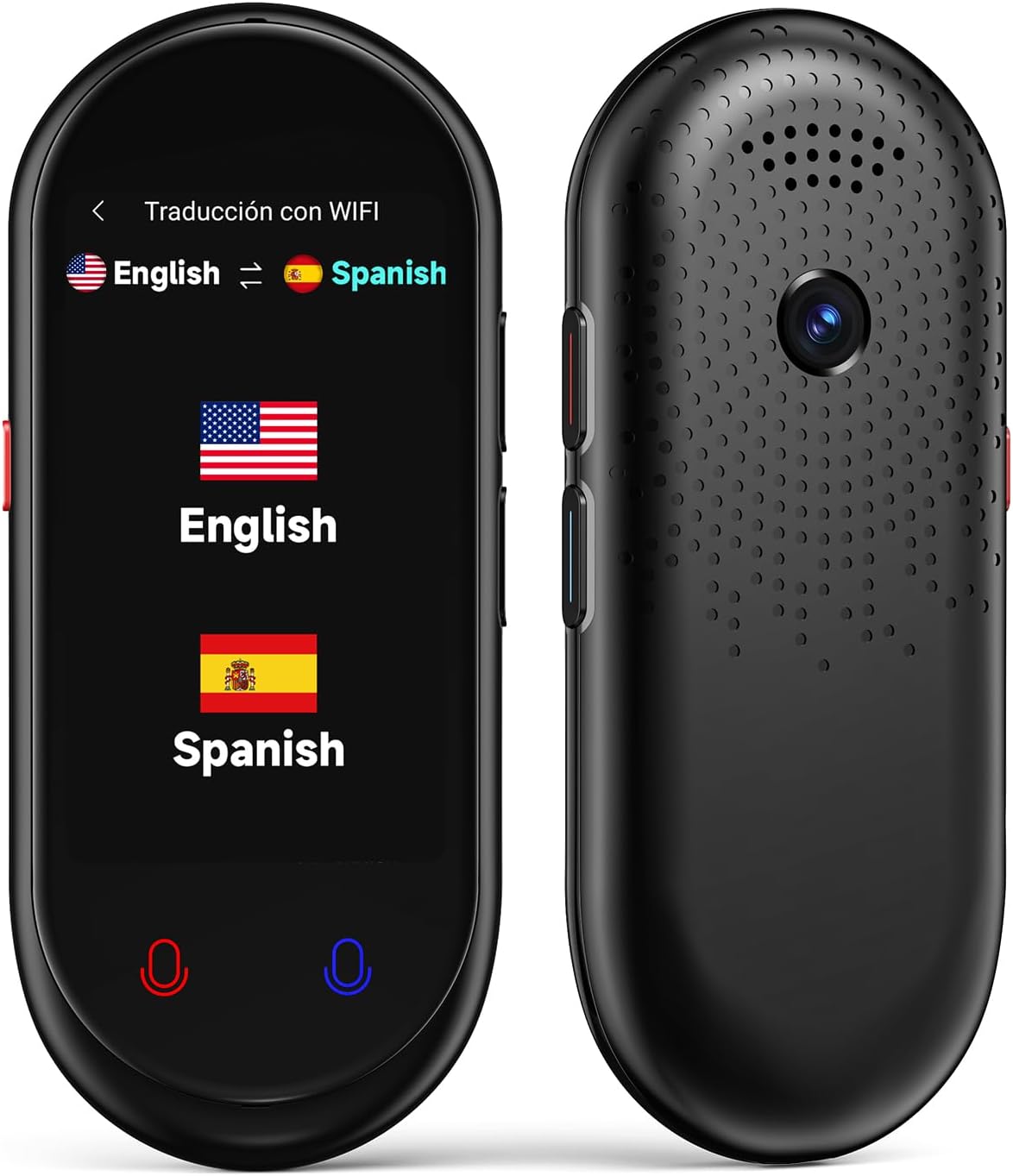
Figure 2.1: Front and back view of the CAITS Language Translator Device. The front features a touchscreen display, microphone, and speaker. The back includes a camera and additional speaker vents.
Key Features:
- Online Translation: Supports 138 languages and dialects with high accuracy.
- Offline Translation: Provides translation for 17 languages without internet access.
- Photo Translation: Utilizes an 8-megapixel camera and OCR technology for text translation in 74 languages.
- Smart Recording: Records audio memos for up to 60 minutes.
- 3.1-inch UHD Touchscreen: High-definition display for intuitive operation.
- Long Battery Life: 1500mAh battery for extended use.

Figure 2.2: Visual representation of the device's core functionalities, including online/offline translation, smart recording, photo translation, group translation, language learning, input translation, and real-time translation.
3. Setup
3.1 Charging the Device
Before first use, fully charge the device. Connect the provided USB cable to the device's charging port and a compatible power adapter. The charging indicator will show the charging status. A full charge typically takes approximately 90 minutes.
3.2 Powering On/Off
- To Power On: Press and hold the Power button (usually located on the side) until the screen illuminates.
- To Power Off: Press and hold the Power button until a power-off menu appears on the screen. Select 'Power Off' to shut down the device.
3.3 Initial Language Selection
Upon first power-on, you will be prompted to select the device's system language. Follow the on-screen instructions to choose your preferred language.
4. Operating Instructions
4.1 Online Translation
The device supports instant two-way translation for 138 languages and dialects with approximately 98% accuracy and a response time of about 0.2 seconds. A stable internet connection (Wi-Fi or mobile hotspot) is required for this feature.
- Connect the device to a Wi-Fi network via the 'Settings' menu.
- Select 'Online Translation' from the main menu.
- Choose the source and target languages on the screen.
- Press and hold the designated microphone button (often color-coded for each language) and speak clearly into the device.
- Release the button, and the translated text will appear on the screen and be spoken aloud.

Figure 4.1: The device displaying a real-time French translation during a conversation, illustrating the speed and clarity of online translation.

Figure 4.2: Overview of the device's extensive language support, high accuracy, and rapid response for online translation.
4.2 Offline Translation
The device supports offline translation for 17 languages, enabling communication in environments without internet access. Ensure the necessary language packs are downloaded beforehand.
- Supported Offline Languages: Arabic (Saudi Arabia), Chinese (Simplified), Chinese (Traditional), Dutch, English, French, German, Hindi, Indonesian, Italian, Japanese, Korean, Portuguese, Russian, Spanish, Thai, Uighur.
- Navigate to 'Offline Package Management' in the settings to download desired language packs.
- Select 'Offline Translation' from the main menu.
- Choose the source and target languages from the available offline options.
- Press and hold the microphone button and speak. The translation will appear on screen.
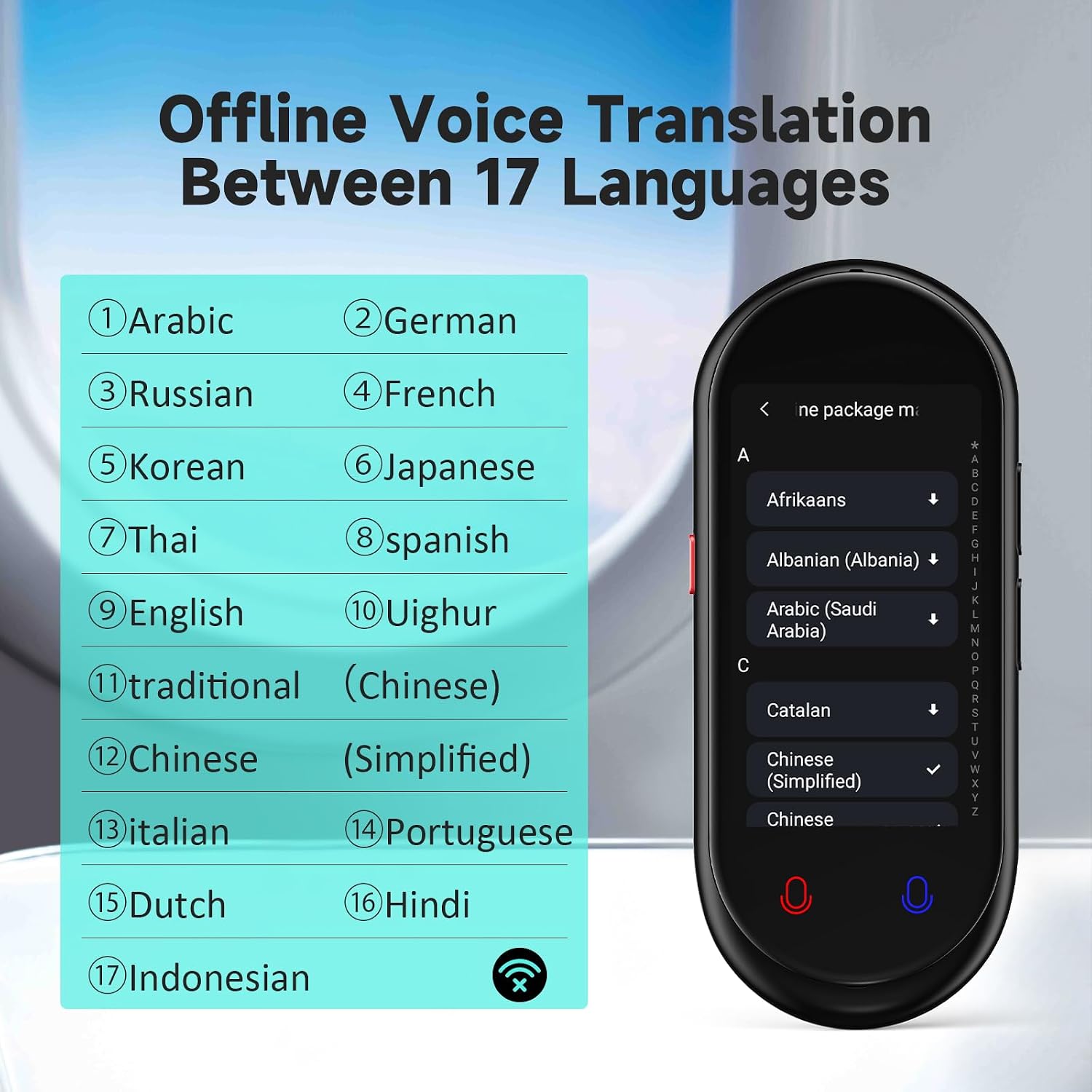
Figure 4.3: A comprehensive list of languages available for offline voice translation on the device.
4.3 Photo Translation
The device is equipped with an 8-megapixel high-definition camera and advanced OCR (Optical Character Recognition) technology to translate text from images. This feature supports 74 languages.
- Select 'Photo Translation' from the main menu.
- Point the camera at the text you wish to translate (e.g., menus, road signs, labels).
- Tap the screen to capture the image.
- The device will process the image and display the translated text.
4.4 Recording Function
The device can record audio memos for up to 60 minutes, which can then be translated into different languages using its intelligent speech recognition engine.
- Select 'Recording' from the main menu.
- Tap the record button to start recording.
- Tap the stop button to end the recording.
- Recorded audio can be played back or translated.
4.5 Additional Features
The device includes additional functionalities such as ChatpGPT integration, unit conversion, and currency conversion, accessible through the main menu or dedicated applications.

Figure 4.4: The device's 3.1-inch UHD touchscreen displaying the main menu with options for online translation, offline translation, recording, photo translation, group translation, real-time translation, offline package management, and settings.
5. Maintenance
5.1 Cleaning
Wipe the device with a soft, dry cloth. Do not use liquid cleaners or abrasive materials, as they may damage the screen or casing.
5.2 Storage
Store the device in a cool, dry place away from direct sunlight and extreme temperatures. Avoid exposing the device to moisture.
5.3 Battery Care
The device is equipped with a 1500mAh battery. For optimal battery life, avoid fully discharging the device frequently. Charge the device regularly, especially if it will not be used for an extended period.
- Continuous Translation: Up to 8 hours.
- Standby Time: Up to 7 days.
- Full Charge Time: Approximately 90 minutes.

Figure 5.1: Details on the device's battery performance, including continuous usage, standby duration, and charging time.
6. Troubleshooting
If you encounter issues with your device, please refer to the following common solutions:
- Device not powering on: Ensure the device is fully charged. If the issue persists, try performing a hard reset by holding the power button for 10-15 seconds.
- Translation not working:
- For online translation, verify your Wi-Fi connection is active and stable.
- For offline translation, ensure the required language packs are downloaded and installed.
- Check that the correct source and target languages are selected.
- Speak clearly and at a moderate pace into the microphone.
- Unable to download offline voice packs: Ensure you have a stable internet connection. Check available storage space on the device. If the problem continues, try restarting the device and attempting the download again.
- Screen unresponsive: Restart the device. If the screen remains unresponsive, contact customer support.
7. Specifications
| Feature | Detail |
|---|---|
| Model | B0DV37J5R3 |
| Dimensions | 5.67 x 3.46 x 1.65 inches |
| Item Weight | 5.9 ounces |
| Battery Capacity | 1500mAh |
| Online Translation Languages | 138 languages and dialects |
| Offline Translation Languages | 17 languages |
| Photo Translation Languages | 74 languages |
| Camera | 8 Megapixels |
| Manufacturer | ACODO |
8. Warranty and Support
For warranty information or technical support, please refer to the product packaging or contact your retailer. Keep your purchase receipt as proof of purchase.