1. Initial Setup
1.1 Connecting to PlayStation 5
To ensure proper functionality with your PlayStation 5 console, a specific setting adjustment is required. Follow these steps:
- Turn on your PS5 console.
- Navigate to the PS5 system settings.
- Select Accessories.
- Choose Controller (General).
- Select Communication Method.
- Change the setting to Use USB Cable.

Image: Dinosoo wired controller connected to a PlayStation 5 console, emphasizing the critical setting change required on the PS5 to 'Use USB Cable' for proper functionality.
1.2 Connecting to PlayStation 4, PC, and MAC
The Dinosoo Wired Controller offers broad compatibility across multiple platforms. Simply connect the controller's 10ft USB cable to an available USB port on your PlayStation 4, PC, or MAC. The controller is designed for plug-and-play operation on these systems.
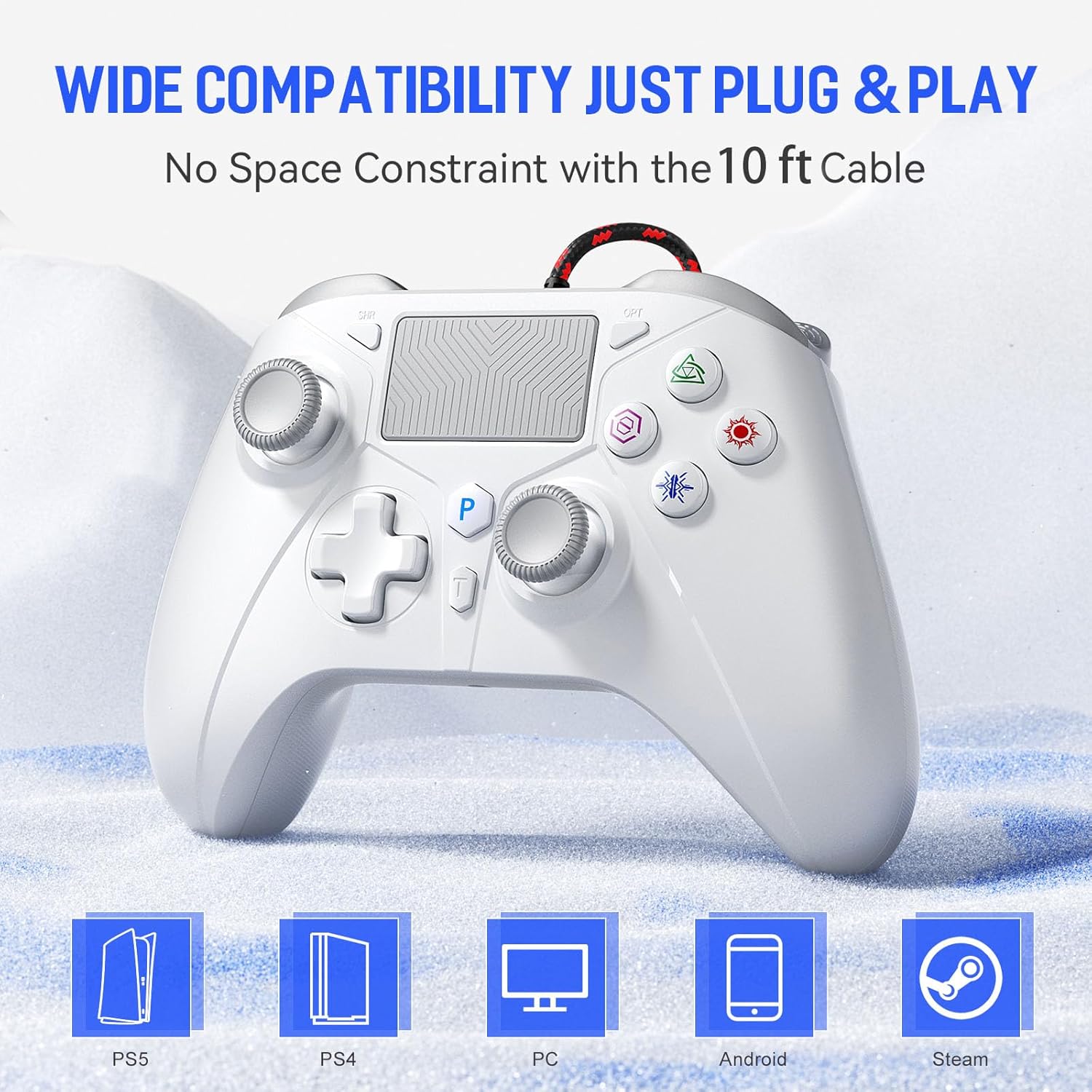
Image: This image illustrates the broad compatibility of the Dinosoo wired controller, showing icons for PlayStation 5, PlayStation 4, PC, Android, and Steam, highlighting its plug-and-play functionality.
2. Operating Instructions
2.1 Controller Layout
Familiarize yourself with the various buttons and features of your Dinosoo Wired Controller:

Image: A detailed diagram of the Dinosoo Wired Controller, with labels for the Share button, Touchpad, Options button, PS button, Left Stick, Right Stick, D-pad, Turbo button, Headphone Jack, Type-C Charging Port, L1/L2/R1/R2 triggers, and the programmable PR/PL buttons.
2.2 Programmable Rear Buttons (PL/PR)
The controller features two mappable advanced game buttons (PL/PR) on the rear, allowing you to program complex operations for quick execution.
- Press the SET button located on the underside of the controller. The controller will vibrate.
- Press the button you wish to map (e.g., R1, L3, etc.).
- Press either the PL or PR button on the rear to assign the mapped function.
- Press the SET button again to save the mapping. The controller will vibrate to confirm.

Image: This image displays the underside of the controller, highlighting the two programmable PL/PR keys and the 'SET' button, which allow for easy customization of complex operations.
2.3 Turbo Function
The TURBO button allows you to toggle between different combo settings for rapid, repeated inputs, enhancing your gaming experience.

Image: The controller highlighting the 'TURBO' button, which allows for rapid, repeated inputs to enhance gaming experience.
2.4 Hall Effect Joysticks and Triggers
The Dinosoo controller incorporates Hall Effect technology for both its joysticks and triggers, providing enhanced precision and durability.
- Hall Effect Joysticks: These joysticks utilize magnetic fields for input, eliminating physical contact wear and preventing stick drift. They offer high sensitivity and accuracy with a 500Hz return rate.
- Hall Effect Triggers: Designed to solve problems of excessive friction and linear trigger jamming, these triggers provide a smoother, more consistent feel with added texture for increased accuracy.

Image: A detailed diagram showcasing the Hall Effect triggers within the controller, designed to prevent friction and jamming for smoother operation.

Image: This image highlights the Hall Effect joystick technology, ensuring high sensitivity and accuracy without drift, with a 500Hz return rate.

Image: An illustration of the Hall Linear Trigger, emphasizing its added texture for increased accuracy and precise input.

Image: This image details the new joystick design, engineered for improved accuracy and reduced errors during gameplay.
2.5 Vibration Feedback
The controller features a lightweight vibration system designed to provide a better sense of control and realism, offering simulated in-game action and environmental feedback.

Image: An image depicting the controller's vibration motors, which provide realistic haptic feedback for an immersive gaming experience.
2.6 3.5mm Audio Jack
The integrated 3.5mm audio jack provides stereo headset output sound and chat functionality, allowing for immersive audio and communication during gameplay.
2.7 Anti-Slip Grips
The controller's grips feature a laser-etched carving, providing a comfortable and sweat-resistant hold for extended gaming sessions.
3. Care and Maintenance
To ensure the longevity and optimal performance of your Dinosoo Wired Controller, follow these care guidelines:
- Keep the controller clean by wiping it with a soft, dry cloth. Avoid using harsh chemicals or abrasive materials.
- Store the controller in a cool, dry place away from direct sunlight and extreme temperatures.
- Avoid dropping the controller or subjecting it to strong impacts.
- Do not attempt to disassemble the controller, as this may void any potential warranty and cause damage.
4. Troubleshooting
4.1 Controller Not Connecting to PS5
If your controller is not recognized by your PlayStation 5, please re-verify the PS5 system settings:
- Go to PS5 system settings > Accessories > Controller (General) > Communication Method > Use USB Cable.
- Ensure the USB cable is securely connected to both the controller and the PS5 console.
- Try connecting the controller to a different USB port on the PS5.
4.2 Button or Joystick Issues
If you experience unresponsive buttons or joystick drift:
- Ensure the controller's cable is not damaged and is securely connected.
- Restart your console or PC.
- For programmable buttons, ensure they are correctly mapped as per the instructions in Section 2.2.
- Clean around the buttons and joysticks with a soft, dry cloth to remove any debris.
5. Product Specifications
- Brand: Dinosoo
- Model: Wired 10ft Controller
- Compatible Devices: PlayStation 5, PlayStation 4, PC, MAC
- Connectivity Technology: Wired (10ft USB Cable)
- Controller Type: Gamepad
- Button Quantity: 21
- Special Features: Hall Effect Joysticks, Hall Effect Triggers, Turbo Function, Programmable Rear Buttons (PL/PR), Multi-Touch Pad, 3.5mm Audio Jack, Vibration Feedback, Anti-Slip Grips
- Item Weight: 0.35 Kilograms