
1. Introduction and Overview
The Grandstream HT812 V2 is an advanced 2-port Analog Telephone Adapter (ATA) designed to provide high-quality voice communication over an IP network. It features two FXS ports for connecting traditional analog telephones or fax machines and an integrated Gigabit NAT router for network connectivity. This device is built on Grandstream's established SIP ATA/gateway technology, ensuring reliable performance and robust security for both home and office environments.
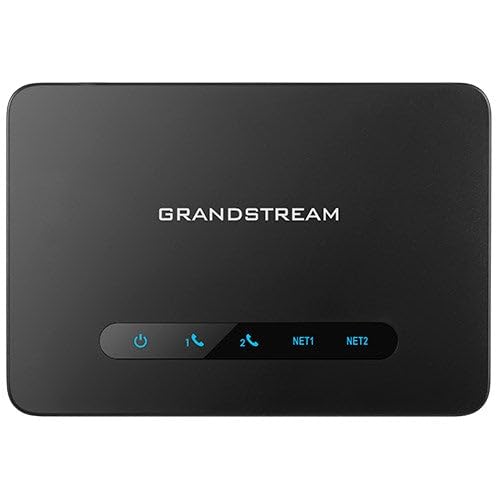
Figure 1: Front view of the Grandstream HT812 V2 VoIP ATA, showing its compact design and indicator lights.
2. What's in the Box
Upon opening the package, please verify that all components are present and in good condition:
- Grandstream HT812 V2 Unit
- Universal Power Supply
- Ethernet Cable
- Quick Installation Guide
If any items are missing or damaged, please contact your vendor for assistance.
3. Product Features
The HT812 V2 offers a range of features designed for efficient and secure VoIP communication:
- Supports 2 SIP profiles and 2 FXS ports for connecting analog phones or fax machines.
- Features strong AES encryption with a unique security certificate per unit, enhancing communication security.
- Supports T.38 Fax for reliable Fax-over-IP functionality.
- Includes a high-performance NAT router for efficient network management.
- Enables 3-way voice conferencing per port, facilitating multi-party calls.
- Delivers exceptional voice quality with wideband HD codec support.
4. Setup Instructions
Follow these steps to set up your Grandstream HT812 V2:
- Connect to Power: Plug the universal power supply into the HT812 V2's power port and then into a power outlet.
- Connect to Network:
- Connect one end of the Ethernet cable to the WAN port on the HT812 V2.
- Connect the other end of the Ethernet cable to your internet router or modem.
- (Optional) If using the integrated router functionality, connect your computer or other network devices to the LAN ports on the HT812 V2.
- Connect Analog Devices: Plug your analog telephone(s) or fax machine(s) into the FXS1 and/or FXS2 ports on the HT812 V2 using standard telephone cables.
- Power On: Ensure the device powers on. The LED indicators on the front panel will illuminate to show status. Refer to the Quick Installation Guide for specific LED behavior.
- Access Web Interface: To configure advanced settings, access the device's web interface by typing its IP address into a web browser. The default IP address can usually be found in the Quick Installation Guide or obtained via an IVR prompt (dial *** from a connected analog phone).
5. Operating Instructions
Once the HT812 V2 is successfully set up and configured with your SIP provider, you can begin making and receiving calls:
- Making Calls: Pick up the connected analog phone, wait for a dial tone, and dial the desired phone number.
- Receiving Calls: The connected analog phone will ring for incoming calls. Pick up the handset to answer.
- 3-Way Conferencing: During an active call, press the Flash button on your analog phone, dial the third party's number, and once connected, press Flash again to bridge the calls.
- Faxing: Connect your T.38 compatible fax machine to an FXS port. Ensure T.38 support is enabled and configured on both the ATA and your SIP provider for reliable fax transmission.
- Voicemail: Access voicemail by dialing the designated voicemail access number provided by your SIP service provider.
6. Maintenance
To ensure optimal performance and longevity of your HT812 V2, consider the following maintenance tips:
- Firmware Updates: Regularly check the Grandstream website for firmware updates. Keeping your device's firmware up-to-date ensures access to the latest features, security patches, and performance improvements.
- Cleaning: Use a soft, dry cloth to clean the exterior of the device. Avoid using liquid cleaners or aerosols directly on the unit.
- Placement: Place the device in a well-ventilated area, away from direct sunlight, heat sources, and moisture.
- Backup Configuration: Periodically back up your device's configuration settings through the web interface. This allows for quick restoration in case of a factory reset or device replacement.
7. Troubleshooting
If you encounter issues with your HT812 V2, try the following troubleshooting steps:
- No Dial Tone:
- Ensure the analog phone is correctly connected to an FXS port.
- Verify the HT812 V2 is powered on and connected to the internet.
- Check your SIP registration status via the web interface.
- Cannot Make/Receive Calls:
- Confirm your internet connection is active and stable.
- Check SIP account credentials and registration status in the web interface.
- Ensure firewall settings are not blocking VoIP traffic (SIP port 5060, RTP ports).
- Poor Voice Quality:
- Check your internet bandwidth and latency. VoIP requires a stable connection.
- Ensure Quality of Service (QoS) is properly configured on your router and the HT812 V2 to prioritize voice traffic.
- Try a different Ethernet cable or FXS port.
- Device Unresponsive:
- Perform a power cycle by unplugging the power adapter, waiting 10 seconds, and plugging it back in.
- If the issue persists, a factory reset may be necessary (refer to the Quick Installation Guide for instructions). Note: A factory reset will erase all configurations.
For further assistance, consult the full user manual or contact Grandstream technical support.
8. Specifications
| Attribute | Detail |
|---|---|
| Model Number | HT812 V2 |
| Product Dimensions | 5.12 x 3.54 x 1.18 inches |
| Item Weight | 12 ounces |
| FXS Ports | 2 |
| SIP Profiles | 2 |
| NAT Router | Integrated Gigabit |
| Fax Support | T.38 Fax-over-IP |
| Encryption | AES with unique security certificate per unit |
| Voice Codec | Wideband HD codec |
| Manufacturer | Grandstream |
| Date First Available | January 30, 2025 |
9. Warranty and Support
For warranty information, please refer to the documentation included with your product or visit the official Grandstream website. Technical support can be accessed through Grandstream's support portal, where you can find FAQs, knowledge base articles, and contact information for direct assistance.
It is recommended to register your product on the Grandstream website to receive updates and support notifications.


