
1. Introduction
The GOBOULT Crown R Pro 2 Smartwatch is designed to enhance your daily life with advanced features and health monitoring capabilities. It features a 1.43-inch HD AMOLED display, Bluetooth Calling 5.2, and a comprehensive health suite. This manual provides instructions for setup, operation, and maintenance of your smartwatch.

Image: The GOBOULT Crown R Pro 2 Smartwatch, showcasing its sleek design and vibrant display.
2. What's in the Box
Please check the package contents upon unboxing:
- GOBOULT Crown R Pro 2 Smartwatch
- Charging Cable
- User Manual
- Warranty Card
3. Getting Started
3.1. Charging the Device
Before initial use, fully charge your smartwatch. Connect the magnetic charging cable to the charging points on the back of the watch and plug the USB end into a power adapter (not included) or a computer's USB port.
- Charging Time: Approximately 150 minutes for a full charge.
- Battery Life: Up to 7 days on a single charge, depending on usage.
3.2. Powering On/Off
- Power On: Press and hold the side button for a few seconds until the GOBOULT logo appears.
- Power Off: Press and hold the side button, then select the 'Power Off' option on the screen.
3.3. App Installation and Pairing
To unlock the full potential of your smartwatch, download and install the companion application on your smartphone.
- Scan the QR code in the manual or search for the 'BoultFit' app (or similar, as specified in the included manual) on your smartphone's app store (Google Play Store or Apple App Store).
- Install the application and create an account or log in.
- Ensure Bluetooth is enabled on your smartphone.
- Open the app, navigate to 'Device' or 'Add Device', and select 'GOBOULT Crown R Pro 2' from the list of available devices.
- Confirm the pairing request on both your smartphone and smartwatch.
4. Smartwatch Features and Operation
4.1. Display and Watch Faces
The smartwatch features a 1.43-inch HD AMOLED display with 600 Nits brightness for clear visibility in various lighting conditions.
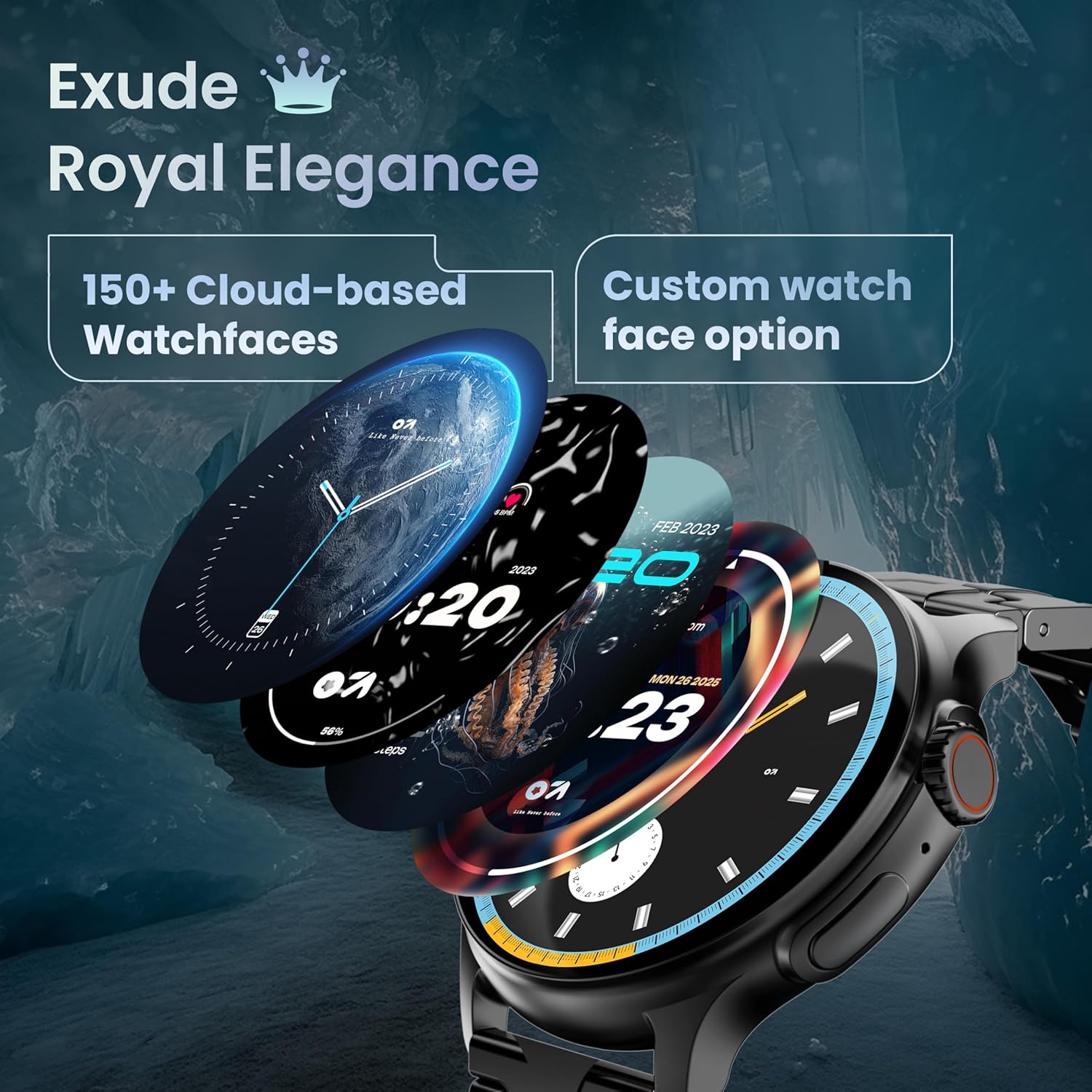
Image: A selection of over 150 watch faces available for customization.
- Changing Watch Faces: Long-press the home screen to access watch face options. Swipe left or right to browse and tap to select. More watch faces are available through the companion app.
4.2. Navigation and Controls
Navigate the smartwatch interface using touch gestures and the functional 'Working Crown'.

Image: Detail of the working crown, used for navigation and customization.
- Swipe Down: Access quick settings (e.g., brightness, DND, battery saver).
- Swipe Up: View notifications.
- Swipe Left/Right: Access widgets and main features (e.g., activity, heart rate, weather).
- Working Crown: Rotate to scroll through menus or lists. Press to return to the home screen or confirm selections.
4.3. Bluetooth Calling
The smartwatch supports Bluetooth Calling v5.2, allowing you to make and receive calls directly from your wrist.

Image: Illustration of the smartwatch's Bluetooth calling capabilities with integrated microphone and speaker.
- Answering Calls: Tap the green phone icon on the screen when a call comes in.
- Making Calls: Access the dial pad or contacts list from the smartwatch menu.
- Rejecting Calls: Tap the red phone icon.
4.4. Sports Modes
Track over 120 sports and fitness activities with detailed analytics.

Image: The smartwatch interface showing active sports tracking and various sports icons.
- Access the 'Sports' menu to select your desired activity.
- The watch will record data such as duration, calories burned, and heart rate during your workout.
4.5. Health Monitoring
Monitor key health metrics in real-time.

Image: The health suite features, including heart rate, SpO2, and sleep monitoring.
- Heart Rate Monitor: Provides 24x7 heart rate tracking.
- SpO2 Blood Oxygen Saturation Monitor: Measures blood oxygen levels.
- Sleep Monitoring: Tracks sleep patterns and quality.
- Female Menstrual Cycle Tracking: Helps track and predict menstrual cycles.
- Activity Tracker: Records steps, distance, and calories burned throughout the day.
- Breath Training: Guided breathing exercises for relaxation.
4.6. AI Voice Assistant
Control your smartwatch hands-free using voice commands.

Image: The AI voice assistant feature, activated by pressing a button for 3 seconds.
- Press the dedicated button (or specified gesture) for 3 seconds to activate the AI voice assistant.
- Use voice commands to ask questions, set reminders, or manage tasks.
4.7. Notifications and Utilities
Receive SMS and push notifications directly on your wrist. The smartwatch also includes useful utilities.

Image: The 'Find My Phone' feature, which causes the connected phone to ring or vibrate.
- Notifications: Ensure notification permissions are enabled in the companion app for your desired applications.
- Calculator: Access the calculator from the app menu for quick calculations.
- Find My Phone: Use this feature from the smartwatch to make your connected phone ring or vibrate, helping you locate it.
4.8. Water and Dust Resistance (IP67)
The smartwatch is IP67 rated, providing protection against dust and temporary immersion in water.
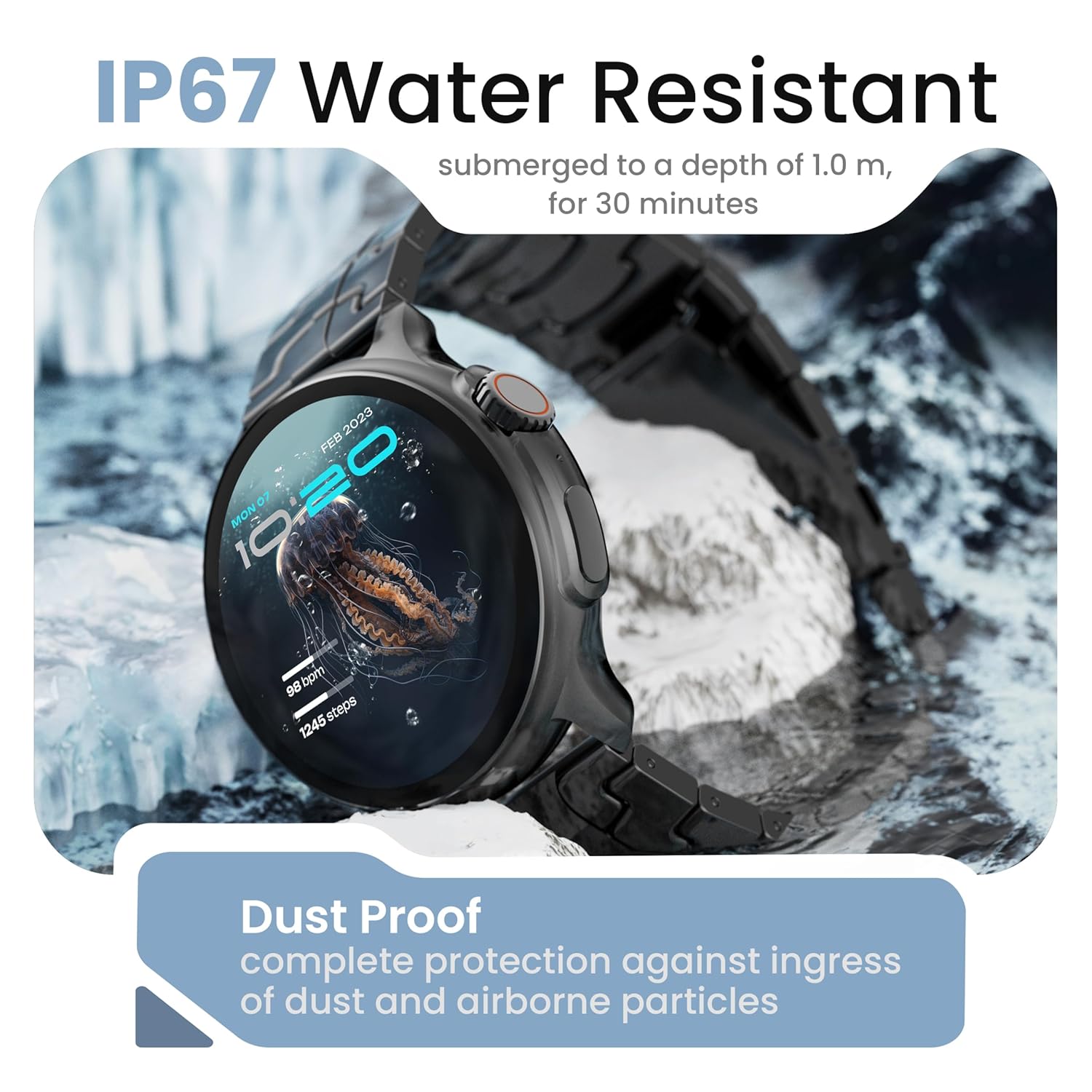
Image: The smartwatch demonstrating its IP67 water resistance, capable of being submerged up to 1 meter for 30 minutes.
- The device is resistant to sweat, splashes, and brief immersion in water up to 1 meter for 30 minutes.
- Avoid using the watch in hot water, saunas, or steam rooms.
- Do not press buttons while the watch is submerged.
5. Care and Maintenance
- Cleaning: Wipe the watch and strap regularly with a soft, dry cloth. If necessary, use a slightly damp cloth and dry thoroughly.
- Avoid Chemicals: Do not use harsh chemicals, cleaning solvents, or strong detergents, as these can damage the watch's finish and seals.
- Storage: Store the smartwatch in a cool, dry place when not in use.
- Charging: Use only the provided charging cable.
6. Troubleshooting
6.1. Smartwatch Not Turning On
- Ensure the watch is fully charged. Connect it to the charger for at least 30 minutes.
- Press and hold the side button for an extended period (10-15 seconds) to force a restart.
6.2. Unable to Pair with Smartphone
- Ensure Bluetooth is enabled on your smartphone and the smartwatch.
- Make sure the smartwatch is within the Bluetooth range of your phone (typically 10 meters).
- Restart both your smartphone and the smartwatch.
- Clear the Bluetooth cache on your phone (if applicable) and try pairing again.
- Ensure the companion app is updated to the latest version.
6.3. Inaccurate Health Data
- Ensure the watch is worn snugly on your wrist, not too tight or too loose.
- Clean the sensors on the back of the watch.
- Avoid excessive movement during measurements.
- Note that smartwatch health data is for reference only and should not be used for medical diagnosis.
6.4. Notifications Not Appearing
- Check if notification permissions are granted for the companion app and individual applications on your smartphone.
- Ensure the smartwatch is connected to your phone via Bluetooth.
- Disable 'Do Not Disturb' mode on both your phone and smartwatch.
7. Specifications
| Brand | GOBOULT |
| Model Name | R Pro 2 |
| Display Size | 1.43 Inches |
| Display Type | HD AMOLED |
| Brightness | 600 Nits |
| Bluetooth Version | 5.2 |
| Water Resistance | IP67 |
| Battery Life (Average) | 7 Days |
| Battery Charge Time | 150 Minutes |
| Operating System | Android (compatible) |
| Item Weight | 56.5 g |
| Included Components | Smartwatch, Charging Cable, User Manual, Warranty Card |
8. Warranty and Support
8.1. Warranty Information
Your GOBOULT Crown R Pro 2 Smartwatch comes with a standard manufacturer's warranty. Please refer to the included Warranty Card for specific terms, conditions, and duration of the warranty.
8.2. Customer Support
For any product-related queries, technical assistance, or warranty claims, please contact GOBOULT customer support through the following channels:
- Website: Visit the official GOBOULT website for FAQs and support resources.
- Email: Refer to your warranty card or the official website for customer service email addresses.
- Phone: Contact numbers may be available on the official GOBOULT website or warranty card.
Please have your product model number (R Pro 2) and purchase details ready when contacting support.

