
Introduction
The DJI Osmo 360 Adventure Combo is a state-of-the-art 360-degree action camera designed for capturing immersive, ultra-wide footage in various environments. This manual provides essential information for setting up, operating, and maintaining your Osmo 360 to ensure optimal performance and longevity.
What's in the Box
The DJI Osmo 360 Adventure Combo includes the following components:
- Osmo 360 Camera x1
- Osmo Action Extreme Battery Plus (1950 mAh) x3
- Osmo Action Multifunctional Battery Case 2 x1
- Osmo 360 Camera Protective Pouch x1
- Osmo Lens Cleaning Cloth x1
- USB-C to USB-C PD Cable (USB 3.1) x1
- Osmo Adjustable Quick-Release Adapter Mount x1
- Osmo 1.2m Invisible Selfie Stick x1
- Osmo 360 Rubber Lens Protector x1

Figure 1: All components included in the DJI Osmo 360 Adventure Combo package.
Key Features
- Groundbreaking 1-inch 360° Imaging: Delivers excellent low-light image quality for sharper shots.
- Native 8K 360° Video: Capture every detail with crisp, vibrant panoramas, even in low light.
- Immersive Ultra-Wide Action: Record super-smooth 4K/120fps video with a sweeping 170° view.
- Ultra-High-Res 120MP 360° Photo: Snap detailed, immersive photos with a single tap.
- Magnetic Quick-Release Design: Effortlessly switch between 360° and single-lens modes.
- Extended Battery Life: Supports up to 100 minutes of 8K/30fps continuous recording. The Adventure Combo includes three Extreme Battery Plus units and a multifunctional battery case.
- Stereo Recording: Four microphones capture audio from all directions with switchable Mono and Stereo modes and effective wind noise reduction.
- Durable Build: IP68 waterproof up to 10 meters without a case and cold-resistant down to -20°C (-4°F).

Figure 2: The Osmo 360's advanced 1-inch imaging sensor for superior image quality.

Figure 3: Enhanced low-light performance with SuperNight Mode.
Setup
- Charging Batteries: Insert the three Osmo Action Extreme Battery Plus units into the Osmo Action Multifunctional Battery Case 2. Connect the USB-C to USB-C PD Cable (USB 3.1) to the battery case and a compatible USB power adapter (not included). The battery case indicators will show charging status. A 12-minute charge can provide 50% battery life with a DJI 30W USB-C Charger.
- Inserting Batteries: Once charged, insert one battery into the Osmo 360 camera. Ensure the battery compartment cover is securely closed, especially before exposing the camera to water.
- Downloading the DJI Mimo App: The DJI Mimo app is essential for activating and controlling your Osmo 360. Due to platform compatibility issues, the DJI Mimo app has been removed from Google Play. For a better product experience, please visit the official DJI website to download the latest version of DJI Mimo.
- Activating the Device:
- Download the DJI Mimo App by scanning the QR code shown on the camera screen prompt or from an app store.
- Press and hold the quick switch button to power on Osmo 360.
- Launch the DJI Mimo App, tap the Camera icon, enable Bluetooth and Wi-Fi on your smartphone, and connect to Osmo 360.
- After connecting Osmo 360 to the DJI Mimo App, you will be prompted to activate the device.
- Complete the activation by following the prompts in the App.
- Attaching Accessories:
- Invisible Selfie Stick: The Osmo 1.2m Invisible Selfie Stick can be attached to the camera for unique third-person perspectives that are automatically removed from 360° footage.
- Adjustable Quick-Release Adapter Mount: Use this mount to attach the Osmo 360 to various third-party action camera accessories.
- Vortex Rotating Handle: This accessory, when used with the Invisible Selfie Stick, enables the 'Vortex Mode' for dynamic spinning shots.

Figure 4: The Invisible Selfie Stick provides a 'Follow-Cam' view by automatically removing the stick from footage.

Figure 5: Key accessories for the Osmo 360 Adventure Combo.
Operating the Camera
Basic Controls
- Power Button: Press and hold to power on/off.
- Shutter/Record Button: Press to start/stop recording or take a photo.
- Quick Switch Button: Press to switch between shooting modes.
- Touchscreen: Navigate menus, preview footage, and adjust settings.
Shooting Modes
- 360° Panoramic Video: Captures a full 360-degree view. Supports 8K/30fps and 4K/100fps.
- Single-Lens Mode: Films flat videos from a single lens. Supports up to 5K/60fps ultra-wide 155° flat videos or 4K/120fps 170° in Boost Video mode.
- Vortex Mode: Achieves dynamic spinning shots when used with the Vortex Rotating Handle and Invisible Selfie Stick.
Image and Video Quality
- Video Resolution: Native 8K 360° video, 4K/120fps, 4K/100fps.
- Photo Resolution: 120 MP 360° photos.
- Color Depth: 10-bit and D-Log M for over a billion colors and flexible color grading.
Stabilization
- 360° HorizonSteady: Effectively reduces shake and corrects horizontal tilts within a 360° range.
- RockSteady 3.0: Reduces shake in single-lens mode for immersive first-person perspectives.
Audio Features
- Four built-in microphones for omnidirectional audio capture.
- Switchable Mono and Stereo recording modes.
- Outstanding wind noise reduction.
- OsmoAudio™ Direct Mic Connection: Connects directly to two DJI microphone transmitters (sold separately) without a receiver.

Figure 6: High-quality audio capture with OsmoAudio Direct Mic Connection.
Smart Features
- Gesture Control: Use hand gestures to start/stop recording.
- Voice Control: Control the camera hands-free with voice commands (supports English UK & US, and Mandarin Chinese).
- Pro Sports Dashboard: Add cycling or motor data from Apple Watch, Garmin, or other third-party FIT files to your video for dynamic stats.
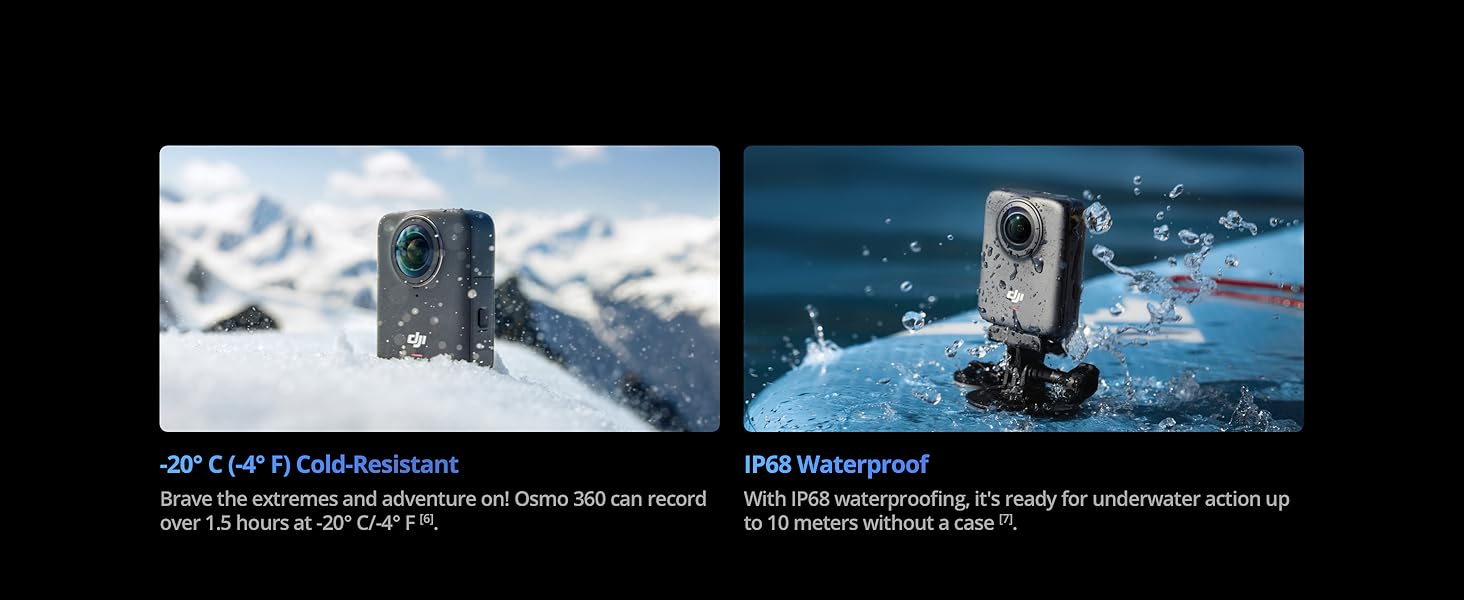
Figure 7: Gesture and Voice Control for hands-free operation.
Maintenance
- Cleaning: Use the provided Osmo Lens Cleaning Cloth to gently wipe the lenses and camera body. Avoid harsh chemicals.
- Waterproofing: The Osmo 360 (camera body only) is waterproof up to 10 meters without a case. Ensure the battery compartment cover and USB-C port cover are securely closed before use in water. Do not use in hot springs or extreme underwater environments, or with corrosive/unknown liquids.
- Cold Resistance: The camera can record for over 1.5 hours at -20°C (-4°F). Ensure batteries are fully charged in cold conditions.
- Battery Care: Store batteries in a cool, dry place. Avoid fully discharging or overcharging them. Use the multifunctional battery case for safe storage and charging.
- Storage: Store the camera in its protective pouch when not in use to prevent scratches and damage.
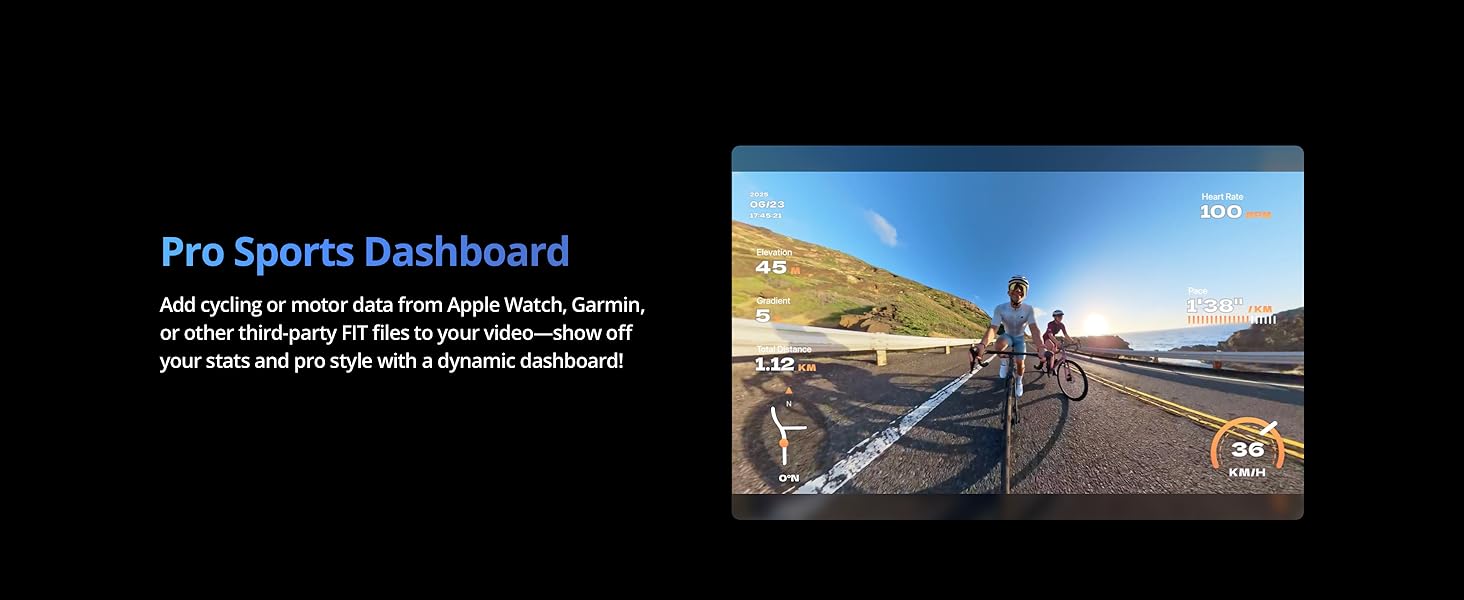
Figure 8: The Osmo 360 is designed for extreme environments, being both cold-resistant and IP68 waterproof.
Troubleshooting
- DJI Mimo App Compatibility: If you experience issues with the DJI Mimo app, ensure you have downloaded the latest version directly from the official DJI website, as it has been removed from Google Play.
- Unnatural Stitching/Anomalies in 360° Video: For optimal panoramic stitching, it is recommended to keep Osmo 360 at least 0.75 m away from the subject. If the distance is too close, the images captured by the left and right lenses may differ significantly, resulting in unnatural stitching.
- Battery Life Shorter Than Expected: Actual battery life may vary due to local regulations on product operating temperatures. Refer to the actual user experience. Ensure batteries are fully charged and operating within recommended temperature ranges.
- Camera Not Responding: Try restarting the camera by pressing and holding the power button. If the issue persists, ensure the battery is charged and properly inserted.
- Water Damage: While the camera is waterproof, due to the convex fisheye lens design, underwater light refraction may cause image distortion and stitching errors. Therefore, it is not recommended to bring the camera body only for underwater filming where image quality is critical.
Specifications
| Attribute | Detail |
|---|---|
| Product Dimensions | 3.19 x 2.36 x 1.43 inches |
| Item Weight | 1.09 pounds (495 Grams) |
| Item Model Number | 6937224110519 |
| Brand | DJI |
| Color | Black |
| Screen Size | 2 Inches |
| Effective Still Resolution | 120 MP |
| Has Image Stabilization | Yes |
| Waterproof Rating | IP68 (up to 10 meters without case) |
| Cold Resistance | -20°C (-4°F) for over 1.5 hours |
Warranty and Support
For detailed warranty information, technical support, and service inquiries, please visit the official DJI website. You can also find FAQs, firmware updates, and contact information for customer service.
Official DJI Website: www.dji.com


