
1. Introduction
This manual provides detailed instructions for the setup, operation, and maintenance of your Liene Amber M110 Bluetooth Photo Printer. Please read this manual thoroughly before using the printer to ensure proper function and longevity of the device.
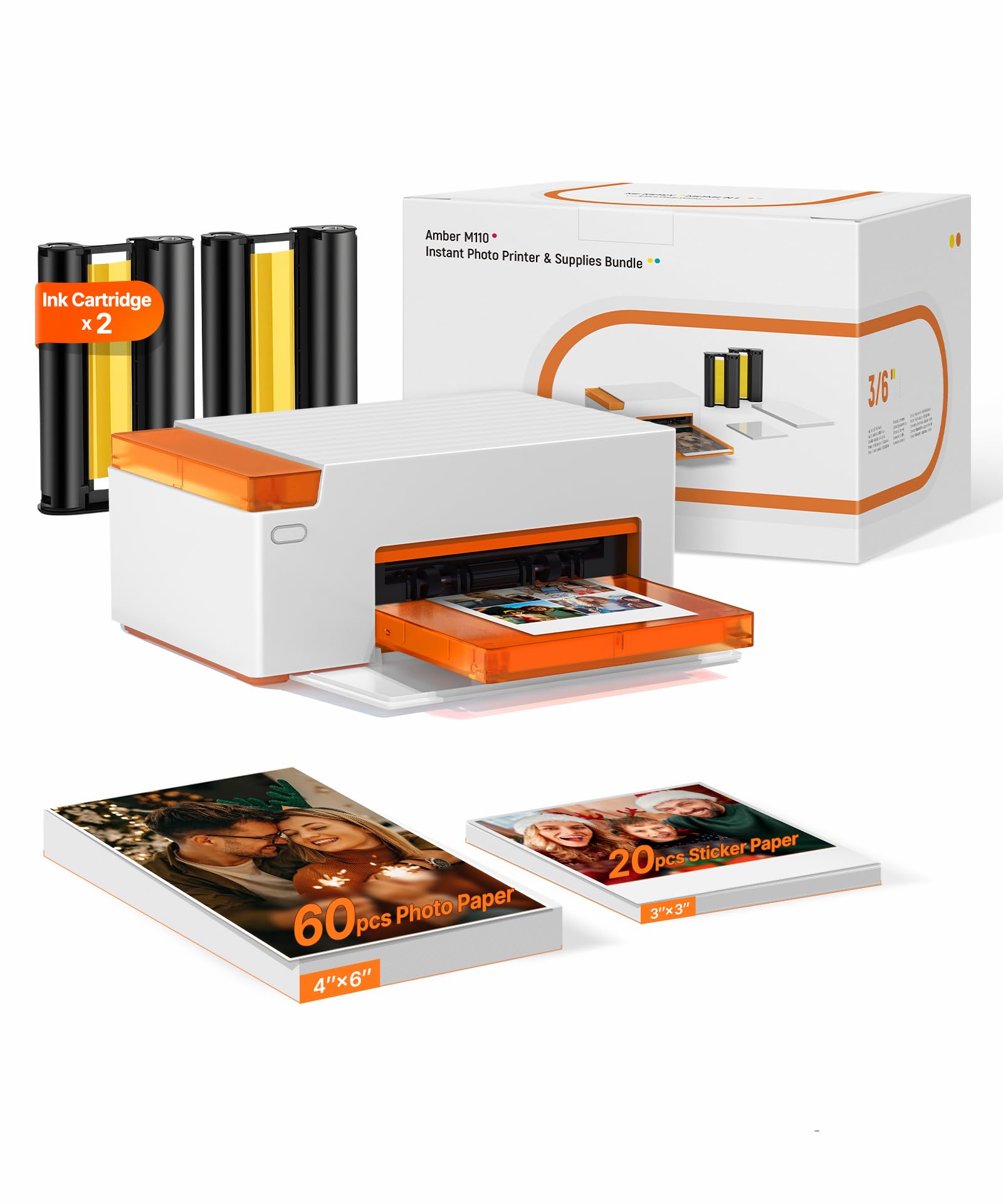
The Liene Amber M110 Bluetooth Photo Printer.
2. What's in the Box
Verify that all items are present in the package:
- Liene Amber M110 Photo Printer
- 2 x Ink Cartridges
- 60 sheets of 4x6 inch Photo Paper
- 20 sheets of 3x3 inch Square Sticker Paper
- Power Adapter
- Instruction Manual
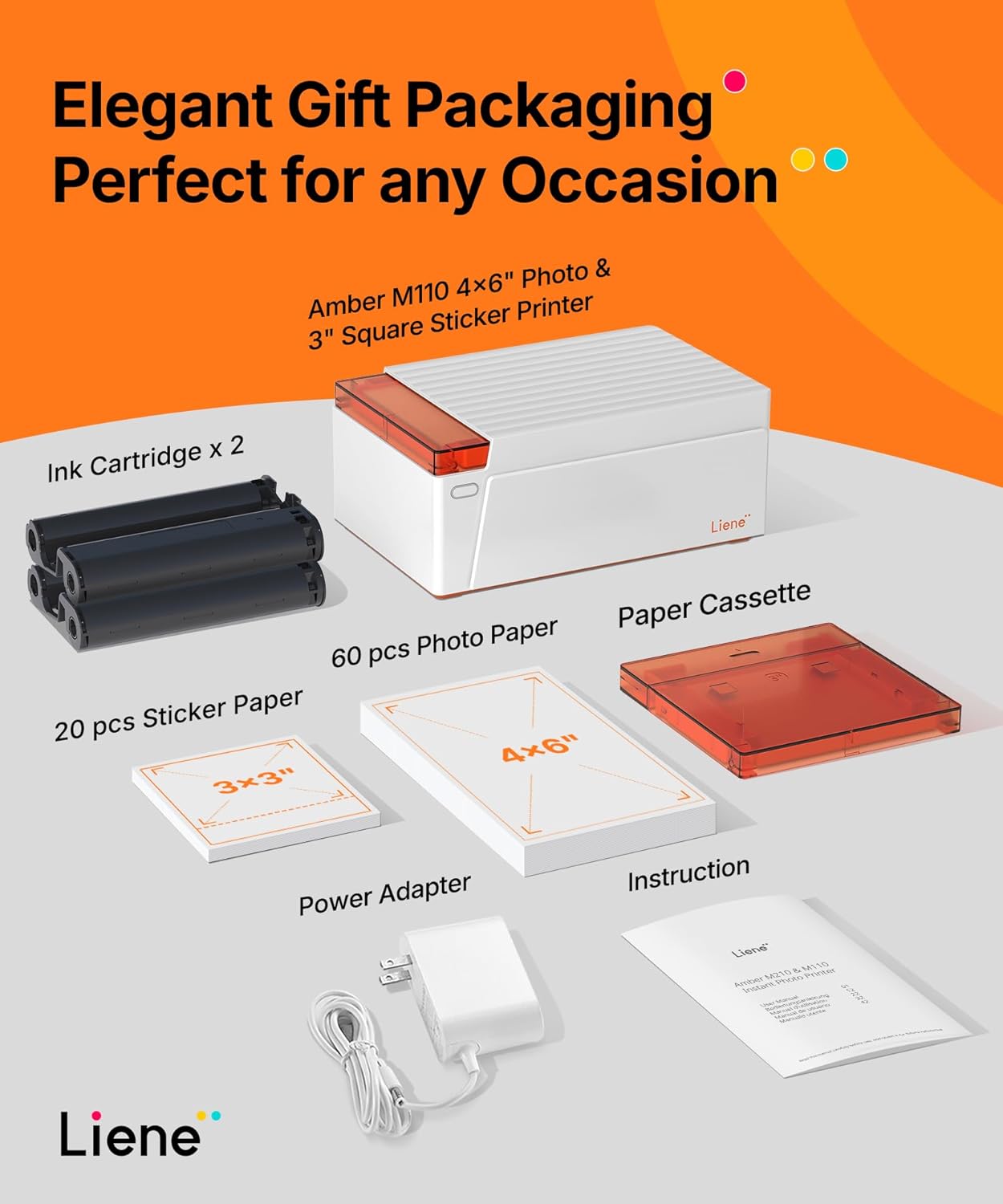
Contents of the Liene Amber M110 Photo Printer package.
3. Setup Guide
3.1. App Installation
To operate the Liene Amber M110 printer, download the official Liene Photo App on your smartphone or tablet. The app is compatible with both Android and iOS devices.
- Scan the QR code provided in the manual or on the product packaging.
- Alternatively, visit the official Liene support website to download the app: Liene App Download.

Download the Liene Photo App for full functionality.
3.2. Hardware Installation
- Install the Paper Cassette: Open the paper cassette and load the desired photo paper (4x6 inch or 3x3 inch sticker paper). Ensure the paper is correctly oriented and fits snugly. Insert the loaded cassette into the printer's paper input slot.

Step 1: Install the paper cassette.
- Install the Ink Cartridge: Open the cartridge cover on the side of the printer. Insert the ink cartridge into its designated slot until it clicks into place. Close the cover.

Step 2: Install the ink cartridge.
3.3. Bluetooth Connection
The Liene Amber M110 printer features fast Bluetooth connectivity for seamless pairing with your devices.
- Ensure the printer is powered on.
- Enable Bluetooth on your smartphone or tablet.
- Open the Liene Photo App and follow the on-screen instructions to connect to your printer. The printer should appear as 'Liene M110' or similar in your device's Bluetooth settings.

The printer offers upgraded Bluetooth for multi-device printing.
4. Operating Instructions
4.1. Printing Photos and Stickers
Once the printer is set up and connected via Bluetooth, you can begin printing:
- Open the Liene Photo App on your connected device.
- Select the photo you wish to print from your gallery.
- Use the app's editing features to customize your photo (see section 4.2).
- Select the print size (4x6 inch or 3x3 inch) corresponding to the paper loaded in the cassette.
- Initiate the print command from the app. The printer will process and print the image, typically within 59 seconds.

Printing a photo directly from a smartphone using the Liene app.
4.2. App Features and Customization
The Liene Photo App offers various features to enhance your printing experience:
- Filters and Borders: Apply various filters and add decorative borders, including a Polaroid style, to your photos.
- Image Adjustments: Enhance contrast, brightness, and other photo parameters directly within the app.
- ID and Visa Photos: Print official ID and Visa photos from home using specific templates available in the app.
- Collages and Templates: Create photo collages and utilize various templates for creative prints.

The Liene Photo App provides various templates and filters for creative printing.
4.3. Dual Paper Tray Convenience
The Liene Amber M110 supports both 4x6 inch standard photo paper and 3x3 inch square sticker paper. The dual tray design allows for easy switching between paper types.

The printer supports both 3-inch stickers and 4x6-inch photos.
4.4. Multi-Device Compatibility
The printer can connect to multiple devices simultaneously, allowing family and friends to print from their smartphones, tablets, or computers without additional cables.

Print from various devices including smartphones, tablets, and laptops.
5. Maintenance
5.1. Cleaning the Printer
Regular cleaning helps maintain print quality and extends the life of your printer.
- Ensure the printer is powered off and unplugged before cleaning.
- Use a soft, dry cloth to wipe the exterior of the printer.
- Do not use liquid cleaners or abrasive materials, as these can damage the printer.
- Avoid touching the print head or internal components.
5.2. Replacing Ink Cartridges and Paper
When print quality degrades or paper runs out, replace the consumables:
- Follow the instructions in section 3.2 for installing new ink cartridges and loading paper.
- Only use genuine Liene 4x6 & 3x3 Cartridges and photo paper for optimal performance and to prevent damage.
6. Troubleshooting
If you encounter issues with your Liene Amber M110 printer, refer to the following common problems and solutions:
| Problem | Possible Cause | Solution |
|---|---|---|
| Printer not connecting via Bluetooth | Bluetooth is off on device; Printer is off; App not recognizing printer. | Ensure printer is on and charged. Turn Bluetooth on/off on your device. Restart the Liene Photo App. Re-pair the device in Bluetooth settings. |
| Poor print quality (faded, incorrect colors) | Low ink; Expired paper; Incorrect app settings; Dirty print head. | Replace the ink cartridge. Use fresh, genuine Liene photo paper. Check app settings for brightness/contrast. Clean the printer as per maintenance instructions. |
| Paper jam | Improperly loaded paper; Damaged paper. | Turn off the printer and carefully remove any jammed paper. Ensure paper is loaded correctly and not bent or damaged. |
| Photos appear darker than on screen | Screen brightness difference; App color profile. | Adjust photo brightness in the Liene app before printing to compensate. Ensure your device screen is calibrated. |
| App cropping photos incorrectly | Photo aspect ratio mismatch with paper size. | Adjust the photo's aspect ratio in the app's editing tools to match the paper size (e.g., 4x6 or 3x3) before printing to avoid unwanted cropping. |
If the issue persists, please contact Liene customer support for further assistance.
7. Specifications
| Feature | Detail |
|---|---|
| Brand | Liene |
| Model Name | DHP515 |
| Connectivity Technology | Bluetooth, USB |
| Printing Technology | Thermal Dye Sublimation |
| Special Feature | Portable |
| Printer Output | Color |
| Maximum Print Speed (Color) | 1 page per minute |
| Item Weight | 2.9 pounds |
| Item Dimensions (D x W x H) | 8.07"D x 3.48"W x 5.38"H |
| Controller Type | Android, iOS |
| Print Media | Glossy photo paper |
| Ink Color | Cyan, Magenta, Yellow, Black |
| Compatible Cartridge | Only compatible with Liene 4x6 & 3x3 Cartridge |
| Number of Trays | 2 |
| Resolution | 300 x 300 dpi |
| Maximum Media Size | 4x6 inch, 3x3 inch |
| Initial Page Print Time | 59 seconds |
| Power Consumption | 24.84 watts |
8. Warranty and Support
8.1. Warranty Information
The Liene Amber M110 Photo Printer comes with a 12-month warranty from the date of purchase. This warranty covers manufacturing defects and ensures the product functions as intended under normal use. Please retain your proof of purchase for warranty claims.
8.2. Customer Support
For technical assistance, troubleshooting not covered in this manual, or warranty inquiries, please contact Liene customer support. Refer to the contact information provided on the official Liene website or in your product packaging.
8.3. Instructional Video
For a visual guide on how to use your Liene Amber M110 Photo Printer, please watch the official instructional video below:
Official video: How to Use Amber M110 & M210 Photo Printer. This video demonstrates the setup and operation of the printer.


