Introduction
This user manual provides comprehensive instructions for the installation, operation, and maintenance of your AZDOME M17 Pro Dash Cam. Please read this manual thoroughly before using the device to ensure proper functionality and to maximize your driving safety and recording experience.
Package Contents
Please verify that all items listed below are included in your package:
- M17 Pro Dash Cam x1
- 1080P IP68 Waterproof Rear Cam (6M/20FT) x1
- Type-C Charging Cable (3.5M/12FT) x1
- Dual USB Car Charger x1
- Installation Tool x1
- User Manual x1
- 64GB MicroSD Card x1
- Electrostastic Sticker x2
- Cable Clip x5
- Pry Tool x1
- Spare 3M Sticker x1
- Pre-Moistened Lens Wipes x1

Figure 1: Complete Packing List for AZDOME M17 Pro Dash Cam.
Product Overview
The AZDOME M17 Pro is a high-performance dual dash cam system designed to capture clear footage of your journeys. It features a front camera capable of 4K resolution and a rear camera with 1080P resolution, ensuring comprehensive coverage.

Figure 2: AZDOME M17 Pro Dash Cam and App Interface.
The system provides dual-channel recording, capturing both the road ahead and behind your vehicle simultaneously. The front camera records in stunning 4K UHD, while the rear camera records in 1080P Full HD, providing critical details for accident reconstruction or scenic drives.

Figure 3: 4K+1080P Dual Channel Recording.
Setup
1. Mounting the Dash Cam
- Clean the windshield area where the dash cam will be mounted.
- Attach the electrostatic sticker to the windshield, then mount the dash cam onto the sticker.
- Adjust the lens angle to ensure a clear view of the road.
2. Connecting Power
- Connect the Type-C charging cable to the dash cam.
- Plug the other end of the cable into the provided Dual USB Car Charger.
- Insert the car charger into your vehicle's cigarette lighter socket.

Figure 4: Dual USB Car Charger Connection.
3. Rear Camera Installation
- Mount the rear camera on the rear windshield using the adhesive.
- Route the rear camera cable to the main dash cam unit.
- For parking assistance, connect the red reverse line of the rear camera to the positive pole of your vehicle's reverse light.

Figure 5: Parking Assistance Function Display.
4. App WiFi Connection Guide
The AZDOME app allows for seamless video playback, downloads, and sharing. Ensure your dash cam is powered on and within 10 feet of your smartphone for optimal connection.

Figure 6: APP WiFi Connection Guide (Steps 1-4).

Figure 7: APP WiFi Connection Guide (Steps 5-8).
Operating Instructions
1. Loop Recording and Emergency Lock
The dash cam automatically records in a continuous loop, overwriting the oldest footage when the memory card is full. The included 64GB card provides ample storage, and the system supports cards up to 128GB.

Figure 8: Loop Recording with Free 64GB Card.
The built-in G-Sensor detects sudden impacts or collisions. When an event is detected, the current footage is automatically locked and saved to prevent it from being overwritten, ensuring critical evidence is preserved.

Figure 9: G-Sensor and Loop Recording.
2. Voice Control
The M17 Pro supports voice commands for hands-free operation. This allows you to control key functions without taking your hands off the steering wheel, enhancing safety.
- "Lock the video"
- "Turn on WiFi"
- "Take picture"
- "Turn on audio"
- "Turn off WiFi"
- "Turn off screen"
- And other commands as listed in the device settings.

Figure 10: Smart Voice Control in Action.
3. WiFi 6 & App Control
Utilize the built-in WiFi 6 to connect your dash cam to the AZDOME app on your smartphone. This enables live view, video playback, downloading footage directly to your phone, and sharing to social media platforms.

Figure 11: WiFi 6 & APP Control Interface.

Figure 12: 3x Faster Transmission with WiFi 6.
Advanced Features
1. ADAS (Advanced Driver Assistance Systems)
The ADAS feature provides real-time alerts to enhance driving safety. This includes Lane Departure Warning (LDW), which alerts you if your vehicle drifts out of its lane without signaling. Note: When ADAS is enabled, resolution adjusts to 2K+1K.

Figure 13: ADAS Lane Departure Warning.

Figure 14: Understanding ADAS.
2. Fatigue Driving Alert
To promote safe driving habits, the dash cam can remind you to take a rest after 1, 2, or 4 hours of continuous driving. This feature helps prevent accidents caused by driver fatigue.

Figure 15: Fatigue Driving Alert.
3. 24H Parking Modes
For continuous monitoring when your vehicle is parked, the M17 Pro offers two parking modes. A Type-C USB Port Hardwire Kit (ASIN: B0BM9JL327, not included) is required for these functions.
- Collision Detection: The built-in G-sensor detects impacts and automatically locks the video to prevent overwriting, securing evidence of any incidents.
- Time-Lapse: This mode enables continuous recording for 24 hours, capturing every detail around your parked vehicle efficiently.

Figure 16: 24H Parking Modes.
4. Super Night Vision
Equipped with an F1.8 aperture and a 6-glass lens, the dash cam provides enhanced clarity and detail in low-light conditions, ensuring clear recordings even at night.
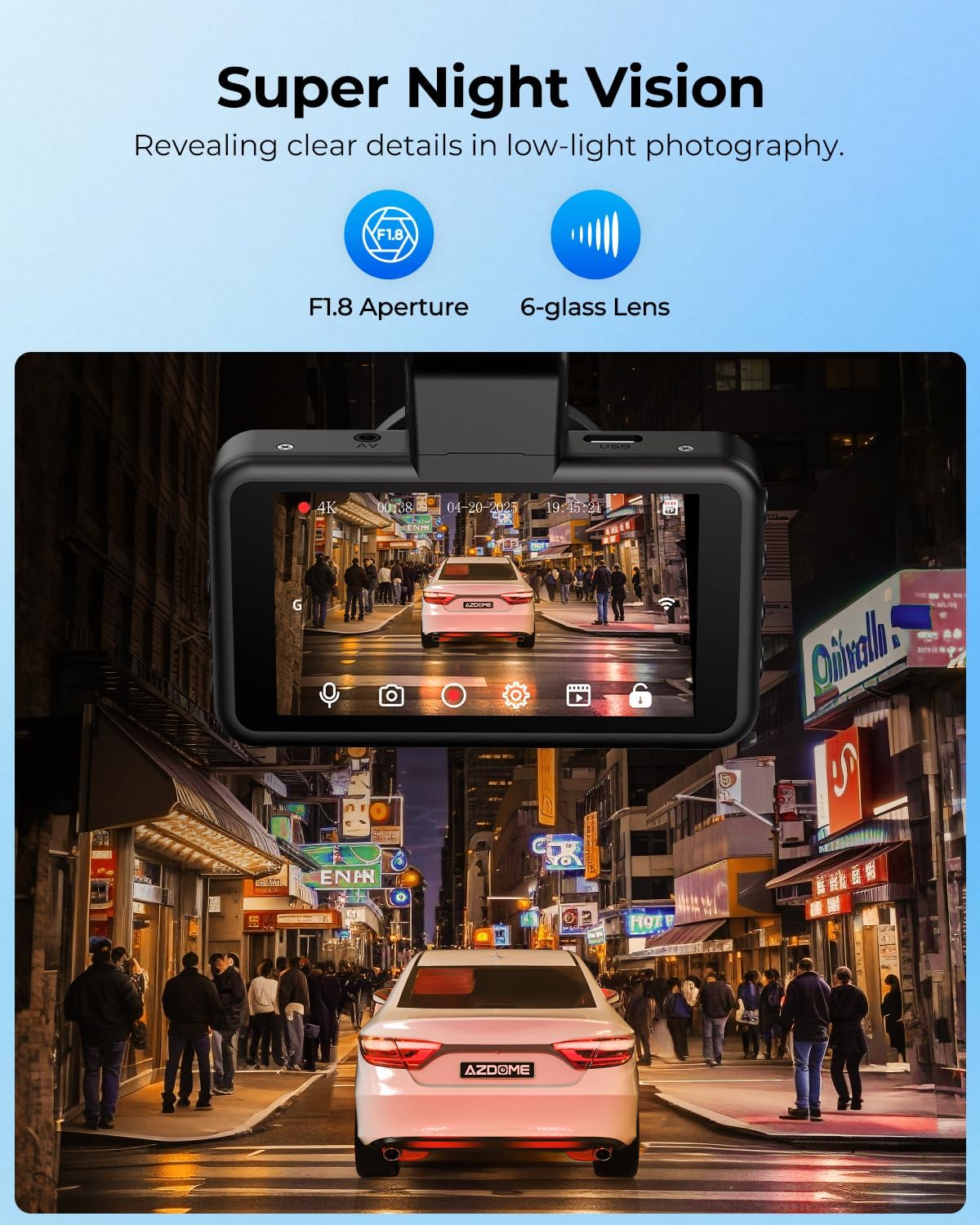
Figure 17: Super Night Vision Performance.
Maintenance
- Cleaning: Use a soft, dry cloth to clean the dash cam body. For the lens, use the provided pre-moistened lens wipes or a specialized lens cleaning solution and cloth to avoid scratches.
- Storage: When not in use for extended periods, store the dash cam in a cool, dry place away from direct sunlight and extreme temperatures.
- Memory Card: Periodically format the MicroSD card (at least once a month) to ensure optimal performance and prevent data corruption. Back up any important footage before formatting.
- Firmware Updates: Check the AZDOME official website or app for any available firmware updates to ensure your dash cam has the latest features and bug fixes.
Troubleshooting
| Problem | Possible Cause / Solution |
|---|---|
| Dash cam does not power on. | Check power connection to the car charger and vehicle's power outlet. Ensure the vehicle's ignition is on. |
| Recording stops or freezes. | MicroSD card may be full or corrupted. Format the card. Use a high-speed (Class 10 or U3) MicroSD card. |
| Poor video quality. | Clean the camera lens and windshield. Ensure the protective film is removed from the lens. Check resolution settings. |
| Wi-Fi connection issues. | Ensure the dash cam's Wi-Fi is enabled. Keep your smartphone within 10 feet of the dash cam. Restart both devices. |
| Parking mode not working. | A hardwire kit (ASIN: B0BM9JL327) is required for 24H parking modes. Ensure it is correctly installed and connected. |
Specifications
| Feature | Detail |
|---|---|
| Product Dimensions | 1.18 x 5.48 x 1.3 inches |
| Item Weight | 1.3 pounds |
| Front Video Resolution | 4K (2160p) |
| Rear Video Resolution | 1080P |
| Connectivity Technology | Wi-Fi 6 |
| Display | 3.0" IPS Screen |
| Special Features | ADAS, Voice Control, App Control, Reverse Assist, 24H Parking Mode (with hardwire kit), Night Vision (F1.8, 6-glass lens), G-Sensor, Loop Recording |
| Included Storage | 64GB MicroSD Card (supports up to 128GB) |
| Power Source | Type-C Charging Cable, Dual USB Car Charger |
| Battery | 1 Lithium Metal battery (included) |
| Manufacturer | AZDOME |
Warranty and Support
AZDOME provides 12 months of warranty and 24/7 technical support for your product. If you encounter any issues or have questions regarding your AZDOME M17 Pro Dash Cam, please do not hesitate to contact our customer service team.
Contact Email: service@azdomevipdotcom
Our R&D team is committed to providing feedback and solutions within 24 working hours.


