
1. Important Safety Instructions
Read all safety instructions carefully before using your TV. Keep this manual for future reference.
- Do not block ventilation openings.
- Do not place near heat sources.
- Protect the power cord from being walked on or pinched.
- Only use attachments/accessories specified by the manufacturer.
- Unplug this apparatus during lightning storms or when unused for long periods.
- Refer all servicing to qualified service personnel.
2. What's in the Box
Verify that all components are present:
- Samsung 43" Mini LED TV
- Remote Control with Batteries
- Power Cable
- User Manual (this document)
- (Additional bundle items like HDMI cable, protection plan, guide are not part of the core TV package and may vary by retailer.)

Image: Contents of the Samsung 43-Inch Mini LED TV bundle. This image shows the TV, remote, power cable, and additional bundled items like an HDMI cable, extended protection plan, and a home theater guide.
3. Setup
3.1. Attaching the Stand or Wall Mounting
Stand Installation:
- Carefully place the TV screen-down on a soft, flat surface.
- Align the stand base with the mounting holes on the bottom of the TV.
- Secure the stand using the provided screws. Do not overtighten.
Wall Mounting:
This TV supports VESA mount standard 200 x 200 mm. Refer to your wall mount kit instructions for proper installation. Ensure the wall can support the TV's weight (14.8 pounds without stand).
3.2. Connecting Peripherals
Connect your devices to the TV's ports. The TV features 3 HDMI ports and 1 USB port.
- HDMI Devices: Connect Blu-ray players, game consoles, or set-top boxes to the HDMI ports.
- USB Devices: Connect USB drives for media playback or software updates.
- Power Cable: Connect the power cable to the TV's power input and then to a wall outlet.
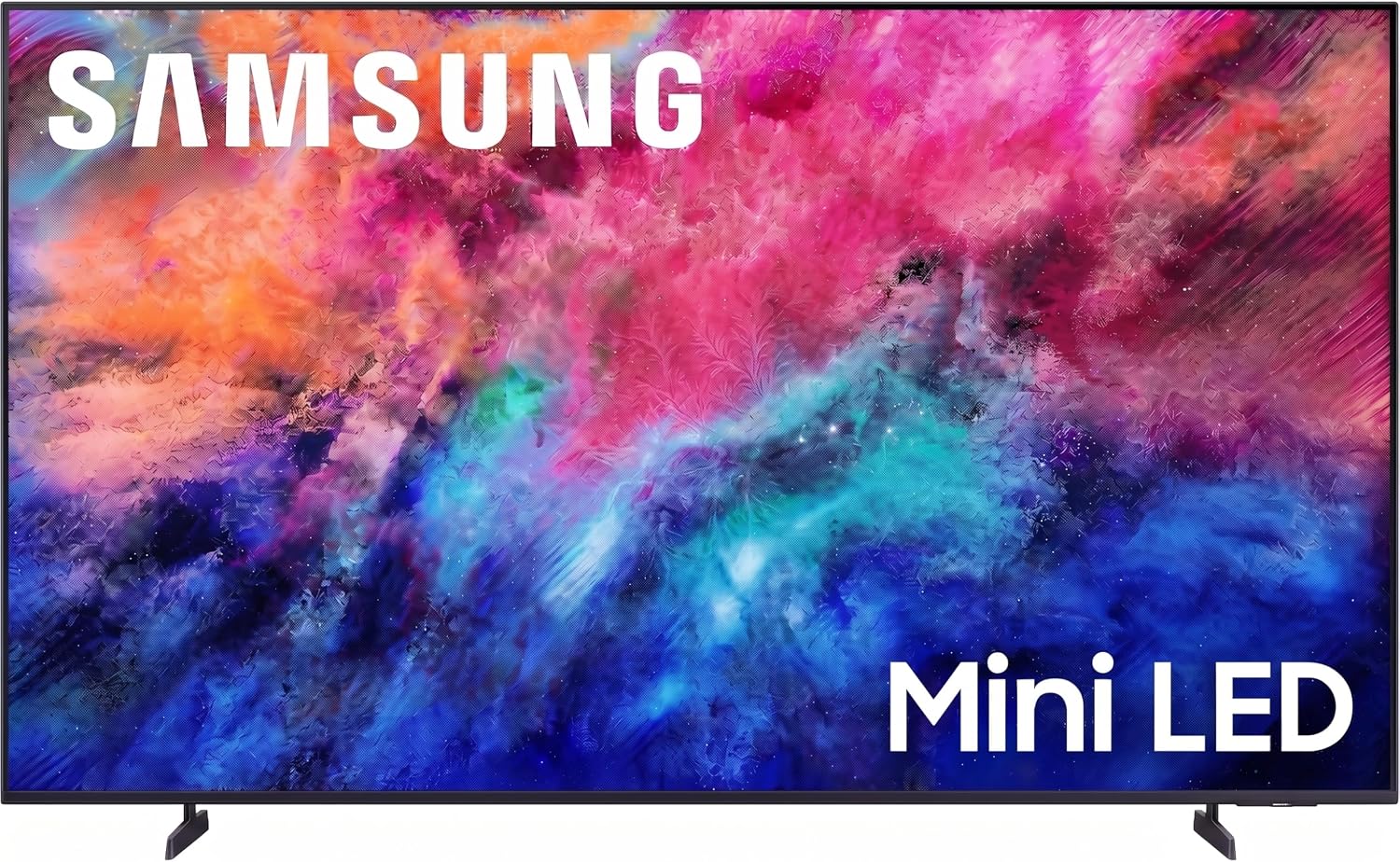
Image: Front view of the Samsung 43-Inch Mini LED 4K HDR Smart TV. This image displays the TV from the front, showcasing its slim bezels and the vibrant display.

Image: Rear view of the Samsung 43-Inch Mini LED 4K HDR Smart TV, highlighting its MetalStream Design. This image shows the back panel of the TV, emphasizing its sleek, aircraft-inspired metal construction and port locations.
3.3. Initial Power On and Network Connection
- Press the Power button on the remote control.
- Follow the on-screen instructions to select your language (English, Spanish, French are supported), country, and perform initial setup.
- Connect to your Wi-Fi network by selecting it from the list and entering the password. The TV also supports Ethernet connection.
- Sign in to your Samsung account or create one to access all Smart TV features.
4. Operating Your TV
4.1. Remote Control Overview
The remote control allows you to navigate menus, adjust settings, and control playback. Familiarize yourself with buttons for Power, Volume, Channel, Home, Back, and Navigation.
4.2. Smart TV Features (One UI Tizen)
Your TV runs on the Tizen operating system with One UI, providing a personalized smart TV experience.
- Home Screen: Access apps, connected devices, and settings from the customizable home bar.
- Samsung TV Plus: Enjoy over 750 free channels and thousands of on-demand shows without a subscription.
- Samsung Vision AI Companion: This feature learns your preferences and provides tailored content recommendations and AI-enhanced picture/sound.

Image: Screenshot of the One UI Tizen smart TV platform. This image shows the personalized home screen with various streaming apps and content recommendations.

Image: Samsung Vision AI Companion interface. This image illustrates the AI companion providing contextual information and recommendations during a live sports broadcast.
4.3. Picture Settings
Your TV features advanced picture technologies for an optimal viewing experience.
- Mini LED Processor 4K: This processor enhances picture quality, delivering sharp, bright, and vibrant 4K images.
- Mini LED HDR: Experience dramatic detail with brighter highlights and deeper blacks.
- Pure Spectrum Color: Enjoy over a billion true-to-life colors for a rich and accurate display.
- 4K Upscaling: Lower resolution content is automatically enhanced to near-4K quality.
- Motion Xcelerator: Provides smooth, sharp motion for fast-paced content like sports and gaming.

Image: Close-up of the Mini LED Processor 4K chip. This image highlights the central processing unit responsible for the TV's advanced picture quality.

Image: A scene demonstrating Mini LED HDR with a sunset over water. This image shows the enhanced contrast and detail in both bright and dark areas.

Image: A comparison demonstrating Pure Spectrum Color. This image shows two TV screens side-by-side, one with standard color and one with Pure Spectrum Color, highlighting the richer and more vibrant hues.

Image: Motion Xcelerator in action, depicting a motocross scene. This image illustrates the smooth and sharp motion clarity during fast-paced action.
4.4. Sound Settings
- Object Tracking Sound Lite: Experience motion-based sound that moves with the action on screen.
- Q-Symphony: When paired with a compatible Samsung soundbar (sold separately), the TV and soundbar speakers work in harmony for a richer audio experience.

Image: Visualization of Object Tracking Sound Lite. This image shows sound waves emanating from specific points on the screen, indicating audio that follows on-screen action.

Image: Q-Symphony sound system in action. This image depicts sound waves from both the TV and a connected soundbar working together to create an immersive audio field.
4.5. Gaming Hub
The Gaming Hub is a central platform where you can access your favorite games from consoles, cloud services, and gaming apps without needing a separate console for many titles.

Image: Samsung Gaming Hub interface. This image shows the Gaming Hub's main screen with various game titles and cloud gaming services available.
5. Maintenance
5.1. Cleaning the Screen
Gently wipe the screen with a soft, dry microfiber cloth. For stubborn marks, lightly dampen the cloth with water or a screen-cleaning solution specifically designed for electronics. Do not spray liquid directly onto the screen.
5.2. Cleaning the Remote Control
Wipe the remote control with a soft, dry cloth. Avoid using abrasive cleaners or solvents.
5.3. Software Updates
Your TV may receive software updates to improve performance and add new features. You can usually check for updates in the TV's settings menu under "Support" or "Software Update."
6. Troubleshooting
| Problem | Possible Solution |
|---|---|
| No Power | Check if the power cable is securely connected to the TV and the wall outlet. Try a different outlet. |
| No Picture | Ensure the correct input source is selected. Check HDMI cable connections. Try restarting the TV. |
| No Sound | Check volume levels. Ensure TV is not muted. Check audio output settings (e.g., internal speakers vs. external sound system). |
| Network Connection Issues | Restart your router and modem. Re-enter Wi-Fi password. Check network settings on the TV. |
| Remote Control Not Working | Replace batteries. Ensure there are no obstructions between the remote and the TV. |
6.1. Factory Reset
If issues persist, you may perform a factory reset. This will erase all personal settings and data. Navigate to Settings > General > Reset and follow the on-screen prompts.
7. Specifications
| Feature | Detail |
|---|---|
| Screen Size | 43 inches |
| Display Technology | Mini LED |
| Resolution | 4K (3840 x 2160) |
| Refresh Rate | 60 Hz |
| HDR Format Supported | HDR10+, HLG |
| Operating System | Tizen |
| Connectivity | Wi-Fi, Bluetooth 5.3, Ethernet |
| HDMI Ports | 3 |
| USB Ports | 1 (USB 2.0) |
| Audio Channels | 2.0 Channel (20 watts) |
| Dimensions (WxDxH) | 37.71"W x 6.18"D x 23.98"H |
| Weight (without stand) | 14.8 pounds |
| VESA Mount Standard | 200 x 200 mm |
| Power Consumption | 74 watts |
| Model Year | 2026 |
| UPC | 196641223615 |
8. Warranty and Support
8.1. Warranty Information
This Samsung TV comes with a Limited Warranty. For specific terms and conditions, please refer to the warranty card included with your product or visit the official Samsung website. The warranty covers manufacturing defects under normal use.
8.2. Customer Support
For technical assistance, troubleshooting, or warranty claims, please contact Samsung Customer Service:
- Website: Visit samsung.com/us/support
- Phone: Refer to the support section of the Samsung website for local contact numbers.


