
1. Introduction
This manual provides detailed instructions for the proper use, setup, operation, and maintenance of your AOCHUAN Smart X2 3-Axis Gimbal Stabilizer and the accompanying B10 Storage Bag. Please read this manual thoroughly before using the product to ensure optimal performance and longevity.
The Smart X2 gimbal is designed to provide stable and smooth video footage for smartphones, featuring advanced 3-axis stabilization and intelligent tracking capabilities. The B10 Storage Bag offers a convenient and protective solution for transporting your gimbal and its accessories.
2. Package Contents and Components
Verify that all items listed below are included in your package. If any items are missing, please contact customer support.
- AOCHUAN Smart X2 3-Axis Gimbal Stabilizer
- B10 Storage Bag
- USB Charging Cable
- User Manual (this document)
2.1 Gimbal Components
- Smartphone Clamp: Secures your smartphone to the gimbal.
- 3-Axis Motor System: Provides stabilization for pitch, roll, and yaw.
- Control Panel: Includes joystick, mode button, power button, and other controls.
- Built-in Extension Rod: Extends up to 7.8 inches for wider shots and different perspectives.
- Magnetic RGB Fill Light: Attaches to the smartphone clamp for adjustable lighting.
- USB-C Port: For charging the gimbal.
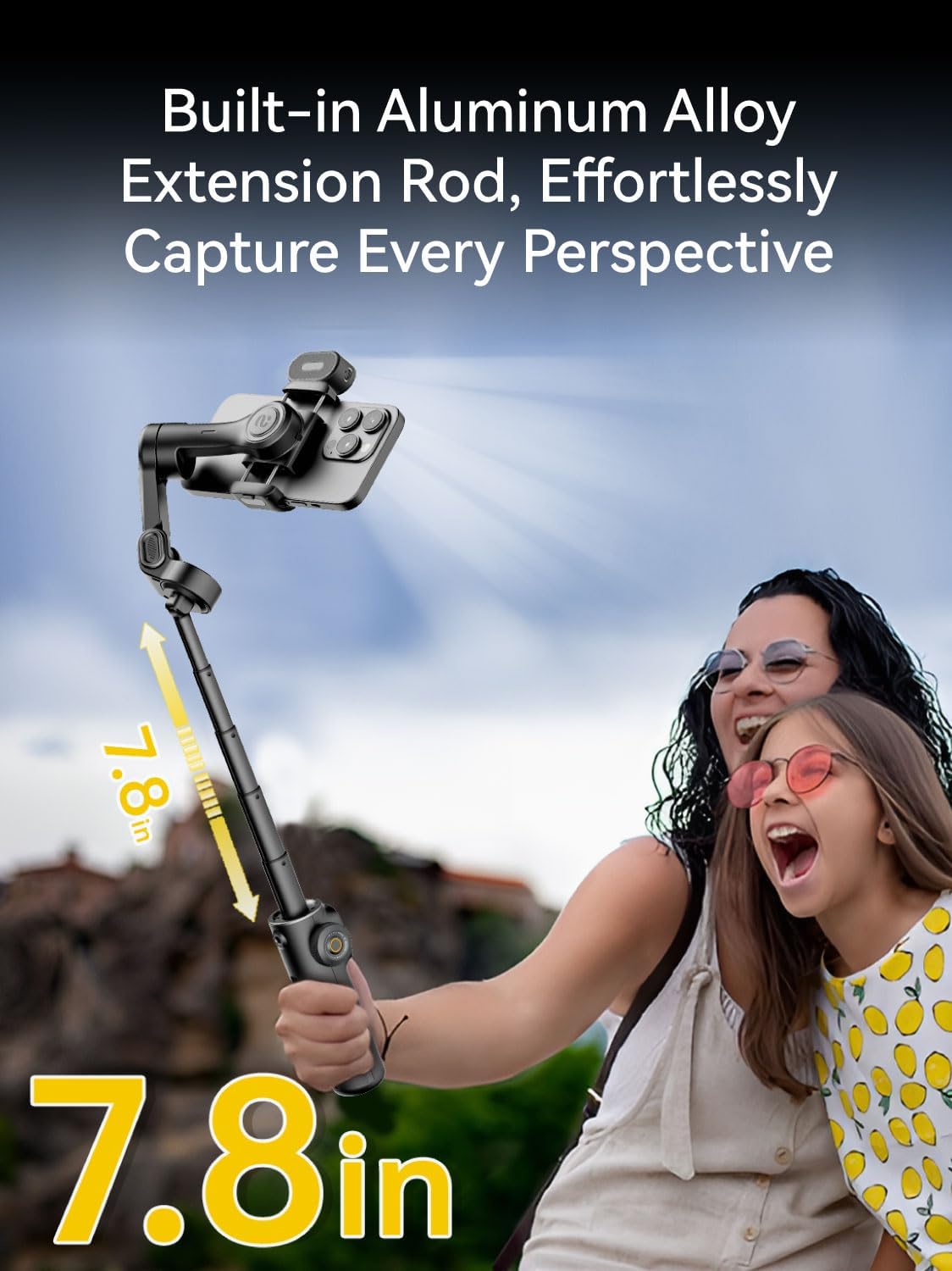
Image: The Smart X2 gimbal featuring its built-in 7.8-inch aluminum alloy extension rod, allowing for versatile shooting angles.
2.2 B10 Storage Bag Components
- Main Compartment: For the gimbal and larger accessories.
- Internal Dividers/Pockets: For organizing cables, chargers, and smaller items.
- Adjustable Shoulder Strap: For comfortable carrying.

Image: The B10 Storage Bag demonstrating its ample capacity to hold the gimbal, extension pole, phone, chargers, and other accessories.
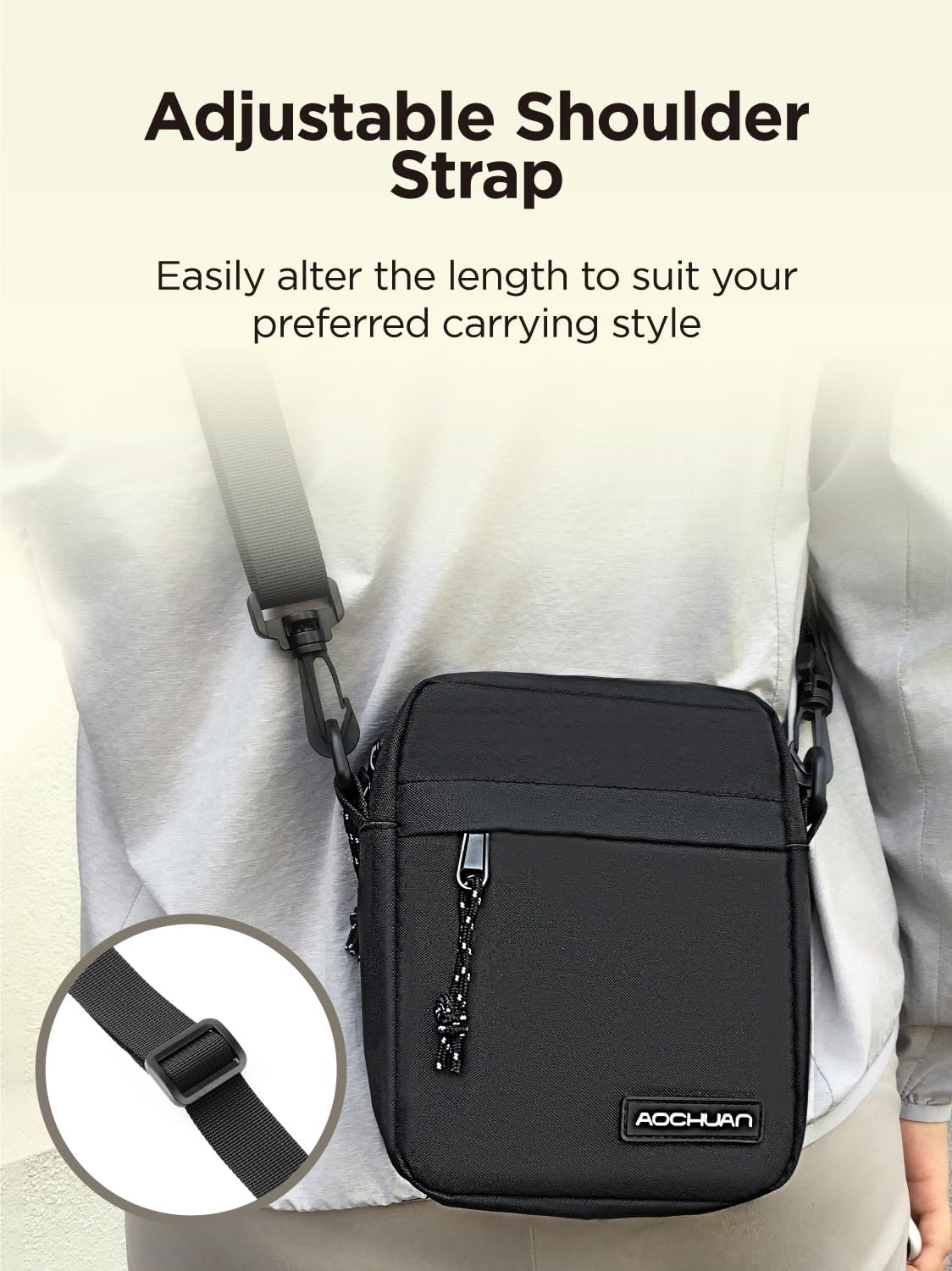
Image: The B10 Storage Bag with its adjustable shoulder strap, designed for comfortable and customizable carrying.
3. Setup Guide
3.1 Charging the Gimbal
Before initial use, fully charge the gimbal. Connect the USB charging cable to the gimbal's USB-C port and a compatible USB power adapter (not included). The indicator light will show charging status and turn off when fully charged.
3.2 Attaching Your Smartphone
- Extend the smartphone clamp and carefully place your smartphone into it. Ensure the phone is securely seated.
- Position the phone centrally in the clamp to facilitate easier balancing.
3.3 Balancing the Gimbal
Proper balancing is crucial for optimal performance and battery life. The gimbal should be roughly balanced before powering on.
- After attaching your smartphone, adjust the sliding arm of the gimbal until the phone remains level when released.
- The gimbal motors will fine-tune the balance once powered on.
3.4 Powering On/Off
- Power On: Press and hold the power button for 3 seconds.
- Power Off: Press and hold the power button for 3 seconds.
3.5 Connecting via Bluetooth
For full control and access to advanced features, connect the gimbal to your smartphone via Bluetooth:
- Download the official AOCHUAN app from your smartphone's app store.
- Enable Bluetooth on your smartphone.
- Power on the Smart X2 gimbal.
- Open the AOCHUAN app and follow the on-screen instructions to connect to the gimbal.
4. Operating Instructions
4.1 Gimbal Stabilization
The Smart X2 features an advanced 3-axis stabilization system with 8.0 anti-shake technology to ensure smooth and stable footage in various scenarios.
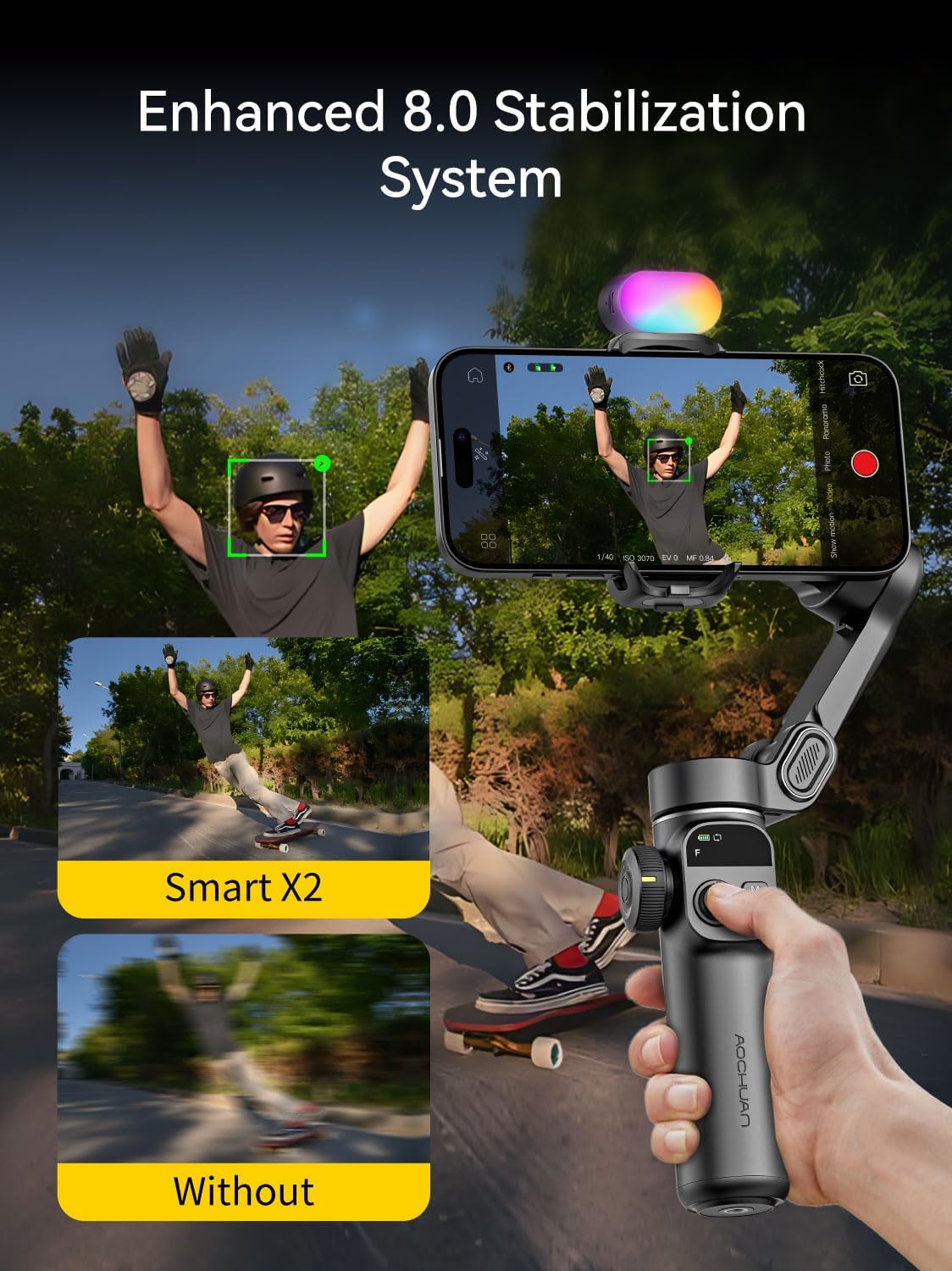
Image: Visual representation of the enhanced 8.0 stabilization system, comparing footage taken with and without the Smart X2 gimbal.
4.2 Using the Extension Rod
The built-in 7.8-inch aluminum alloy extension rod allows you to capture wider angles and dynamic viewpoints. To extend, simply pull the rod upwards from the handle. To retract, push it back down until it locks into place.
4.3 Magnetic RGB Fill Light
The Smart X2 includes a portable magnetic RGB fill light to enhance illumination in low-light environments. It offers 3 brightness levels and 7 color options.
- Attachment: The fill light magnetically attaches to either side of the smartphone clamp. Dual fill lights can be used if available.
- Operation: Refer to the fill light's specific controls (usually a button on the light itself) to cycle through brightness levels and color modes.

Image: The magnetic RGB fill light in action, highlighting its 7 color options, 3 brightness levels, 3-hour battery life, and magnetic attachment.
4.4 Advanced Tracking Technology
Utilize the AOCHUAN app to access advanced tracking features, including AI Face Tracking, AI Body Tracking, and AI Object Tracking. These features allow the gimbal to automatically follow your chosen subject, keeping it in frame.
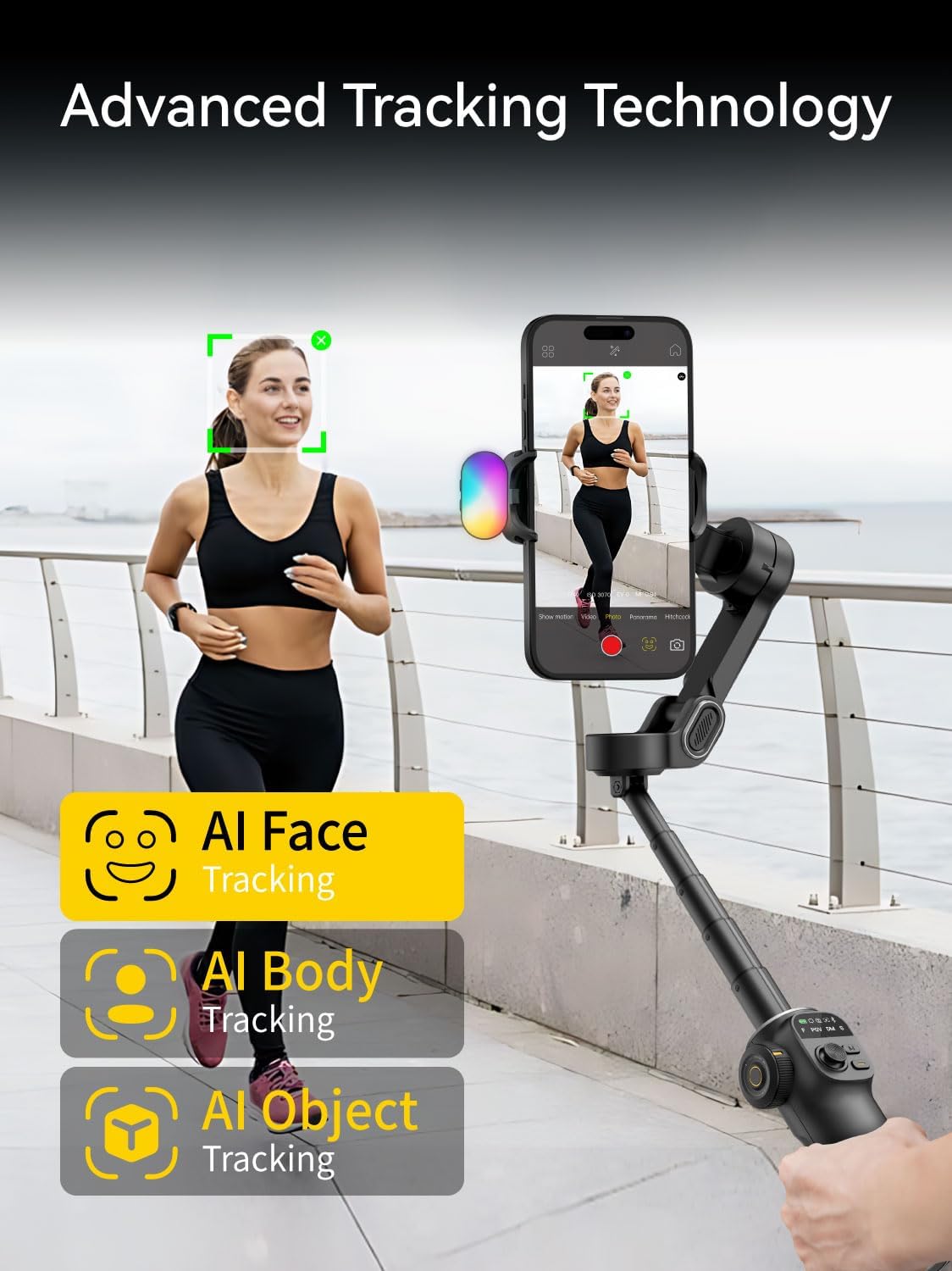
Image: Demonstrating the advanced tracking technology of the Smart X2, including AI Face, Body, and Object tracking capabilities.
4.5 Gimbal Controls
The control panel on the gimbal handle provides intuitive access to various functions:
- Joystick: Controls the pan and tilt movements of the smartphone.
- Mode Button: Cycles through different gimbal modes (e.g., Pan Follow, Lock Mode, POV). Refer to the app for detailed mode descriptions.
- Shutter Button: Triggers photo capture or video recording in the connected app.
- Zoom Slider: Adjusts the zoom level of your smartphone camera (functionality depends on phone model and app).
5. Maintenance
5.1 Cleaning
Wipe the gimbal and storage bag with a soft, dry cloth. Do not use liquid cleaners or solvents, as they may damage the product's finish or internal components.
5.2 Charging and Battery Care
To prolong battery life, avoid fully discharging the gimbal frequently. Charge the gimbal regularly, even if not in use for extended periods (e.g., once every 3 months).
5.3 Storage
When not in use, store the gimbal in the provided B10 Storage Bag. The bag is designed to protect the gimbal and its accessories from dust, scratches, and minor impacts. Ensure the gimbal is powered off before storing.
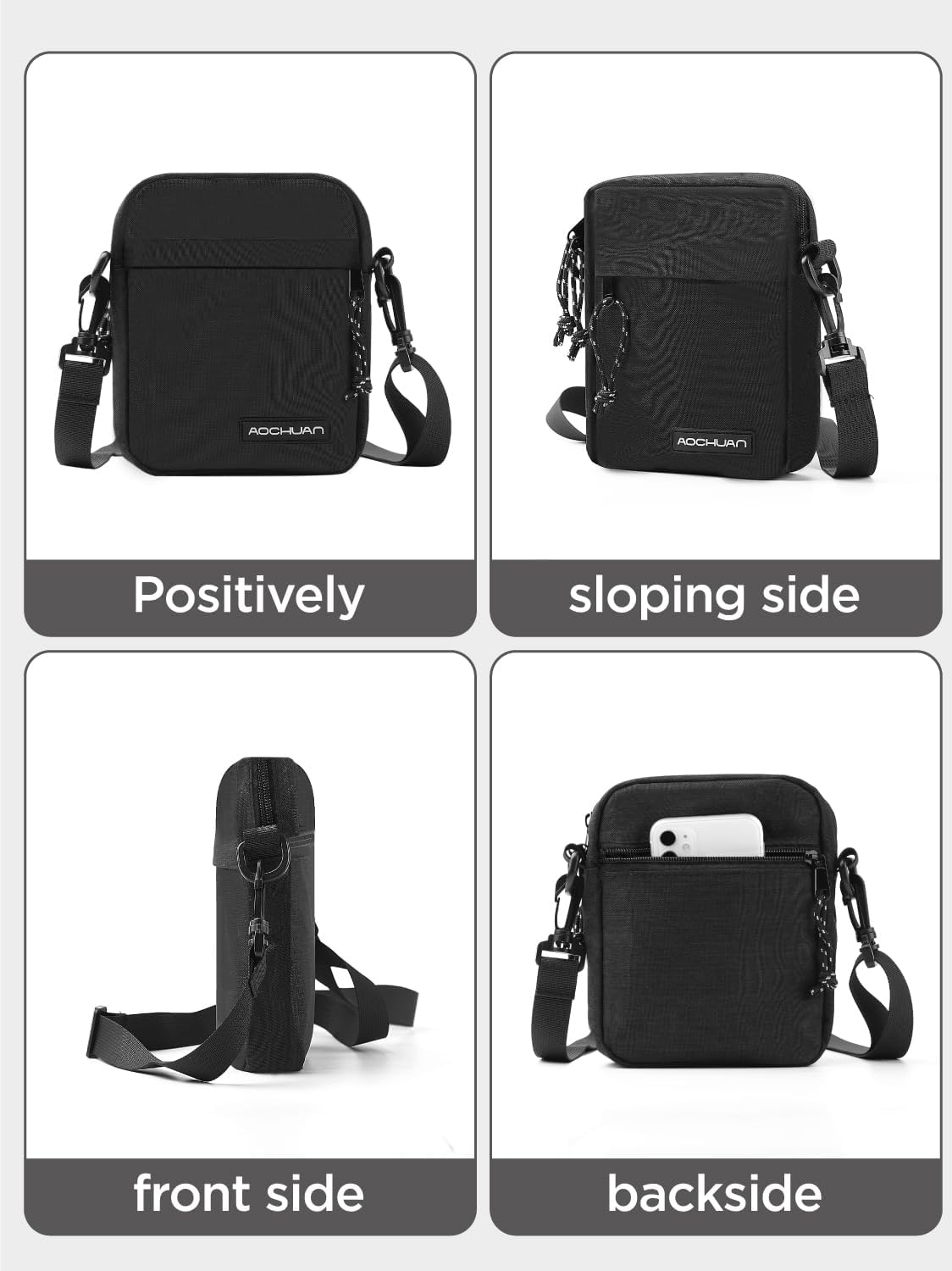
Image: Various views of the B10 Storage Bag, illustrating its design and compact form factor for easy storage and transport.
6. Troubleshooting
6.1 Gimbal Not Powering On
- Ensure the gimbal is fully charged. Connect it to a power source and wait for the charging indicator.
- Press and hold the power button for at least 3 seconds.
6.2 Gimbal Vibrates or Does Not Stabilize Properly
- Check if the smartphone is properly balanced on the gimbal before powering on.
- Ensure the smartphone is securely clamped and not loose.
- Restart the gimbal and the AOCHUAN app.
6.3 Bluetooth Connection Issues
- Ensure Bluetooth is enabled on your smartphone.
- Make sure the gimbal is powered on and within range.
- Close and reopen the AOCHUAN app.
- Forget the device in your phone's Bluetooth settings and try pairing again.
6.4 App Functionality Problems
- Ensure the AOCHUAN app is updated to the latest version.
- Check your smartphone's operating system for updates.
- Clear the app's cache or reinstall the app if issues persist.
7. Specifications
| Feature | Detail |
|---|---|
| Model | Smart X2 |
| Brand | AOCHUAN |
| Stabilization | 3-Axis, 8.0 Anti-Shake Technology |
| Compatible Devices | Smartphones |
| Extension Rod Length | 7.8 inches (Built-in Aluminum Alloy) |
| Fill Light Type | Magnetic RGB Fill Light |
| Fill Light Features | 3 Brightness Levels, 7 Color Options |
| Fill Light Weight | Approx. 0.05 lbs (22.7g) |
| Battery Life (Fill Light) | Up to 3 hours (approx.) |
| Tracking Technology | AI Face, AI Body, AI Object Tracking |
| Storage Bag Dimensions (approx.) | 18cm (H) x 16cm (W) x 4cm (D) |

Image: Dimensions of the B10 Storage Bag, illustrating its compact and lightweight design.
8. Warranty Information
AOCHUAN products are manufactured to high quality standards. This product is covered by a limited warranty against defects in materials and workmanship for a period specified at the point of purchase. Please retain your proof of purchase for warranty claims.
The warranty does not cover damage caused by improper use, unauthorized modifications, accidents, or natural disasters. For specific warranty terms and conditions, please refer to the warranty card included with your product or visit the official AOCHUAN website.
9. Customer Support
If you encounter any issues or have questions regarding your AOCHUAN Smart X2 Gimbal Stabilizer or B10 Storage Bag that are not addressed in this manual, please contact AOCHUAN customer support.
- Online Support: Visit the official AOCHUAN website for FAQs, troubleshooting guides, and contact information.
- Email Support: Refer to your product packaging or the official website for the customer service email address.
When contacting support, please have your product model (Smart X2) and purchase information ready.


