
1. Introduction
This manual provides essential information for the safe and efficient use of your MSI Vector 16 HX AI gaming laptop. Please read this manual thoroughly before operating the device and retain it for future reference. The MSI Vector 16 HX AI is designed for high-performance computing, gaming, and creative applications, featuring advanced components for optimal user experience.

Figure 1: MSI Vector 16 HX AI Laptop Overview. This image displays the laptop with key specifications highlighted: Intel Core Ultra 9 275HX CPU, NVIDIA GeForce RTX 5070Ti GPU, 16GB DDR5 5600MHz Memory, 1TB NVMe SSD Storage, and a 16" QHD+ Display.
2. Setup
2.1 Unpacking
Carefully remove all components from the packaging. Ensure the following items are present:
- MSI Vector 16 HX AI Laptop
- Power Adapter and Cable
- User Manual (this document)
- Warranty Card
2.2 Initial Power-On
- Connect the power adapter to the laptop's DC-in port and then to a power outlet.
- Open the laptop lid.
- Press the power button, typically located on the keyboard deck, to turn on the laptop.
- Follow the on-screen instructions to complete the Windows 11 Home setup.
Video 1: Initial setup and overview of the MSI Vector 16 HX AI laptop. This video demonstrates the physical aspects of the laptop, including ports and keyboard lighting, and shows the initial boot-up process.
2.3 Connecting Peripherals
The laptop features various ports for connecting external devices:
- USB 3.2 Gen2 Type-A: For standard USB devices like mice, keyboards, and external drives.
- Thunderbolt 5: High-speed port for data transfer, external displays (up to DisplayPort 2.1), and power delivery (up to 100W PD Charging).
- HDMI 2.1: Connect to external displays or TVs (supports up to 8K@60Hz / 4K@120Hz).
- RJ45 (Ethernet): For wired network connection.
- Audio Combo Jack: For headphones or headsets with a microphone.
- SD Card Reader: For reading SD memory cards.
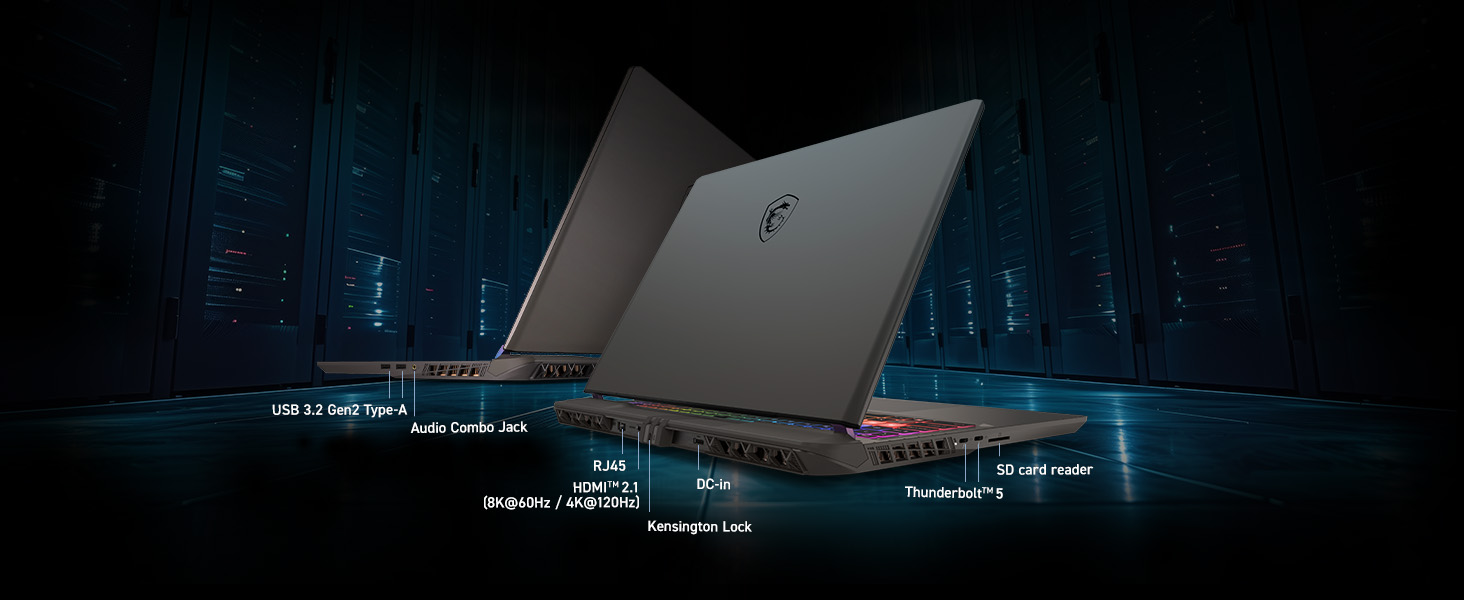
Figure 2: Input/Output Ports on the MSI Vector 16 HX AI. This image highlights the various ports available on the laptop, including USB 3.2 Gen2 Type-A, Audio Combo Jack, RJ45, HDMI 2.1, DC-in, Kensington Lock, Thunderbolt 5, and an SD card reader.
3. Operating Instructions
3.1 Keyboard and Touchpad
The laptop features a 24-zone RGB backlit keyboard. Lighting effects can be customized through MSI software. The touchpad supports multi-touch gestures for navigation.
3.2 Display Settings
The 16-inch QHD+ (2560x1600) display offers a 240Hz refresh rate. To adjust display settings:
- Right-click on the desktop and select "Display settings."
- Adjust resolution, refresh rate, and scaling as needed.

Figure 3: The 16-inch QHD+ 240Hz display of the MSI Vector 16 HX AI, showcasing its immersive visuals and high refresh rate.
3.3 Performance Modes
MSI laptops often include software (e.g., MSI Center) to manage performance profiles. These profiles can optimize CPU/GPU usage, fan speed, and power consumption for different tasks (e.g., gaming, silent, balanced).
4. Maintenance
4.1 Cleaning
- Use a soft, lint-free cloth to clean the screen and chassis.
- For stubborn smudges, slightly dampen the cloth with water or a screen-safe cleaner.
- Regularly clean the keyboard and touchpad to prevent dust buildup.
- Use compressed air to clear dust from cooling vents.
4.2 Software Updates
Keep your operating system, drivers (especially graphics drivers), and MSI utility software updated to ensure optimal performance and security.
4.3 Battery Care
- Avoid fully discharging the battery frequently.
- If storing the laptop for an extended period, charge the battery to around 50-60%.
- Operating the laptop primarily on AC power is acceptable, but occasionally allow the battery to discharge and recharge.
5. Troubleshooting
5.1 No Power
- Ensure the power adapter is securely connected to both the laptop and the power outlet.
- Verify the power outlet is functional by plugging in another device.
- Try a different power outlet.
5.2 Display Issues
- If the screen is blank, try pressing Fn + F2 (or the appropriate function key for display toggle) to switch display output.
- Ensure external monitors are correctly connected and powered on.
- Update graphics drivers.
5.3 Overheating
- Ensure the laptop's cooling vents are not obstructed.
- Clean dust from the vents using compressed air.
- Use the laptop on a hard, flat surface to allow for proper airflow.
- Adjust performance profiles in MSI software to a cooler setting if high performance is not required.

Figure 4: MSI Cooler Boost 5 Thermal Design. This image illustrates the internal cooling system of the laptop, featuring dual fans and up to 7 heat pipes for efficient heat dissipation.
6. Specifications
| Feature | Detail |
|---|---|
| Brand | msi |
| Model Name | Vector 16 HX AI A2XWHG-211US |
| Model Number | VECTOR16HXA2211 |
| Screen Size | 16 Inches |
| Resolution | 2560 x 1600 Pixels (QHD+) |
| Refresh Rate | 240 Hz |
| CPU Model | Intel Core Ultra 9-275HX |
| CPU Speed (Max) | 5.4 GHz |
| Graphics Card | NVIDIA GeForce RTX 5070 Ti Laptop GPU |
| Graphics Card RAM | 12 GB GDDR6 |
| RAM Memory Installed | 16 GB DDR5 |
| RAM Memory Speed | 5600 MHz |
| Hard Disk Size | 1 TB NVMe SSD |
| Operating System | Windows 11 Home |
| Wireless Technology | Wi-Fi 7, Bluetooth 5.4 |
| Ports | Thunderbolt 5 (x1), USB 3.2 Gen 2 Type-A (x2), HDMI 2.1 (x1), RJ45 (x1), Audio Combo Jack (x1), SD Card Reader (x1) |
| Special Features | Backlit Keyboard (24-zone RGB), Fingerprint Reader, Webcam |
| Battery Energy Content | 90 Watt Hours (Lithium Polymer) |
| Item Weight | 6 Pounds |
7. Warranty & Support
7.1 Warranty Information
This MSI laptop comes with a 1 Year Manufacturer Limited Warranty. Please refer to the included warranty card for detailed terms and conditions. Keep your proof of purchase for warranty claims.
7.2 Customer Support
For technical assistance, driver downloads, or service inquiries, please visit the official MSI support website or contact their customer service. You can find contact information on the MSI website or in your product documentation.
MSI Support Website: www.msi.com/support


