
Introduction
The ZTE U50 Pro is a high-performance 5G portable WiFi router designed for reliable and fast internet access on the go. Featuring a powerful Qualcomm Snapdragon X62 processor, it supports dual-mode 5G and global roaming, ensuring connectivity in over 100 countries and regions. This device incorporates 5G NR carrier aggregation and low-frequency ENDC technologies for enhanced speeds and network capacity. With Wi-Fi 6 (802.11ax) technology, it delivers a peak rate of 3600 Mbps and can support up to 64 connected devices simultaneously, making it ideal for various personal and professional uses.
This manual provides essential information for setting up, operating, maintaining, and troubleshooting your ZTE U50 Pro router. Please read it thoroughly before use.
Package Contents
Ensure all items are present in the package:
- ZTE U50 Pro 5G Portable WiFi 6 Router
- USB Type-C Data Cable
- Quick Guide (English)
- Built-in Lithium-ion Battery (10,000 mAh)
Device Overview
Familiarize yourself with the components of your ZTE U50 Pro router.

Image: Front view of the ZTE U50 Pro 5G Portable WiFi Router, showing its 2.4-inch touch screen interface with network status, data usage, and Wi-Fi indicators.

Image: Front and back view of the ZTE U50 Pro 5G Portable WiFi Router, illustrating its compact design and the ZTE branding on the rear panel.
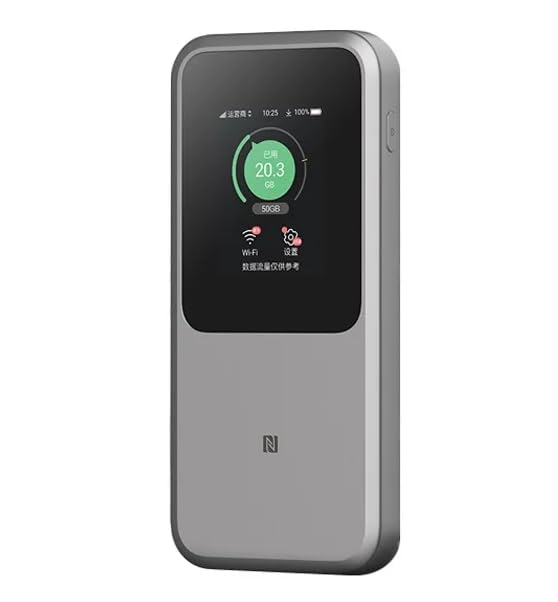
Image: The ZTE U50 Pro 5G Portable WiFi Router highlighting its main features: high-performance Snapdragon X62 chip, high-rate Wi-Fi 6 (3600Mbps), 10000mAh ultra-large capacity battery with 27W fast charge, and a 2.4-inch touch screen for easy device management.
Setup
1. SIM Card Installation
- Locate the SIM card slot on the device.
- Carefully open the SIM card slot cover.
- Insert a standard Nano-SIM card into the slot with the gold contacts facing down and the notched corner aligned correctly.
- Gently push the SIM card until it clicks into place.
- Close the SIM card slot cover securely.
- Note: The device is unlocked and compatible with any standard Nano-SIM card.
2. Powering On/Off
- To Power On: Press and hold the Power button for a few seconds until the screen illuminates.
- To Power Off: Press and hold the Power button until a power-off option appears on the screen. Select "Power Off" or continue holding the button until the device shuts down.
3. Initial Configuration
- Upon first power-on, the device may guide you through an initial setup wizard on its 2.4-inch touch screen.
- Follow the on-screen prompts to set basic preferences such as language, time zone, and initial Wi-Fi settings (SSID and password).
- Alternatively, you can connect to the device's default Wi-Fi network (SSID and password usually found on a sticker inside the SIM card slot or on the device packaging) and access the web management interface via a browser (e.g., 192.168.0.1 or 192.168.1.1).
Operating Instructions
1. Connecting Devices via Wi-Fi
- Ensure your ZTE U50 Pro is powered on.
- On your device (smartphone, laptop, tablet, etc.), open the Wi-Fi settings.
- Scan for available Wi-Fi networks.
- Select the network name (SSID) broadcast by your ZTE U50 Pro. The default SSID is usually printed on the device or its packaging.
- Enter the Wi-Fi password (key) when prompted. The default password is also typically printed on the device.
- Once connected, your device will have internet access through the ZTE U50 Pro.
- The router supports up to 64 simultaneous device connections.
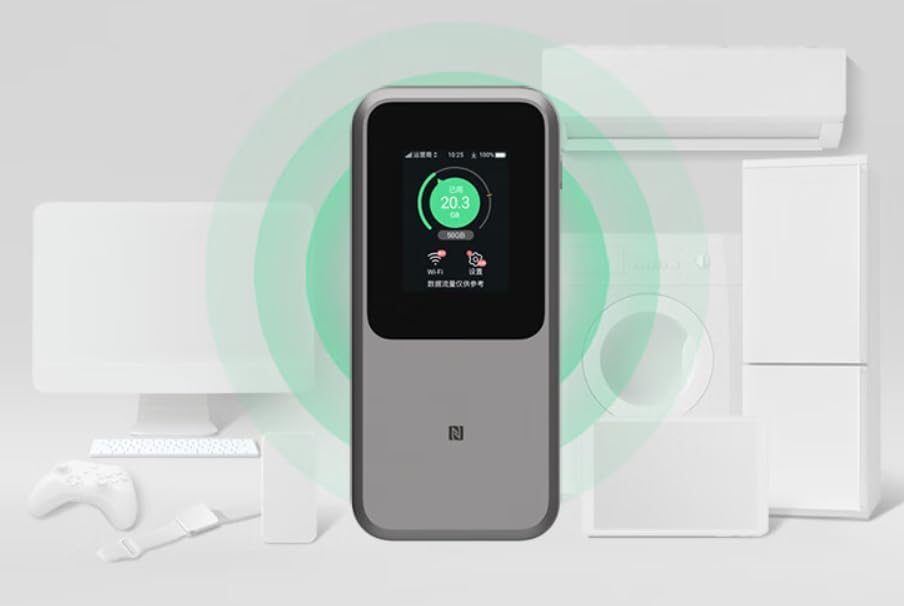
Image: The ZTE U50 Pro 5G Portable WiFi Router actively broadcasting a Wi-Fi signal, demonstrating its ability to connect to various devices such as computers, mobile phones, and gaming consoles simultaneously.
2. Managing Settings
- Via Touch Screen: Use the 2.4-inch touch screen to view network status, data usage, connected devices, and access quick settings.
- Via Web Management Interface: For advanced settings, connect a device to the router's Wi-Fi network and open a web browser. Enter the router's IP address (e.g., 192.168.0.1) in the address bar. Log in using the administrator username and password (default credentials are usually on the device or in the quick guide). Here you can configure Wi-Fi names, passwords, security settings, network modes, and more.
3. Charging the Device
- Connect the provided USB Type-C data cable to the charging port on the ZTE U50 Pro.
- Connect the other end of the cable to a compatible USB power adapter (not included) or a computer's USB port.
- The device supports 27W fast charging. Use a compatible fast charger for optimal charging speed.
- The battery indicator on the screen will show the charging status.
Maintenance
- Battery Care: To prolong battery life, avoid exposing the device to extreme temperatures. For long-term storage, charge the battery to approximately 50% and store in a cool, dry place.
- Cleaning: Use a soft, dry cloth to clean the device. Do not use liquid cleaners or aerosols.
- Software Updates: Periodically check for firmware updates through the web management interface to ensure optimal performance and security.
Troubleshooting
| Problem | Possible Cause | Solution |
|---|---|---|
| No Internet Connection | SIM card not inserted correctly, no network signal, data plan expired, incorrect APN settings. |
|
| Cannot Connect to Wi-Fi | Incorrect Wi-Fi password, Wi-Fi disabled, too many connected devices. |
|
| Slow Internet Speed | Weak signal, network congestion, distance from router, too many connected devices. |
|
| Device Not Powering On | Low battery, faulty charger/cable. |
|
Factory Reset
If the device experiences persistent issues, a factory reset may resolve them. This will erase all custom settings and restore the device to its original factory defaults. Refer to the Quick Guide or the web management interface for instructions on how to perform a factory reset.
Specifications
| Brand | ZTE |
| Model Name | U50 Pro |
| Operating System | ZyNOS |
| Connectivity Technology | 5G, LTE |
| Wireless Standard | 802.11ax (Wi-Fi 6) |
| Frequency Band Class | Dual Band (2.4 GHz & 5 GHz) |
| Max Wi-Fi Rate | 3600 Mbps |
| Max Connected Devices | 64 |
| Battery Capacity | 10,000 mAh (Lithium-ion) |
| Charging | 27W Fast Charge (USB Type-C) |
| Display | 2.4-inch Touch Screen |
| Antenna Type | Internal |
| Recommended Use | Outdoor/Travel |
| Included Components | USB Type-C Data Cable, Quick Guide |
| Country of Origin | China |
Safety Information
- Do not expose the device to extreme temperatures, direct sunlight, or high humidity.
- Avoid dropping or subjecting the device to severe impact.
- Use only approved accessories, such as the provided USB Type-C cable.
- Do not attempt to disassemble or modify the device. This will void the warranty.
- Keep the device away from water and other liquids.
- Dispose of the battery and device according to local regulations.
Warranty and Support
Information regarding specific warranty terms and conditions for the ZTE U50 Pro is typically provided with the product packaging or can be found on the manufacturer's official website. Please refer to the included Quick Guide for details on how to contact customer support for technical assistance or warranty claims.
For further assistance, please visit the official ZTE support website or contact your retailer.


