
1. Introduction
This manual provides detailed instructions for the installation, operation, and maintenance of your Olvy 10.26-inch Wireless CarPlay & Android Auto Display. Please read this manual thoroughly before using the device to ensure proper functionality and safety. This device is designed to enhance your driving experience with seamless smartphone integration, navigation, and entertainment features.
2. Product Features
- Wireless Connectivity: Supports Wireless Apple CarPlay and Android Auto for hands-free operation.
- Large Touchscreen: 10.26-inch Full HD display for clear visibility and responsive interaction.
- Rear View Camera Support: Integrates with a rear view camera for enhanced parking safety.
- Mirror Link Functionality: Allows mirroring of smartphone content (Android Cast & AirPlay iOS) to the display.
- Voice Control: Compatible with Siri and Google Assistant for voice-activated commands.
- Multiple Audio Output Options: Connects via Bluetooth, AUX, FM Transmitter, or built-in speakers.
- GPS Navigation: Integrated GPS for reliable navigation.
- Multimedia Playback: Supports online and offline music/video playback.
- USB Charging: Extra USB port for phone charging during CarPlay use.
- Extensive Compatibility: Works with various car brands.
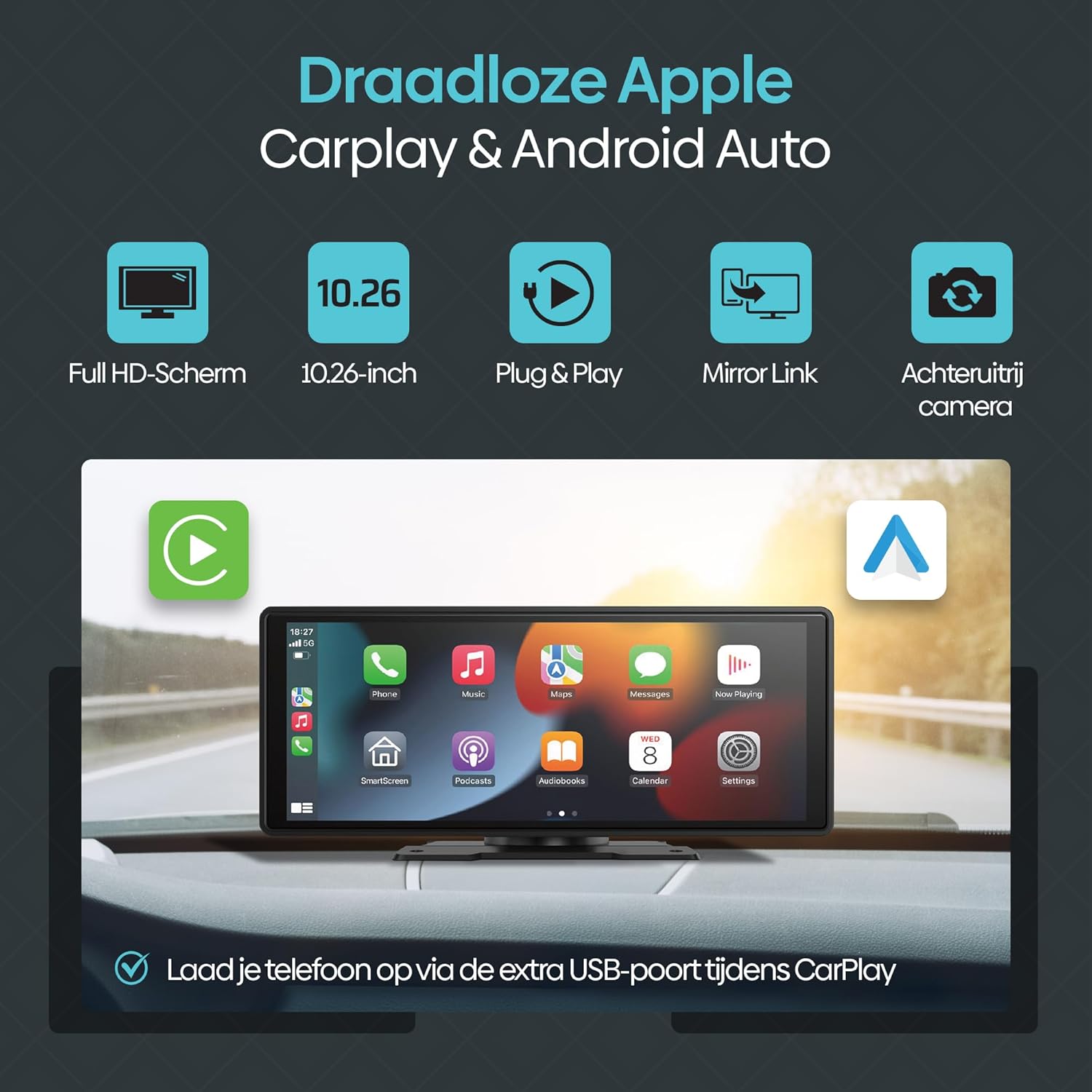
Figure 2.1: Overview of Olvy CarPlay Display key features including Full HD screen, 10.26-inch size, plug & play functionality, mirror link, rear view camera support, and USB charging.

Figure 2.2: The display supports voice control and GPS navigation, showing common app icons for a safer driving experience.

Figure 2.3: Key benefits of the Olvy CarPlay Display, highlighting its full touchscreen, screen projection capabilities, easy installation, media playback, integrated navigation and entertainment, included 64GB SD card and rear camera, and combined CarPlay with charging functionality.
3. What's in the Box
The Olvy CarPlay Display package includes the following components:
- Olvy 10.26-inch Touchscreen Display
- Rear View Camera
- Power Cord (for cigarette lighter connection)
- Suction Cup Mount
- 64GB SD Card
- 3m AUX Cable
- Self-adhesive Mount
- User Manual
- Luxe Packaging Box

Figure 3.1: All components included in the Olvy CarPlay Display package.
4. Setup and Installation
The Olvy CarPlay Display offers flexible installation options to suit your vehicle's interior.
4.1 Mounting the Display
You can choose between a suction cup mount or a self-adhesive mount. Ensure the mounting surface is clean and dry for optimal adhesion. Position the display to ensure clear visibility without obstructing your view of the road.

Figure 4.1: Various ways to install the Olvy CarPlay Display in a vehicle.
4.2 Power Connection
Connect the provided power cord to the display and plug the other end into your vehicle's cigarette lighter socket. The device is designed for easy plug-and-play operation.
4.3 Rear View Camera Installation (Optional)
If using the rear view camera, connect it to the designated input on the display. For automatic activation, the camera typically needs to be wired to your vehicle's reverse lights. Refer to the camera's specific instructions for detailed wiring.
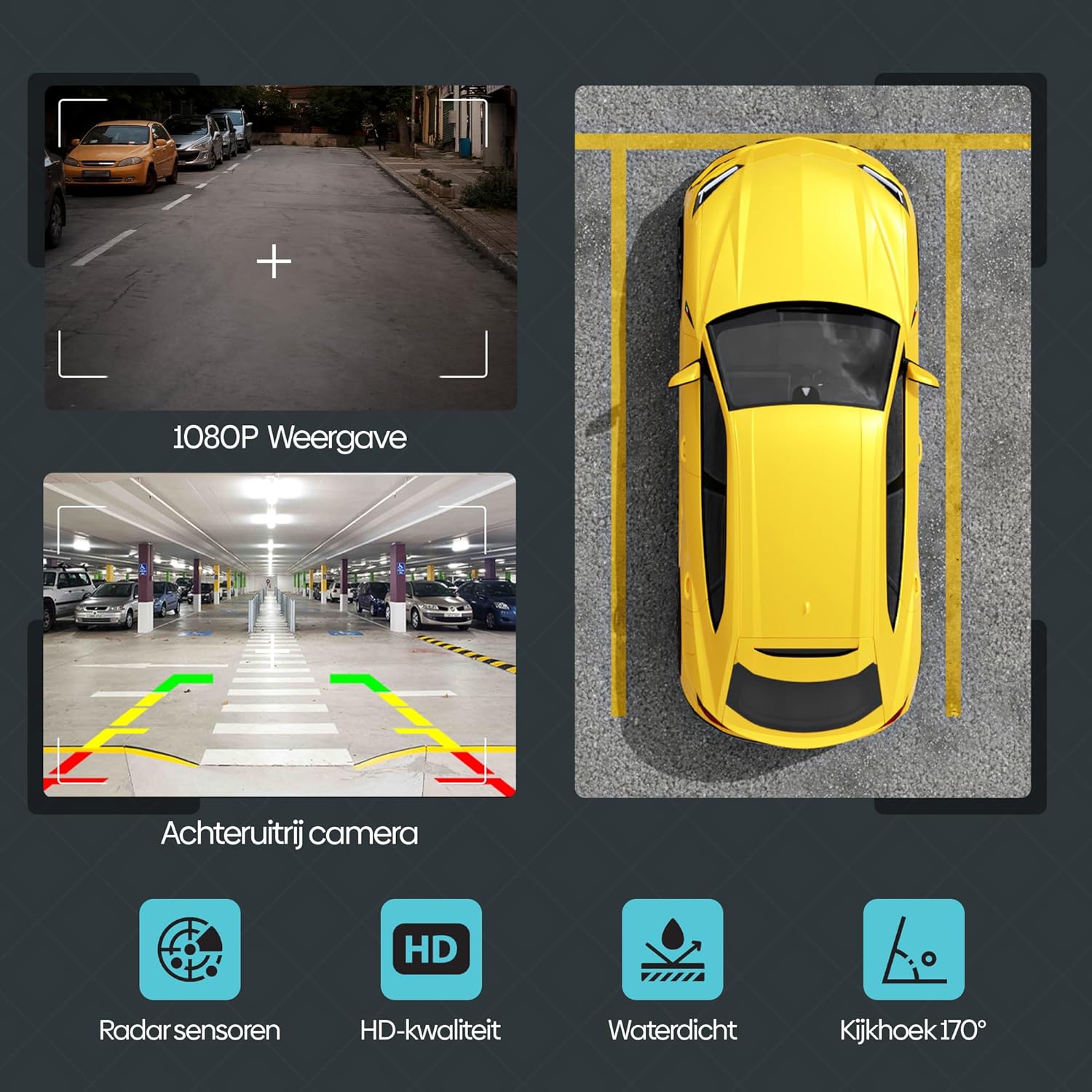
Figure 4.2: Rear view camera features, including 1080P display, radar sensors, HD quality, waterproofing, and a 170-degree viewing angle.
5. Operating Instructions
5.1 Wireless CarPlay & Android Auto
To connect your smartphone wirelessly:
- Ensure Bluetooth and Wi-Fi are enabled on your smartphone.
- On the Olvy display, navigate to the CarPlay or Android Auto option.
- Search for the display's Bluetooth name (e.g., "SML-BT") on your phone and pair.
- Confirm the pairing on both devices. The display will automatically connect to CarPlay or Android Auto.
5.2 Smart Voice Control
Utilize voice commands for navigation, calls, and music playback. Activate your phone's voice assistant (Siri for iOS, Google Assistant for Android) and speak your commands. This feature promotes hands-free and safe driving.
5.3 Wireless Mirror Link (Android Cast & AirPlay iOS)
This feature allows you to mirror your smartphone's screen directly onto the Olvy display. This is ideal for passengers to view videos or other content from a connected phone.

Figure 5.1: Streaming content from a smartphone to the Olvy display using Android Cast or AirPlay iOS.
5.4 Audio Output Options
The display supports four methods for audio output:
- Built-in Speakers: Audio plays directly from the display's integrated speakers.
- Bluetooth: Connect to your car's Bluetooth system for audio output.
- FM Transmitter: Transmit audio to your car's FM radio by tuning both devices to the same frequency.
- AUX Connection: Use the provided 3m AUX cable to connect the display to your car's AUX input.
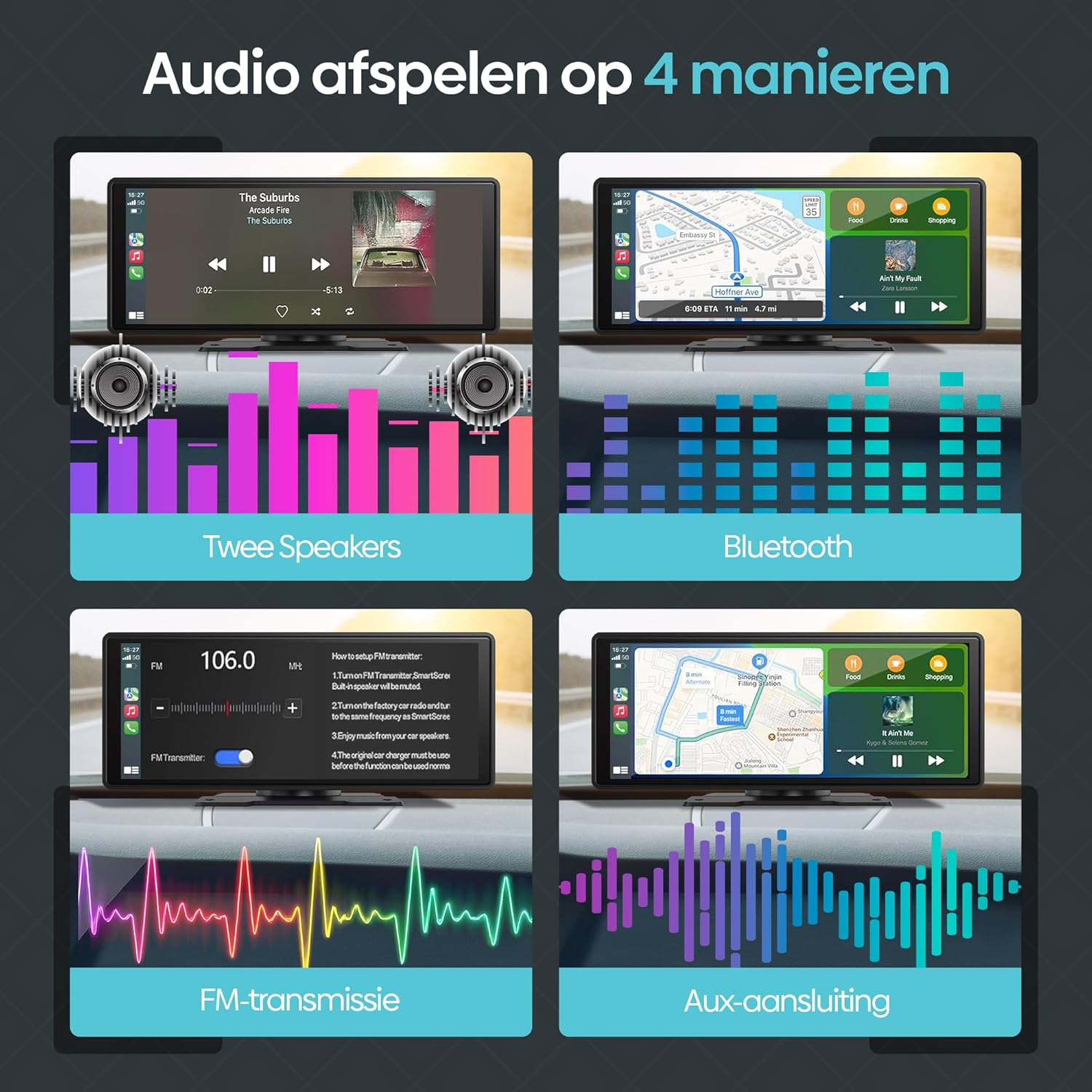
Figure 5.2: Illustration of the four available audio output methods.
5.5 Settings and Customization
The settings menu allows you to personalize your display experience:
- Sound: Adjust equalizer settings (Jazz, Classic, Rock, Pop, Flat) and loudness.
- Display Settings: Control brightness, contrast, and saturation.
- Wallpaper: Choose from various pre-installed wallpapers.
- ScreenSave: Configure screen saver parameters.
- Basic Setup: Access options like built-in speaker control, reverse mute, touch calibration, and factory reset.
- Clock: Adjust time and date settings.
- Language: Select your preferred language.
6. Troubleshooting
If you encounter issues with your Olvy CarPlay Display, refer to the following common solutions:
- No Power: Ensure the power cord is securely connected to both the display and the car's cigarette lighter. Check the car's fuse for the cigarette lighter socket.
- Bluetooth/Wi-Fi Connection Issues: Restart both the display and your smartphone. Ensure no other devices are interfering with the connection. Forget and re-pair the device in your phone's Bluetooth settings.
- No Audio: Verify your selected audio output method (Bluetooth, AUX, FM Transmitter, or built-in speakers) is correctly configured. If using FM Transmitter, ensure the frequency matches your car radio. Check volume levels on both the display and your car stereo.
- Unresponsive Touchscreen: Try restarting the device. If the issue persists, perform a touch calibration from the 'Basic Setup' menu.
- Rear View Camera Not Displaying: Check all camera connections. Ensure the camera is receiving power and is correctly wired to the reverse lights if automatic activation is desired.
- CarPlay/Android Auto Not Launching: Ensure your smartphone's operating system is up to date and compatible. Try connecting with a different USB cable if using a wired connection (though this device primarily supports wireless).
If problems persist, contact Olvy customer support for further assistance.
7. Specifications
- Product Dimensions (L x W x H): 24 x 9 x 9 cm; 1.19 kilograms
- Manufacturer: Olvy
- Model Name: CarPlay Scherm Draadloze (Wireless CarPlay Screen)
- Vehicle Service Type: Car
- Screen Size: 10.26 Inches
- Special Features: Smart Multimedia, GPS Navigation, Multi-brand Compatibility, Android Auto, Apple CarPlay, Wireless Connectivity, Integrated Bluetooth and Wi-Fi
- Connectivity Technology: Bluetooth
- Map Type: Europe
- Included Components: CarPlay (main unit)
- Audio Output Mode: Stereo
- Touchscreen Type: Capacitive
- Compatible Vehicle Type: Car
- Human Input: Touchscreen
- Compatible Devices: Smartphone, Television, Game Consoles, Personal Computer
- Control Method: Touch
- Batteries Included: No
- Supported Satellite Navigation System: GPS
- Unit Count: 1 Total
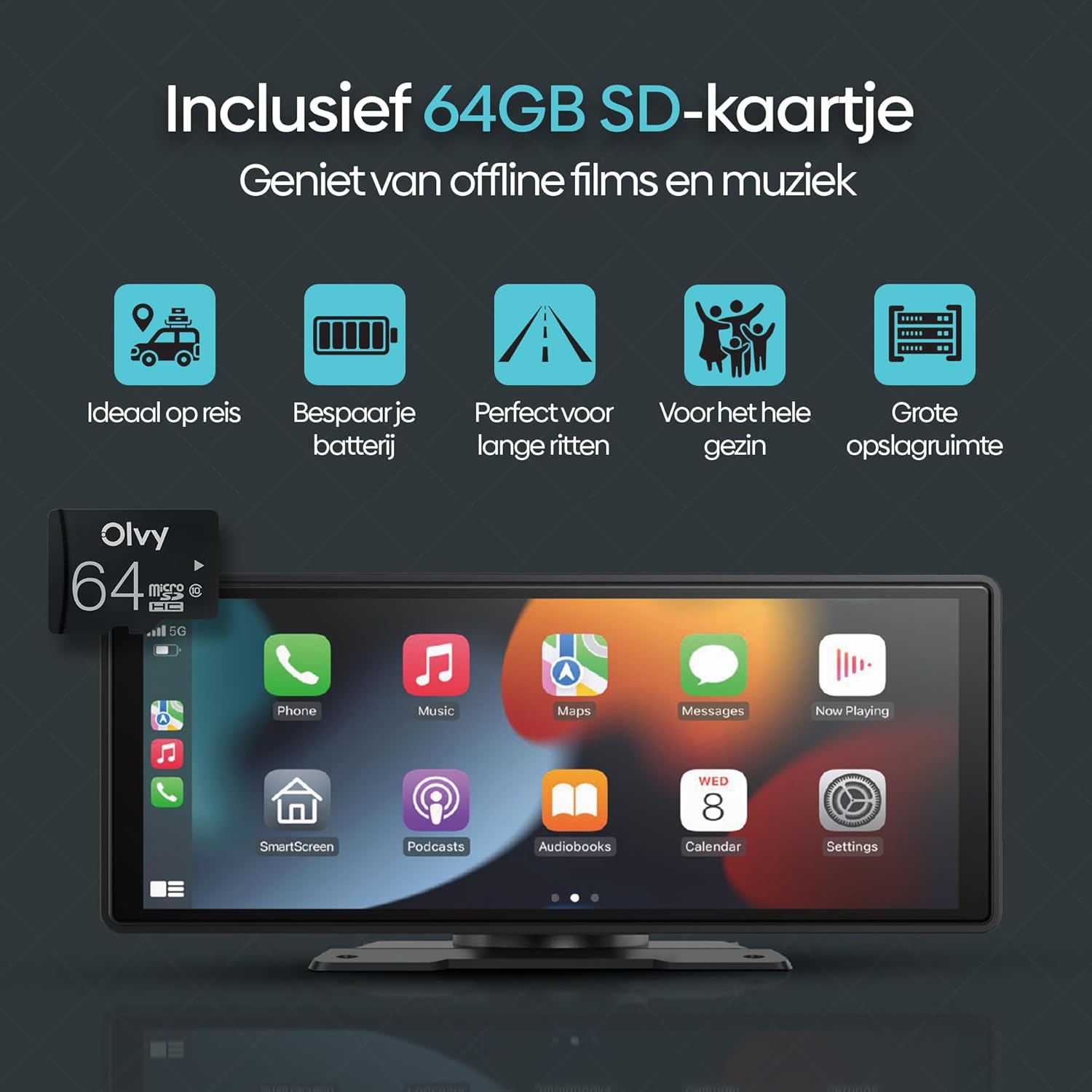
Figure 7.1: Screen size comparison, illustrating the optimal 10.26-inch format for an improved driving experience.
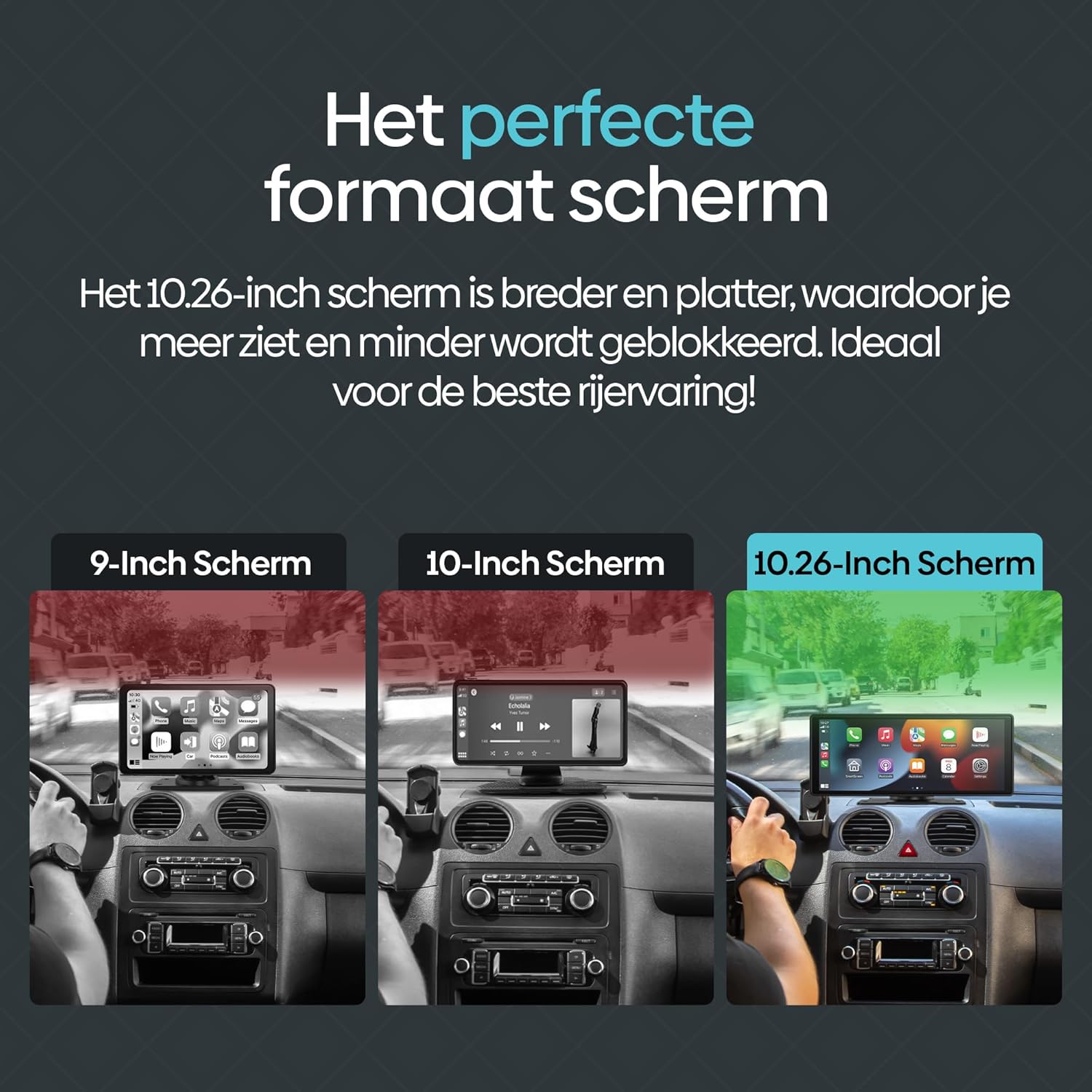
Figure 7.2: The included 64GB SD card allows for offline media playback, enhancing convenience during travel.
8. Maintenance
To ensure the longevity and optimal performance of your Olvy CarPlay Display, follow these maintenance guidelines:
- Cleaning: Use a soft, dry cloth to clean the screen and exterior. Avoid abrasive cleaners or solvents that could damage the display.
- Temperature: Avoid exposing the device to extreme temperatures, both hot and cold, as this can affect its performance and lifespan.
- Cable Management: Ensure all cables are neatly routed and secured to prevent damage or interference with driving controls.
- Software Updates: Periodically check for any available software updates from Olvy to ensure you have the latest features and bug fixes.
9. Warranty and Support
The Olvy CarPlay Display comes with a manufacturer's warranty. Please refer to the warranty information provided in your product packaging for details on coverage and duration. For technical support, troubleshooting assistance, or warranty claims, please contact Olvy customer service through their official website or the contact information provided in your product documentation.
Warranty Description: 1 (This typically refers to a 1-year warranty, but please confirm with the manufacturer's official documentation).


