
1. Introduction
This manual provides essential information for setting up, operating, maintaining, and troubleshooting your HP 24-CB100 All-in-One Desktop PC. Please read these instructions carefully before using your device to ensure proper function and longevity.
The HP 24-CB100 is an All-in-One desktop computer featuring a 23.8-inch Full HD IPS display, powered by an Intel Core i5-1235U processor with Intel UHD Graphics, 8GB DDR4 RAM, and a 512GB M.2 SSD, running Windows 11 Pro.
2. What's in the Box
Verify that all components are present in the packaging:
- HP 24-CB100 All-in-One Desktop PC
- Power Cord
- HP White Wired Keyboard
- HP White Wired Mouse
- 32GB USB 3.0 Flash Drive
- Speakers (integrated)

Image: Contents of the HP 24-CB100 All-in-One Desktop box, including the computer, wired keyboard, and wired mouse.
3. Setup
- Unpack the Desktop: Carefully remove the All-in-One PC and all accessories from the packaging. Place the desktop on a stable, flat surface.
- Connect Keyboard and Mouse: Plug the USB cables from the HP White Wired Keyboard and HP White Wired Mouse into the available USB ports on the back of the desktop.
- Connect Power: Connect the power cord to the power port on the back of the desktop, then plug the other end into a grounded electrical outlet.
- Initial Power On: Press the power button, usually located on the side or bottom bezel of the display. The system will boot up and guide you through the Windows 11 Pro initial setup process. Follow the on-screen instructions to configure your operating system, network connection, and user accounts.

Image: Front view of the HP 24-CB100 All-in-One Desktop, illustrating its sleek design and integrated stand.
4. Operating Instructions
4.1 Power On/Off
- To Power On: Press the power button.
- To Shut Down: Click the Start button in Windows 11, then select Power > Shut down.
- To Restart: Click the Start button, then select Power > Restart.
- To Sleep: Click the Start button, then select Power > Sleep.
4.2 Display and Graphics
The desktop features a 23.8-inch Full HD (1920 x 1080) IPS Anti-glare display. Adjust display settings through Windows 11 settings (Right-click on desktop > Display settings).
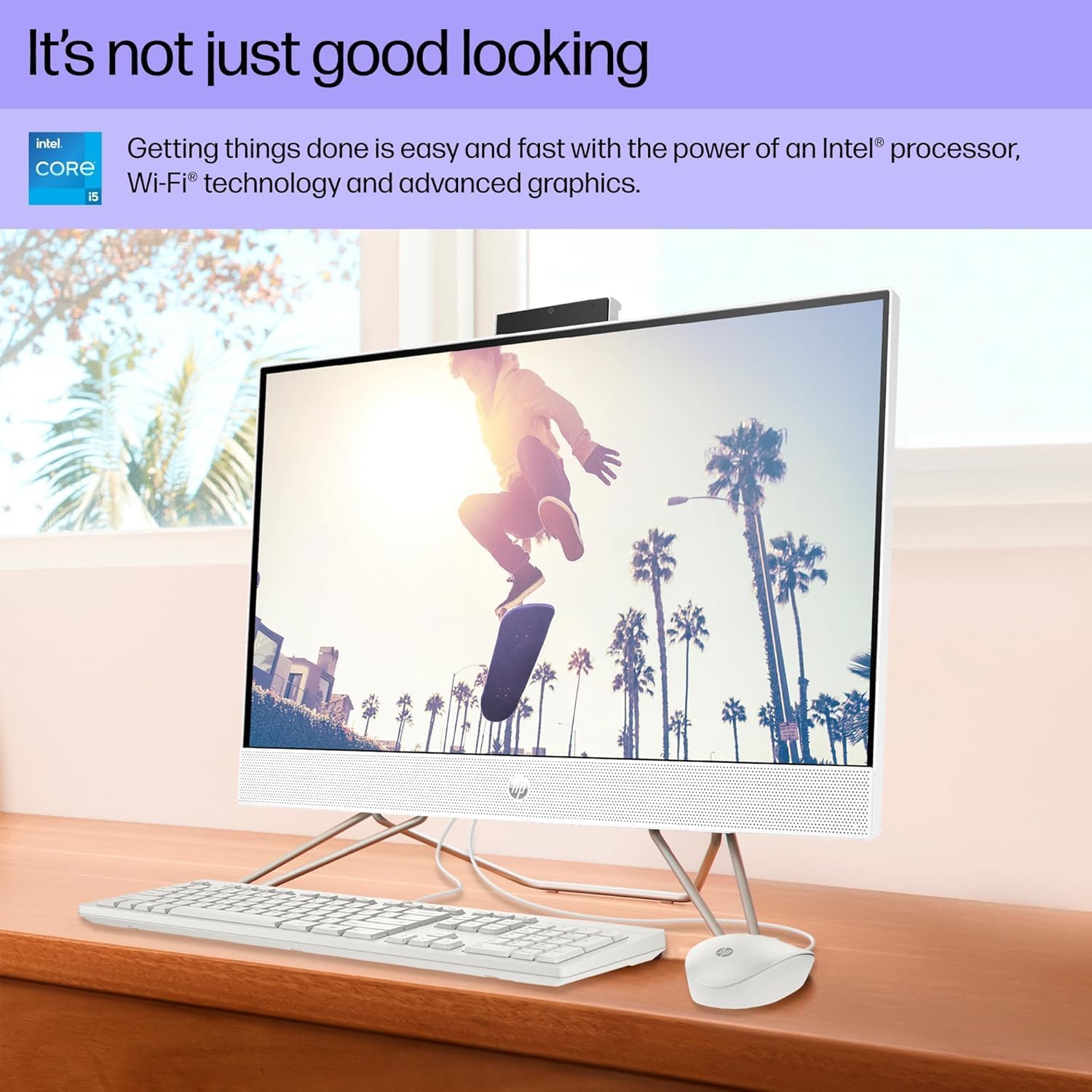
Image: The HP 24-CB100 All-in-One Desktop displaying a vibrant image, showcasing its Full HD IPS screen quality.
4.3 Privacy Camera
The integrated 720p HD camera features a privacy shutter. The camera and microphone are only enabled when the shutter is open and in use by an application.

Image: The HP 24-CB100 All-in-One Desktop during a video call, illustrating the pop-up camera and microphone privacy feature.
4.4 Connectivity
- Wi-Fi: Connect to wireless networks using Realtek Wi-Fi 6 (2x2). Access Wi-Fi settings via the Windows 11 taskbar network icon.
- Bluetooth: Pair Bluetooth devices using Bluetooth 5.3. Manage Bluetooth devices in Windows 11 Settings > Bluetooth & devices.
- Ports: Utilize the available ports for peripherals and external displays.
5. Maintenance
- Cleaning: Use a soft, lint-free cloth to clean the screen and exterior surfaces. Avoid abrasive cleaners or solvents. For the screen, use a specialized screen cleaner if necessary.
- Software Updates: Regularly check for and install Windows updates and HP driver updates to ensure optimal performance and security.
- Ventilation: Ensure the desktop's vents are clear of obstructions to prevent overheating.
- Data Backup: Periodically back up important data to an external drive or cloud storage to prevent data loss.
6. Troubleshooting
- No Power: Ensure the power cord is securely connected to both the desktop and the electrical outlet. Test the outlet with another device.
- Display Issues: If the screen is blank, ensure the desktop is powered on. If an external monitor is connected, check its power and cable connections.
- No Internet Connection: Verify Wi-Fi is enabled and connected to the correct network. If using an Ethernet cable, ensure it is securely plugged into the RJ-45 port.
- Peripheral Not Working: Ensure USB devices (keyboard, mouse) are properly connected to the correct ports. Try connecting them to a different USB port.
- System Slowdown: Close unnecessary applications. Check for background processes in Task Manager. Ensure sufficient free space on the SSD.
For further assistance, refer to the HP support website or contact customer service.
7. Specifications
| Feature | Specification |
|---|---|
| Model Name | 24-CB1210NISS |
| Processor | Intel Core i5-1235U (Up to 4.4 GHz, 10 Cores, 12 Threads) |
| RAM | 8GB DDR4 3200 MHz |
| Storage | 512GB M.2 SSD |
| Display | 23.8-inch FHD (1920 x 1080) IPS Anti-glare |
| Graphics | Intel UHD Graphics (Integrated) |
| Operating System | Windows 11 Pro |
| Wireless Connectivity | Realtek Wi-Fi 6 (2x2), Bluetooth 5.3 |
| Ports | 2x USB 3.2 Gen 1, 2x USB 2.0, 1x HDMI 1.4, 1x RJ-45, 1x Headphone/microphone combo |
| Camera | 720p HD Camera with Privacy Shutter |
| Dimensions (W x D x H) | 21.28" x 7.23" x 16.50" inches |
| Weight | 11.84 lbs |
| Color | Starry White |
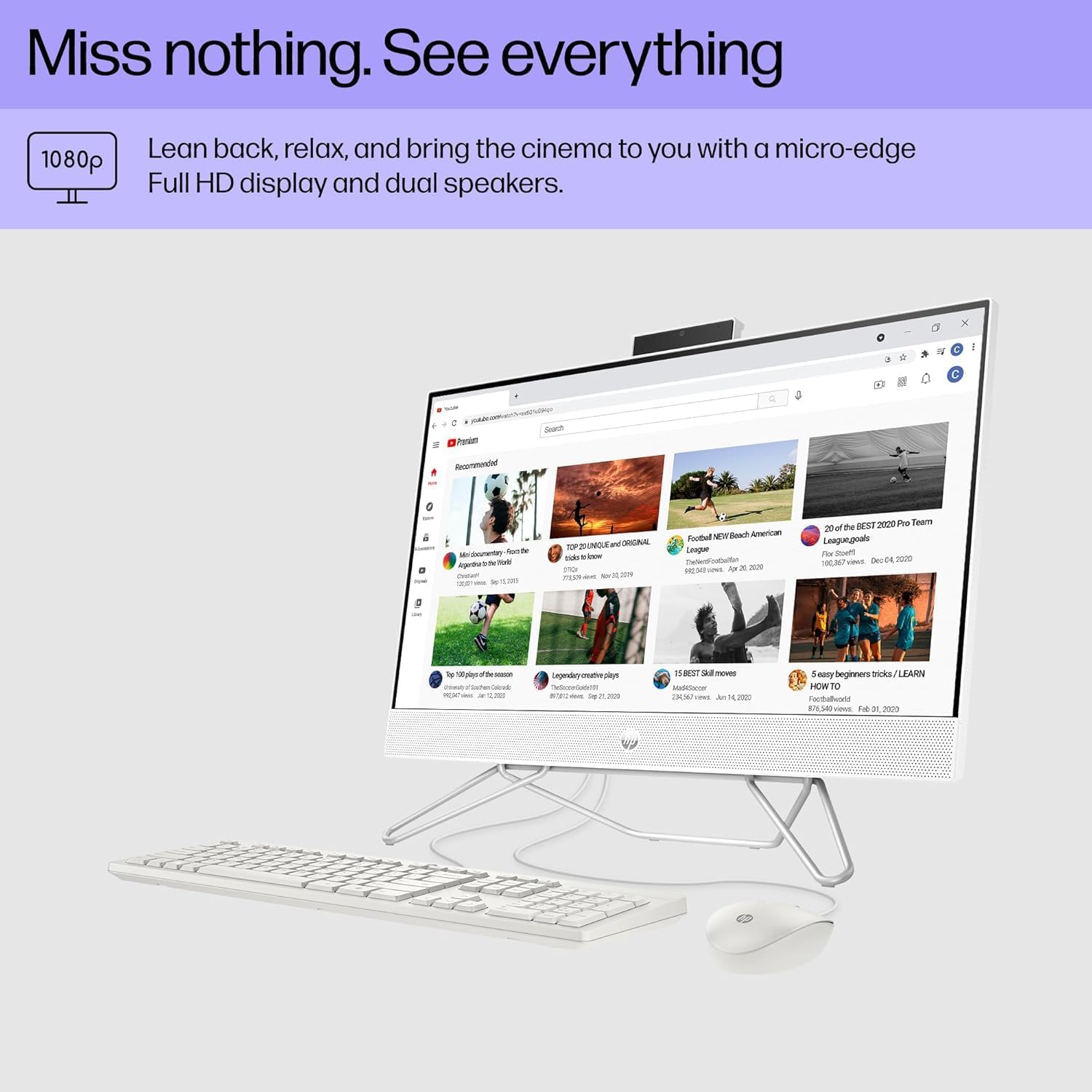
Image: Dimensions of the HP 24-CB100 All-in-One Desktop.
8. Warranty and Support
Your HP 24-CB100 All-in-One Desktop is covered by HP's standard warranty. For detailed warranty information, including terms and conditions, please refer to the warranty documentation included with your product or visit the official HP support website.
For technical support, driver downloads, and troubleshooting resources, please visit the HP Support Website or contact HP customer service directly.


