
1. Introduction
The Kienzle Model 15004 Radio Weather Station is designed to provide comprehensive weather and time information for your home and surrounding areas. It features a main base unit with integrated sensors for indoor temperature and humidity, and connects wirelessly to three remote thermo-hygrometer sensors for outdoor or additional indoor monitoring. This manual will guide you through the setup, operation, and maintenance of your weather station.
2. Package Contents
Please check the package contents to ensure all items are present:
- 1x Kienzle Model 15004 Base Station
- 1x Power Adapter for Base Station
- 3x Wireless Thermo-Hygrometer Sensors
- 1x User Manual
3. Product Overview
3.1 Base Station
The base station is the central unit, displaying indoor and outdoor temperature, humidity, barometric pressure, weather forecasts, time, and date. It features a color display for easy readability.

Detailed view of the Kienzle weather station's color display showing indoor/outdoor data, time, and weather forecast.

Rear view of the Kienzle weather station, showing battery compartment, power input, and control buttons.
3.2 Wireless Sensors
The three wireless sensors measure temperature and humidity. Each sensor has its own small display to show current readings directly. They can be placed indoors or outdoors and have a range of up to 80 meters from the base station.
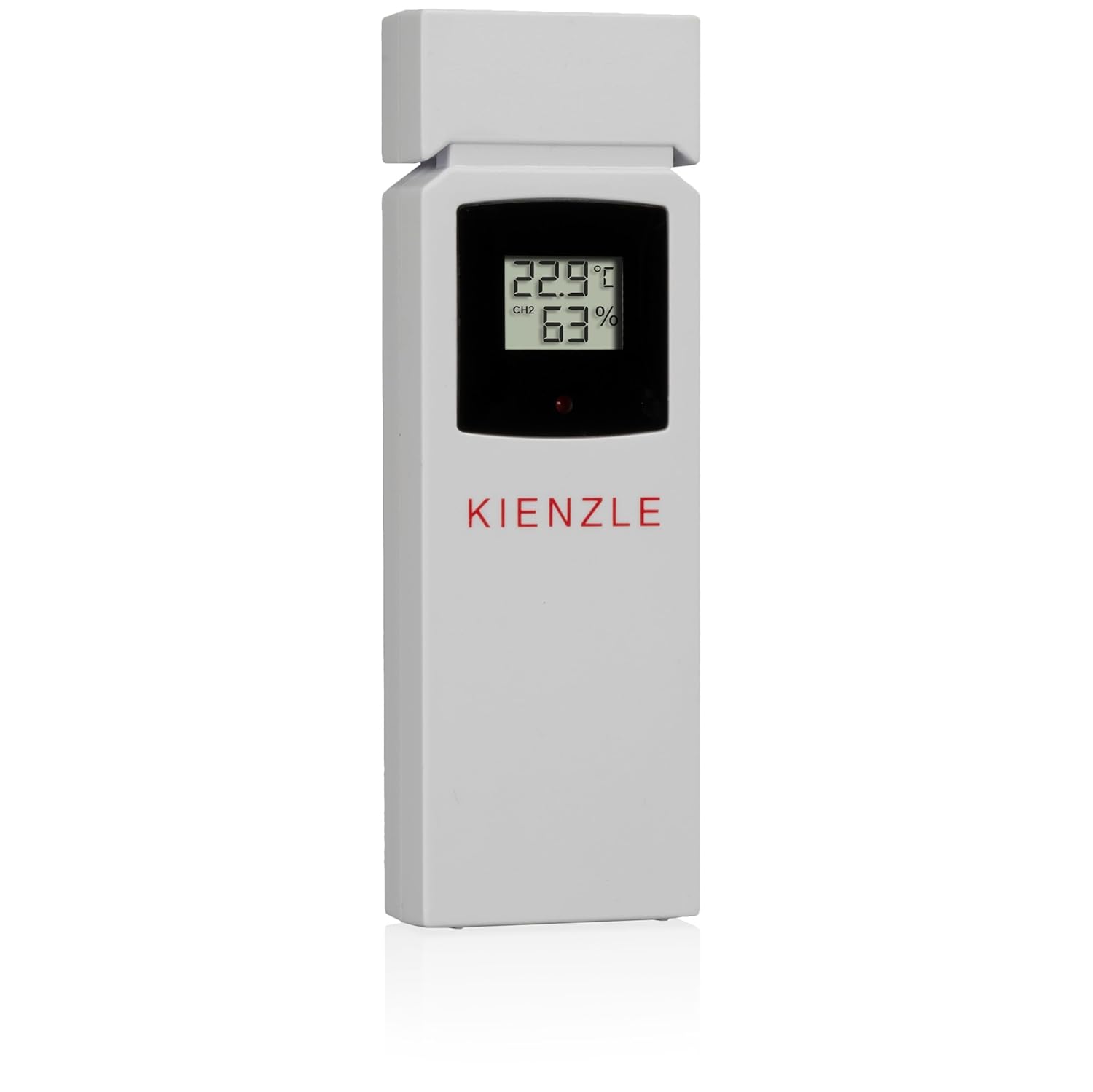
A single Kienzle remote thermo-hygrometer sensor with its display.

The Kienzle Model 15004 Radio Weather Station with its base unit and three remote sensors.
4. Setup
4.1 Battery Installation
- Base Station: Open the battery compartment on the back of the base station. Insert 3x AAA batteries (not included), observing the correct polarity. Close the compartment. The base station can also be powered by the included AC adapter.
- Wireless Sensors: Open the battery compartment on the back of each wireless sensor. Insert 2x AAA batteries (not included) into each sensor, observing the correct polarity. Close the compartments.
4.2 Initial Power-On and Sensor Pairing
Once batteries are installed in both the base station and sensors, or the base station is connected to power, the units will automatically attempt to pair. The base station will search for available sensors. This process may take a few minutes. Ensure sensors are within range (up to 80m in open air) during initial setup.
4.3 DCF Time Signal Synchronization
The base station will automatically attempt to synchronize its time and date with the DCF radio signal. This process typically occurs overnight. Ensure the base station is placed in a location where it can receive a clear signal, away from electronic interference.
5. Operating Instructions
5.1 Display Overview
The main display shows the following information:
- Top Section: Time, Date, Day of the week, DCF signal status.
- Middle Section: Indoor temperature and humidity, Barometric pressure with trend, Graphical weather forecast.
- Bottom Section: Temperature and humidity for each of the three wireless sensors.
5.2 Setting Time and Date
If the DCF signal is not available or you prefer manual setting:
- Press and hold the 'MODE' button to enter time setting mode.
- Use the 'UP' and 'DOWN' buttons to adjust values.
- Press 'MODE' to confirm each setting and move to the next (e.g., 12/24h format, hour, minute, year, month, day, day of week language).
5.3 Alarm Function
The weather station features two independent alarms with a snooze function.
- Press 'ALARM' button to view Alarm 1, press again for Alarm 2.
- Press and hold 'ALARM' to enter alarm setting mode.
- Use 'UP' and 'DOWN' to set the alarm time. Press 'ALARM' to confirm.
- To activate/deactivate an alarm, press 'ALARM' to select it, then press 'UP' or 'DOWN'.
- When an alarm sounds, press the 'SNOOZE' button to temporarily silence it.
5.4 Min/Max Values
The station records minimum and maximum temperature and humidity values for both indoor and each outdoor sensor.
- Press the 'MIN/MAX' button to cycle through current, maximum, and minimum values.
- To clear recorded values, press and hold 'MIN/MAX' while viewing the min/max display.
5.5 Customizing Sensor Names
You can assign custom names to the three remote sensor channels for easier identification (e.g., 'Garden', 'Bedroom').
- Press the 'CHANNEL' button to select the desired sensor channel.
- Press and hold the 'CHANNEL' button to enter naming mode.
- Use 'UP' and 'DOWN' to select from predefined names.
- Press 'CHANNEL' to confirm the name.
5.6 Backlight
The base station features an adjustable backlight for improved visibility in various lighting conditions. Use the dedicated backlight button or settings menu to adjust brightness levels.
6. Maintenance
6.1 Cleaning
Wipe the base station and sensors with a soft, damp cloth. Do not use abrasive cleaners or solvents, as these may damage the display or casing.
6.2 Battery Replacement
Replace batteries in the base station (3x AAA) and each sensor (2x AAA) when the low battery indicator appears on the display. Ensure correct polarity during replacement.
6.3 Sensor Placement
For outdoor sensors, place them in a shaded, well-ventilated area, protected from direct sunlight and heavy rain, to ensure accurate readings and prolong battery life. They can be placed on a table or mounted on a wall.
7. Troubleshooting
- No Display/Power: Check battery installation and polarity. If using the AC adapter for the base station, ensure it is properly connected to a working power outlet.
- Sensors Not Connecting: Ensure sensors are within the 80m range of the base station. Check sensor batteries. Try re-pairing by removing and reinserting batteries in both the base station and sensors. Avoid major metal objects or thick walls between units.
- Inaccurate Readings: Ensure sensors are placed in appropriate locations (e.g., outdoor sensors protected from direct sun/rain). Allow time for readings to stabilize after initial setup or battery change. Note that the base station's internal sensor may show slightly different readings if placed near heat sources or in direct sunlight.
- DCF Time Synchronization Issues: Place the base station away from electronic devices that may cause interference. Try moving the base station to a different location, preferably near a window. Manual time setting is an alternative if automatic synchronization is consistently unsuccessful.
- Interference from Neighboring Devices: If you experience interference from similar devices nearby, try changing the channel on your remote sensors if your model supports this feature (refer to specific instructions for channel selection).
8. Specifications
| Feature | Detail |
|---|---|
| Model Number | 15004 |
| Base Station Power | AC Adapter (included), 3x AAA batteries (not included) |
| Sensor Power | 2x AAA batteries per sensor (not included) |
| Base Station Dimensions (L x W x H) | 14.5 x 14.5 x 2.5 cm |
| Wireless Sensor Range | Up to 80 meters (open air) |
| Temperature Accuracy | ±1 °C |
| Special Features | Alarm function, Time and Date display, Min/Max value memory, Weather forecast, DCF radio clock |
| Connectivity Technology | Wireless Sensors |
| Included Components | Base unit, 3x Thermo-Hygrometer radio sensors, Power adapter, Manual |
9. Warranty and Support
For warranty information and technical support, please refer to the documentation provided with your purchase or contact Kienzle customer service. Keep your proof of purchase for warranty claims.


