
Huidun H50 N150
Huidun H50 Mini PC User Manual
Model: H50 N150
1. Introduction
This manual provides detailed instructions for setting up, operating, maintaining, and troubleshooting your Huidun H50 Mini PC. Please read this manual thoroughly before using the device to ensure proper functionality and longevity. The Huidun H50 Mini PC is a compact and powerful computer designed for various applications, including office work, home entertainment, and educational tasks.
2. Package Contents
Verify that all items listed below are present in your package:
- 1 x Huidun H50 N150 Mini PC
- 1 x Power Adapter
- 1 x User Manual (this document)
- 1 x HDMI Cable
- 1 x VESA Mount with Screws
3. Product Overview
The Huidun H50 Mini PC is designed for efficiency and versatility. Below is an overview of its physical features and connectivity options.

Image: Front view of the Huidun H50 Mini PC, showcasing its compact design and front-facing ports.
3.1 Ports and Connectors
The Mini PC features a variety of ports for connecting peripherals and displays.

Image: Diagram illustrating the front and rear ports of the Huidun H50 Mini PC, including USB, HDMI, DP, LAN, and audio jacks.
- Front Panel:
- Power Button: To turn the device on or off.
- 2 x USB 3.0 Ports (5Gbps): For high-speed data transfer with compatible devices.
- Audio Jack: For connecting headphones or external speakers.
- Rear Panel:
- DC Power Input: For connecting the power adapter.
- 2 x USB 2.0 Ports (480Mbps): For connecting standard USB peripherals.
- 1 x HDMI 2.0 Port (Max 4096*2160@60Hz): For connecting to a display.
- 1 x DisplayPort (DP) (Max 4096*2160@60Hz): For connecting to a second display.
- 1 x RJ45 Gigabit Ethernet Port: For wired network connection.
- Security Lock Slot: For physical security.
4. Setup Guide
Follow these steps to set up your Huidun H50 Mini PC.
4.1 Connecting to a Display
- Connect one end of the provided HDMI cable to the HDMI port on the Mini PC.
- Connect the other end of the HDMI cable to an HDMI input port on your monitor or TV.
- For dual display setup, connect a second display using the DisplayPort (DP) on the Mini PC.

Image: Illustration of the Huidun H50 Mini PC connected to two 4K UHD displays, demonstrating its dual display capability.
4.2 Connecting Peripherals
- Connect your USB keyboard and mouse to any available USB ports on the Mini PC.
- If using wired internet, connect an Ethernet cable from your router to the RJ45 Gigabit Ethernet port on the Mini PC.
4.3 Powering On
- Connect the power adapter to the DC power input port on the Mini PC.
- Plug the power adapter into a wall outlet.
- Press the power button on the front panel of the Mini PC. The power indicator light will illuminate.
5. Operating Instructions
5.1 Initial Windows 11 Pro Setup
Upon first boot, the Mini PC will guide you through the Windows 11 Pro setup process. Follow the on-screen prompts to configure language, region, network settings, and user accounts.
5.2 Network Connectivity
- Wi-Fi 6: The Mini PC supports dual-band Wi-Fi 6 for high-speed wireless internet. To connect, navigate to Windows Settings > Network & internet > Wi-Fi, select your network, and enter the password.
- Gigabit Ethernet: If you connected an Ethernet cable, the Mini PC should automatically establish a wired network connection.
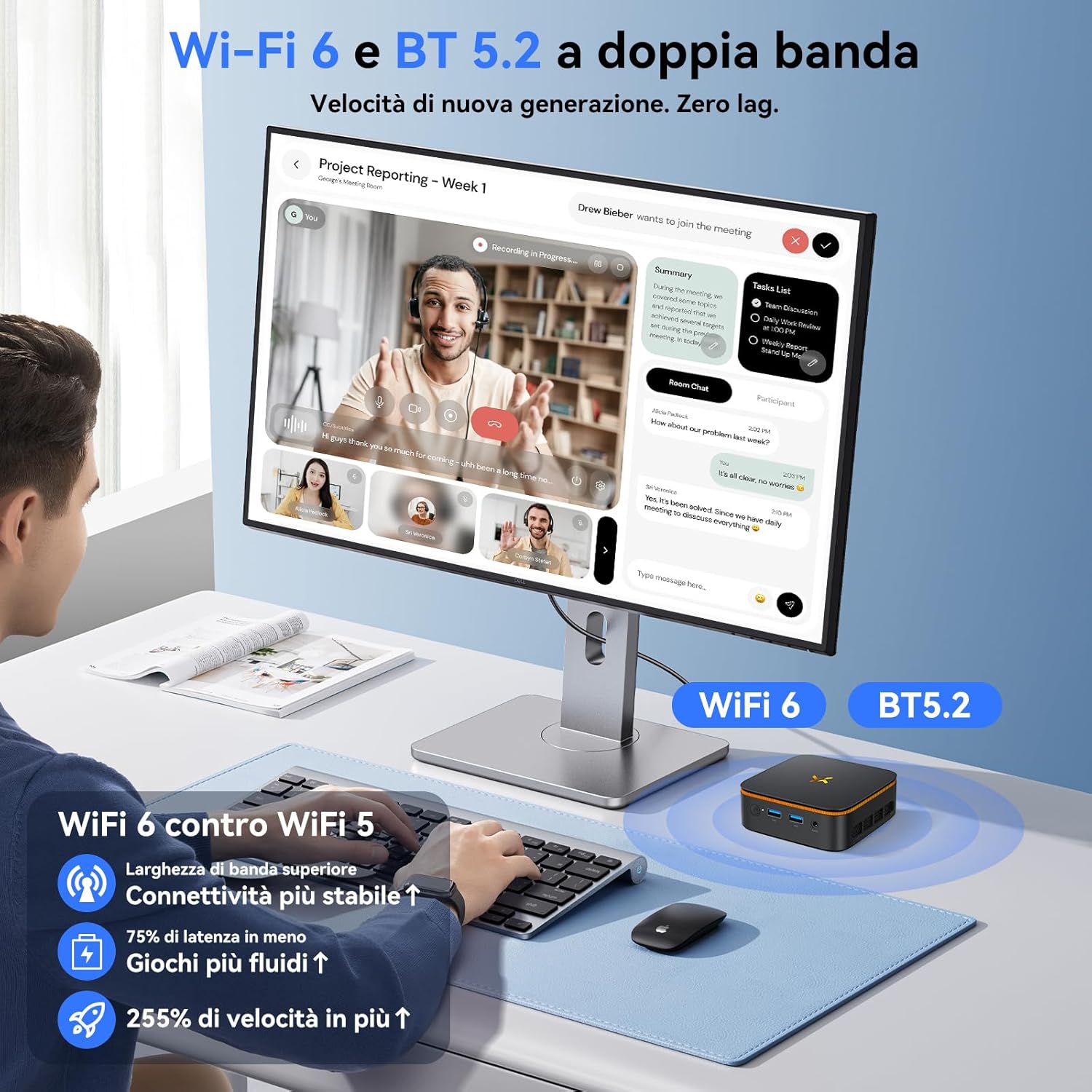
Image: Visual representation of the Huidun H50 Mini PC's Wi-Fi 6 and Bluetooth 5.2 capabilities, highlighting improved speed and stability.
5.3 Bluetooth 5.2 Pairing
To connect Bluetooth devices:
- Ensure your Bluetooth device is in pairing mode.
- On the Mini PC, go to Windows Settings > Bluetooth & devices.
- Turn on Bluetooth and click 'Add device'.
- Select your device from the list and follow the pairing instructions.
5.4 Storage Expansion
The Mini PC's 512GB M.2 SSD can be expanded up to 2TB using an additional M.2 NGFF/SATA drive (not included). Refer to the detailed instructions in the full user manual for installation procedures.
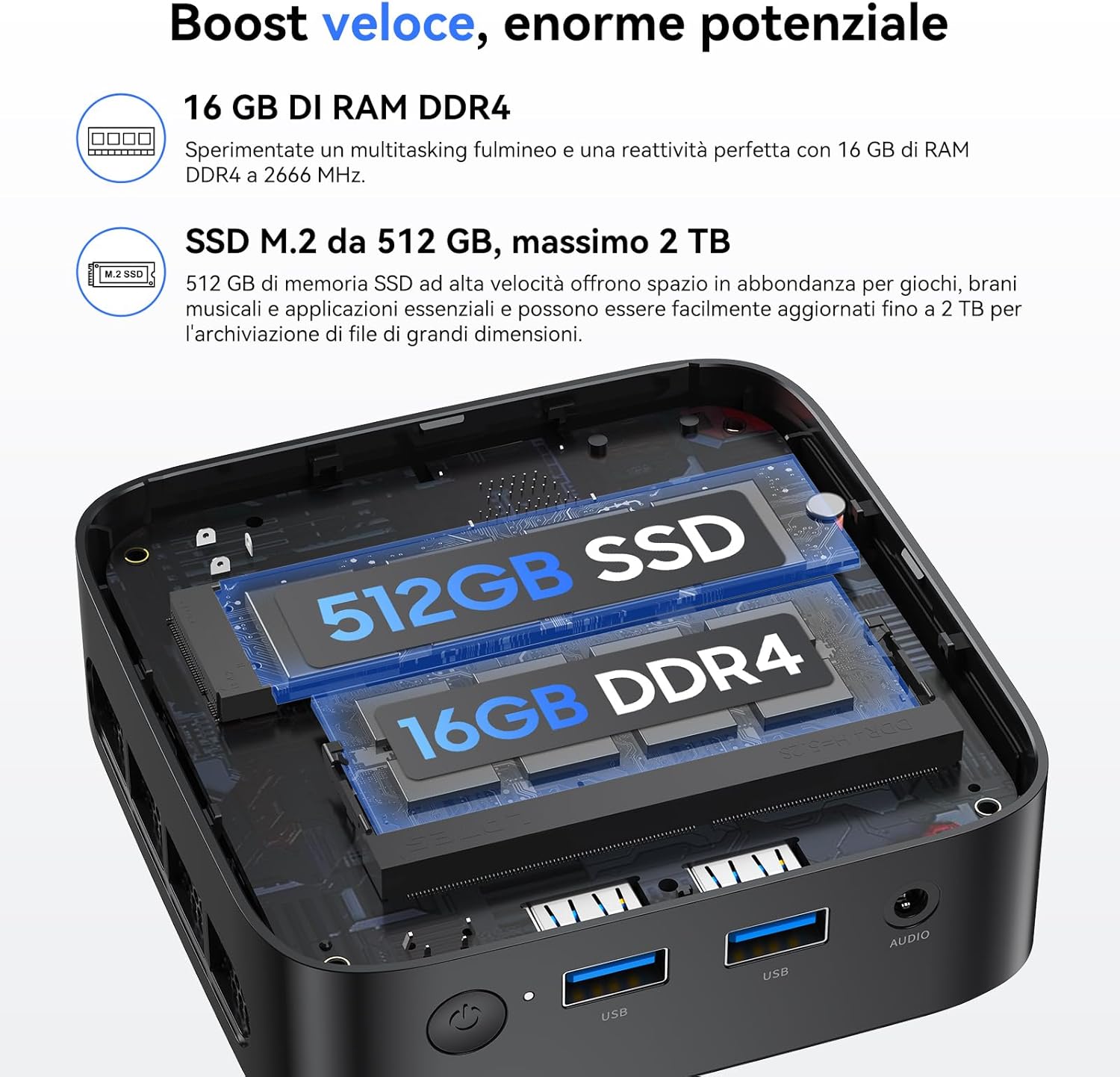
Image: Internal view of the Huidun H50 Mini PC, showing the 16GB DDR4 RAM and 512GB M.2 SSD, with space for additional storage expansion.
6. Maintenance
6.1 Cleaning
Regularly clean the exterior of the Mini PC with a soft, dry cloth. Ensure ventilation openings are free from dust to maintain optimal cooling performance. Do not use liquid cleaners or aerosols directly on the device.
6.2 Software Updates
Keep your Windows 11 Pro operating system and drivers updated to ensure system stability, security, and performance. Windows updates can be managed via Settings > Windows Update.
7. Troubleshooting
This section addresses common issues you might encounter.
- No Power:
- Ensure the power adapter is securely connected to both the Mini PC and a working wall outlet.
- Test the outlet with another device.
- No Display:
- Verify that the HDMI/DP cable is securely connected to both the Mini PC and the monitor.
- Ensure the monitor is powered on and set to the correct input source (HDMI/DP).
- Try a different HDMI/DP cable or monitor if available.
- No Internet Connection:
- For Wi-Fi, check if Wi-Fi is enabled in Windows settings and if you are connected to the correct network with the right password.
- For wired connection, ensure the Ethernet cable is properly connected and your router is functioning.
- Slow Performance:
- Close unnecessary applications running in the background.
- Ensure Windows and drivers are up to date.
- Check for sufficient free storage space on the SSD.
8. Specifications
Detailed technical specifications for the Huidun H50 Mini PC.
| Feature | Specification |
|---|---|
| Processor | Intel Twin Lake N150 (4C/4T, up to 3.6GHz, 6MB Smart Cache) |
| RAM | 16 GB DDR4 |
| Storage | 512 GB M.2 SSD (Expandable up to 2 TB via M.2 NGFF/SATA) |
| Graphics | Intel UHD Graphics, 4K@60Hz UHD |
| Display Output | 1 x HDMI 2.0, 1 x DisplayPort (DP) (Dual Display Support) |
| Wireless Connectivity | Wi-Fi 6 (802.11ax), Bluetooth 5.2 |
| Wired Connectivity | 1 x RJ45 Gigabit Ethernet |
| USB Ports | 2 x USB 3.0, 2 x USB 2.0 |
| Other Ports | 1 x DC Power Input, 1 x Audio Jack, 1 x Security Lock Slot |
| Operating System | Windows 11 Pro |
| Dimensions | 100mm x 100mm x 35.2mm |
| Weight | 265g |
| Cooling | Efficient and Silent Fan System (<38dB) |
9. Warranty and Support
The Huidun H50 Mini PC comes with a 3-year warranty and lifetime technical support. For any technical issues or inquiries, please contact Huidun customer service. Contact information can typically be found on the product packaging or the official Huidun website.
Related documentsH50 N150


Ask a question about this manual
Ask about setup, troubleshooting, compatibility, parts, safety, or missing instructions. Manuals+ will review the question and use this page’s manual context to help answer it.