
1. Introduction
This manual provides essential information for the safe and efficient use of your DigiLand 11-inch Android 14 Tablet. Please read this manual thoroughly before operating the device and retain it for future reference.
2. Safety Information
- Do not expose the tablet to extreme temperatures, direct sunlight, or high humidity.
- Avoid dropping or subjecting the tablet to severe impact.
- Use only the charger and charging cable provided by the manufacturer.
- Do not attempt to disassemble or repair the tablet yourself. Refer to qualified service personnel.
- Keep the tablet away from water and other liquids.
3. Package Contents
Verify that all items are present in your package:
- DigiLand R11 Tablet
- R11 Stand Case
- Charger (Power Adapter)
- Charging Cable
- User Manual

Image: Contents of the DigiLand R11 Tablet package, showing the tablet, stand case, charger, charging cable, and user manual.
4. Device Layout
Familiarize yourself with the physical components of your DigiLand 11-inch Android Tablet.

Image: Front and back view of the DigiLand 11-inch Android Tablet, showcasing its design and key features like the screen and rear camera module.
Key Components:
- 11-inch HD IPS Display: Main screen for interaction and content viewing.
- Front Camera (8MP): Located on the front bezel, used for video calls and selfies.
- Rear Camera (13MP): Located on the back of the tablet, for capturing photos and videos.
- Power Button: Used to turn the tablet on/off or put it to sleep/wake it up.
- Volume Buttons: Adjust the audio volume.
- USB Type-C Port: For charging and data transfer.
- Speaker Grilles: For audio output.
- MicroSD Card Slot: For expanding storage.
5. Setup
5.1 Charging the Tablet
Before first use, fully charge your tablet. Connect the provided USB Type-C cable to the tablet's charging port and the other end to the power adapter. Plug the adapter into a wall outlet. The battery indicator on the screen will show charging status.

Image: The DigiLand tablet connected to a charger, showing the battery charging icon and indicating its 7000mAh capacity.
5.2 Powering On/Off
- To Power On: Press and hold the Power button until the DigiLand logo appears.
- To Power Off: Press and hold the Power button until the power options appear on the screen. Select "Power off."
- To Restart: Press and hold the Power button until the power options appear. Select "Restart."
5.3 Initial Setup
Upon first power-on, the tablet will guide you through the initial setup process:
- Select your preferred language.
- Connect to a Wi-Fi network.
- Sign in with your Google account or create a new one. This is necessary to download apps from the Google Play Store.
- Review and accept the terms and conditions.
- Set up screen lock (PIN, pattern, or password) for security.
5.4 Inserting a MicroSD Card
To expand storage, insert a MicroSD card (up to 256GB, not included) into the designated slot. Ensure the tablet is powered off before inserting or removing the card.

Image: A visual representation of the tablet's memory capabilities, including RAM, internal storage, and MicroSD card expansion.
6. Operating the Tablet
6.1 Basic Navigation
The tablet uses touch gestures for navigation:
- Tap: Select an item or open an app.
- Swipe: Scroll through pages or menus.
- Pinch: Zoom in or out on images and web pages.
- Long Press: Access contextual menus or move app icons.
6.2 Wi-Fi Connectivity
- Go to Settings > Network & internet > Wi-Fi.
- Toggle Wi-Fi On.
- Select your desired network from the list and enter the password if prompted.
6.3 Bluetooth Pairing
- Go to Settings > Connected devices > Bluetooth.
- Toggle Bluetooth On.
- The tablet will scan for available devices. Select the device you wish to pair with and follow any on-screen prompts.
6.4 Using the Cameras
The tablet features an 8MP front camera and a 13MP rear camera.

Image: Demonstrates the tablet's dual camera functionality, with examples of a landscape photo taken by the 13MP rear camera and a video call using the 8MP front camera.
- Open the Camera app.
- Tap the camera icon to switch between front and rear cameras.
- Tap the shutter button to take a photo or start/stop video recording.
6.5 Split Screen & Screen Mirroring
- Split Screen: To use two apps simultaneously, open an app, then swipe up from the bottom of the screen and hold to access recent apps. Long-press the app icon at the top of the app window and select "Split screen." Choose a second app to open in the other half of the screen.
- Screen Mirroring: To cast your tablet's screen to a compatible display (e.g., smart TV), go to Settings > Connected devices > Connection preferences > Cast. Select your desired display device.
6.6 App Management
Your tablet comes with Google Mobile Services (GMS) certified, allowing full access to the Google Play Store.
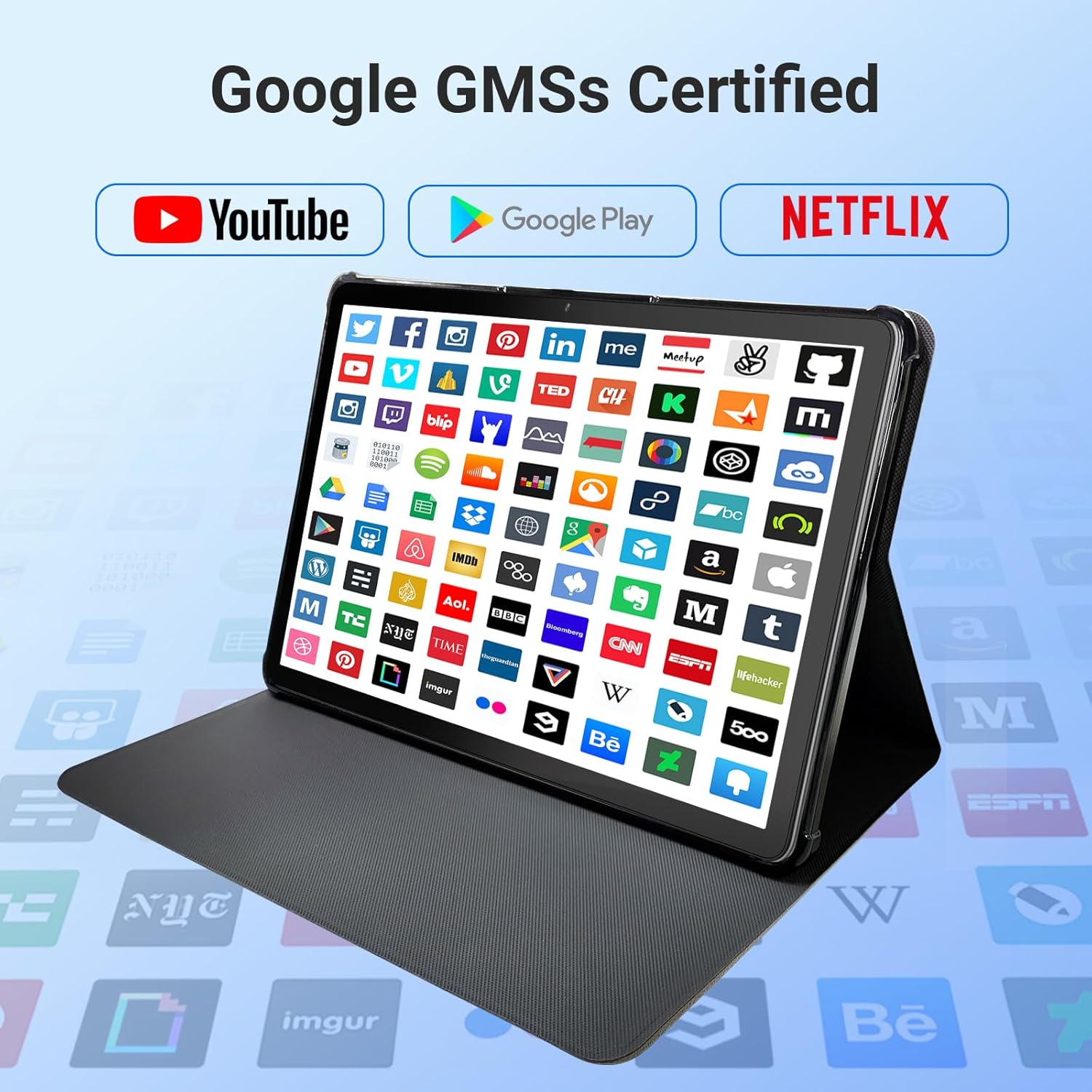
Image: The tablet screen showing numerous app icons, confirming Google GMS certification and access to popular services like YouTube and Netflix.
- Install Apps: Open the Google Play Store app, search for your desired app, and tap "Install."
- Uninstall Apps: Long-press the app icon on the home screen or app drawer, then drag it to "Uninstall" or select "App info" and choose "Uninstall."
7. Maintenance
7.1 Cleaning the Device
Use a soft, lint-free cloth to clean the screen and body of the tablet. Do not use abrasive cleaners or solvents.
7.2 Software Updates
Periodically check for system updates to ensure optimal performance and security:
- Go to Settings > System > System update.
- Follow the on-screen instructions to download and install any available updates.
7.3 Storage Management
To manage your tablet's storage:
- Go to Settings > Storage.
- Here you can see storage usage and free up space by uninstalling apps, deleting files, or clearing cache data.
8. Troubleshooting
If you encounter issues with your tablet, refer to the following common solutions:
| Problem | Solution |
|---|---|
| Tablet does not turn on | Ensure the battery is charged. Connect the charger and wait a few minutes before attempting to power on again. If unresponsive, perform a force restart by holding the power button for 10-15 seconds. |
| Wi-Fi connection issues | Check if Wi-Fi is enabled in settings. Restart your router and the tablet. Forget the network and reconnect. |
| Slow performance | Close unused apps. Clear app caches (Settings > Apps > [App Name] > Storage > Clear cache). Free up storage space. Restart the tablet. |
| Apps crashing or freezing | Update the app to the latest version. Clear the app's cache and data (Settings > Apps > [App Name] > Storage). Uninstall and reinstall the app. |
| Screen unresponsive | Restart the tablet. If the issue persists, contact customer support. |
9. Specifications
Detailed technical specifications for the DigiLand 11-inch Android 14 Tablet (Model MID1109-MX):
| Feature | Specification |
|---|---|
| Brand | DigiLand |
| Model Name | R11 |
| Item Model Number | MID1109-MX |
| Operating System | Android 14 |
| Screen Size | 11 Inches |
| Screen Resolution | 1280x800 Pixels (HD IPS) |
| Processor | 8-Core, 2 GHz (MediaTek) |
| RAM | 12 GB LPDDR4X |
| Internal Storage (ROM) | 128 GB |
| Expandable Storage | Up to 256GB via MicroSD (TF Card) |
| Graphics Coprocessor | Mali-G52 |
| Rear Webcam Resolution | 13 MP |
| Front Webcam Resolution | 8 MP |
| Wireless Type | 802.11a/b/g/n/ac (Dual-band 2.4G/5G Wi-Fi) |
| Bluetooth | Bluetooth 5.0 |
| Battery | 7000mAh Lithium Polymer |
| Average Battery Life | Up to 15 Hours (8 hours HD video playback) |
| Item Weight | 1.32 pounds |
| Product Dimensions | 10.16 x 6.69 x 0.32 inches |
| Color | Gray |
10. Warranty and Support
Your DigiLand tablet is covered by a manufacturer's warranty. Please refer to the warranty card included in your package for specific terms and conditions. For technical support, product inquiries, or warranty claims, please visit the official DigiLand website or contact their customer service department.
DigiLand Official Website: Visit DigiLand Store on Amazon