
1. Introduction
This manual provides detailed instructions for setting up, operating, maintaining, and troubleshooting your Huidun H50 Mini PC. Please read this manual thoroughly before using the device to ensure optimal performance and longevity.

Figure 1: Huidun H50 Mini PC Overview
2. Package Contents
Please check the package contents upon unboxing. If any items are missing or damaged, contact customer support.
- 1 x Huidun H50 Mini PC
- 1 x Power Adapter
- 1 x HDMI Cable
- 1 x User Manual (this document)
- 1 x VESA Mount with Screws
- 3-Year Warranty Card
3. Physical Overview
3.1. Device Dimensions and Design
The Huidun H50 Mini PC features an ultra-compact design, measuring approximately 10 x 10 x 3.5 cm, making it highly space-efficient.

Figure 2: Compact Size Comparison
3.2. Port Layout
The Mini PC is equipped with a comprehensive set of ports for various connectivity needs.

Figure 3: Front and Rear Port Layout
- Front Ports: Power Button, 2x USB 3.2 ports, Audio In/Out Jack.
- Rear Ports: Ethernet LAN, Security Lock, HDMI 2.0 (4K@60Hz), DisplayPort 1.4 (4K@60Hz), 2x USB 2.0 ports, DC Power Jack.
4. Setup Instructions
4.1. Connecting Peripherals
- Connect Display: Use the provided HDMI cable or a DisplayPort cable to connect your monitor(s) to the HDMI 2.0 or DisplayPort 1.4 ports on the rear of the Mini PC. The device supports dual 4K@60Hz displays.
- Connect Keyboard and Mouse: Plug your USB keyboard and mouse into the available USB ports (USB 3.2 on the front or USB 2.0 on the rear).
- Connect Network (Optional): For a wired internet connection, connect an Ethernet cable to the LAN port. For wireless, ensure your WiFi 5 is enabled (see Operating Instructions).
- Connect Audio (Optional): If using external speakers or headphones, connect them to the Audio In/Out Jack on the front.
4.2. Powering On
- Connect Power Adapter: Plug the power adapter into the DC Power Jack on the rear of the Mini PC, then plug the adapter into a power outlet.
- Power On: Press the Power Button located on the front of the Mini PC. The system will boot up automatically.
4.3. VESA Mount Installation (Optional)
The Huidun H50 Mini PC can be mounted behind a VESA-compatible monitor using the included VESA mount and screws.
- Attach the VESA mount bracket to the back of your monitor using the provided screws.
- Slide the Mini PC onto the VESA mount until it clicks securely into place.

Figure 4: VESA Mount Installation
5. Operating Instructions
5.1. Initial Boot and Windows 11 Pro Setup
Your Huidun H50 Mini PC comes with Windows 11 Pro pre-installed. Follow the on-screen prompts to complete the initial Windows setup, including language, region, network connection, and user account creation.

Figure 5: Windows 11 Pro Desktop
5.2. Dual Display Configuration
To utilize the dual display feature, connect two monitors to the HDMI and DisplayPort outputs. Windows 11 Pro will automatically detect both displays. You can configure display settings (extend, duplicate, primary display) via:
- Right-click on the desktop and select "Display settings".
- Navigate to Settings > System > Display.

Figure 6: Dual Display Setup
5.3. Wireless Connectivity (Wi-Fi and Bluetooth)
The Mini PC supports Wi-Fi 5 and Bluetooth 4.2 for wireless connections.
- Wi-Fi: To connect to a wireless network, click the Wi-Fi icon in the taskbar, select your network, and enter the password.
- Bluetooth: To pair Bluetooth devices (e.g., headphones, keyboard, mouse), go to Settings > Bluetooth & devices and follow the pairing instructions.
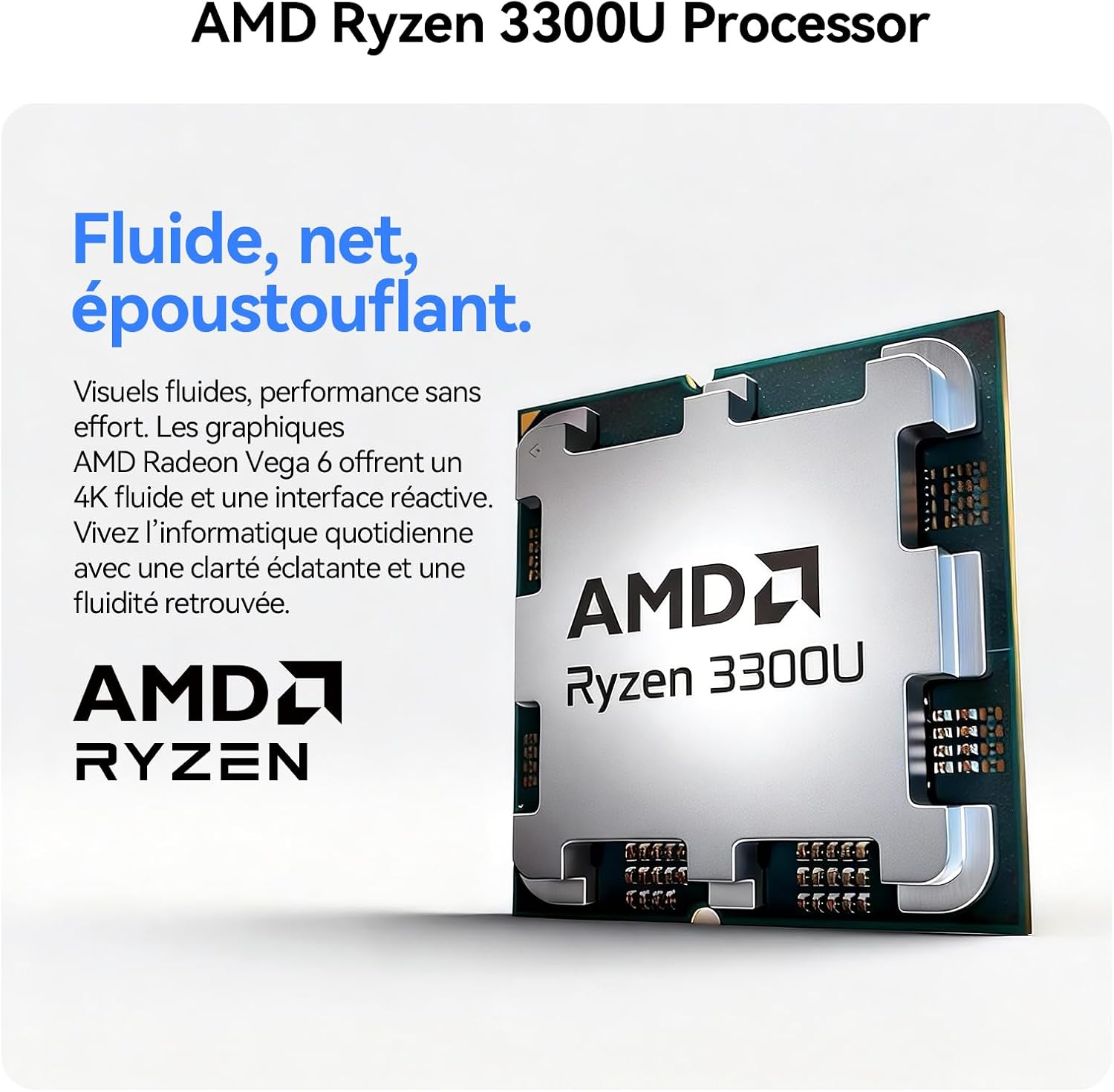
Figure 7: Wireless Connectivity
6. Maintenance
6.1. Cleaning
- Ensure the Mini PC is powered off and unplugged before cleaning.
- Use a soft, dry cloth to wipe the exterior.
- For dust accumulation in vents, use compressed air. Do not insert objects into the vents.
6.2. Cooling System
The Huidun H50 features an intelligent cooling system with copper tubes and a fan to ensure stable and silent operation.
- Ensure proper airflow around the device. Do not block the ventilation openings.
- Avoid operating the Mini PC in excessively hot or dusty environments.

Figure 8: Advanced Cooling System
6.3. Storage and RAM Upgradability
The Huidun H50 Mini PC allows for easy upgrades of RAM and SSD storage to adapt to future needs. Refer to the detailed upgrade guide (if available separately) or contact technical support for assistance.
7. Troubleshooting
If you encounter issues with your Huidun H50 Mini PC, please refer to the following common solutions:
| Problem | Possible Cause / Solution |
|---|---|
| No Power |
|
| No Display Output |
|
| No Wi-Fi Connection |
|
| Slow Performance |
|
If the problem persists, please contact Huidun technical support for further assistance.
8. Technical Specifications
| Feature | Detail |
|---|---|
| Brand | Huidun |
| Model Name | Huidun H50 Mini PC |
| Operating System | Windows 11 Pro |
| CPU Model | AMD Ryzen 3 3300U |
| CPU Speed | 3.7 GHz |
| CPU Cores | 4 |
| Graphics Coprocessor | Radeon Vega 6 (Integrated) |
| Installed RAM | 8 GB DDR4 |
| Memory Speed | 2400 MHz |
| Storage Capacity | 256 GB SSD (M.2, upgradable) |
| Cache Size | 6 MB |
| Video Output Interface | HDMI 2.0, DisplayPort 1.4 (Dual 4K@60Hz support) |
| Max Display Resolution | 3840 x 2160 (4K) |
| Connectivity | Wi-Fi 5 (802.11a/b/g/n/ac), Bluetooth 4.2, Ethernet (LAN) |
| USB Ports | 2x USB 3.2, 2x USB 2.0 (Total 4) |
| Audio Output | Audio In/Out Jack |
| Cooling Method | Air (Copper tube + Fan) |
| Dimensions | 10 x 10 x 3.5 cm |
| Power Plug Type | Type E/F – 2 pins (Hybrid EU) |
| Certifications | CE, FCC |
9. Warranty and Support
9.1. Warranty Information
The Huidun H50 Mini PC comes with a 3-year warranty from the date of purchase. This warranty covers manufacturing defects and malfunctions under normal use. Please retain your proof of purchase for warranty claims.
9.2. Technical Support
Huidun offers lifetime technical support for your Mini PC. If you encounter any issues or have questions not covered in this manual, please contact our customer service team.
- For support, please refer to the contact information provided on the warranty card or the official Huidun website.
- When contacting support, please have your product model (Huidun H50 Mini PC) and purchase details ready.

Figure 9: Huidun Global Support